
Are you frustrated with WiFi dead zones in your smart home? You’ve invested in a mesh WiFi system, but some rooms still struggle to get a strong signal.
Imagine controlling your smart devices seamlessly, streaming without buffering, and having every corner of your home connected effortlessly. This guide will show you simple, effective ways to expand your mesh WiFi coverage. By the end, you’ll know exactly how to boost your network’s reach and enjoy a smarter, smoother connected home experience.
Keep reading—your perfect WiFi solution is just ahead.
Choosing The Right Mesh System
Expanding your mesh wifi coverage is key for a smart home. Picking the right system makes a big difference. It helps keep all your devices connected with strong signals.
Look at the types of mesh systems, features, and device compatibility. This guide will help you find the best fit for your home network.
Types Of Mesh Wifi Systems
There are three main types of mesh wifi systems. Each one works differently to spread wifi signals around your home.
- Single-band systems:Use one frequency band for all connections. They are simple but may slow down with many devices.
- Dual-band systems:Use two frequency bands. One band connects nodes, and the other connects devices for better speed.
- Tri-band systems:Add a third band just for node communication. This keeps device speeds high even with many users.
Key Features To Look For
| Feature | Why It Matters |
| Coverage Area | Ensures wifi reaches every corner of your home |
| Number of Nodes | More nodes cover larger homes and remove dead spots |
| Speed | Affects how fast devices can download and upload data |
| Security | Protects your network from unauthorized access |
| App Control | Makes setup and management easy on your phone |
Compatibility With Smart Devices
Your mesh system must work well with all your smart home gadgets. This includes lights, cameras, speakers, and thermostats.
- Check if the system supports the wifi standards your devices use.
- Look for systems that handle many connected devices without lag.
- Choose mesh networks compatible with your smart home hubs and apps.
- Consider systems with good range for devices spread across rooms.

Credit: www.mercku.com
Optimal Router Placement
Good router placement is key to strong mesh WiFi in your smart home. It helps cover all rooms well.
Placing your router in the right spot reduces weak signals and keeps devices connected.
Identifying Signal Dead Zones
Dead zones are areas with no or very weak WiFi signals in your home. These spots cause slow or lost connections.
Walk around your house with a phone or laptop. Check signal strength in each room to find these zones.
- Use WiFi analyzer apps to measure signal strength
- Look for spots with slow internet or no connection
- Test near walls, corners, and far rooms
Ideal Locations For Nodes
Place mesh nodes where they get a strong signal from the main router. This keeps the network fast and reliable.
Nodes work best in open areas, not inside cabinets or behind thick walls.
- Put nodes halfway between the router and dead zones
- Keep nodes at a similar height, like on shelves or tables
- Avoid placing nodes too close or too far from each other
Avoiding Interference
WiFi signals can get weaker from interference. This comes from other electronics and building materials.
Keep your router and nodes away from devices that use radio waves or metal objects.
- Avoid placing routers near microwaves, cordless phones, or baby monitors
- Stay away from thick walls, metal doors, and mirrors
- Use higher channels on your router to reduce overlap with neighbors
Adding And Configuring Nodes
Expanding your mesh wifi network improves coverage in every corner of your smart home. Adding nodes helps spread the wifi signal evenly.
Configuring each node correctly ensures smooth connection and better speed for all your devices.
Expanding Your Network Step-by-step
First, place the new node where the wifi signal is still strong but near the area with weak coverage. Plug it in and turn it on.
Next, connect the node to your main router or existing mesh network. Wait until the indicator light shows it is linked properly. This can take a few minutes.
- Choose a spot halfway between the router and dead zones
- Power on the node and wait for startup
- Link the node to your main mesh network
- Check indicator lights for connection status
Using Mobile Apps For Setup
Most mesh wifi systems come with mobile apps to make setup easy. Open the app and follow the prompts to add a new node.
The app guides you through naming the node, placing it correctly, and connecting it to your home network. It also tests the signal strength.
- Download the mesh system app on your phone
- Log in and select “Add Node” or similar option
- Follow on-screen instructions to place and connect the node
- Use app tools to check connection quality
Firmware Updates And Maintenance
Keep your mesh nodes updated with the latest firmware. Updates fix bugs and improve performance and security.
Use the mobile app or the system’s web interface to check for updates regularly. Restart nodes after updating to apply changes.
- Check for firmware updates monthly
- Use app notifications to stay informed
- Restart nodes after updates
- Clean nodes and keep them in open spaces
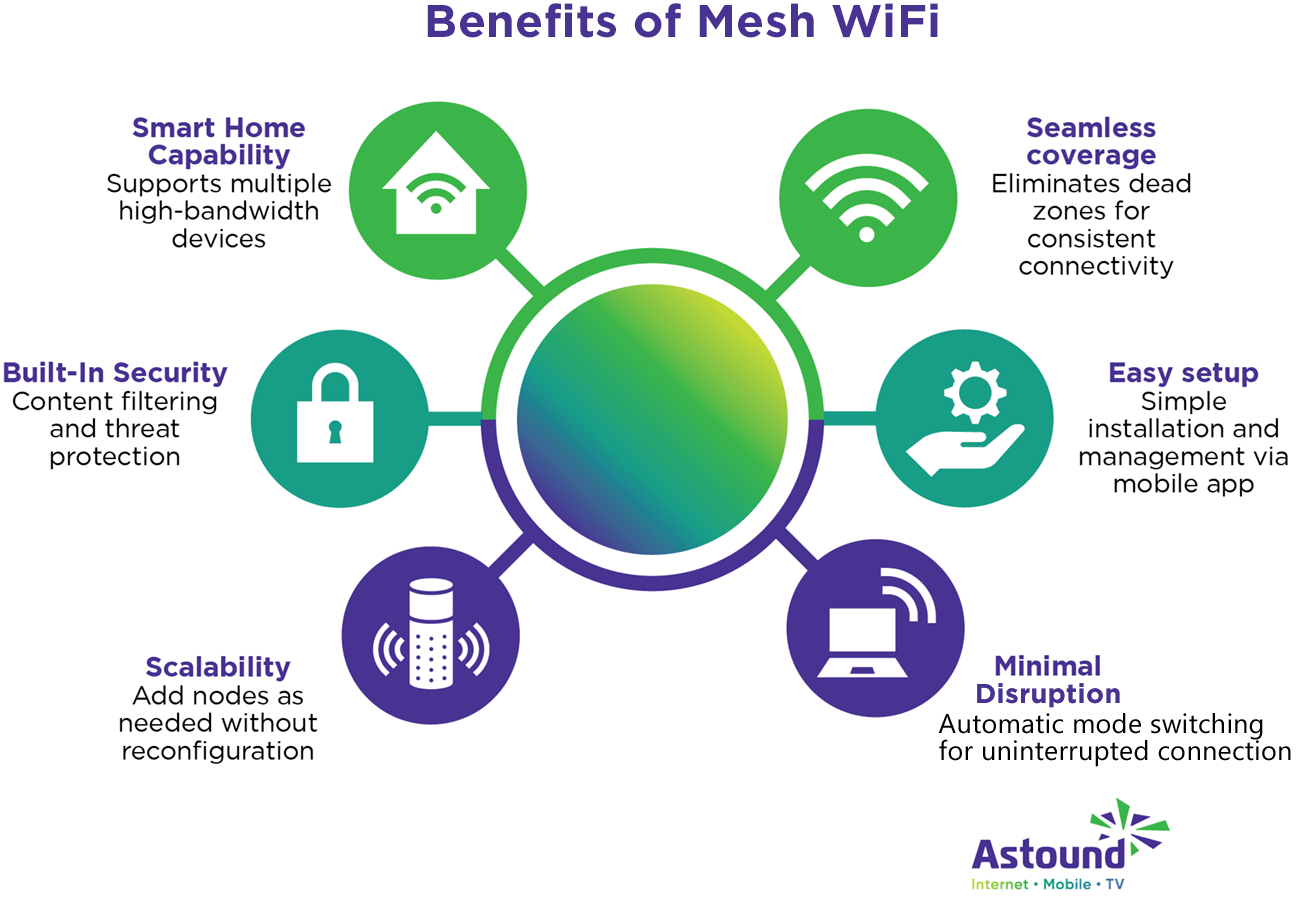
Credit: www.astound.com
Boosting Signal Strength
Strong wifi signals improve your smart home experience. You get faster speeds and fewer dropouts. There are simple ways to boost your mesh wifi coverage.
This guide covers key methods to strengthen your mesh wifi signal. Learn about extenders, antenna settings, and channel choices to get better coverage.
Using Range Extenders Vs. Additional Nodes
Range extenders and nodes both increase wifi coverage. Extenders catch and repeat your existing signal. Nodes create new points for your mesh network.
- Range Extenders:Easy to set up and cheaper. Best for small gaps in coverage.
- Additional Nodes:Work better in large homes. Provide more stable and faster connections.
- Placement:Place extenders or nodes halfway between your router and weak signal areas.
- Compatibility:Use nodes from the same mesh system for best results.
Adjusting Antenna And Power Settings
Adjusting your router’s antenna and power settings can improve signal reach. Many mesh routers let you change these settings in the admin panel.
| Setting | Effect |
| Antenna Direction | Point antennas toward the area needing better coverage |
| Transmit Power | Increase power to boost signal range but watch for interference |
| Beamforming | Focus signal on active devices for stronger connections |
Channel Selection Tips
Choosing the right wifi channel reduces interference. This helps keep your smart home devices connected without drops.
Try these tips for channel selection:
- Use a wifi analyzer app to find less crowded channels.
- Switch between 2.4 GHz and 5 GHz bands based on device needs.
- Avoid channels used by many neighbors.
- Update router firmware to get the latest channel optimization features.
Integrating Smart Home Devices
Smart home devices need strong WiFi to work well. Expanding mesh WiFi coverage helps keep all devices connected.
Good integration makes your smart home more reliable and easy to control from anywhere.
Ensuring Seamless Connectivity
Place mesh WiFi nodes near your smart devices. This helps avoid weak signals and dropped connections.
Use WiFi extenders or additional nodes in rooms with many devices. Check signal strength regularly to fix dead zones.
- Set up mesh nodes in key device areas
- Test WiFi speed and signal often
- Avoid placing nodes near metal or thick walls
Prioritizing Bandwidth For Critical Devices
Smart home hubs and security cameras need steady internet. Give them priority to avoid slowdowns.
Use your mesh WiFi’s Quality of Service (QoS) settings. This lets you choose which devices get more bandwidth.
- Identify devices that need constant connection
- Set higher priority for security and control devices
- Limit bandwidth for less important gadgets
Managing Device Access
Control which devices can connect to your mesh WiFi. This stops unknown gadgets from slowing your network.
Use the router’s device management tools to allow or block devices. Set time limits for guest devices if needed.
- Review connected devices regularly
- Block unknown or unused devices
- Set schedules for guest WiFi access

Credit: www.youtube.com
Troubleshooting Common Issues
Expanding your mesh WiFi coverage improves your smart home experience. Sometimes, issues arise that need fixing.
Common problems include connection drops, slow speeds, and node configuration errors. These can be resolved with simple steps.
Resolving Connection Drops
Connection drops can be frustrating. Checking the placement of your nodes is important. Ensure nodes are not too far apart.
Interference from other devices can cause drops. Minimize interference by placing nodes away from microwaves and cordless phones.
- Move nodes closer to each other
- Avoid placing nodes near large metal objects
- Reboot your router if issues persist
Handling Slow Speeds
Slow speeds can affect your smart home devices. Check if too many devices are connected. Disconnect any unnecessary devices.
Ensure your nodes have the latest firmware updates. These updates can improve performance.
- Limit the number of active devices
- Update firmware regularly
- Use Ethernet cables for stationary devices
Resetting And Reconfiguring Nodes
Sometimes, nodes need resetting. This can solve many issues. Begin by resetting the nodes to factory settings.
After resetting, reconfigure your nodes. Follow the setup instructions provided by the manufacturer.
- Press the reset button on each node
- Follow the setup guide to reconfigure
- Ensure all nodes are properly connected
Advanced Tips For Large Homes
Mesh WiFi systems are essential for smart homes. They ensure strong connections in every room. Large homes need special strategies to optimize coverage.
This guide provides advanced tips. Learn how to improve your mesh WiFi for large spaces. Discover ways to keep every device connected.
Using Wired Backhaul Connections
Wired backhaul connections help improve WiFi performance. They connect mesh nodes using ethernet cables. This reduces wireless interference.
Install ethernet cables throughout your home. Connect each mesh node directly to these cables. This setup ensures stable and fast WiFi.
- Reduces wireless congestion
- Provides faster data transfer
- Improves network reliability
Leveraging Mesh System Features
Mesh systems come with useful features. Use them to enhance coverage in large homes. Features like band steering and device prioritization are important.
Band steering moves devices to the best frequency band. Prioritization ensures key devices get the bandwidth they need. Enable these features in your mesh system settings.
- Band steering for optimal device connections
- Device prioritization for critical devices
- Guest networks for visitors
Planning For Future Expansion
Think ahead about your home’s tech needs. Plan your mesh network to allow future expansions. This ensures your system grows with your smart home.
Choose a mesh system that supports adding more nodes. This flexibility allows you to cover new areas as needed. Keep your home ready for more devices.
- Select scalable mesh systems
- Consider future smart devices
- Prepare for smart home upgrades
Frequently Asked Questions
How Do I Improve Mesh Wifi Coverage At Home?
Place mesh nodes in open areas and avoid thick walls. Keep nodes evenly spaced to ensure strong signal overlap and reduce dead zones.
Can I Add More Nodes To My Mesh Wifi System?
Yes, adding more nodes expands coverage. Ensure new nodes are compatible and placed to optimize signal strength and minimize interference.
What Affects Mesh Wifi Signal Strength Indoors?
Thick walls, metal objects, and electronic devices can weaken signals. Position nodes away from obstructions for better performance.
Is Ethernet Backhaul Beneficial For Mesh Wifi?
Yes, Ethernet backhaul provides stable connections between nodes. It reduces wireless interference and improves overall network speed and reliability.
Conclusion
Expanding your mesh WiFi coverage makes your smart home work better. Place nodes where signal is weak or walls block it. Use wired connections if possible for stronger links. Keep firmware updated to improve performance and security. Test your network often to find and fix dead spots.
Small changes bring big improvements in coverage and speed. Enjoy smoother streaming, faster devices, and fewer connection drops. A well-planned mesh system helps all your smart devices stay connected. Easy steps lead to a more reliable home WiFi network.


