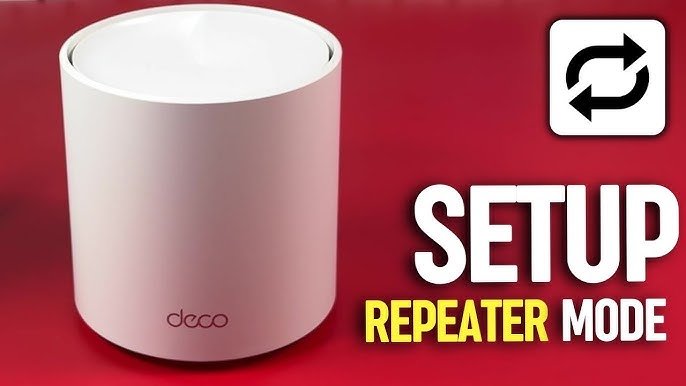
Are you struggling with weak Wi-Fi in some parts of your home? Adding an extra node to your TP-Link Deco system can boost your signal and give you fast, reliable internet everywhere.
It’s easier than you might think, and you don’t need to be a tech expert to do it. In this guide, you’ll discover simple steps to expand your network quickly and enjoy seamless connectivity from room to room. Keep reading, and you’ll have your Wi-Fi working perfectly in no time.
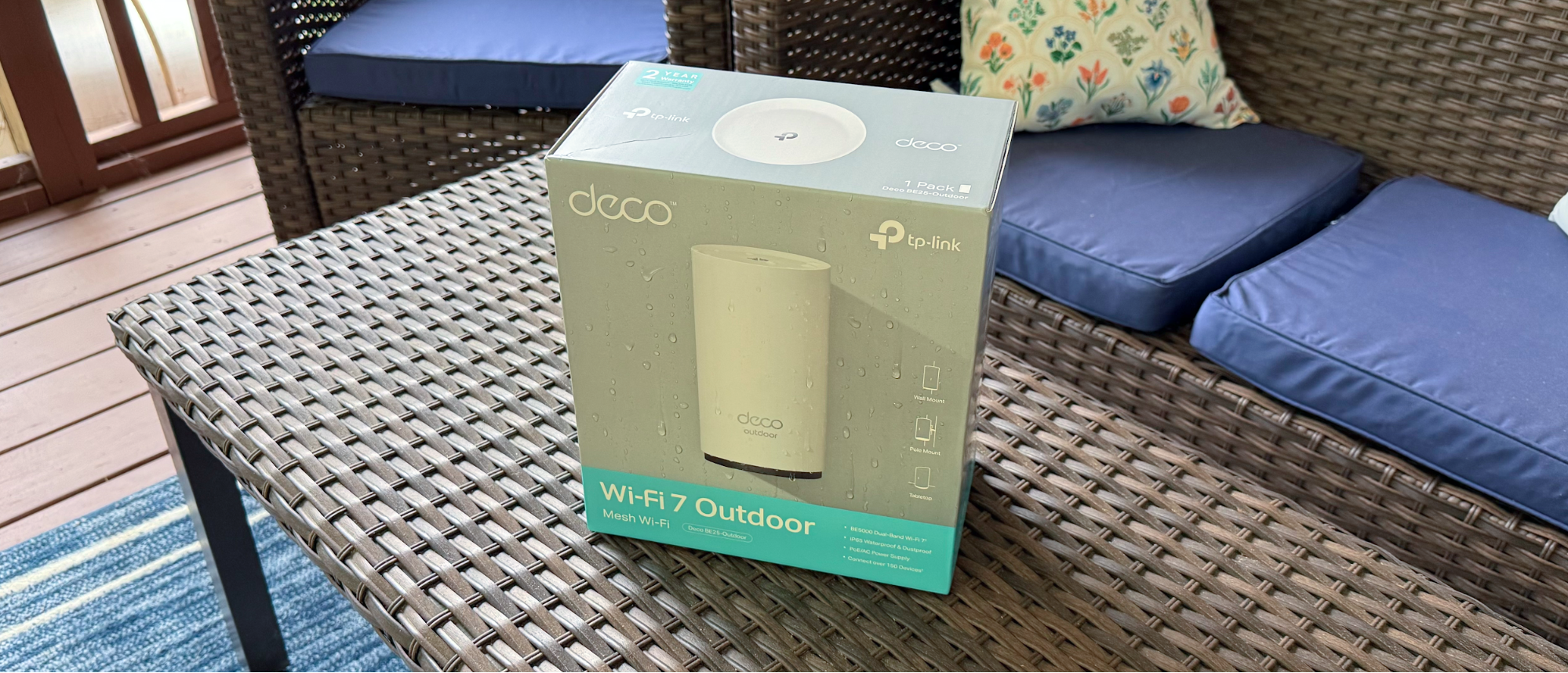
Credit: www.tomshardware.com
Benefits Of Adding Extra Deco Node
Adding an extra Deco node helps improve your home WiFi network. It extends coverage and makes your connection more stable.
This guide explains key benefits you get from adding another Deco device to your system.
Improved Wifi Coverage
Adding an extra Deco node increases the WiFi range. It covers areas with weak or no signal.
- Eliminates dead zones in large or multi-story homes
- Supports more devices over a wider area
- Provides stronger signals in outdoor spaces
Enhanced Network Stability
Extra Deco nodes help keep your network steady. They reduce dropouts and slow speeds.
| Benefit | How It Helps |
| Load Sharing | Distributes devices evenly among nodes |
| Signal Strength | Boosts signal to avoid interruptions |
| Backup Connection | Automatically switches if one node fails |
Seamless Roaming Experience
Extra Deco nodes create smooth roaming. Your device connects to the best node automatically.
- Walk around your home without losing WiFi signal
- Enjoy uninterrupted video calls and streaming
- Connect to the fastest node near you without manual changes
Preparing Your Deco System
Adding an extra node to your Tp-Link Deco system helps expand your Wi-Fi coverage. Before adding a new node, you need to prepare your current setup properly.
This guide covers important steps to get your Deco system ready for a new node. Follow these steps to avoid common problems.
Checking Compatibility
Make sure the new node works well with your existing Deco devices. Different models might not connect properly.
Check the model number and generation of your current Deco system. Use the same model or a compatible one for the new node.
- Look at your current Deco model in the app or on the device
- Find the new node’s model number on the box or manual
- Confirm compatibility on Tp-Link’s official website
Updating Firmware
Keep your Deco system updated to ensure the best performance. Firmware updates fix bugs and add new features.
Update all your existing Deco nodes before adding a new one. This helps avoid connection issues and improves stability.
- Open the Deco app on your phone
- Go to the system settings or firmware section
- Check for updates and install any available updates
- Restart your Deco devices after updating
Choosing Optimal Node Placement
Placing the new node in the right spot improves your Wi-Fi coverage and speed. Avoid placing it too far or too close to your main Deco.
Choose a location with a clear line of sight and few obstacles. Walls and large metal objects can block the signal.
- Place the node halfway between your main Deco and dead Wi-Fi zones
- Keep it away from microwaves and cordless phones
- Place on a shelf or table, not on the floor
- Avoid enclosed spaces like cabinets or drawers
Step-by-step Setup Process

Credit: www.youtube.com
Troubleshooting Common Issues
Adding an extra node to your Tp-Link Deco can improve your network. Sometimes, problems occur during setup or use. This guide helps you fix common issues fast.
Follow these tips if your new node does not connect, your network runs slow, or the app gives errors. Each section covers easy solutions.
Node Not Connecting
If your new Deco node does not connect, check distance and power first. The node needs to be close enough to the main unit and plugged in properly.
- Place the node within 30 feet of the main Deco.
- Make sure the node is powered on and the LED light is blinking.
- Restart both the main Deco and the new node.
- Reset the new node by holding the reset button for 10 seconds.
- Try adding the node again in the app.
Slow Network Speeds
Slow speeds can happen if the node or main Deco faces interference. Wireless signals can weaken from walls or devices.
| Cause | Fix |
| Too far from main Deco | Move node closer to main unit |
| Many walls between nodes | Place nodes in open areas |
| Interference from other devices | Keep nodes away from microwaves and cordless phones |
| Old firmware | Update Deco firmware via app |
App Setup Problems
If the app does not let you add a node, check your phone and internet connection. The app needs a good connection to work.
- Close and reopen the Deco app.
- Restart your phone.
- Ensure your phone is connected to the main Deco Wi-Fi.
- Check for app updates in your app store.
- Log out and log back into the app.
Tips For Optimizing Your Mesh Network
Adding an extra node to your TP-Link Deco can improve your Wi-Fi coverage. Optimizing your mesh network helps keep a strong and stable connection. Use simple tips to get the best performance from your setup.
This guide covers key ways to improve your mesh network. Follow these tips for a smoother internet experience at home or work.
Regular Firmware Updates
Keep your Deco devices updated with the latest firmware. Updates fix bugs and add new features that improve network stability and speed.
- Check for updates in the Deco app regularly
- Enable automatic updates if available
- Restart devices after updating to apply changes
Strategic Node Placement
Place your nodes to cover all areas without overlap. Avoid walls and metal objects that block signals. Keep nodes in open spaces for better reach.
| Placement Tip | Reason |
|---|---|
| Place nodes high, like on shelves | Reduces interference from furniture |
| Keep nodes 30 feet apart | Ensures strong signal overlap |
| Avoid thick walls and appliances | Prevents signal loss |
Managing Device Connections
Limit the number of devices connected to each node. Too many devices slow down the network. Prioritize devices that need faster speeds.
- Disconnect unused devices
- Group devices by usage type
- Use Quality of Service (QoS) settings to prioritize

Credit: www.reddit.com
Frequently Asked Questions
How Do I Add An Extra Node To Tp-link Deco?
To add an extra node, open the Deco app, select “Add a Deco,” and follow the on-screen setup instructions. Place the new node within range of your main unit for optimal performance.
Can I Use Different Tp-link Deco Models Together?
Yes, Tp-Link Deco models are compatible and can work together seamlessly. Ensure all nodes run the latest firmware for the best mesh network experience.
Where Should I Place The New Deco Node?
Place the new node halfway between your main Deco and the area with weak Wi-Fi. Avoid obstacles like walls and metal objects to maintain strong signals.
Do I Need To Reset My Deco Before Adding A New Node?
No, resetting your existing Deco units is not necessary. Simply add the new node using the app, which will integrate it into your existing mesh network.
Conclusion
Adding an extra node to your TP-Link Deco is simple and helpful. It makes your Wi-Fi reach every corner of your home. Just follow the steps carefully, and your network will be stronger. Enjoy faster internet and fewer dead zones.
Keep your devices connected without trouble. This small change can improve your daily online experience. Try it today and feel the difference in your Wi-Fi coverage.


