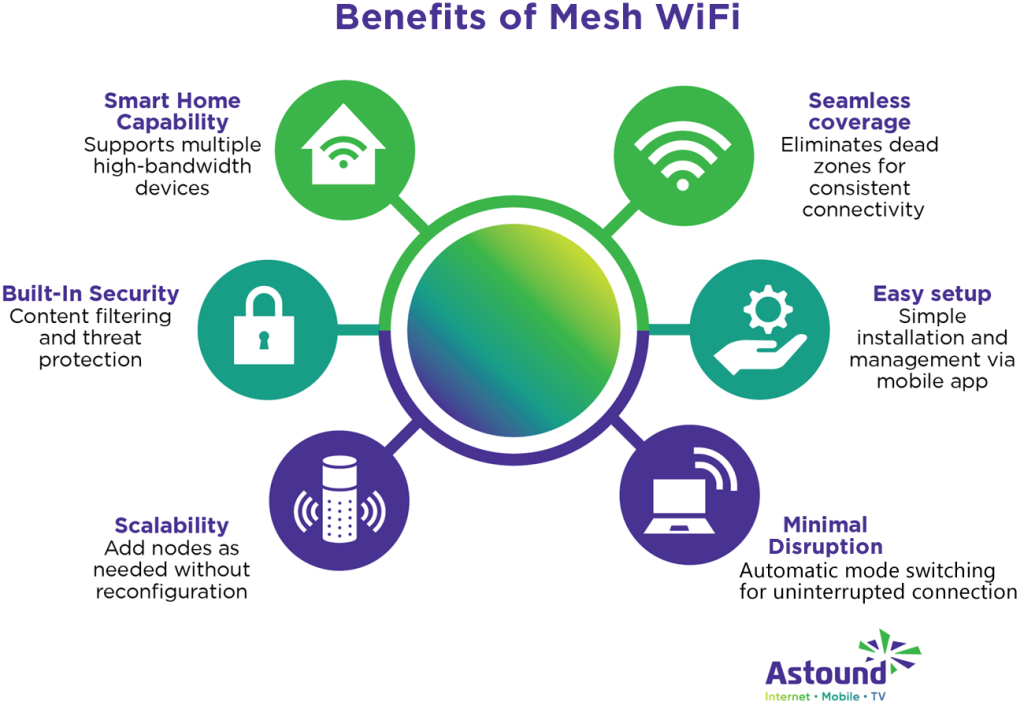
Are you frustrated with slow internet or dead zones in your smart home? Your mesh WiFi system is supposed to keep every device connected seamlessly, but sometimes it just doesn’t deliver.
The good news is, you don’t have to settle for spotty signals or dropped connections. With a few smart tweaks, you can boost your mesh WiFi to work faster and reach every corner of your home. Keep reading, and you’ll discover simple, effective ways to improve your mesh WiFi so all your smart devices stay connected without interruption.
Mesh Wifi Basics
Mesh wifi systems help spread wireless internet across your home. They use multiple devices to create one big network.
This setup is useful for smart homes with many connected devices. It keeps your wifi signal strong everywhere.
How Mesh Wifi Works
Mesh wifi uses several nodes. These nodes talk to each other to share the internet signal.
- One node connects to your modem
- Other nodes spread out around your home
- Nodes send data between each other
- Devices connect to the nearest node for best signal
Benefits For Smart Homes
Smart homes use many devices like cameras, lights, and speakers. Mesh wifi helps all these devices work well.
| Benefit | Why It Helps |
| Better coverage | Strong wifi in every room |
| Easy setup | Nodes connect automatically |
| More devices | Supports many smart devices at once |
| Stable connection | Less wifi dropouts or slowdowns |

Credit: helpcentre.primus.ca
Optimizing Router Placement
Good placement of your mesh WiFi router can boost your smart home’s internet. It helps all devices get strong signals. This guide shows where to put your nodes and how to avoid interference.
Follow simple tips to make your mesh network work better. Small changes in location can improve speed and coverage.
Ideal Locations For Nodes
Place mesh nodes where they get clear signals and cover key areas. Avoid spots hidden behind thick walls or under furniture.
- Keep nodes in open spaces, like living rooms or hallways.
- Place nodes high, such as on shelves or tables.
- Keep nodes away from large metal objects or mirrors.
- Space nodes evenly to cover all rooms without overlap.
- Place a node near your main router for a strong link.
Avoiding Signal Interference
Interference can slow down your WiFi or cause drops. Electronic devices and building materials often block signals.
| Source of Interference | Impact on Signal | How to Avoid |
|---|---|---|
| Microwaves | Interrupt 2.4 GHz signals | Keep nodes away from kitchen areas |
| Thick Walls | Block or weaken WiFi signals | Place nodes in open rooms or hallways |
| Bluetooth Devices | Cause signal overlap | Use 5 GHz band when possible |
| Metal Objects | Reflect or absorb signals | Keep nodes clear of metal shelves or appliances |
| Wireless Phones | Create noise on WiFi channels | Change router channel settings |
Upgrading Hardware
Improving your mesh WiFi starts with better hardware. Old devices can slow your network. Upgrading helps smart home devices work smoothly.
Choosing the right mesh system and adding extra nodes can boost your WiFi range and speed. This guide explains these upgrades.
Choosing The Right Mesh System
Select a mesh system that fits your home size and device count. Look for systems with good range and fast speeds.
- Check the coverage area to match your home size.
- Choose systems that support many devices at once.
- Look for dual-band or tri-band options for faster connections.
- Consider systems with easy setup and app control.
Adding Extra Nodes
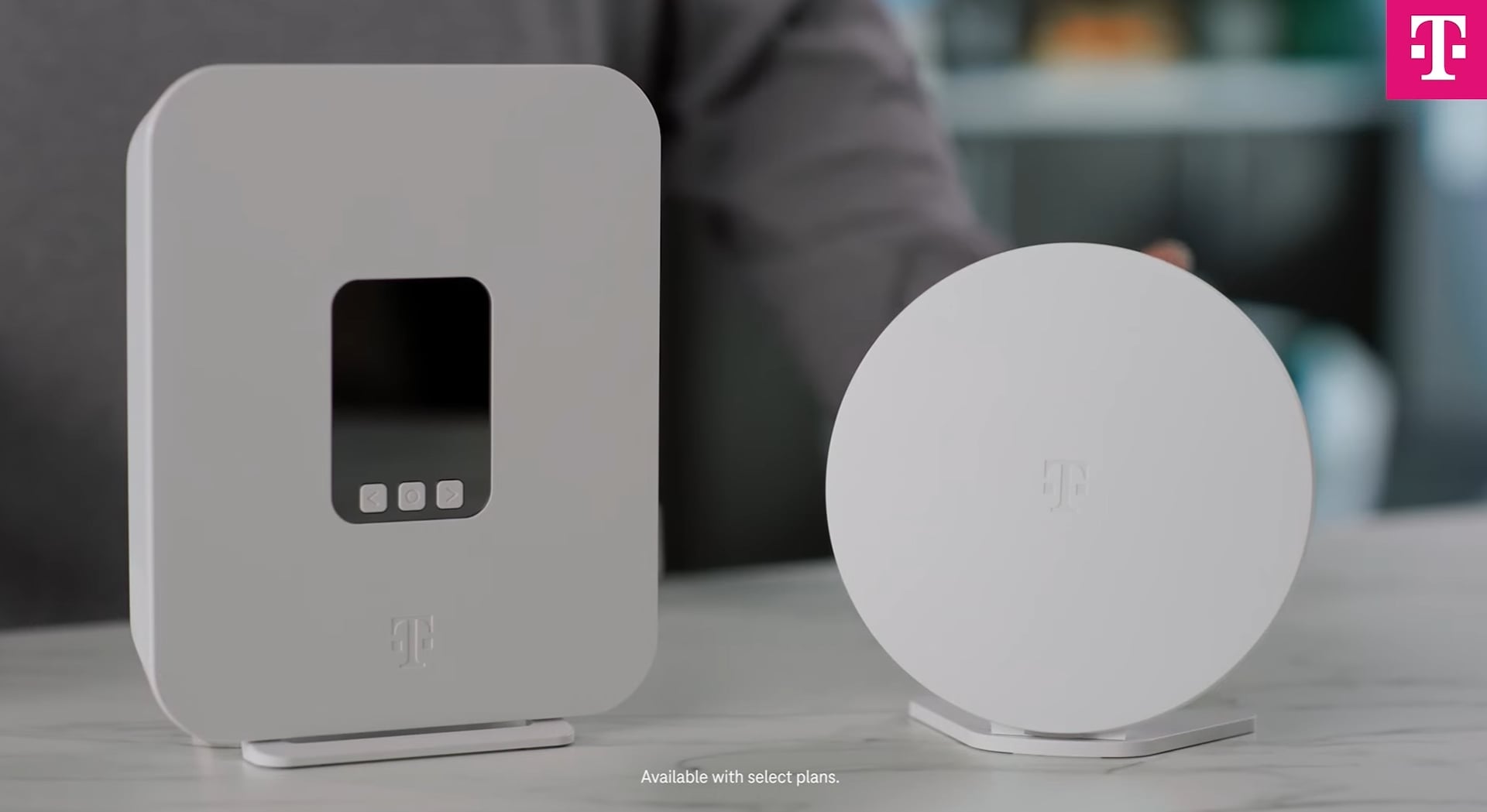
Extra nodes increase WiFi coverage in larger homes. Place nodes where the signal is weak for better performance.
| Node Placement | Purpose |
| Near smart home hubs | Ensure stable connections |
| In large rooms | Extend WiFi range |
| Close to high-use devices | Improve speed and reliability |
Credit: www.t-mobile.com
Firmware And Software Updates
Keeping your mesh WiFi system updated helps it run smoothly. Updates fix bugs and add new features.
Smart home devices rely on strong WiFi. Updated firmware and software improve speed and security.
Keeping Devices Updated
Check your mesh WiFi devices regularly for updates. Install firmware updates as soon as they are available.
Updates fix security problems and improve connection quality. Old firmware can cause slow or unstable WiFi.
- Go to your router’s settings page
- Look for the firmware update section
- Download and install any new updates
- Restart your devices after updating
Using Management Apps
Management apps help you control your mesh WiFi system easily. They show update alerts and let you update devices fast.
Use the app to monitor your network and schedule updates. This keeps your smart home running without interruptions.
- Download the app from your mesh WiFi brand
- Log in with your router account
- Check for firmware and software updates
- Install updates with one tap
- Set automatic update notifications
Network Configuration Tips
Good network setup helps your mesh WiFi work better for your smart home. You can change settings to get faster and more stable connections.
Simple changes in your network settings can reduce delays and keep devices connected smoothly. Focus on key areas like SSIDs and traffic control.
Setting Up Separate Ssids
Separate SSIDs let you divide your WiFi into different networks. You can create one for smart devices and another for phones or computers.
This helps your smart home devices stay connected without interference from other traffic. It also makes managing devices easier.
- Use one SSID for smart home devices only
- Assign another SSID for personal devices like phones
- Keep SSIDs simple and easy to remember
- Set strong passwords for each network
Configuring Quality Of Service
Quality of Service (QoS) lets you control how your WiFi handles traffic. You can give priority to smart home devices to avoid delays.
With QoS, important devices get faster speeds and better connection stability. This keeps smart devices working smoothly during busy times.
- Enable QoS in your router’s settings
- Set high priority for smart home devices
- Lower priority for less important devices
- Test changes to check network performance
Credit: www.pocket-lint.com
Smart Home Device Management
Managing smart home devices can boost your mesh WiFi performance. Efficient management ensures each device operates smoothly.
Prioritizing critical devices and reducing network congestion are key steps to improve your smart home connectivity.
Prioritizing Critical Devices
Some devices in your home need more bandwidth than others. Prioritize these critical devices for optimal performance.
- Identify essential devices like security cameras and smart TVs.
- Use your router’s settings to prioritize these devices.
- Ensure these devices have a strong and stable connection.
Reducing Network Congestion
Too many devices can slow down your network. Reducing congestion helps maintain speed and reliability.
Consider using these strategies to minimize congestion:
- Disconnect devices not in use.
- Limit high-bandwidth activities during peak times.
- Upgrade to a higher bandwidth plan if necessary.
Security Enhancements
Mesh WiFi systems are great for smart homes. They offer wide coverage and stable connections. But security is vital to protect your devices.
Enhancing security ensures that your network stays safe. Let’s explore some key practices.
Securing Network Access
Restricting access to your network is crucial. Only trusted devices should connect. This keeps unauthorized users out.
- Enable WPA3 encryption for stronger security.
- Set up a guest network for visitors.
- Disable WPS to prevent easy access.
- Monitor connected devices regularly.
- Use a firewall to block threats.
Regular Password Updates
Passwords are your first line of defense. Updating them regularly is important. It reduces the risk of unauthorized access.
- Use at least 12 characters.
- Mix letters, numbers, and symbols.
- Avoid common words and phrases.
- Change passwords every three months.
Troubleshooting Common Issues
Mesh WiFi networks help cover your home with strong internet signals. Sometimes, smart home devices face connection problems. Troubleshooting can fix these issues quickly.
This guide shows how to find weak spots and reset mesh nodes to improve your smart home’s WiFi.
Identifying Dead Zones
Dead zones are areas in your home with little or no WiFi signal. Devices in these spots may lose connection or work slowly. Finding these zones helps you fix coverage gaps.
- Walk around your home with a phone or laptop connected to WiFi.
- Check signal strength using your device’s WiFi settings.
- Note rooms or corners where the signal is weak or drops.
- Look for physical barriers like walls, floors, or furniture blocking signals.
- Test smart devices in different spots to see where they lose connection.
Resetting And Rebooting Mesh Nodes
Mesh nodes may need a reset or reboot to fix connection problems. This refreshes the network and clears minor errors. Use these methods safely.
| Action | How to Do It | Effect |
| Reboot Node | Unplug node, wait 10 seconds, plug back in | Restarts device, clears temporary glitches |
| Soft Reset | Use app to restart node without losing settings | Refreshes connection, keeps setup intact |
| Factory Reset | Press reset button for 10 seconds until light blinks | Resets node to default, removes all settings |
Frequently Asked Questions
How Can I Boost Mesh Wifi Signal Strength At Home?
Place mesh nodes strategically, avoiding obstructions and interference. Use high locations and maintain optimal distance between nodes. Regularly update firmware for best performance and consider adding more nodes for larger areas.
What Devices Benefit Most From Improved Mesh Wifi?
Smart home devices like cameras, thermostats, and speakers benefit most. Enhanced mesh WiFi ensures stable connections, faster speeds, and reduced latency for seamless operation of these devices.
How Often Should I Update Mesh Wifi Firmware?
Update firmware every few months or when notified by the manufacturer. Firmware updates improve security, fix bugs, and enhance network performance, keeping your mesh WiFi reliable and efficient.
Can Mesh Wifi Prevent Smart Home Device Disconnects?
Yes, mesh WiFi provides consistent coverage and strong signals. This reduces disconnects caused by weak signals, ensuring your smart devices stay connected and function smoothly throughout your home.
Conclusion
Improving your mesh WiFi helps your smart home work better. Place nodes where signals reach every corner. Keep your devices updated for smooth connections. Avoid obstacles that block WiFi signals. Regularly check your internet speed to find problems. Small steps can make a big difference.
Enjoy faster, more stable WiFi all around your home. Easy changes bring better smart home experiences. Try these tips to keep your network strong.


