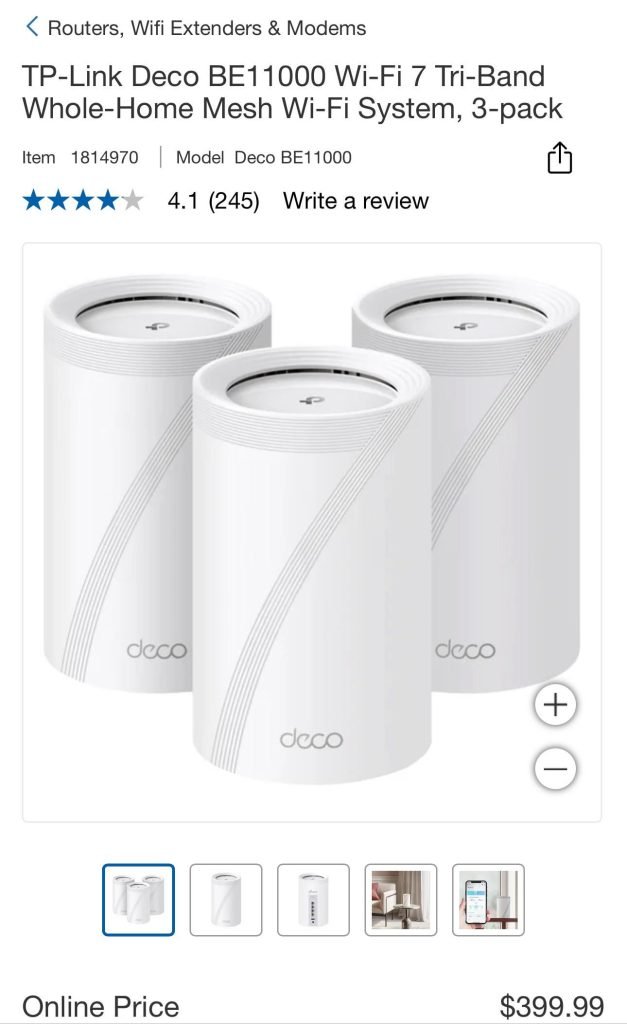
Are you tired of slow WiFi spots and constant buffering at home? Getting a mesh WiFi system under $200 can be a game-changer for your internet experience.
But setting it up right is key to unlocking fast, reliable coverage in every corner. In this guide, you’ll discover simple, proven installation tips that save you time and frustration. Keep reading to turn your home into a seamless WiFi zone without breaking the bank.
Your devices—and your patience—will thank you.

Credit: www.youtube.com
Choosing Budget Mesh Wifi
Mesh wifi systems improve internet coverage at home. You can find good options under $200.
Picking a budget mesh wifi means balancing price and performance. It is important to check features carefully.
Top Models Under $200
Several mesh wifi models offer good speed and coverage under $200. These models fit most homes.
- TP-Link Deco M4 – Easy setup and stable connection
- Google Nest Wifi Router (single unit) – Strong coverage for small homes
- Netgear Orbi RBK13 – Good speed and simple controls
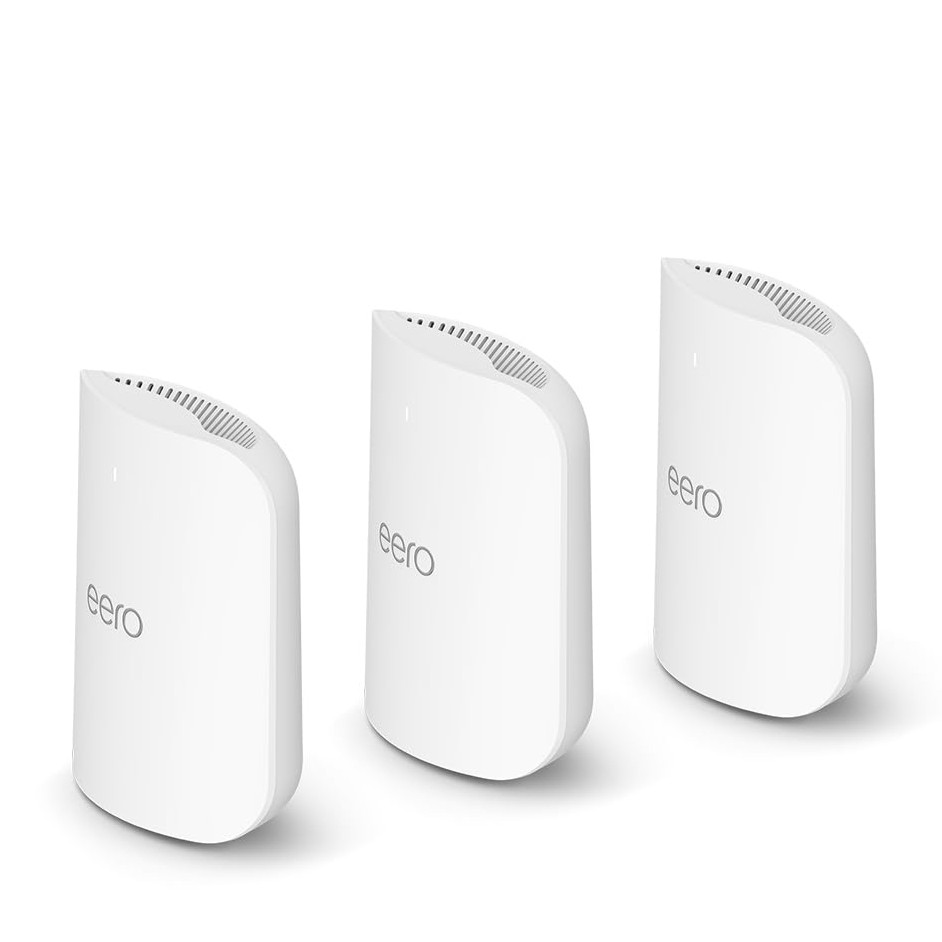
- Amazon eero 6 – Supports wifi 6 at a low price
Key Features To Consider
Look at speed, coverage, and device support when choosing mesh wifi. These affect your experience.
- WiFi standard (WiFi 5 or WiFi 6) for faster speeds
- Coverage area to match your home size
- Number of units included for better signal
- Ease of setup and app controls
- Compatibility with your internet provider
Brand Comparisons
Brands differ in features, price, and support. Choose a brand with good reviews and updates.
| Brand | Strengths | Weaknesses |
|---|---|---|
| TP-Link | Affordable, easy to use, good coverage | Basic features, average speed |
| Google Nest | Good user interface, stable connection | Higher price for single units |
| Netgear | Fast speeds, strong signal | Setup can be complex for beginners |
| Amazon eero | Supports wifi 6, simple app | Limited advanced settings |

Credit: www.cnet.com
Preparing For Installation
Setting up a mesh WiFi system under $200 needs some planning. You should prepare well to make the installation easy and effective.
Good preparation helps you avoid problems and get the best WiFi coverage in your home.
Checking Your Internet Setup
Check your current internet connection before installing mesh WiFi. Know where your modem and router are placed.
Make sure your internet service is working well. This helps the mesh system work correctly from the start.
- Locate your modem and check cables
- Test your internet speed for stability
- Note where your main router is placed
- Ensure your internet plan meets your needs
Tools And Equipment Needed
Gather all tools and equipment before starting installation. This saves time and avoids interruptions.
You will need some basic items to set up your mesh WiFi nodes and connect them properly.
- Mesh WiFi system kit
- Ethernet cables (usually included)
- Power outlets near node locations
- Smartphone or computer for setup
- Optional: Ladder for high placements
Planning Node Placement
Think about where to place mesh nodes for the best WiFi coverage. Good placement improves signal strength.
Place nodes where WiFi signals can travel without many walls or obstacles in the way.
- Start with one node near your modem/router
- Place others in main rooms or areas with weak WiFi
- Avoid placing nodes near metal objects or microwaves
- Keep nodes within range of each other
- Use open spaces, not inside cabinets or behind furniture
Step-by-step Setup
Setting up a mesh WiFi system under $200 is simple. This guide helps you connect your devices quickly.
Follow each section carefully to improve your home network coverage and speed.
Connecting The Main Router
Start by placing your main router near your modem. Connect the router to the modem using an Ethernet cable.
Plug the router into power and wait for the lights to turn stable. This means the router is ready.
Adding Additional Nodes
Place the additional nodes where the WiFi signal is weak but still reachable from the main router.
- Power on the node
- Use the mesh app or button to sync with the main router
- Check the node’s light to confirm connection
- Repeat for other nodes in your home
Configuring Network Settings
| Setting | Description |
|---|---|
| Network Name (SSID) | Choose a unique name for your WiFi network |
| Password | Set a strong password to protect your network |
| Frequency Band | Select 2.4 GHz for range or 5 GHz for speed |
| Guest Network | Enable to allow visitors to connect safely |
Access your router’s settings page via the app or web browser. Change the settings as needed.
Optimizing Performance
Mesh WiFi systems under $200 offer good coverage. To get the best speed and connection, you need to optimize their settings.
Small changes can improve your WiFi experience. Focus on updates, channel choice, and device management.
Firmware Updates
Keep your mesh WiFi system’s firmware updated. Updates fix bugs and add new features that improve speed and stability.
Check for updates regularly in the system’s app or website. Set automatic updates if the option is available.
Channel Selection
WiFi channels can get crowded in busy areas. Choosing a less busy channel helps reduce interference and speed up your connection.
Use apps or tools to find the best channel. Most mesh systems let you change channels in their settings.
- 2.4 GHz band: Choose channels 1, 6, or 11 to avoid overlap
- 5 GHz band: Pick channels with less traffic for faster speeds
- Auto channel selection can work but manual choice is often better
Managing Device Connections
Too many devices on your mesh network can slow it down. Limit the number of connected devices for better speed.
Prioritize important devices and disconnect those not in use. Some mesh systems allow you to set device priorities.
- Disconnect unused devices regularly
- Use guest networks for visitors’ devices
- Set bandwidth limits on less important devices if possible
Troubleshooting Tips
Mesh WiFi systems under $200 offer good coverage but may face setup challenges.
These tips help fix common problems and keep your network running smoothly.
Common Setup Issues
Sometimes, mesh nodes do not connect or show weak signals. Slow speeds or no internet can happen too.
- Check if nodes are too far from the main router.
- Make sure all devices use the latest firmware.
- Confirm the password and network name match on all nodes.
- Disable any conflicting routers or extenders nearby.
Resetting And Reconfiguring
If your mesh WiFi is not working well, try resetting the devices. This clears errors and restores default settings.
| Reset Method | Description | When to Use |
|---|---|---|
| Soft Reset | Restart device via app or power cycle | Minor issues or slow connections |
| Factory Reset | Press reset button for 10 seconds | Persistent connection problems or forgotten password |
When To Contact Support
Contact support if problems continue after resets and checks. They can guide you through complex fixes.
- If firmware updates fail repeatedly.
- If nodes fail to connect despite correct settings.
- If you notice hardware damage or overheating.
- If your internet provider confirms no service issues.
Maintaining Your Mesh Network
Mesh WiFi systems under $200 are great for home use. Keeping them running smoothly requires regular care.
Here are some tips to maintain your mesh network. They help ensure a stable and fast connection.
Regular Updates
Updating your mesh WiFi system is important. Updates fix bugs and improve performance.
Check the manufacturer’s website for updates. Install them as they become available.
- Set auto-updates if available
- Check for firmware updates monthly
- Restart devices after updates
Monitoring Network Health
Monitoring helps keep your network in good shape. Use the app that comes with your mesh system.
Check for devices that use too much data. Identify and fix any connectivity issues.
- Check signal strength regularly
- Identify slow devices
- Look for interference sources
Expanding Your System Later
As your needs grow, you might expand your mesh network. Adding more nodes can improve coverage.
Ensure new nodes are compatible with your existing system. Place them strategically for best results.
- Choose nodes from the same brand
- Place nodes at equal distances
- Avoid physical obstructions
Credit: www.tomsguide.com
Frequently Asked Questions
What Is The Best Mesh Wifi Under $200?
The best mesh WiFi under $200 balances speed, coverage, and ease of setup. Brands like TP-Link and Netgear offer reliable, budget-friendly options with strong signal strength and user-friendly apps.
How Do I Set Up Mesh Wifi At Home?
To set up mesh WiFi, place the main node near your modem. Connect it via Ethernet, then add satellite nodes in dead zones. Use the app for guided installation and network optimization.
Can Mesh Wifi Improve Home Internet Speed?
Yes, mesh WiFi improves speed by reducing dead zones and evenly distributing signals. It ensures stable connections, especially in large homes or multi-story buildings.
Where Should I Place Mesh Wifi Nodes?
Place mesh nodes in open areas between the router and dead zones. Avoid walls or metal objects that block signals. Proper placement ensures maximum coverage and performance.
Conclusion
Choosing a mesh WiFi under $200 can improve your home internet. Follow simple steps for easy installation and strong signals. Place nodes in open spaces for better coverage. Restart devices to fix connection issues quickly. Test your network speed after setup to ensure success.
A smooth installation saves time and frustration. Enjoy faster internet with fewer dead zones. Keep these tips in mind for a reliable WiFi system.


