Are you tired of slow internet and dropped connections when using your smart devices? Your mesh WiFi system can do a lot more to keep every gadget in your home running smoothly.
Optimizing your mesh WiFi isn’t as complicated as it sounds — with a few simple steps, you can boost speed, improve coverage, and enjoy seamless streaming, gaming, and smart home control. Keep reading, and you’ll discover easy ways to get the most out of your mesh network and make your smart devices work better than ever.
Mesh Wifi Basics
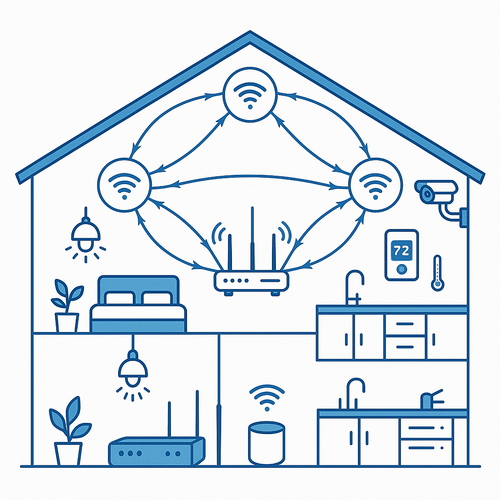
Mesh wifi systems spread internet coverage using multiple devices. They work together to cover large areas.
This system helps reduce dead zones and keeps your smart devices connected smoothly.
What Is Mesh Wifi
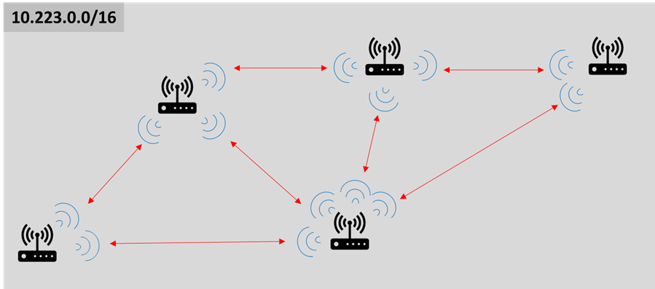
Mesh wifi uses several nodes to create one network. Each node acts as a router, sharing internet signals.
- Nodes communicate with each other automatically
- They create a strong and stable connection
- Easy to expand by adding more nodes
- Works well in homes of any size
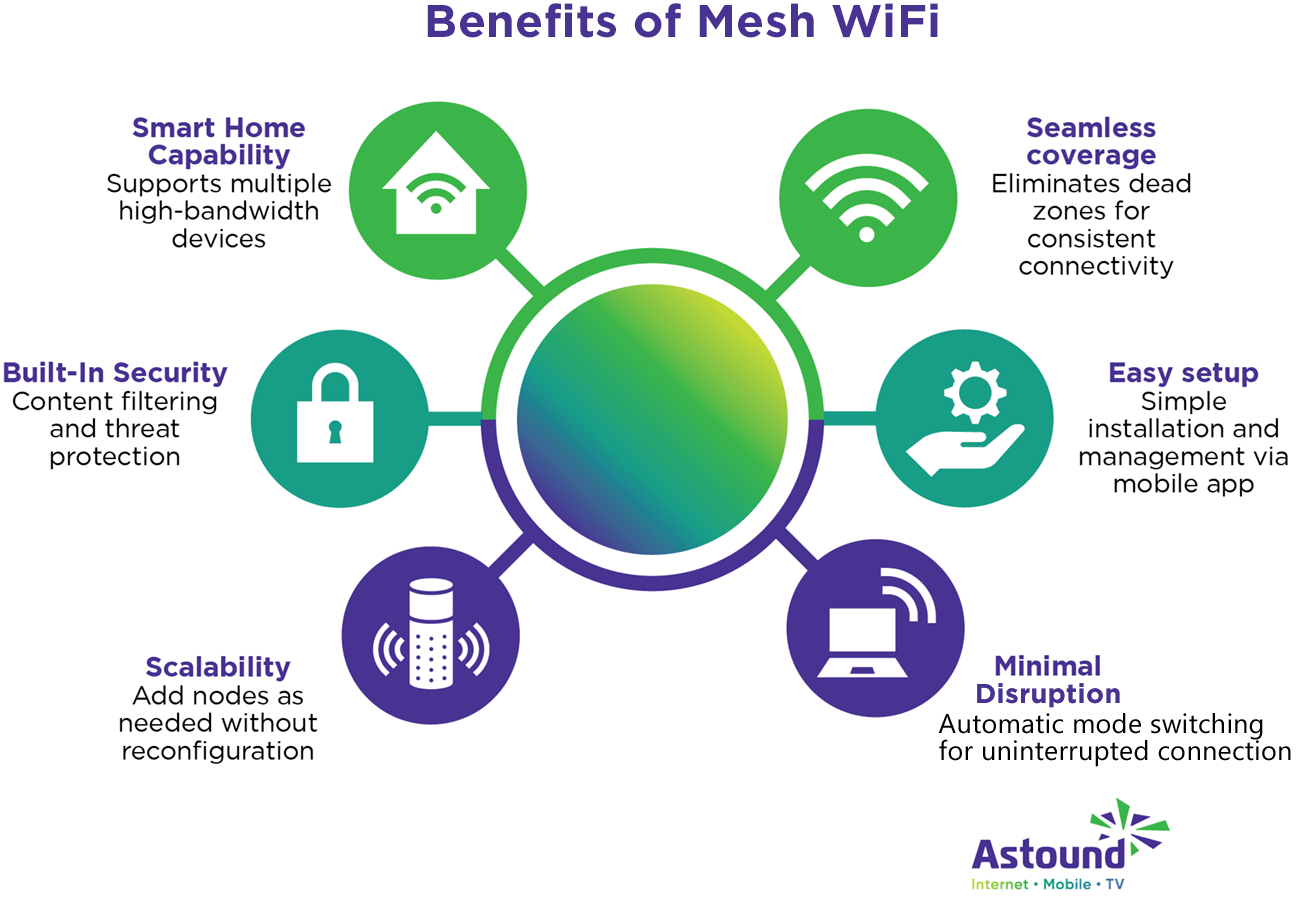
Benefits For Smart Devices
Smart devices need steady internet to work well. Mesh wifi gives them a better connection in every room.
| Benefit | Explanation |
| Stronger Signals | Nodes reduce weak spots for smart devices. |
| Seamless Roaming | Devices switch nodes without losing connection. |
| More Capacity | Handles many devices at the same time. |
| Easy Setup | Simple to add devices and nodes. |
Credit: www.astound.com
Placement Tips
Optimizing your mesh WiFi placement improves smart device performance. Good placement ensures strong signals and fewer connection drops.
This guide covers where to place your router, how to avoid interference, and how to set node distances for best coverage.
Ideal Router Locations
Place the main router in a central spot in your home. High and open areas work best for signal spread.
- Avoid placing routers near walls or inside cabinets.
- Keep routers away from metal objects and mirrors.
- Place routers on shelves or tables instead of floors.
- Choose a location free from clutter to allow better signal flow.
Avoiding Interference
Electronic devices and building materials can block or weaken WiFi signals. Avoid placing nodes near such interference sources.
| Interference Source | Effect on WiFi |
| Microwaves | Cause signal drops and noise |
| Bluetooth devices | Reduce WiFi speed |
| Thick walls (brick, concrete) | Block signals |
| Metal appliances | Reflect or absorb signals |
Optimizing Node Distance
Place mesh nodes close enough to each other to keep a strong connection. Too far reduces speed and coverage.
Follow this general rule for node distance:
- Keep nodes within 30 to 50 feet of each other indoors.
- Adjust based on walls and floors between nodes.
- Test signal strength and move nodes if needed.
Network Settings
Optimizing your mesh WiFi network improves smart device performance. Proper settings reduce slowdowns and disconnections.
Adjusting network settings helps your devices get the best connection possible. This guide focuses on key settings.
Choosing The Right Channels
WiFi channels carry your network signal. Some channels may be crowded and cause interference.
Select channels with less traffic to improve speed and reduce connection drops.
- Use a WiFi analyzer app to check busy channels
- Pick channels with the least interference
- For 2.4 GHz, use channels 1, 6, or 11
- For 5 GHz, select channels with low congestion
Enabling Qos For Devices
QoS stands for Quality of Service. It lets you prioritize important devices or apps.
Turning on QoS helps smart devices get faster, stable connections by reducing delays.
- Access your router settings to find QoS options
- Set high priority for devices like smart TVs or security cameras
- Limit bandwidth for less important devices
- Save settings and restart your router
Using Band Steering
Band steering moves devices between 2.4 GHz and 5 GHz bands. It sends devices to the best band automatically.
This setting improves speed and reduces interference by balancing device connections.
- Enable band steering in your mesh WiFi settings
- Devices that support 5 GHz will switch to that band
- Older devices stay on 2.4 GHz for better range
- Check device connection status to confirm proper band use
Credit: www.vesternet.com
Device Configuration
Optimizing your mesh WiFi for smart devices improves connection speed and reliability. Configuring your devices correctly helps avoid network slowdowns.
Focus on setting priorities, updating software, and managing connections to get the best performance from your mesh WiFi system.
Prioritizing Smart Devices
Assign priority to your most important smart devices to ensure they get the strongest signal and fastest speeds. This helps prevent lag and interruptions.
- Access your mesh WiFi app or web interface.
- Find the device prioritization or Quality of Service (QoS) settings.
- Select the smart devices to prioritize.
- Set the priority level to high or maximum.
- Save your changes and restart the router if needed.
Updating Firmware
Keep your mesh WiFi system’s firmware up to date. Updates fix bugs and improve device compatibility and security.
Check for firmware updates regularly using your mesh system’s app or website. Follow these tips:
- Enable automatic updates if available.
- Update during low network use times.
- Restart your devices after updates to apply changes.
Managing Device Connections
Control how many devices connect to your mesh WiFi to avoid overcrowding. Disconnect unused devices and limit guest access.
| Action | Benefit |
| Remove inactive devices | Frees up bandwidth for active devices |
| Set guest network limits | Prevents guest devices from slowing main network |
| Group similar devices | Improves traffic management and speed |
Troubleshooting Speed Issues
Slow internet can frustrate smart device users. Mesh WiFi systems help cover large areas. But speed problems still happen. You need to find the cause and fix it fast.
This guide shows how to check and improve your mesh WiFi speed. It focuses on finding bottlenecks, restarting devices, and adding nodes if needed.
Identifying Bottlenecks
Some devices or connections slow down your whole network. Look for these common bottlenecks:
- Old or weak routers and nodes
- Too many devices connected at once
- Interference from walls or electronics
- Slow internet plan from your provider
- Devices far from the nearest node
Check if your smart devices have the latest software updates. Outdated firmware can cause delays.
Restart And Reset Tips
Restarting your mesh system can clear temporary problems. Try these steps:
- Turn off all mesh WiFi nodes.
- Wait 30 seconds before turning them back on.
- Restart your modem and main router.
- Check device connections and speeds again.
If speed issues continue, reset your mesh system to factory settings. This can fix deeper software bugs. Remember to back up your settings first.
When To Add More Nodes
Adding nodes can expand coverage and improve speed. Use this table to decide if you need more nodes:
| Situation | Action |
|---|---|
| Dead zones in your home | Add nodes near these areas |
| Multiple floors or thick walls | Place nodes on each floor |
| More than 20 smart devices | Distribute devices across nodes |
| Speed drops far from main router | Install additional nodes |
| Current nodes outdated | Upgrade or add new nodes |
Advanced Optimization
Optimizing your mesh WiFi network can enhance performance for smart devices. Advanced settings help improve connectivity and efficiency.
By focusing on a few key areas, you can make sure your smart home runs smoothly. Let’s explore some advanced optimization techniques.
Using Ethernet Backhaul
Ethernet backhaul connects mesh nodes with cables. This reduces wireless traffic and boosts speed. It’s a simple way to enhance network performance.
Check if your mesh WiFi system supports Ethernet backhaul. Use high-quality cables for the best results.
- Connect mesh nodes to a central router
- Use Cat 6 or higher Ethernet cables
- Place cables discreetly to avoid clutter
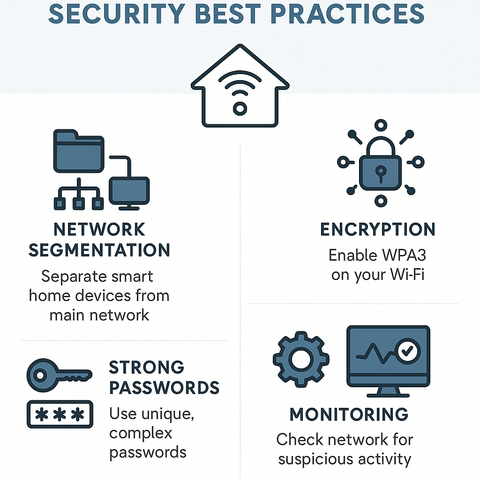
Mesh Wifi Security Settings
Securing your mesh WiFi is crucial. Strong security settings protect your smart devices from threats. Set a strong password for your network.
Enable WPA3 encryption if available. Regularly update your mesh system’s firmware to patch vulnerabilities.
- Use a unique SSID name
- Enable guest network for visitors
- Monitor connected devices regularly
Integration With Smart Home Hubs
Integrate your mesh WiFi with smart home hubs. This improves connectivity and device control. Many hubs work with popular mesh systems.
Check compatibility before purchasing a hub. Set up a dedicated network for smart devices to reduce interference.
- Use Alexa, Google Home, or Apple HomeKit
- Centralize control for all smart devices
- Optimize device settings through the hub
Credit: techlibrary.doodlelabs.com
Frequently Asked Questions
How Do I Improve Mesh Wifi Speed For Smart Devices?
To improve mesh WiFi speed, place nodes strategically for full coverage. Use the latest firmware and reduce interference from other electronics. Prioritize smart devices in your router settings for better bandwidth.
What Is The Best Placement For Mesh Wifi Nodes?
Place mesh WiFi nodes in open spaces, away from walls and metal objects. Ensure nodes are evenly spaced to cover all smart device areas. Avoid placing them near microwaves or cordless phones to reduce interference.
How Can I Secure My Mesh Wifi Network?
Secure your mesh WiFi by using a strong, unique password and WPA3 encryption if available. Regularly update your router’s firmware. Disable guest networks when not needed and monitor connected devices frequently.
Why Are Some Smart Devices Slow On Mesh Wifi?
Slow smart devices can result from weak signal, interference, or outdated firmware. Ensure devices are close to mesh nodes and update their software. Limit the number of connected devices to avoid congestion.
Conclusion
Optimizing your mesh WiFi helps smart devices work better at home. Place nodes carefully for strong, steady signals everywhere. Regularly update your system to fix bugs and improve speed. Limit devices on your network to avoid slowdowns. Secure your WiFi with a strong password to keep data safe.
Small changes make a big difference in device performance. Enjoy faster connections and fewer interruptions every day. Simple steps lead to smarter, smoother WiFi for all your gadgets.


