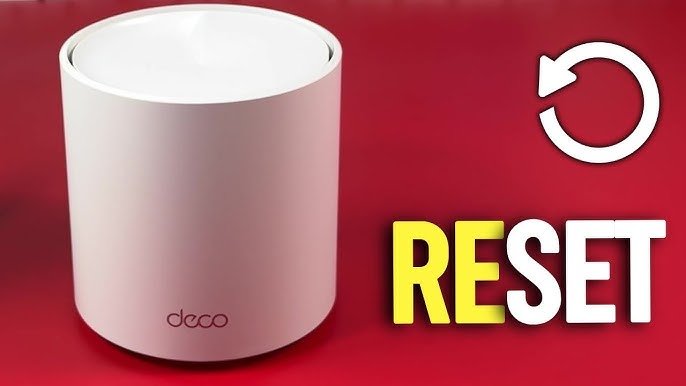
Is your TP-Link Deco Mesh WiFi acting up or not performing as it should? Sometimes, a simple reset can fix connection problems and help your network run smoothly again.
In this guide, you’ll learn exactly how to reset your TP-Link Deco Mesh WiFi quickly and easily. Whether you want to troubleshoot issues or start fresh with your settings, this step-by-step guide is made just for you. Keep reading, and you’ll have your network back to peak performance in no time.

Credit: www.youtube.com
Reasons To Reset Deco Mesh Wifi
Resetting your Deco Mesh Wifi can solve many problems. It helps fix issues that slow down your network.
This guide explains why you may need to reset your Deco Mesh Wifi system.
Common Connectivity Issues
Sometimes your Deco Mesh Wifi may lose connection or have weak signals. Resetting can clear these problems.
Reset helps refresh the connection between devices and the network.
- Devices not connecting to Wifi
- Slow internet speed
- Frequent disconnections
- Network not showing up
Performance Improvement
Over time, your Deco system may slow down. Resetting can improve speed and stability.
A reset clears memory and resets settings that may cause slow performance.
- Faster data transfer
- Better signal strength
- Reduced lag on devices
- Smoother streaming and gaming
Security Concerns
If you think your network is not secure, resetting Deco can help protect your devices.
Resetting removes old passwords and settings. It allows you to set new security options.
- Remove unknown devices
- Set new passwords
- Clear outdated network settings
- Prevent unauthorized access

Credit: www.youtube.com
Types Of Resets
Resetting your TP-Link Deco Mesh WiFi can fix many network issues. There are different reset types to try.
Each reset type changes how your Deco works. Knowing these helps you pick the right one for your problem.
Soft Reset
A soft reset restarts your Deco without deleting settings. It refreshes the system to fix minor bugs.
This reset is quick and safe. Use it if your internet is slow or unresponsive but settings are fine.
Hard Reset
A hard reset restores Deco to factory settings. It erases all your custom network settings.
Use hard reset if your Deco is not working well and soft reset did not help. You must set it up again.
- Press and hold the reset button for 10 seconds
- Wait for the Deco to restart
- Set up your network from scratch
Factory Reset
Factory reset is the most complete reset. It clears everything and returns Deco to original state.
Use factory reset if your Deco has serious problems or you want to give it away. Setup starts fresh.
- Locate the reset button on your Deco unit
- Press and hold the button for about 10 seconds
- Release the button when the LED blinks
- Wait for the Deco to reboot fully
Preparing For Reset
Resetting your TP-Link Deco mesh WiFi can solve many network problems. Before you start, it is important to prepare properly. This helps avoid losing important information.
This guide covers three key steps to get ready for the reset. Follow them carefully to ensure a smooth process.
Backup Settings
Backing up your Deco settings saves your network configuration. This lets you restore settings after the reset. Use the Deco app for backup.
- Open the Deco app on your phone.
- Go to the main menu and select “Backup & Restore”.
- Tap “Backup Now” to save your settings.
- Keep the backup file in a safe place.
Check Device Status
Check your Deco devices before resetting. Confirm they are powered on and connected. Note any error lights or unusual behavior.
| Device | Status to Check | What to Look For |
| Main Deco Unit | Power and Connection | Solid green light means normal |
| Satellite Units | Signal Strength | Blue or green light shows good link |
| Network | Internet Access | Check if internet is working |
Gather Necessary Tools
Collect the tools you need for the reset. This saves time and avoids interruptions.
- A small pin or paperclip to press the reset button
- Your smartphone with the Deco app installed
- Access to your WiFi network password
- A power source for the Deco devices

Credit: www.youtube.com
Resetting Via Deco App
Resetting your TP-Link Deco Mesh WiFi system can fix many network issues. The Deco app makes resetting easy and quick.
This guide will show you how to reset your Deco devices using the Deco app on your smartphone.
Accessing Reset Options
First, open the Deco app on your phone. Make sure you are connected to your Deco WiFi network or have internet access.
From the app home screen, select the Deco unit you want to reset. This opens the device settings menu.
- Tap the Deco icon on the app home screen.
- Choose the specific Deco unit from the list.
- Go to the “Advanced” or “Device Settings” section.
- Find the “Reset” or “Factory Reset” option.
Step-by-step App Reset
Follow these steps in the Deco app to reset your device to factory settings:
- Open the Deco app and select the Deco unit.
- Navigate to the “Advanced” or “Device Settings” menu.
- Tap on “Reset” or “Factory Reset”.
- Confirm your choice by selecting “Yes” or “OK”.
- Wait for the device to reboot and complete the reset.
Post-reset Setup
After the reset, your Deco device will return to default settings. You must set it up again using the Deco app.
| Setup Step | Description |
|---|---|
| Connect to Deco WiFi | Join the default Deco network if available or use Ethernet. |
| Open Deco App | Launch the app and follow on-screen instructions for setup. |
| Create Network | Set a new WiFi name and password. |
| Add Deco Units | Place and connect all Deco units in your home. |
| Finish Setup | Complete the guided setup to restore your mesh network. |
Manual Reset Using Hardware Buttons
Resetting your TP-Link Deco Mesh WiFi manually can fix many connection problems. You can do this by using the hardware reset button on the device.
This guide shows you how to find the reset button and how to use it to restore your Deco to factory settings.
Locating Reset Button
The reset button is small and often recessed to prevent accidental presses. It is usually found on the bottom or back of the Deco unit.
You may need a paperclip or a pin to press the button properly.
- Look for a tiny hole labeled “Reset.”
- Check the bottom or rear side of the Deco device.
- Use a pointed object to press the button inside the hole.
Reset Procedure
Make sure your Deco device is powered on before starting the reset. Press and hold the reset button firmly.
Hold the button for about 10 seconds or until the LED light changes.
- Press the reset button with a pin or paperclip.
- Keep holding it for 10 seconds.
- Release when the LED light blinks or changes color.
- Wait for the Deco to restart automatically.
Indicators Of Successful Reset
The LED light on the Deco device shows if the reset worked. It usually blinks or changes color after the reset.
After resetting, the Deco will restart and return to its factory default settings.
- LED flashes rapidly or changes to a specific color.
- The device restarts on its own.
- All previous network settings are erased.
- The Deco is ready for new setup.
Troubleshooting Reset Issues
Resetting your Tp-Link Deco Mesh Wifi can fix many network problems. Sometimes, the reset does not solve the issue.
This guide helps you troubleshoot common reset issues. Follow the steps to get your network back on track.
Reset Not Working
If the reset button does not work, check your device’s power. Make sure it is plugged in and turned on.
Hold the reset button for at least 10 seconds. If the issue persists, try using the Deco app for a reset.
- Ensure device is powered on
- Hold the reset button for 10 seconds
- Use the Deco app for reset
Device Not Responding
Sometimes, the device does not respond after a reset. Check for any loose connections or damaged cables.
Try restarting your modem. If the device still does not respond, contact Tp-Link support for assistance.
- Check cable connections
- Restart your modem
- Contact support if problem continues
Network Still Unstable
After resetting, the network may still be unstable. Place the Deco units closer together for a stronger signal.
Check for any interference from other devices. Adjust the WiFi channel settings in the Deco app to improve stability.
| Move Deco units closer | Reduces signal drop |
| Check for interference | Minimizes disruptions |
| Adjust WiFi channel | Improves connection |
Tips To Avoid Future Issues
Resetting your Tp-Link Deco Mesh Wifi can solve many problems. Use these tips to keep your network running smoothly.
Prevent future issues with regular maintenance and smart setup choices. Simple steps can make a big difference.
Regular Firmware Updates
Firmware updates fix bugs and improve performance. Check for updates often to keep your devices running well.
Many devices can update automatically. Enable this feature if available to save time and effort.
- Check for updates monthly
- Enable automatic updates
- Visit the Tp-Link website for support
Optimizing Device Placement
Place your Deco units in central locations. Avoid walls and metal objects to improve signal strength.
Higher placement can help. Try placing units on shelves for better coverage in larger areas.
- Keep Deco units in open areas
- Avoid placing near microwaves or TVs
- Place units on shelves or tables
Monitoring Network Health
Regularly check network performance. Use the Deco app to monitor speeds and connected devices.
Address any slowdowns quickly. Look for issues like too many devices or signal interference.
- Monitor speeds weekly
- Limit devices during peak times
- Check for interference from other networks
Frequently Asked Questions
How Do I Reset My Tp-link Deco Mesh Wifi?
Press and hold the reset button on your Deco unit for 10 seconds. Wait for the LED to blink, indicating a reset. This restores factory settings and removes custom configurations.
What Happens After Resetting Tp-link Deco Mesh Wifi?
Resetting erases all settings, including WiFi name and password. The Deco units return to factory defaults. You must set up your network again via the Deco app.
Can I Reset Tp-link Deco Mesh Without The App?
Yes, use the physical reset button on the Deco device. Hold it for 10 seconds until the LED blinks. This resets the device without needing the app.
How To Reset Only One Deco Unit In The Mesh?
Press the reset button on the specific Deco node for 10 seconds. Only that unit resets, while others remain connected and unchanged.
Conclusion
Resetting your TP-Link Deco Mesh Wifi can fix many common issues fast. Follow the steps carefully to avoid mistakes. A reset helps refresh your network and improve connection quality. Keep your login details ready before starting the process. After resetting, set up your system again for best results.
This simple action saves time and often solves problems without extra help. Stay patient and double-check each step. Your Wifi should work smoothly after the reset.


