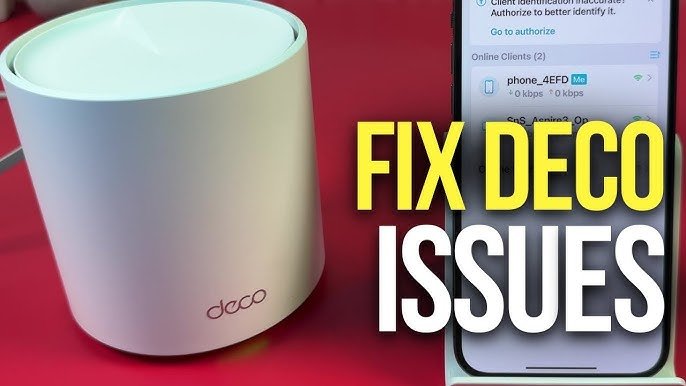
Are you struggling with your Tp-Link Deco Mesh WiFi not working as it should? You rely on your WiFi for everything—from streaming your favorite shows to working from home—and when it slows down or drops out, it’s frustrating.
But don’t worry, you’re not alone, and fixing these common issues is easier than you think. In this guide, you’ll discover simple, effective steps to troubleshoot your Tp-Link Deco Mesh WiFi so you can get back to smooth, reliable internet without the hassle.
Keep reading—your perfect WiFi experience is just a few fixes away.

Credit: www.youtube.com
Common Deco Mesh Issues
Tp-Link Deco Mesh Wifi is popular for home networking. Many users face some common problems. Troubleshooting these helps keep your network stable.
This guide covers four main issues you may meet. Each section gives simple tips to fix them fast.
Connection Drops
Connection drops happen when your devices lose wifi signal suddenly. This may cause slow or no internet.
- Check if your Deco units are too far apart.
- Make sure no thick walls block the signal.
- Restart your Deco units to refresh connections.
- Update the Deco app and firmware to the latest version.
Slow Internet Speeds
Slow speeds can ruin streaming and downloads. Many factors cause this issue with Deco Mesh.
| Cause | Fix |
| Too many devices connected | Disconnect unused devices |
| Interference from other electronics | Move Deco away from microwaves, cordless phones |
| Old firmware | Update Deco firmware via app |
| ISP problems | Contact your internet provider |
Device Not Connecting
Sometimes, devices fail to connect to the Deco network. This problem may stop internet access.
- Restart the device and try to connect again.
- Forget the Deco network on your device and reconnect.
- Check if the device is within range of the Deco unit.
- Ensure MAC filtering is off or your device is allowed.
App Sync Problems
The Deco app may not sync with your devices. This stops you from managing your network properly.
Try these fixes:
- Close and reopen the Deco app.
- Check your phone’s internet connection.
- Log out and log back into the Deco app.
- Restart your phone or tablet.
- Reinstall the Deco app if the problem continues.
Basic Troubleshooting Steps
When your Tp-Link Deco Mesh WiFi has issues, simple fixes can help. Follow easy steps to solve common problems.
This guide covers basic checks you can do to get your network running smoothly again.
Restarting Deco Units
Restarting your Deco units can fix many connection problems. Turn them off, wait a moment, and turn them back on.
This clears temporary errors and refreshes the network signals between units.
- Unplug the power cable from each Deco unit.
- Wait for about 30 seconds before plugging them back in.
- Allow the units a few minutes to fully restart.
Checking Internet Source
Make sure your internet source, like a modem or router, works correctly. If it is offline, the Deco system cannot connect.
Check cables and lights on your modem or router to confirm the internet is active.
- Look for stable lights on the modem or router.
- Ensure all cables are firmly plugged in.
- Restart your modem or router if needed.
Updating Firmware
Firmware updates fix bugs and improve your Deco’s performance. Keep your devices updated to avoid problems.
Use the Deco app to check for and install the latest firmware updates.
- Open the Deco app on your smartphone.
- Go to the device settings or system update section.
- Follow instructions to download and install updates.
Resetting Network Settings
If other steps fail, resetting network settings can help. This restores default settings and clears errors.
Resetting erases all custom settings, so you will need to set up the network again.
- Find the reset button on your Deco unit.
- Press and hold the button for about 10 seconds.
- Release the button when the LED starts blinking.
- Set up your network again using the Deco app.
Advanced Fixes
Fixing mesh WiFi issues can need some deeper work. These advanced fixes help improve your Tp-Link Deco system.
Try these tips to boost your network’s strength and speed beyond basic troubleshooting steps.
Adjusting Placement For Better Coverage
Good placement of Deco units is key for strong WiFi. Avoid walls and metal objects that block signals.
- Place Deco units in open areas, not inside cabinets.
- Keep units at least 30 feet apart for wide coverage.
- Avoid placing near microwaves or cordless phones.
- Try higher spots like shelves for better signal reach.
- Use the Deco app to test signal strength at each unit.
Configuring Qos Settings
Quality of Service (QoS) helps control network traffic. It gives priority to important devices or apps.
| QoS Setting | Purpose |
| Device Priority | Assigns bandwidth to key devices first. |
| Application Priority | Boosts specific apps like video calls or gaming. |
| Bandwidth Limit | Limits max bandwidth for less important devices. |
Open the Deco app to change QoS settings. Choose what needs faster internet in your home.
Managing Interference Sources
Interference lowers WiFi quality. Other devices and networks can cause it.
- Keep Deco away from Bluetooth devices and baby monitors.
- Change WiFi channel in the Deco app to avoid crowded bands.
- Turn off or move away cordless phones and microwaves.
- Use 5 GHz band for less interference if your devices support it.
Reconfiguring Network Modes
Deco supports different network modes. Changing modes can fix connection problems.
Common modes include:
- Router Mode:Deco acts as the main router managing your network.
- Access Point Mode:Deco connects to an existing router to extend WiFi.
- Bridge Mode:Combines wired and wireless networks for better speed.
Choose the mode that fits your home setup in the Deco app settings.

Credit: www.reddit.com
Tips For Optimal Performance
Maintaining your Tp-Link Deco Mesh Wifi system ensures smooth internet in your home. Simple steps can improve speed and coverage.
Follow these tips to keep your mesh network running well and avoid common connection problems.
Using Ethernet Backhaul
Connect your Deco units with Ethernet cables to reduce wireless interference. This creates a stable link between units and improves speed.
Use Ethernet backhaul when possible, especially in large homes or areas with thick walls.
Regular Firmware Updates
Keep your Deco system’s firmware up to date to fix bugs and add new features. Updates improve security and performance.
- Check the Deco app weekly for updates
- Allow automatic updates if available
- Restart your devices after updating
Monitoring Network Traffic
Watch your network to find devices that use too much bandwidth. Limit heavy use to avoid slowdowns.
| Device | Common High Usage Activities |
| Smartphones | Video streaming, social media |
| Computers | Online gaming, downloads |
| Smart TVs | HD streaming, updates |
| Game Consoles | Multiplayer gaming, downloads |
Securing Your Network
Protect your mesh network to stop unauthorized access. Use strong passwords and secure settings.
- Set a unique, strong Wi-Fi password
- Enable WPA3 or WPA2 encryption
- Turn off WPS to prevent easy hacking
- Use the Deco app to manage connected devices
When To Contact Support
Knowing when to contact support for your Tp-Link Deco Mesh Wifi helps fix problems fast. Some issues need expert help.
Read below to learn about signs that show you should reach out to Tp-Link support.
Persistent Connectivity Issues
If your Deco Mesh Wifi keeps dropping or never connects, it may be time to call support. Restarting the system does not fix it.
Support can help check network settings and guide you through advanced troubleshooting steps.
- Frequent internet drops even after resets
- Unable to connect new devices
- Slow speeds despite good signal strength
Hardware Malfunctions
Physical problems with your Deco units need expert attention. Support can help identify hardware faults.
Signs of hardware issues include lights not working or device overheating.
- Deco unit does not power on
- LED lights blink abnormally or stay off
- Device feels hot to touch for long periods
Warranty And Replacement Options
If your Deco device is under warranty and has a fault, contacting support is the best step. They explain replacement options clearly.
Support can guide you through the process to get your device repaired or replaced.
- Check if your Deco is still in warranty period
- Gather proof of purchase before contacting support
- Follow instructions for warranty claims carefully

Credit: www.reddit.com
Frequently Asked Questions
How Do I Reset My Tp-link Deco Mesh Wifi?
To reset your Tp-Link Deco, press and hold the reset button for 10 seconds. Release it when the LED blinks. This restores factory settings and can fix connectivity issues.
Why Is My Tp-link Deco Not Connecting To The Internet?
Check if your modem is properly connected to the main Deco unit. Restart both devices and verify your ISP service is active. Firmware updates may also solve connection problems.
How Can I Improve Tp-link Deco Wifi Signal Strength?
Place Deco units in open, central locations, away from walls and electronics. Avoid placing them near metal objects or thick barriers. Updating firmware ensures optimal performance.
What Causes Tp-link Deco Mesh Wifi To Drop Frequently?
Frequent drops may stem from interference, outdated firmware, or poor device placement. Restart your Deco units and update firmware. Ensure no overlapping channels with nearby networks.
Conclusion
Tp-Link Deco mesh WiFi helps keep your home connected. Troubleshooting common issues is simple with a few steps. Restart devices to fix many problems fast. Check your app settings to ensure proper setup. Place units in open areas for better signals.
Update the firmware regularly to improve performance. These tips save time and reduce frustration. Stay patient and try each step carefully. Strong WiFi makes life easier every day. Keep your network running smoothly with these easy fixes.


