Are you tired of weak Wi-Fi signals that slow down your smart devices? Setting up a mesh Wi-Fi system can change that.
It spreads strong, reliable internet throughout your home, so every device stays connected without interruptions. In this guide, you’ll learn exactly how to configure mesh Wi-Fi for your smart devices quickly and easily. By the end, you’ll enjoy faster speeds, fewer dropouts, and smoother control over your smart home.
Keep reading to unlock the full potential of your network!
Benefits Of Mesh Wifi For Smart Devices
Mesh Wifi systems help smart devices work better at home. They spread the internet signal evenly in every room.
With mesh Wifi, smart devices stay connected without losing signal or speed. This makes your smart home run smoothly.
Improved Coverage And Connectivity
Mesh Wifi uses many points to cover your whole home. This stops dead zones where the signal is weak or lost.
Smart devices get a strong, steady connection no matter where they are. This helps them respond faster and work better.
Seamless Device Handoff
Mesh Wifi lets your smart devices switch between points without disconnecting. This is called seamless handoff.
You can move around your home without your devices losing connection. This is important for devices like smart speakers and cameras.
Enhanced Network Stability
Mesh networks fix themselves if one point stops working. This keeps your smart devices online without interruption.
The stable network helps smart devices perform tasks on time. It also reduces delays and errors in communication.
Choosing The Right Mesh Wifi System
Mesh wifi systems help smart devices connect better in your home. Picking the right system is important for smooth internet.
Look at your needs and space before buying. This guide shows key points to consider for the best setup.
Compatibility With Smart Devices
Check if the mesh wifi supports your smart devices. Some systems work better with certain brands or types.
Make sure the system supports the latest wifi standards. This helps all your devices connect without issues.
Number Of Nodes And Coverage Area
Nodes are units that spread wifi in your home. More nodes mean better coverage and fewer dead spots.
Measure your home size to decide how many nodes you need. Large homes usually need three or more nodes.
- Small homes: 1-2 nodes
- Medium homes: 2-3 nodes
- Large homes: 3+ nodes
Budget Considerations
Mesh wifi systems come in different prices. Set a budget but think about quality and features too.
Cheaper systems may work for small spaces. Bigger systems with more nodes cost more but cover larger areas.
- Basic systems for small spaces
- Mid-range for average homes
- High-end for large homes and many devices
Preparing Your Network Setup
Setting up mesh WiFi helps smart devices work better at home. It makes your internet signal strong and steady everywhere.
This guide shows how to prepare your network for the best mesh WiFi experience.
Placing Mesh Nodes Strategically
Place mesh nodes where they get good signal and cover your home well. Avoid spots with thick walls or metal objects that block signals.
- Put the main node near your modem.
- Place other nodes in open areas, not inside cabinets.
- Keep nodes high, like on shelves or tables.
- Avoid placing nodes near microwaves or cordless phones.
- Try to keep nodes within 30 feet of each other.
Connecting To Modem And Power
Each mesh node needs power and a connection to your modem or main node. This setup helps your network run smoothly.
| Device | Connection Type | Power Source |
| Main Mesh Node | Ethernet cable to modem | Wall outlet |
| Secondary Nodes | Wireless connection to main node | Wall outlet or USB power adapter |
Ensuring Firmware Is Updated
Firmware updates improve your mesh system’s security and performance. Check for updates often to keep devices working well.
- Open your mesh system app or website.
- Look for the firmware or software update section.
- Download and install any available updates.
- Restart the mesh nodes if needed.
- Repeat regularly to stay up to date.
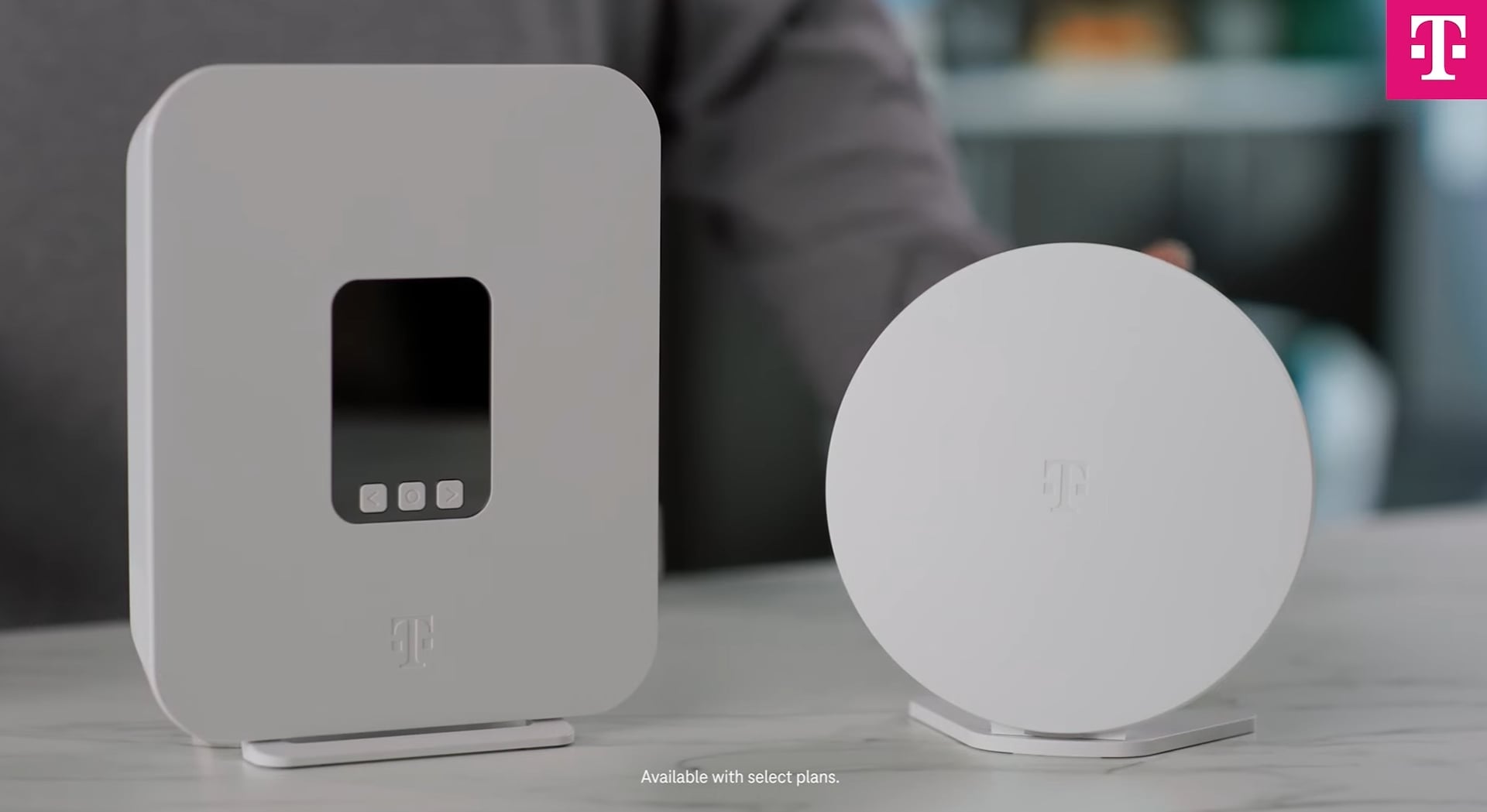
Credit: www.t-mobile.com
Step-by-step Mesh Wifi Installation
Setting up mesh wifi helps smart devices work better at home. It spreads wifi evenly in every room.
This guide shows you how to install mesh wifi with clear steps.
Downloading The Mesh App
Start by downloading the mesh wifi app from your device store. It controls your network and settings.
- Open your phone’s app store (Google Play or Apple App Store)
- Search for the official mesh wifi app name
- Download and install the app
- Open the app and create an account if needed
Creating Your Network
Use the app to create your wifi network. Choose a name and password for easy access.
- Launch the app and select “Create New Network”
- Enter a network name (SSID) that you like
- Create a strong password for your network
- Save the settings to start your network
Adding And Syncing Nodes
Place mesh nodes in different rooms to widen wifi coverage. Sync nodes with the main router using the app.
| Node Location | Recommended Distance | Sync Status |
| Living Room | Near main router | Connected |
| Bedroom | 20-30 feet from living room node | Pending |
| Kitchen | 20-30 feet from living room node | Pending |
Follow app instructions to sync each node. Wait for the app to confirm connection.
Testing Network Performance
Test your wifi speed and signal in all rooms. This confirms your mesh network works well.
- Open the mesh app and find the speed test tool
- Run tests near each node and in far rooms
- Check download and upload speeds
- Move nodes if speeds are low in some spots
Connecting Smart Devices To Mesh Wifi
Mesh wifi systems help smart devices connect easily in your home. They spread wifi signals evenly for better coverage.
Connecting smart devices to mesh wifi improves their performance. You can control devices smoothly without drops.
Using The App For Device Setup
Most mesh wifi systems have an app for setup. Use the app to add smart devices to your network quickly.
Open the app and follow the instructions to find and connect your device. The app guides you step by step.
- Open the mesh wifi app on your phone
- Go to device setup or add device section
- Select your smart device from the list
- Follow prompts to connect the device
Configuring Device Settings
After connecting, adjust device settings in the app. Set preferences like device name and network priority.
Configuring settings helps your device work well with mesh wifi. You can control how devices behave on the network.
- Rename devices for easy identification
- Set device priority if needed
- Enable or disable device access times
- Update device firmware through the app
Troubleshooting Connection Issues
If a smart device does not connect, check the wifi signal strength. Move the device closer to a mesh node if needed.
Restart your mesh wifi system and the smart device if problems continue. This often fixes connection issues.
- Check if the device supports your wifi band (2.4 GHz or 5 GHz)
- Restart the mesh router and smart device
- Forget the wifi network and reconnect the device
- Update the mesh wifi app and device firmware
- Reset the device to factory settings if needed

Credit: www.youtube.com
Optimizing Mesh Wifi For Smart Devices
Mesh Wifi systems are great for connecting smart devices at home. They provide strong and consistent signals.
Learn how to set up and optimize your mesh network for the best performance with smart gadgets.
Prioritizing Devices And Traffic
Give priority to devices that need a steady connection. This helps in ensuring smoother operation for these devices.
- Identify essential devices like smart TVs and security cameras.
- Use your router’s app to prioritize these devices.
- Limit bandwidth for non-essential devices.
Setting Up Guest Networks
Guest networks are useful for visitors. They keep your main network secure and reduce congestion.
To create a guest network:
- Access your router’s settings.
- Find the ‘Guest Network’ option.
- Enable it and set a password.
Regular Maintenance Tips
Regular checks and updates can keep your mesh network running smoothly. It’s important to maintain your system.
| Task | Frequency |
| Check for firmware updates | Monthly |
| Restart router | Weekly |
| Test network speed | Quarterly |

Credit: www.youtube.com
Frequently Asked Questions
What Is Mesh Wifi And How Does It Work?
Mesh WiFi uses multiple devices to create a seamless network. It improves coverage and reduces dead zones in your home. Each node communicates with others, ensuring strong signals for all smart devices.
How Do I Set Up Mesh Wifi For Smart Devices?
Start by placing the main router near your modem. Add satellite nodes in key areas for full coverage. Use the app provided to configure settings and connect smart devices easily.
Can Mesh Wifi Improve Smart Device Performance?
Yes, mesh WiFi offers stronger, more reliable connections. It minimizes lag and buffering, enhancing smart device functionality. This system supports multiple devices without slowing down the network.
Are Mesh Wifi Systems Compatible With All Smart Devices?
Most mesh WiFi systems work with all WiFi-enabled smart devices. Always check device compatibility before setup. Mesh networks support phones, cameras, smart TVs, and home assistants efficiently.
Conclusion
Setting up mesh WiFi helps smart devices work smoothly at home. It spreads internet signals evenly in every room. This means fewer dropouts and faster speeds. Keep your mesh system updated for best results. Check device connections often to avoid issues.
A well-configured mesh network makes your smart home reliable. Enjoy easier control and better performance every day. Simple steps bring big improvements to your WiFi experience.