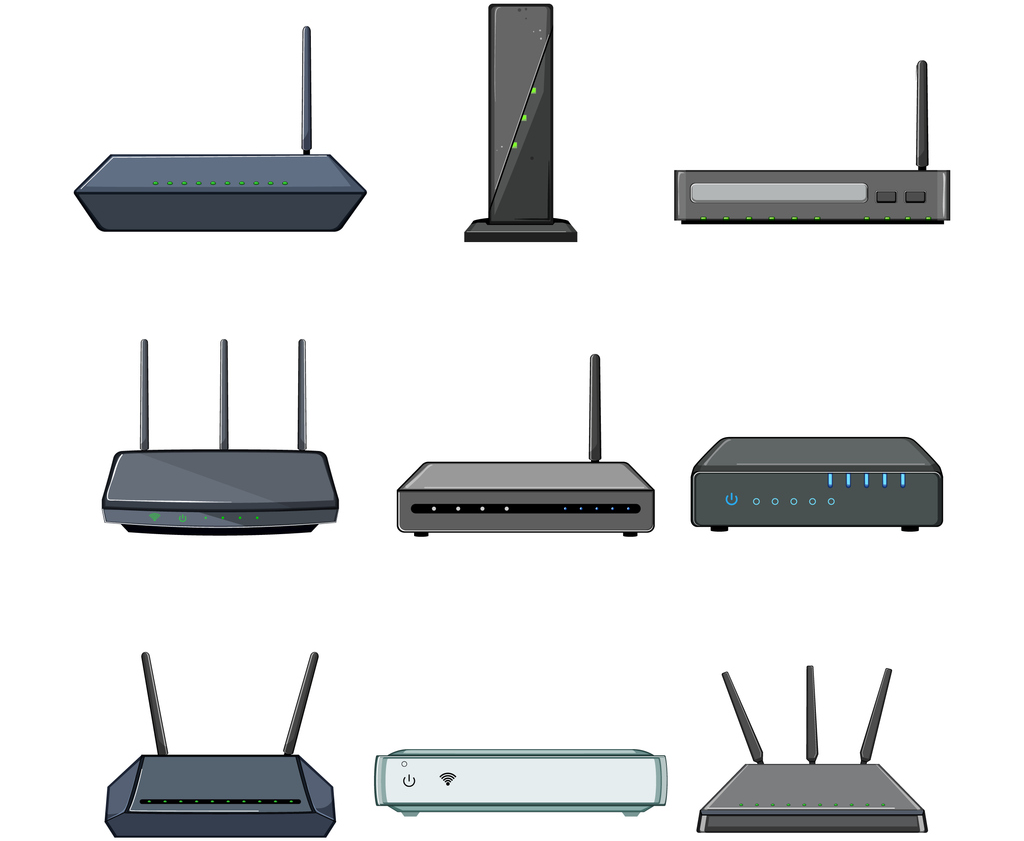
If you’re tired of slow internet or limited features from your Cox provided router, it’s time for a change. Replacing your router can boost your Wi-Fi speed, improve security, and give you more control over your home network.
But how do you do it without losing connection or getting stuck in complicated setups? In this guide, you’ll discover simple, step-by-step instructions to swap out your Cox router quickly and easily. By the end, you’ll have a faster, smarter network that works exactly how you want.
Keep reading—you’re just a few clicks away from better internet at home.
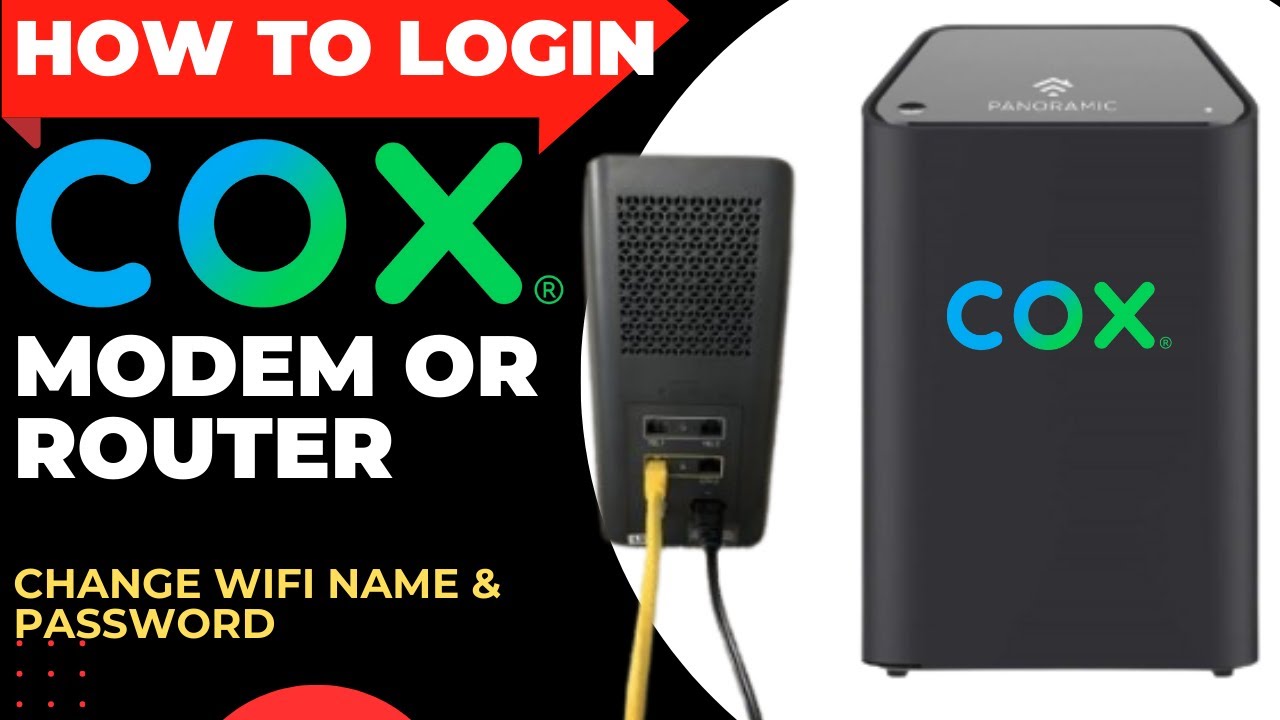
Credit: www.youtube.com
Reasons To Replace Cox Router
Cox routersmay have limited rangeand slow speeds. They often lack advanced featureslike strong security or parental controls. Many users face issues with poor Wi-Fi coveragein large homes. The default hardware may not support multiple deviceswell, causing slowdowns.
Upgrading to a new router can bring many benefits. You get better speedand stronger signalthroughout your home. New routers offer improved securityto protect your network. They also support more devices without losing connection quality. Plus, you can enjoy easy setupand better control of your internet settings.
Choosing The Right Replacement Router
Choose a router with fast WiFi speedsand good coverage. It should support the latest WiFi standardslike WiFi 5 or WiFi 6. Look for a router with multiple Ethernet portsand easy-to-use settings. A strong security systemis important to keep your network safe.
| Model | WiFi Standard | Speed | Ports | Price Range |
|---|---|---|---|---|
| TP-Link Archer AX50 | WiFi 6 | Up to 3000 Mbps | 4 Ethernet | Medium |
| Netgear Nighthawk R7000 | WiFi 5 | Up to 1900 Mbps | 4 Ethernet | Medium |
| Asus RT-AX88U | WiFi 6 | Up to 6000 Mbps | 8 Ethernet | High |
Preparing For Router Replacement
Backing up your current router settingsis important before replacing it. Save Wi-Fi names, passwords, and custom settings. This helps you avoid reconnecting devices from scratch.
Locate the router’s admin page by typing its IP address in a browser. Use the username and password to log in. Find the backup option in settings and download the file to your computer.
Gather all necessary equipmentbefore starting the replacement. You will need:
- New router device
- Power adapter for the new router
- Ethernet cables
- Computer or smartphone for setup
- Backup of current settings saved earlier
Having these ready will make the process smooth and fast. Double-check each item to avoid delays.

Credit: www.youtube.com
Step-by-step Router Replacement Guide
Unplug the power cable from the Cox router first. Then, disconnect the coaxial cable from the back. Remove any Ethernet cables connected to the router. Keep all cables handy for later use.
Connect the coaxial cable to the new router’s input port. Plug in the power adapter to the new router and an electrical outlet. Attach Ethernet cables to the new router if needed. Turn on the new router and wait for it to start.
Open a web browser on your computer or phone. Type the new router’s IP address in the address bar. Log in with the default username and password found on the router. Follow the setup wizard to enter your network name (SSID) and password. Save the settings and restart the router to apply changes.
Optimizing Your New Router For Speed
Keep your router’s firmware up to date. This helps fix bugs and improve speed. Check the router’s settings page to find the update option. Download and install the latest version if available.
Choose the best WiFi channel for your area. Many routers use channels 1, 6, or 11. Pick a channel with the least interference. This reduces signal drops and makes your connection faster.
- Use a strong passwordto keep your network safe.
- Mix letters, numbers, and symbols for better security.
- Change the default password to something unique.
- Use WPA2 or WPA3 encryption for stronger protection.
Troubleshooting Common Issues
First, check if your router is plugged in. Make sure all cables are tight. Restart the router by unplugging it. Wait 10 seconds, then plug it back in. Look for the light indicators. If lights are not on, call your internet provider. Double-check your device settings. Ensure WiFi is turned on.
Move closer to the router for a stronger signal. Too many devices can slow speeds. Disconnect devices not in use. Check for background apps using the internet. Update your router’s firmware. Place the router in a central location. Avoid placing it near thick walls.
Ensure your device supports the router’s frequency. Some devices only work with 2.4GHz. Check your device’s settings for compatibility. Update device software to the latest version. Make sure your device isn’t too far from the router. Consult the device manual for more help.

Credit: www.youtube.com
Frequently Asked Questions
How Do I Disconnect My Cox Router Safely?
First, power off your Cox router. Unplug all cables including power, Ethernet, and coaxial connectors carefully. Avoid pulling cables forcefully. This prevents damage to ports and ensures safety during replacement.
Can I Use Any Router With Cox Internet?
Yes, but ensure the router supports Cox’s internet speeds. Check compatibility with DOCSIS or fiber service. Using a compatible router maximizes performance and avoids connectivity issues.
How To Configure A New Router For Cox Internet?
Connect the new router to the modem via Ethernet. Access the router’s web interface using its IP address. Enter Cox account details and set Wi-Fi credentials to complete setup.
Will Replacing Cox Router Affect My Internet Plan?
Replacing the router does not change your internet plan. Your Cox service remains the same. Only the hardware changes, which can improve your home network experience.
Conclusion
Replacing your Cox router can improve your internet experience. Choose a compatible router and follow the setup steps carefully. Make sure to connect cables correctly and configure your settings. Test the connection to confirm everything works well. Changing your router gives you more control over your network.
Stay patient and take one step at a time. A better router means a stronger, faster Wi-Fi signal at home. Now, enjoy smoother streaming, gaming, and browsing with your new device.


