
Are you tired of constant buffering and poor video quality while streaming your favorite shows or games? Your router might be the hidden culprit behind these frustrating interruptions.
Improving your streaming experience doesn’t have to be complicated or expensive. You’ll discover simple, effective ways to boost your router’s performance so your videos play smoothly and your connection stays strong. Keep reading to unlock easy tips that will transform how you stream—no more annoying pauses, just seamless entertainment.
Optimize Router Placement
Placing the router in a central locationhelps spread Wi-Fi evenly. Avoid placing it near walls or windows that block signals. Keep the router away from thick objects like metal or concrete that cause interference.
Keep the router clear of other electronics, such as microwaves or cordless phones. These devices can cause signal problems. Elevate the router off the floor and place it on a shelf or table. Higher placement helps the signal reach more areas.
- Choose a spot near the center of your home
- Avoid obstacles like walls and large furniture
- Keep the router away from other electronic devices
- Place the router on a higher surface for better coverage

Credit: www.screenbeam.com
Update Firmware Regularly
Keeping your router’s firmware updatedhelps improve streaming quality. Firmware is the software inside your router that controls how it works.
Check for the latest updateson the router’s settings page or the manufacturer’s website. Updates often fix bugs and improve speed.
Enable automatic updatesif your router supports it. This saves time and ensures your router always has the newest features and security patches.
- Visit the router’s admin page regularly.
- Look for a section called “Firmware” or “Software Update.”
- Download and install updates if available.
- Turn on automatic updates to keep your router current.
Adjust Router Settings
Selecting the best Wi-Fi channelreduces interference from other networks nearby. Most routers offer channels from 1 to 11. Use a Wi-Fi analyzer app to find a channel with the least traffic. This improves signal quality and streaming speed.
Enable Quality of Service (QoS)on your router to prioritize streaming devices. QoS helps the router give more bandwidth to your streaming apps. This means smoother videos and fewer pauses during playback.
Using the 5GHz band for streamingoffers faster speeds and less congestion than 2.4GHz. The 5GHz band has a shorter range but better performance for video streaming. Connect your streaming device to this band for a better experience.
Secure Your Network
Strong passwordsprotect your network from unwanted access. Use a mix of letters, numbers, and symbols. Avoid simple words or common phrases. Change passwords regularly to keep your network safe. This helps stop others from using your internet without permission.
Limit guest access to keep your main network secure. Create a separate guest network for visitors. This stops guests from reaching your private devices. It also keeps your streaming devices safe from threats. Guests get internet access without risking your main network’s security.
Use Wired Connections
Connecting your device directly to the router using an Ethernet cableprovides a more stable and faster internet connection. It reduces lagand bufferingduring streaming. The wired connection is not affected by walls or distance like Wi-Fi signals.
Here are some key benefits of using Ethernet over Wi-Fi:
- Faster speedsfor smoother streaming.
- Lower latency, which means less delay.
- More reliableconnection without interruptions.
- Better for high-definitionand 4K video streaming.
- No interference from other wireless devices.
Credit: www.tp-link.com
Upgrade Router Hardware
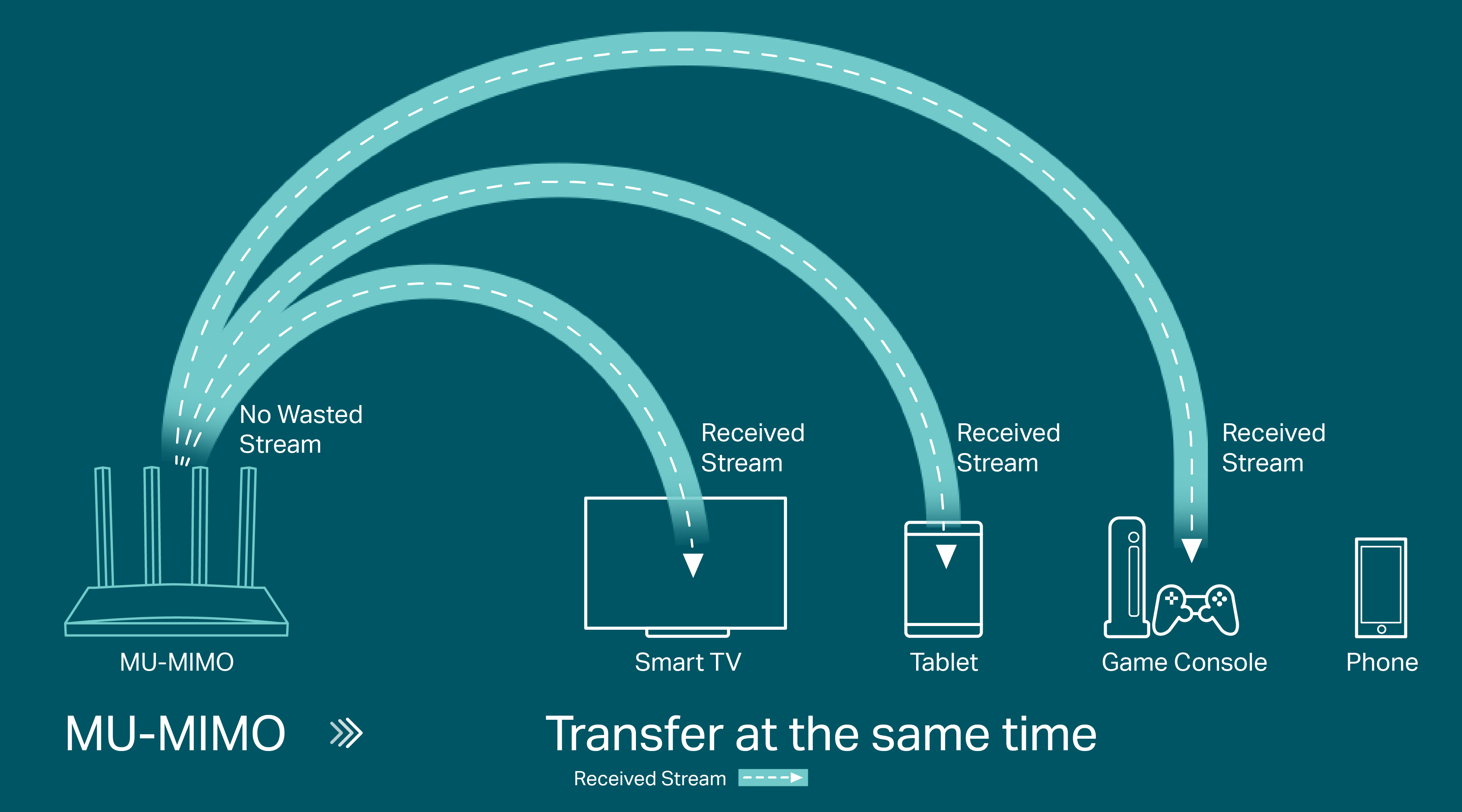
New routers support the latest Wi-Fi standards. These standards offer better speeds. Wi-Fi 6 is very fast. It handles many devices at once. This is good for streaming. Older routers may slow down your streaming. Upgrading helps your devices work better.
Mesh Wi-Fi covers large areas. It uses multiple units. These units spread signals evenly. Dead zones get signals too. Streaming gets better with mesh systems. They are easy to set up. No more buffering in any room.
Manage Connected Devices
Managing connected devices reduces network traffic and improves streaming speed. Limiting devices on your router helps maintain a stable connection for smoother video playback. Regularly check and disconnect unused devices to optimize streaming performance.
Limit Bandwidth Usage
Too many devices can slow your internet. Check which devices use the most data. Streaming needs a lot of bandwidth. Turn off devices you don’t use. This gives more speed to important tasks. Use your router’s app or website. You can see all connected gadgets there. Set limits on devices that download or update. This frees up more internet for watching videos.
Prioritize Streaming Devices
Some routers let you choose which device gets more speed. This is called Quality of Service (QoS). Give more speed to your TV or tablet. Your shows will play without stopping. Check your router’s settings to turn on this feature. Sometimes, it’s just a button to click. Make sure your TV or device is close to the router. This helps it stay connected better.
Troubleshoot Common Issues
Restarting the router often helps clear minor glitches and improves streaming speed. It refreshes the connection with your internet service provider.
Interference can slow down your Wi-Fi. Devices like microwaves, cordless phones, and walls block signals. Keep your router away from these objects to get better streaming quality.
Resetting your router to factory settings can fix persistent problems. This removes any wrong settings causing slow streaming. Remember, this will erase custom settings, so save important info first.

Credit: en.community.sonos.com
Frequently Asked Questions
How Can I Optimize My Router For Better Streaming?
To optimize your router, place it centrally and away from obstructions. Use the latest firmware and choose the best Wi-Fi channel. Prioritize streaming devices using Quality of Service (QoS) settings for smoother playback and reduced buffering.
Does Upgrading My Router Improve Streaming Quality?
Yes, upgrading to a modern router boosts streaming quality. Newer models support faster speeds and better range. They handle multiple devices efficiently, reducing lag and interruptions during streaming sessions.
What Is The Best Wi-fi Frequency For Streaming?
The 5 GHz band is ideal for streaming. It offers faster speeds and less interference than 2. 4 GHz. However, 5 GHz has a shorter range, so ensure your device is close to the router for optimal performance.
How Does Qos Help Streaming On My Router?
Quality of Service (QoS) prioritizes streaming traffic over other data. This reduces buffering and lag by allocating more bandwidth to streaming devices. Enabling QoS improves the overall streaming experience on busy networks.
Conclusion
Improving streaming with your router is simple and effective. Place your router in a central spot for better signals. Use a wired connection when possible to avoid interruptions. Keep your router’s software updated for smooth performance. Limit other devices that use the internet during streaming.
Small changes can make a big difference in video quality. Enjoy buffering less and watching more. Your streaming experience depends on good internet habits and router care. Try these tips to watch your favorite shows without hassle.


