Are you tired of slow Wi-Fi and dead zones in your smart home? Installing a mesh Wi-Fi system could be the game-changer you need.
Imagine seamless internet coverage in every room, making your smart devices work smoothly without interruptions. This guide will walk you through the simple steps to set up your mesh Wi-Fi, so you can enjoy faster speeds and stronger connections right away.
Ready to boost your home network and unlock the full potential of your smart devices? Let’s dive in.
Choosing The Right Mesh Wifi System
Installing a mesh wifi system can improve your smart home network. It helps cover dead zones and offers strong signals everywhere.
Picking the right system depends on your home size and devices. This guide will help you choose the best mesh wifi for your needs.
Comparing Popular Brands
Many brands offer mesh wifi systems with different strengths. Knowing their features helps you find the best fit for your home.
- Google Nest Wifi:Easy setup and good coverage for medium homes.
- Netgear Orbi:Strong signals and many advanced options for large homes.
- TP-Link Deco:Affordable and simple, ideal for small to medium homes.
- Linksys Velop:Flexible setup with good speed and coverage.
Features To Consider
Look for features that match your smart home needs. The right features make your wifi reliable and fast.
- Coverage Area:Choose a system that covers your entire home.
- Speed:Check if it supports fast internet plans.
- Number of Devices:Make sure it handles all your smart devices.
- Security:Look for built-in security like firewalls and updates.
- App Control:Easy management through a mobile app helps adjust settings.
Budgeting For Your Setup
Mesh wifi systems come in many price ranges. Plan your budget before buying to get good value.
Think about how many units you need. More units cost more but give better coverage.
- Basic kits start around $100 and suit small homes.
- Mid-range kits cost $200 to $300 for medium homes.
- High-end kits over $300 work best for large homes with many devices.
- Remember to check for any extra fees or subscriptions.
Preparing Your Home For Installation
Setting up mesh WiFi in your smart home needs some preparation. Doing this makes sure your network works well everywhere.
This guide helps you get ready by showing how to place your router, find weak signal spots, and manage cables and power.
Optimal Router Placement
Place your main router in a central spot to cover the whole home. Keep it high on a shelf or wall for better signal spread.
- Avoid placing routers near metal objects or thick walls
- Keep away from microwaves and cordless phones
- Try to place routers in open spaces, not inside cabinets
- Ensure the router is close to the main internet line
Identifying Dead Zones
Dead zones are areas with weak or no WiFi signal. Find these spots before installing your mesh system.
- Use a smartphone or laptop to check signal strength around your home
- Mark places where connection drops or is very slow
- Look for thick walls or floors blocking signals
- Check if appliances interfere with WiFi in certain rooms
Wiring And Power Requirements
Make sure you have power outlets and network cables ready for each mesh node you plan to set up.
| Requirement | Details |
|---|---|
| Power Outlets | Each mesh unit needs a nearby power source |
| Ethernet Cables | Optional but helps connect nodes for stable backhaul |
| Network Ports | Check if your router or modem has free LAN ports |
| Cable Management | Plan routes to keep cables tidy and safe |
Step-by-step Installation Process
Setting up a mesh WiFi system helps cover your home with fast internet. This guide shows how to install it easily.
Follow these steps to connect your devices and configure the network for the best performance.
Setting Up The Primary Router
Start by placing the primary router near your modem. Connect it using an Ethernet cable for a strong signal.
Power on the router and wait for the indicator lights to turn stable. This means it is ready to use.
Connecting Additional Nodes
Add nodes to extend your WiFi coverage. Place them in open areas between the router and distant rooms.
- Plug in the node and power it on.
- Use the mesh app or button to connect it to the primary router.
- Check the light to confirm a good connection.
- Repeat for each additional node needed.
Configuring Network Settings
After all nodes connect, open the network app or dashboard. Set your WiFi name and password for easy access.
| Setting | Description |
|---|---|
| SSID | Choose a simple name for your WiFi network. |
| Password | Create a strong password with letters and numbers. |
| Guest Network | Enable to allow visitors internet access only. |
| Firmware Update | Check and install the latest updates for security. |
Save the settings. Test your connection on different devices to ensure good coverage everywhere.

Credit: www.youtube.com
Optimizing Performance
Mesh WiFi systems help cover your smart home with strong signals. Optimizing performance keeps your devices fast and reliable.
Small changes can improve speed and reduce connection problems. Focus on channel selection, firmware updates, and security.
Channel Selection And Interference
Choosing the right WiFi channel avoids interference from other networks. This helps keep your mesh system stable.
Use a WiFi analyzer app to find less crowded channels. Switch your mesh nodes to those channels for better signal quality.
- 2.4 GHz band has fewer channels, so interference is common
- 5 GHz band offers more channels and faster speeds
- Avoid channels used by neighbors or other devices
- Place mesh nodes away from microwaves and cordless phones
Firmware Updates
Keep your mesh WiFi firmware up to date. Updates fix bugs and improve performance.
Check your router’s app or web interface for update notifications. Install updates as soon as they are available.
- Improves network stability and speed
- Adds new features and security patches
- Fixes known bugs and vulnerabilities
Security Best Practices
Protect your smart home by securing your mesh WiFi network. Use strong passwords and encryption.
Disable guest networks if not needed. Limit device access to keep your network safe.
- Use WPA3 or WPA2 encryption for the best security
- Set a strong, unique password for your WiFi network
- Turn off WPS to prevent easy hacking
- Regularly review connected devices and remove unknown ones
Integrating Mesh Wifi With Smart Home Devices
Mesh WiFi systems help connect all your smart home devices easily. They provide strong signals across your whole house.
This guide shows how to link mesh WiFi with smart devices. It covers compatibility, managing connections, and fixing issues.
Ensuring Compatibility
Check if your smart devices support mesh WiFi networks. Many devices use WiFi or Zigbee, so confirm the connection type.
- Look for device details in the user manual or online.
- Make sure the mesh router supports the device’s frequency band.
- Update your mesh system’s firmware regularly for best support.
- Use the mesh system’s app to check compatible devices.
Managing Device Connections
Organize your smart devices by assigning them clear names in your mesh WiFi app. This helps track devices easily.
| Action | Benefit |
| Assign device names | Easy identification |
| Group devices by room | Better control and monitoring |
| Set priority for important devices | Improved connection speed |
| Schedule WiFi access times | Manage device usage |
Troubleshooting Common Issues
Smart devices may disconnect or have slow speeds. Check your mesh nodes and device settings first.
- Restart your mesh router and smart devices.
- Move devices closer to a mesh node for better signal.
- Check for firmware updates on your devices and mesh system.
- Reset device network settings and reconnect to mesh WiFi.
- Contact support if problems persist after these steps.
Credit: help.firewalla.com
Maintenance And Future Upgrades
Mesh WiFi systems are vital for smart homes. They offer seamless connectivity across all devices. Regular maintenance and upgrades ensure the network runs smoothly.
This guide covers key aspects of maintaining your mesh WiFi. Learn about system checks, network expansion, and hardware upgrades.
Regular System Checks
Regular checks keep your network in top shape. They help identify potential issues early.
- Check for firmware updates monthly
- Restart routers for optimal performance
- Monitor device connectivity for issues
Expanding Your Network
Expanding your network allows more devices to connect. It ensures coverage in all parts of your home.
Add more mesh nodes to cover dead zones. This boosts overall network performance.
- Place nodes in areas with weak signals
- Use a network map to identify coverage gaps
- Ensure nodes are within range of each other
Upgrading Hardware
New hardware offers improved features. Upgrading can enhance speed and reliability.
Look for devices with advanced technology. Consider compatibility with existing equipment.
- Research new models before purchasing
- Check compatibility with current system
- Consider future-proof features
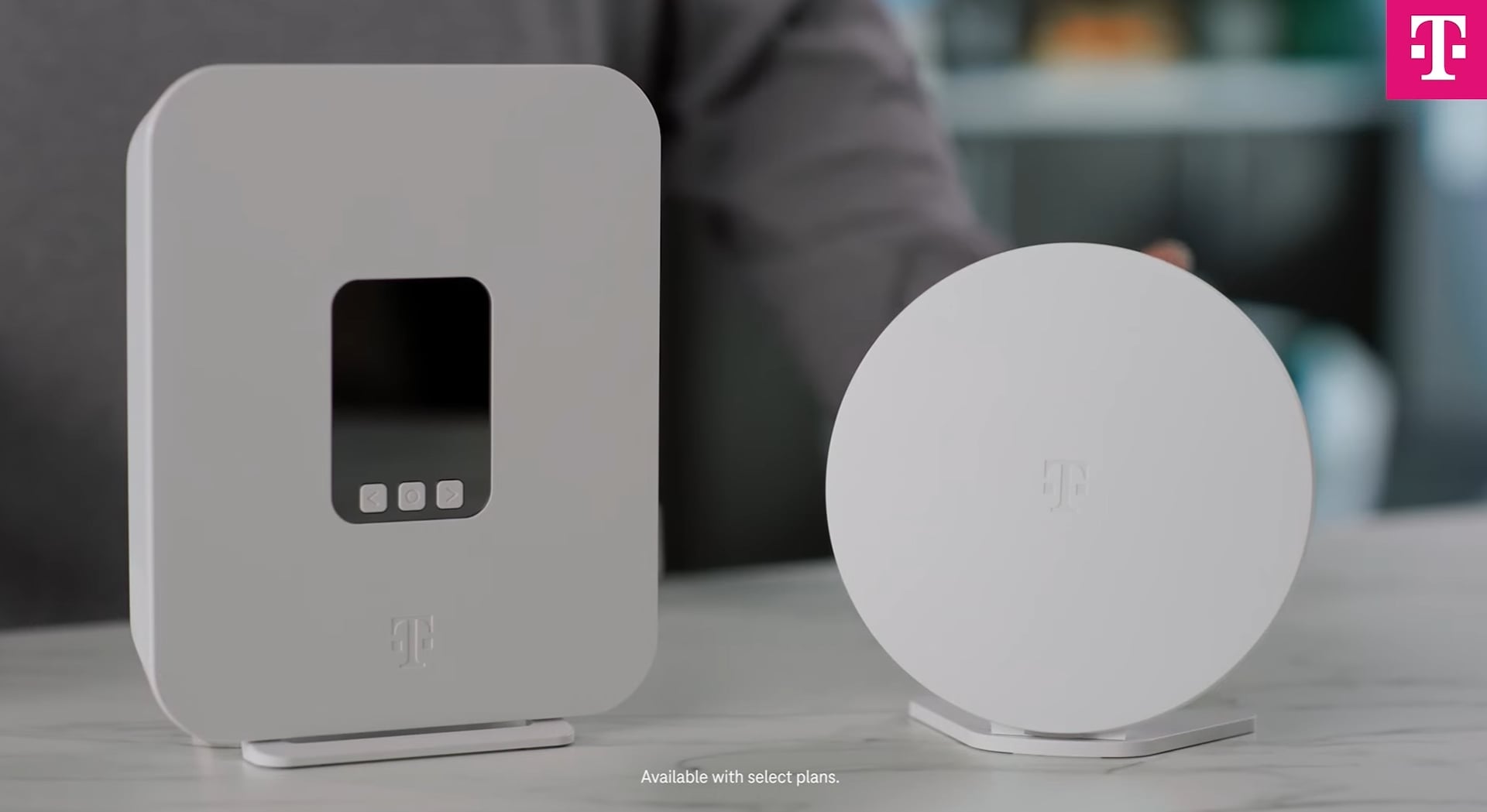
Credit: www.t-mobile.com
Frequently Asked Questions
What Is Mesh Wifi And How Does It Work?
Mesh WiFi uses multiple devices to spread internet across your home. It creates a unified network for seamless connectivity and better coverage.
How To Install Mesh Wifi In A Smart Home?
Place nodes strategically around your home. Connect the main node to your modem and sync others. Use the app to complete setup and optimize placement.
Can Mesh Wifi Improve Smart Home Device Performance?
Yes, mesh WiFi reduces dead zones and boosts signal strength. This ensures smart devices work smoothly and without interruptions.
How Many Mesh Nodes Do I Need For My Home?
The number depends on home size and layout. Typically, 2-3 nodes cover 2000-4000 sq ft effectively for consistent smart home connectivity.
Conclusion
Setting up mesh WiFi improves your smart home’s internet coverage. It helps devices connect smoothly in every room. Follow the steps carefully to avoid common mistakes. Place nodes in open spaces for best signals. Regularly update your system for better security.
Enjoy fast, reliable WiFi for all your smart devices. A strong connection makes your home smarter and easier to use. Take your time, and you will see great results.