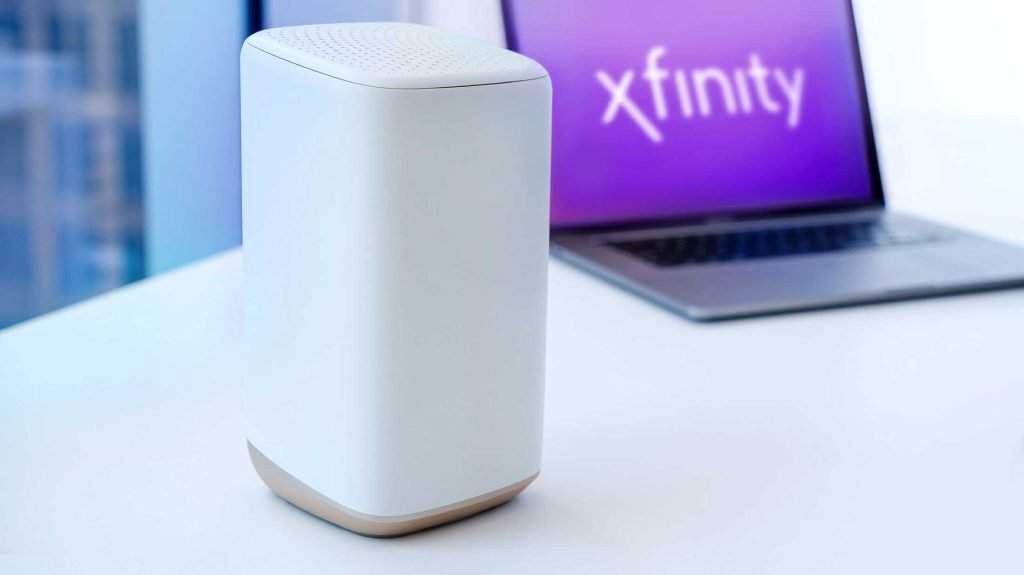
Are you tired of dead zones and slow internet in your home? Connecting a mesh WiFi system with your Xfinity service can be the game-changer you need.
Imagine seamless coverage in every room, no more frustrating drops, and lightning-fast speeds wherever you go. In this guide, you’ll discover simple, step-by-step instructions to set up your mesh WiFi with Xfinity—so you can enjoy a stronger, smarter network without the hassle.
Keep reading and get ready to transform your home internet experience.

Credit: www.youtube.com
Choosing The Right Mesh Wifi System
Choose a mesh wifi systemthat works well with Xfinity. Check if the system supports Xfinity’s network settings. Some mesh systems need extra setup to fit Xfinity’s requirements.
Important features include strong signal coverage, easy setup, and good speed. Look for systems with simple apps for control. Also, check for security featureslike automatic updates and guest networks.
| Brand | Compatibility | Key Feature | Price Range |
|---|---|---|---|
| Netgear Orbi | Works well with Xfinity | High speed, wide coverage | $$$ |
| Google Nest Wifi | Compatible with Xfinity | Easy setup, smart controls | $$ |
| TP-Link Deco | Supports Xfinity | Affordable, good security | $ |
Preparing Your Xfinity Modem
Restarting the modem helps clear any temporary issues. Unplug the power cable, wait 30 seconds, then plug it back in. Wait for the lights to stabilize before proceeding.
Disabling the built-in WiFi is important to avoid signal conflict with your mesh system. Access your modem settings using the Xfinity app or web portal. Turn off the WiFi option and save the changes.
Checking for firmware updates ensures your modem runs smoothly. Updates fix bugs and improve performance. Open the Xfinity app or website, find the modem settings, and look for available updates. Apply updates if needed and wait for the modem to restart.
Setting Up Your Mesh Wifi Network
Start by connecting the primary node to your Xfinity modem using an Ethernet cable. Power on the node and wait for the lights to stabilize. Open the mesh app on your phone or tablet. The app will guide you through setup. Follow the on-screen instructions to link the primary node to your internet.
Place additional nodes around your home to extend coverage. Nodes should be within range of the primary node but not too close. Avoid walls or large metal objects that block signals. Use the app to add each node one by one. It will show you if the placement is good or needs adjustment.

Credit: www.reddit.com
Configuring Network Settings
Choose a simple network namethat is easy to remember. Avoid using personal information or special characters. This name will show up when you search for WiFi networks.
Create a strong passwordto keep your network safe. Use a mix of letters and numbers. Avoid common words or easy-to-guess sequences. Change your password regularly for better security.
| Advanced Option | Description |
|---|---|
| Channel Selection | Pick a less crowded channel for better signal strength. |
| Band Steering | Automatically moves devices to the best frequency band. |
| Guest Network | Allows visitors to connect without accessing your main network. |
Troubleshooting Common Issues
Connection problemscan happen due to weak signals or interference. Place mesh nodes closer to each other but not too close. Walls and large objects can block signals. Try to keep nodes in open areas for better coverage.
- Keep mesh nodes away from microwaves and cordless phones.
- Restart your modem and mesh devices to refresh connections.
- Check cables to ensure they are firmly connected.
Good node placementhelps avoid dead zones. Avoid placing nodes near metal or thick walls. Place nodes at a similar height for consistent signal strength. Sometimes, moving a node just a few feet can improve coverage.
Updating firmware and softwareensures devices work smoothly. Check the Xfinity app or website for updates. Updates fix bugs and improve performance. Set your mesh system to update automatically if possible.
Optimizing Mesh Wifi Performance
Connecting your Mesh WiFi with Xfinity boosts internet coverage across your home. Start by setting up your Xfinity Gateway. Then, link your mesh system by following the manufacturer’s instructions for optimal performance.
Regular Speed Tests
Run speed tests often to check your wifi strength. Make sure your internet speedmatches your provider’s plan. Use a simple online tool for testing. If speeds are slow, try restarting your router. Move devices closer to the router for better results. A strong connection helps in smooth streaming.
Managing Connected Devices
Limit the number of devices on the network. Too many devices slow down the wifi. Disconnect gadgets not in use. This frees up bandwidth for others. Check which devices are connected through your router’s app. Manage them to keep the internet fast.
Using Parental Controls
Parental controls keep kids safe online. Block harmful sites easily. Set time limits for internet use. This helps manage screen time better. Use the router app to set these controls. It’s simple and keeps the internet safe for everyone.

Credit: www.youtube.com
Frequently Asked Questions
How Do I Connect Mesh Wifi To Xfinity Router?
To connect mesh WiFi to Xfinity, first disable the router’s WiFi. Then, plug the mesh WiFi’s primary unit into the Xfinity modem via Ethernet. Follow the mesh system app instructions to complete setup and extend your network.
Can I Use Mesh Wifi With Xfinity Gateway?
Yes, you can use mesh WiFi with the Xfinity Gateway. Disable the Gateway’s WiFi to avoid interference. Connect the mesh main node to the Gateway with an Ethernet cable. Then, configure the mesh network using its app for seamless coverage.
What Is The Best Mesh Wifi For Xfinity Service?
The best mesh WiFi for Xfinity includes models like Eero, Google Nest WiFi, and Netgear Orbi. These systems offer easy setup, strong signal, and compatibility with Xfinity modems for improved home coverage and speed.
How Do I Troubleshoot Mesh Wifi Connection Issues With Xfinity?
Restart your Xfinity modem and mesh WiFi nodes first. Ensure firmware is updated on both devices. Check Ethernet connections and disable Xfinity WiFi to prevent conflicts. Use the mesh app for diagnostics and contact support if problems persist.
Conclusion
Connecting mesh WiFi with Xfinity improves your home internet experience. It spreads signal evenly, reducing dead zones. Follow the steps carefully for smooth setup. Keep your network secure by updating passwords regularly. Test your connection speed after setup to ensure good coverage.
Enjoy faster, stable internet on all your devices. This simple upgrade makes online activities easier and more reliable.


