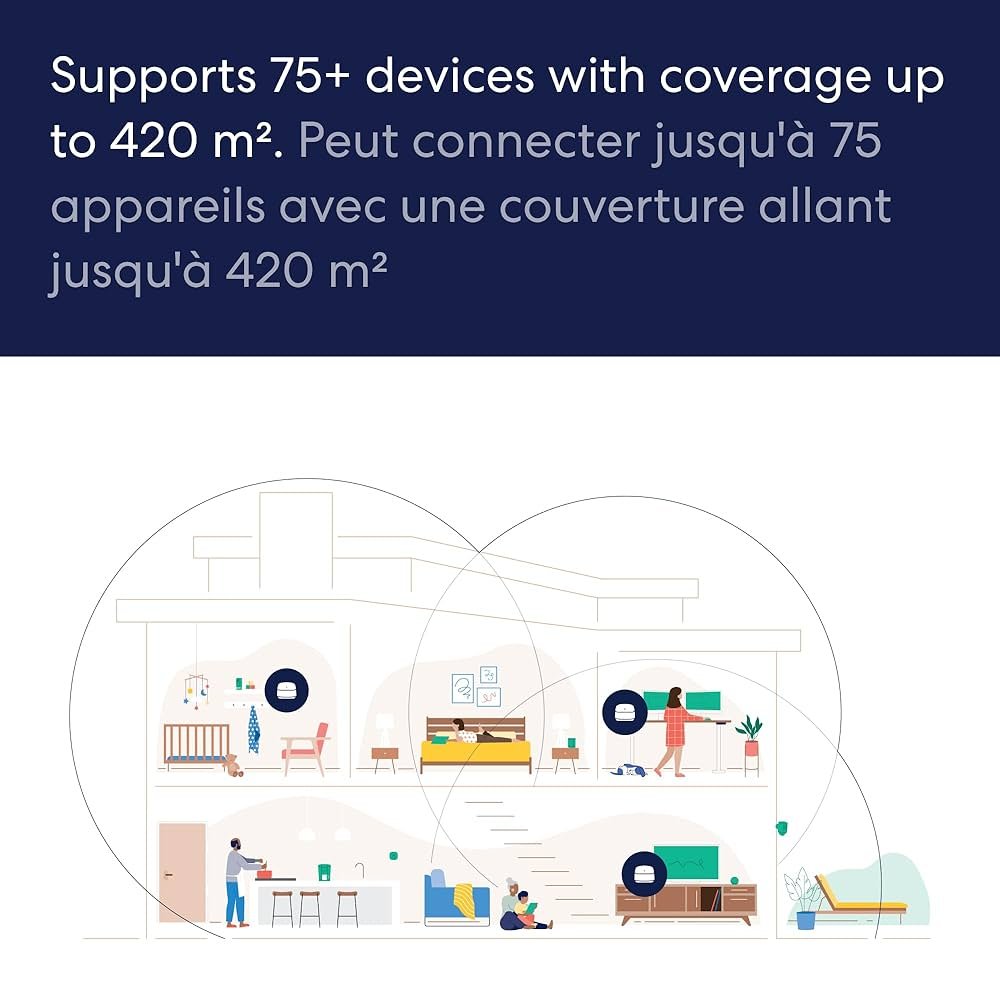
Are you frustrated by dead zones and weak WiFi signals in your home? You’re not alone.
Understanding the Eero Mesh WiFi coverage area can transform your internet experience. Imagine streaming your favorite shows, working from any room, or connecting all your devices without interruption. This guide will help you discover how far Eero’s mesh system can reach and how to get the most reliable connection in every corner of your space.
Keep reading to unlock the secrets to strong, seamless WiFi that keeps up with your busy life.
Eero Mesh Wifi Basics
Eero Mesh Wifi helps cover your home with strong internet signals. It uses multiple devices working together. This system replaces a single router.
You get better Wifi in every corner of your house. This means fewer dead zones and faster connections.
How Eero Mesh Works
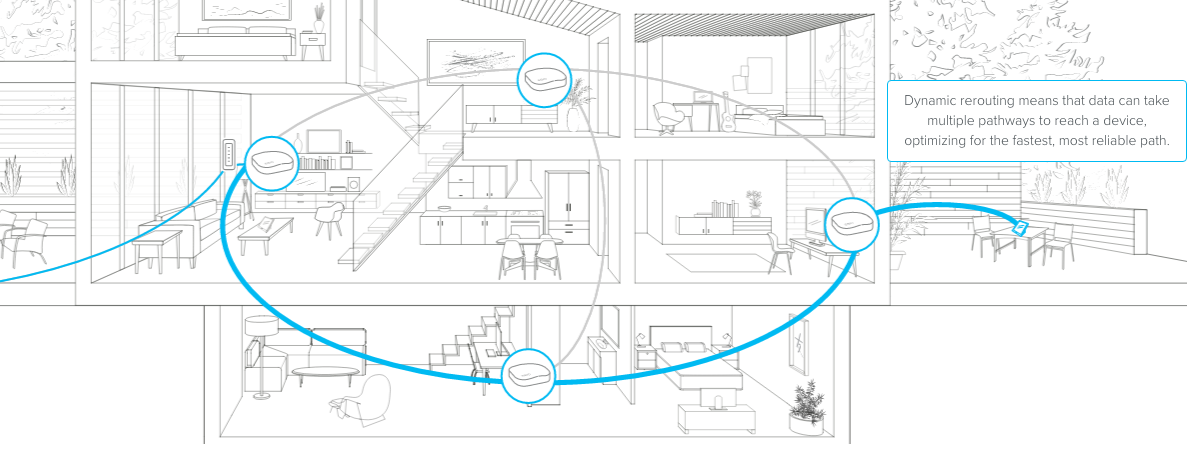
Eero Mesh uses small units called nodes. These nodes talk to each other. They send data back and forth. This creates a network that covers large areas.
- Each node acts as a Wifi hotspot
- Nodes connect wirelessly to share internet
- The system chooses the best path for data
- It balances traffic to avoid slowdowns
Components Of Eero System
The Eero system has parts that work together. Each part has a special role. Together, they provide wide and stable coverage.
| Component | Function |
| Eero Gateway | Connects to your modem and manages the network |
| Eero Nodes | Spread Wifi signals to different rooms |
| App | Helps you set up and control the network |
Coverage Area Factors
The coverage area of an Eero mesh WiFi system depends on several key factors. Understanding these can help you get the best WiFi signal throughout your home.
Each factor affects the strength and reach of the WiFi signal differently. Knowing how to manage them ensures reliable internet connection in all rooms.
Home Size And Layout
Larger homes or homes with multiple floors need more Eero units to cover the space. Walls and room shapes also impact signal strength.
- Open floor plans allow signals to travel further.
- Thick walls reduce signal range.
- Multiple floors require placing units on each level.
- Irregular room shapes can create dead spots.
Interference And Obstacles
Electronic devices and physical objects can block or weaken WiFi signals. Common sources of interference include microwaves and cordless phones.
| Obstacle | Effect on Signal |
| Concrete Walls | High Signal Loss |
| Metal Objects | Strong Signal Reflection |
| Microwave Ovens | Interference on 2.4 GHz Band |
| Large Aquariums | Signal Absorption |
Device Placement Tips
Placing your Eero units correctly improves coverage. Units should be in open areas, away from thick walls and electronics.
- Place units at a central location for even coverage.
- Keep units off the floor and away from metal objects.
- Separate units by at least one room or 30 feet.
- Use more units for larger or multi-story homes.
Maximizing Coverage
Eero mesh WiFi helps cover your whole home with strong internet. You can improve coverage by placing nodes smartly and using the right setup.
Good planning lets your mesh system work better and reach more areas without weak signals.
Optimal Eero Node Placement
Place Eero nodes where they get a clear signal from the main router. Avoid walls and metal objects that block signals.
Try to keep nodes in open spaces and at about chest height for the best signal spread.
- Put nodes near the center of the area to cover
- Keep nodes 30 to 40 feet apart indoors
- Place nodes away from large metal appliances
- Avoid floors and corners with many barriers
Using Wired Backhaul
A wired backhaul connects nodes with Ethernet cables. This gives a stable link between nodes and improves speed.
Wired backhaul reduces wireless interference and helps nodes work better, especially in large homes.
- Connect nodes using Ethernet cables if possible
- Use wired backhaul to reduce WiFi traffic between nodes
- Wired links help keep fast speeds across nodes
Expanding With Additional Nodes
Add more Eero nodes to cover bigger areas or spots with weak signals. Each node extends the WiFi range.
Place new nodes near the edge of your current coverage to help the signal reach further.
- Add nodes in rooms with poor WiFi signal
- Place new nodes within range of existing nodes
- Check coverage after adding nodes and adjust if needed

Credit: www.pcmag.com
Performance Optimization
Optimizing your Eero Mesh WiFi helps improve coverage and speed. Small changes can make a big difference in your network.
Keep your system running smoothly by focusing on updates, settings, and device management.
Firmware Updates And Maintenance
Regular firmware updates fix bugs and improve your Eero’s performance. Check for updates often and install them promptly.
- Enable automatic updates to keep your system current.
- Restart your Eero devices monthly to refresh connections.
- Clean the devices and keep them in open spaces for better airflow.
Network Settings To Adjust
Changing some network settings can boost your WiFi performance and reduce interference.
| Setting | Purpose | Recommended Value |
| Channel Selection | Reduce interference from other networks | Auto or least congested channel |
| Frequency Band | Balance speed and coverage | Use 2.4 GHz for range, 5 GHz for speed |
| QoS (Quality of Service) | Prioritize important traffic | Enable for video calls and streaming |
Managing Connected Devices
Too many devices can slow down your network. Manage connected devices to keep speed steady.
- Limit devices that use heavy bandwidth at the same time.
- Remove or block unknown devices from the network.
- Use the Eero app to monitor device activity and usage.
- Set device priorities if available to favor important devices.
Troubleshooting Coverage Issues
Many users face WiFi coverage problems with their Eero mesh system. These issues can cause weak signals or dead zones in your home. Fixing them helps keep your connection strong and steady.
Below are common problems and how to fix them. You will also learn when to reset or reconfigure your Eero devices for better coverage.
Common Problems And Fixes
Signal interference and poor placement are common causes of weak WiFi. Physical barriers like walls and floors can block signals. Other electronics can cause interference too.
- Move your Eero units to open, central spots in your home.
- Keep devices away from microwaves, cordless phones, and baby monitors.
- Place your main Eero near your modem for better signal flow.
- Update Eero software regularly for performance improvements.
- Reduce the number of connected devices if the network slows down.
When To Reset Or Reconfigure
Sometimes resetting or reconfiguring your Eero system is necessary to fix persistent issues. This can refresh connections and clear software glitches.
| Situation | Action |
| Frequent disconnections | Restart all Eero devices |
| Slow internet speeds | Reboot modem and Eero system |
| Coverage gaps after moving devices | Run Eero app setup again |
| Firmware update issues | Factory reset and reconfigure |
| Network security concerns | Change WiFi password and reset devices |
Credit: blog.eero.com
Comparing Eero With Other Mesh Systems
Mesh WiFi systems like Eero are popular for extending internet coverage at home. Each system varies in its features and coverage area.
Understanding these differences helps you choose the right system for your needs. Let’s explore how Eero compares with other mesh systems.
Coverage Differences
Each mesh system provides different coverage areas. Eero offers wide coverage, suitable for most homes.
Other systems like Netgear Orbi and Google Nest also provide extended coverage. The range depends on the number of units used.
- Eero covers up to 5,000 square feet with 3 units
- Netgear Orbi covers up to 6,000 square feet with 3 units
- Google Nest covers up to 4,400 square feet with 3 units
Feature Highlights
Mesh systems offer unique features. Eero has TrueMesh technology for reliable connections.
Other systems provide different features. Google Nest has smart home integration, and Netgear Orbi offers advanced security options.
- Eero: Easy setup, TrueMesh technology
- Netgear Orbi: Advanced security, high speed
- Google Nest: Smart home integration, voice control

Credit: shopsavvy.com
Frequently Asked Questions
What Is The Eero Mesh Wifi Coverage Area Per Unit?
Each Eero unit covers approximately 1,500 square feet. Multiple units expand the coverage seamlessly for larger spaces, ensuring strong WiFi signals throughout your home or office.
How Many Eero Units Are Needed For Full Coverage?
Typically, two to three Eero units cover a 3,000 to 4,500 square feet home. The exact number depends on your home’s layout and building materials.
Does Eero Mesh Wifi Work Outdoors Or In Large Yards?
Eero mesh WiFi is designed for indoor use. Its signal may reach close outdoor areas, but coverage weakens significantly in large yards or open spaces.
Can Eero Coverage Area Be Extended With Additional Units?
Yes, adding more Eero units extends your WiFi coverage. Each unit connects wirelessly, creating a strong mesh network for larger or multi-story homes.
Conclusion
Eero mesh wifi covers large areas well. Each device spreads the signal evenly. Adding more units grows your wifi range. Walls and floors can affect coverage. Place devices where signal is weak. This system suits most homes and small offices.
It keeps internet strong and steady. Easy setup helps anyone get started fast. Choose Eero for simple, reliable wifi coverage.