Is your Orbi mesh WiFi feeling slower than it should? When your internet drags, it can disrupt work, streaming, and even simple browsing.
But before you call your provider or buy new equipment, there are easy ways you can fix the problem yourself. In this guide, you’ll discover clear, step-by-step tips to troubleshoot your slow Orbi mesh WiFi. Keep reading, and you’ll get your connection back to the fast, smooth speed you expect—without frustration or confusion.
Credit: www.youtube.com
Common Causes Of Slow Orbi Wifi
Slow Orbi WiFi can make using the internet frustrating. Many factors can cause your mesh network to slow down. Understanding these common causes helps you fix the problem faster.
This guide covers four main causes: signal interference, firmware issues, device overload, and poor placement. Each one affects your WiFi speed differently.
Signal Interference
Signal interference happens when other devices block or weaken your WiFi signal. This interference lowers your internet speed and connection quality.
Common sources of interference include microwaves, cordless phones, and other WiFi networks nearby. Walls and large metal objects can also block signals.
- Microwaves and Bluetooth devices
- Thick walls and furniture
- Other WiFi networks on the same channel
- Large metal appliances like refrigerators
Firmware Issues
Firmware is the software running your Orbi devices. Outdated or corrupted firmware can slow down your network. It may cause bugs or crashes too.
Regularly check for firmware updates from the Orbi app or website. Updating firmware fixes problems and improves performance.
- Check for updates monthly
- Install updates during low-usage times
- Restart devices after updating
Device Overload
Too many devices connected to your Orbi can cause overload. This slows down the network because the router shares bandwidth among all devices.
Streaming, gaming, and downloads on many devices at once use a lot of data. This can reduce the speed for each device.
- Limit devices connected at the same time
- Turn off WiFi on unused devices
- Use wired connections for heavy use devices
Poor Placement
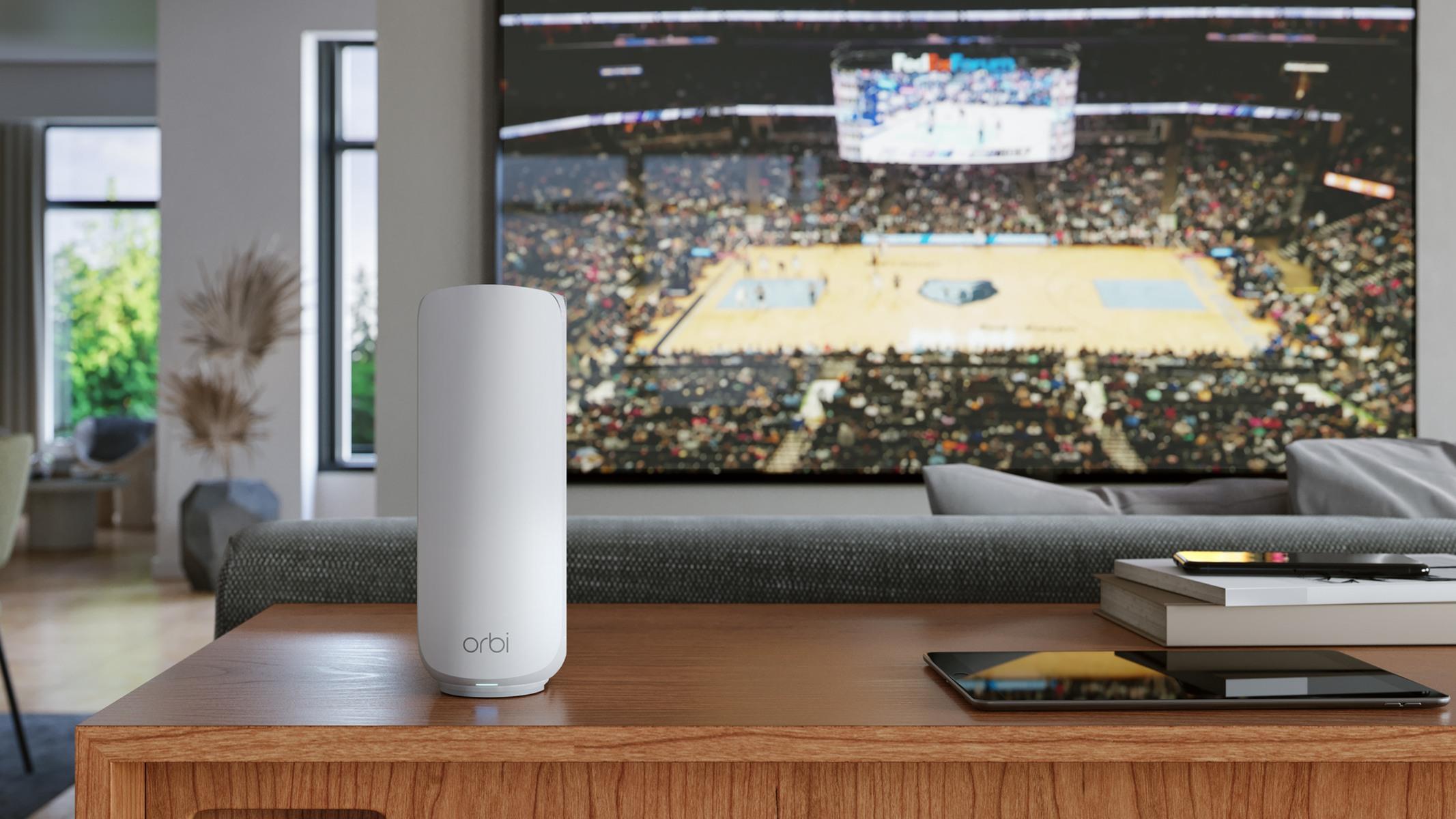
Where you place your Orbi router and satellites affects signal strength. Poor placement causes weak or spotty WiFi coverage.
Keep devices in open areas away from thick walls and metal objects. Place satellites evenly around your home for better coverage.
- Place router in a central location
- Elevate devices off the floor
- Avoid placing near microwaves or metal
- Keep satellites within range of the router
Credit: hothardware.com
Restart And Reset Steps
Slow mesh WiFi can be frustrating, especially with your Orbi system. Restarting or resetting your devices often fixes common issues.
These steps help refresh your network and clear temporary problems. Follow them carefully to improve your WiFi speed.
Power Cycle Your Devices
Power cycling means turning your devices off and on again. This refreshes your Orbi router and satellites.
It clears memory and fixes slow connections without changing your settings.
- Unplug the Orbi router and all satellites from power.
- Wait at least 30 seconds to let them fully turn off.
- Plug the router back in and wait for it to light up.
- Plug in the satellites one by one and wait for their lights.
- Check if your WiFi speed improves after this process.
Factory Reset Orbi
A factory reset restores your Orbi to original settings. Use this if power cycling does not fix the slow WiFi.
Resetting removes all custom settings. You will need to set up your network again.
- Locate the reset button on the back of your Orbi router or satellite.
- Use a paperclip or pin to press and hold the button for 10 seconds.
- Release the button and wait for the device to reboot.
- After reboot, your Orbi will be reset to factory settings.
- Reconfigure your WiFi network using the Orbi app or web interface.
Optimize Orbi Settings
Slow mesh WiFi can be annoying. Optimizing Orbi settings can help improve speed. Here are some ways to make your Orbi network faster.
Let’s look at different settings you can adjust. These include updating the firmware, adjusting channel settings, and enabling QoS.
Update Firmware
Firmware updates improve performance and security. Check if your Orbi has the latest firmware. Updating can fix bugs and enhance speed.
Visit the Orbi app or website to see if updates are available. Follow the instructions to update your device.
Adjust Channel Settings
WiFi channels can affect speed. Your Orbi might be on a crowded channel. Changing it can reduce interference.
Use a WiFi analyzer to find the best channel. Access Orbi settings to switch to a less busy channel.
- Open Orbi app
- Go to WiFi settings
- Select a different channel
Enable Qos
QoS stands for Quality of Service. It helps prioritize traffic on your network. This ensures important tasks get the bandwidth they need.
Enable QoS in Orbi settings. This can help improve streaming and gaming experiences.
- Access Orbi settings
- Find QoS settings
- Turn on QoS
Improve Device Placement
Slow mesh WiFi can happen if your devices are not placed well. Moving them to better spots helps speed up your connection.
Focus on where to put your router and satellites. Clear paths and wired connections also improve speed.
Ideal Router Location
Place your main router in a central spot in your home. This lets the signal reach all areas evenly. Avoid putting it near windows or outside walls.
- Keep the router high, like on a shelf or table.
- Put it in an open area, not inside a cabinet.
- Stay away from thick walls or metal objects.
Avoid Obstacles
Objects like walls and furniture block WiFi signals. Thick materials reduce speed and coverage. Keep routers and satellites clear of these obstacles.
| Obstacle Type | Effect on Signal |
| Concrete Wall | Blocks most signals |
| Metal Furniture | Reflects and weakens signals |
| Glass Window | Passes signal but may reduce strength |
| Large Appliances | Absorbs and blocks signals |
Use Ethernet Backhaul
Connect mesh devices with Ethernet cables to boost speed. This reduces wireless traffic and improves stability.
Benefits of Ethernet Backhaul:
- Faster data transfer between mesh points
- Less wireless interference
- Better coverage in large homes
Check Connected Devices
Slow mesh WiFi can be frustrating. Checking your connected devices can help. It reveals which devices use the most bandwidth.
By identifying these devices, you can manage your network better. This ensures a smoother internet experience for everyone at home.
Limit Bandwidth Hogs
Some devices use more bandwidth than others. Limiting these bandwidth hogs helps improve overall network speed.
- Streaming devices like smart TVs
- Online gaming consoles
- Devices downloading large files
Manage Guest Networks
Guest networks can impact your WiFi speed. Managing them properly is essential for optimal performance.
Consider setting up a separate guest network. This keeps your main network free from extra load.
| Task | Action |
| Monitor usage | Check device connections |
| Set limits | Restrict guest access |
| Adjust settings | Change network password regularly |
Use Orbi App Tools
The Orbi app helps you fix slow mesh WiFi problems. It has tools to check your network and watch performance. These tools make it easier to find issues and improve speed.
Using the Orbi app tools can save time. You do not need special skills. The app guides you through steps to keep your WiFi fast and stable.
Run Network Tests
The Orbi app lets you run network tests to check your WiFi speed. These tests show if your internet is slow or if devices have weak signals.
Run tests regularly to find problems early. The app shows download and upload speeds. It also checks the connection between Orbi units.
- Test internet speed from your main Orbi router
- Check signal strength to satellite devices
- Identify weak spots in your home WiFi
- See if firmware updates are needed
Monitor Performance
The app monitors your WiFi performance over time. It tracks how many devices are connected and their usage.
You can spot patterns that slow down your mesh network. The app alerts you to interference or heavy traffic. This helps you manage your network better.
- View connected devices and their data use
- Check signal strength for each Orbi unit
- Receive alerts about network issues
- Adjust settings to reduce interference
Advanced Troubleshooting Tips
Slow Mesh Wifi Orbi can cause frustration. Fixing it needs deeper steps than usual.
This guide shows advanced tips to improve your Orbi mesh wifi speed and reliability.
Change Dns Settings
Changing DNS settings can speed up your internet connection. DNS translates website names to IP addresses.
Try using public DNS servers like Google DNS or Cloudflare DNS for better performance.
- Access your Orbi router’s admin page.
- Find the DNS settings section.
- Enter new DNS addresses (e.g., 8.8.8.8 for Google DNS).
- Save changes and restart the router.
Adjust Mtu Size
MTU size controls the largest packet your network can send. Wrong MTU slows your wifi.
Lowering MTU size can help fix slow or unstable connections on your Orbi mesh network.
- Log in to your Orbi router admin panel.
- Locate the WAN or Internet settings.
- Find the MTU size option.
- Change MTU to a smaller value, like 1400 or 1450.
- Save settings and reboot your router.
Contact Support
If problems continue, contact Orbi support for help. They can offer specific solutions.
Prepare your router model, firmware version, and details about the slow wifi issue before calling.
- Check Orbi’s official website for support options.
- Use phone, chat, or email to reach customer service.
- Follow their instructions carefully for troubleshooting.

Credit: hothardware.com
Frequently Asked Questions
Why Is My Orbi Mesh Wifi Slow?
Slow Orbi mesh WiFi can result from outdated firmware, poor placement, or signal interference. Check for firmware updates, reposition your router, and reduce interference from other devices to improve speed.
How To Improve Orbi Mesh Wifi Speed?
Improve speed by updating firmware, placing nodes centrally, and minimizing physical obstructions. Also, avoid channel overlap and connect devices to the closest Orbi node for optimal performance.
Can Network Congestion Slow Orbi Mesh Wifi?
Yes, network congestion from multiple connected devices can reduce Orbi mesh WiFi speed. Limit simultaneous connections or prioritize devices using Quality of Service (QoS) settings to enhance performance.
Does Resetting Orbi Improve Slow Wifi?
Resetting Orbi can resolve slow WiFi by clearing temporary issues and restoring settings. Perform a soft reset first; if problems persist, try a factory reset with caution to avoid data loss.
Conclusion
Troubleshooting slow Mesh WiFi Orbi can improve your internet experience. Check your device placement and avoid obstacles that block signals. Restart your router and update its firmware regularly. Limit the number of connected devices to reduce network load. Test your internet speed to find any issues.
Small fixes often bring big improvements. Keep these steps handy for quick troubleshooting. Enjoy faster, more reliable WiFi in your home.