Are you struggling with slow or unreliable WiFi for your smart home devices? Your mesh WiFi system promises seamless coverage, but how do you know if it’s really working as it should?
Testing your mesh WiFi is the key to unlocking smooth, uninterrupted control over your smart lights, cameras, and thermostats. You’ll discover simple, effective ways to test your mesh WiFi so your smart home runs without a hitch. Keep reading to learn how to spot weak spots, boost your signal, and make your devices respond faster than ever.
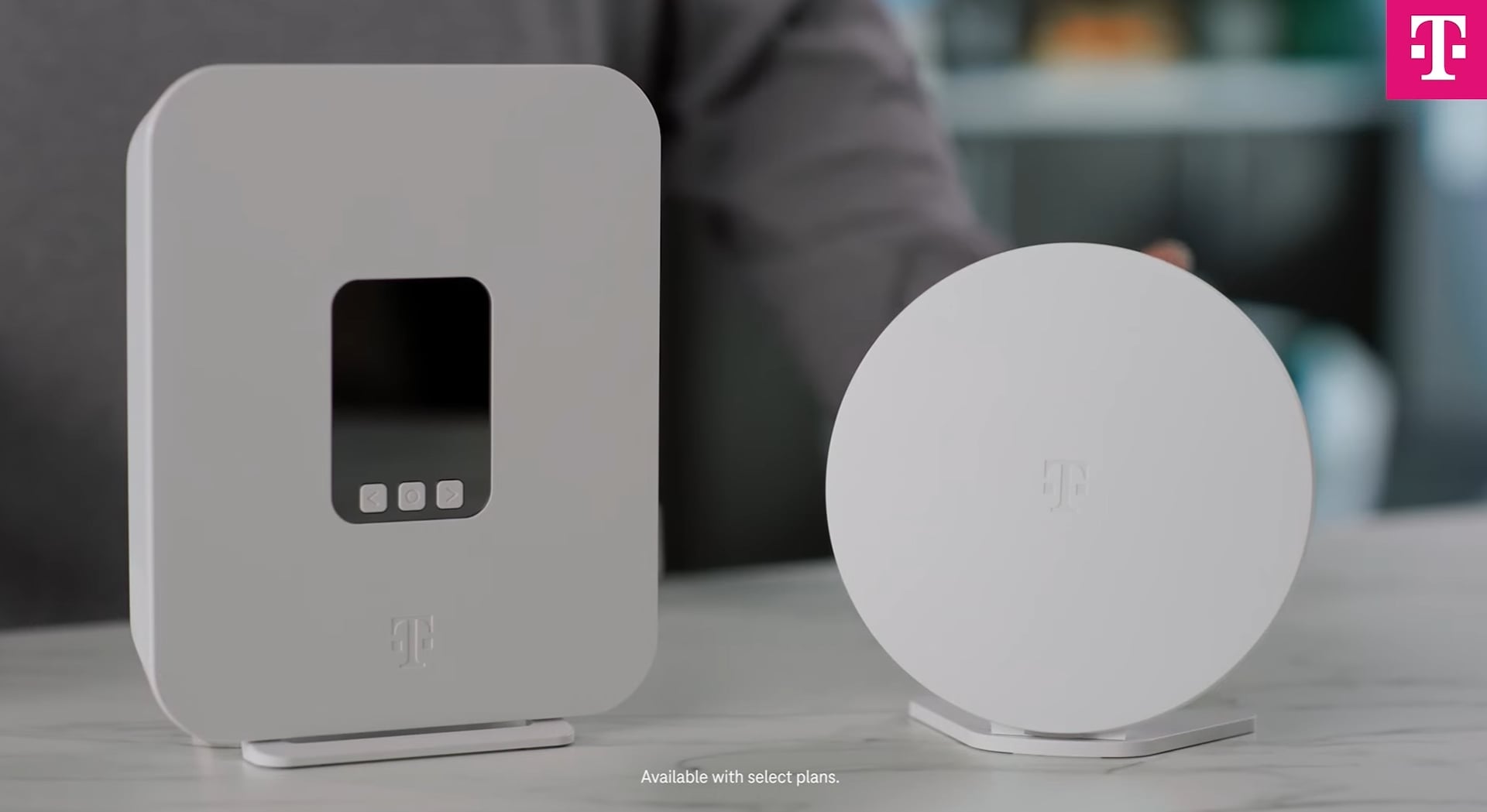
Choosing The Right Mesh Wifi System
Testing mesh wifi for smart home devices starts with picking the right system. A good mesh wifi system makes your smart devices work well and stay connected.
Not all mesh wifi systems fit every home or device. Consider your needs carefully before buying.
Key Features For Smart Homes
Look for features that help smart devices run smoothly. Fast speeds and strong coverage are important.
- Wide coverage to reach all rooms
- High data speeds for quick responses
- Easy network management through apps
- Security features to protect devices
- Ability to handle many devices at once
Compatibility With Devices
Check if the mesh wifi works with your smart home devices. Some systems support more device types than others.
Make sure your mesh wifi supports the standards your devices use, like Wi-Fi 5 or Wi-Fi 6.
- Supports common smart home protocols
- Works well with cameras, lights, and speakers
- Compatible with voice assistants
- Offers stable connections for all devices
Budget Considerations
Set a budget before choosing a mesh wifi system. Prices vary based on features and coverage.
Balance cost with what your smart home needs to avoid overspending or missing features.
- Basic systems for small homes and few devices
- Mid-range for medium homes with many devices
- High-end for large homes and advanced features
- Consider future upgrades and expansions
Credit: www.t-mobile.com
Setting Up Your Mesh Network
Setting up a mesh WiFi network is key to good smart home device coverage. It helps spread a strong signal in every corner of your home. Follow these simple steps to get your mesh network ready.
This guide covers placing your router, connecting nodes, and adjusting network settings for the best results.
Optimal Router Placement
Place your main router in a central spot in your home. Avoid walls and metal objects that block signals. Keep it high up, like on a shelf, for better reach.
- Choose a central location
- Keep away from thick walls and metal
- Place the router high for better coverage
- Do not hide it inside cabinets
- Keep it away from other electronics
Connecting Nodes
Connect your mesh nodes to your main router carefully. Each node should be close enough to get a strong signal but far enough to extend coverage.
| Node Location | Recommended Distance |
| Near main router | 10 to 20 feet |
| Far nodes | 30 to 50 feet |
| Avoid walls | Minimal or no obstruction |
Configuring Network Settings
Adjust network settings to match your smart home needs. Set a clear network name and secure password. Enable device prioritization for your smart devices.
- SSID (Network Name): Use a simple, recognizable name
- Password: Create a strong, easy-to-remember password
- Device Priority: Prioritize smart home devices for stable connections
- Firmware Updates: Keep your mesh system updated for best performance
Testing Connectivity And Coverage
Testing your mesh WiFi for smart home devices helps ensure strong signals and good coverage. This process checks if devices stay connected everywhere in your home.
You can test connectivity by measuring signal strength, finding weak spots, and using WiFi tools. These checks help fix problems early.
Signal Strength Measurement
Measure signal strength to see how well your mesh WiFi reaches different rooms. Use your smartphone or laptop to check signal bars or signal percentage.
- Move to each room with a smart device
- Check the WiFi signal indicator
- Write down the signal strength or bars
- Look for rooms with low signal levels
Identifying Dead Zones
Dead zones are areas with no WiFi signal. These zones cause smart devices to disconnect or work slowly. Find dead zones by walking around your home with a connected device.
| Location | Signal Strength | Device Connectivity |
| Living Room | Strong | Stable |
| Basement | Weak | Unstable |
| Garage | None | Disconnected |
| Bedroom | Medium | Stable |
Using Wifi Analyzers
WiFi analyzers show details about your network. They display signal strength, channel use, and interference. Use apps like NetSpot or WiFi Analyzer to scan your home.
- Download a WiFi analyzer app on your phone
- Scan your entire home for signal maps
- Check which channels have less interference
- Adjust your mesh WiFi settings based on results
Assessing Device Performance
Testing mesh WiFi for smart home devices helps ensure smooth operation. It checks how well your network supports your devices.
Good performance means faster responses and fewer connection problems. This guide covers key areas to test.
Latency And Response Time
Latency is the delay between a command and the device’s reaction. Low latency is important for smart home devices.
Response time shows how quickly devices act after receiving signals. Check this by sending commands and noting delays.
- Use a ping test to measure latency from your router to devices.
- Observe any lag in turning devices on or off.
- Test at different distances from mesh nodes.
Bandwidth Requirements
Different devices need different amounts of bandwidth to work well. Cameras and streaming devices use more data.
| Device Type | Typical Bandwidth Need | Testing Tip |
| Smart Bulbs | Low (under 1 Mbps) | Check if lights respond without delay |
| Security Cameras | High (2-5 Mbps) | Stream video to test smoothness |
| Smart Speakers | Medium (1-3 Mbps) | Play audio and watch for pauses |
Device-specific Testing Tips
Each smart device works differently. Test them in ways that match their function for best results.
- For smart locks, test locking and unlocking speed from your phone.
- For thermostats, change temperature settings and watch for quick updates.
- For sensors, trigger events and confirm alerts arrive fast.
Troubleshooting Common Issues
Testing mesh WiFi for smart home devices can be tricky. Understanding common issues helps in maintaining a stable connection.
Learn how to resolve problems like signal drops and outdated firmware. This guide will help you keep your network running smoothly.
Interference And Signal Drops
Signal drops in mesh WiFi often result from interference. Many devices in your home use the same frequency, causing disruptions.
- Keep routers away from large metal objects
- Position nodes away from microwaves and cordless phones
- Use dual-band routers for less crowded frequencies
Firmware Updates
Firmware updates are crucial for network performance. They enhance security and fix known bugs.
| Device | Update Frequency |
| Router | Monthly |
| WiFi Extender | Quarterly |
| Smart Hub | Biannually |
Rebooting And Resetting Nodes
Sometimes, rebooting or resetting nodes can resolve connectivity issues. This process refreshes the network settings.
To reboot, unplug the node for 10 seconds and then reconnect. For a reset, press the reset button for 5 seconds.
Optimizing Your Mesh Network
Testing your mesh WiFi for smart home devices helps improve their connection. A strong network keeps devices working smoothly.
Optimizing your mesh network involves adjusting settings and coverage. This ensures your smart devices stay connected and fast.
Adjusting Channel Settings
Channels control how your WiFi signals travel. Setting the right channel reduces interference from other networks.
- Use your router’s app to scan for busy channels.
- Choose a channel with fewer devices nearby.
- Switch between 2.4 GHz and 5 GHz bands for best results.
- Test your smart devices after changing channels.
Prioritizing Smart Devices
Give smart devices higher priority to keep their connection steady. This is called Quality of Service (QoS).
| Device Type | Priority Level |
| Security Cameras | High |
| Smart Lights | Medium |
| Voice Assistants | High |
| Smart Thermostats | Medium |
| Other Devices | Low |
Set priority in your mesh system’s settings. This keeps important devices connected even if many devices use WiFi.
Expanding Network Coverage
Place mesh nodes where your smart devices are used most. This helps cover weak signal spots in your home.
- Put nodes in open areas, not inside cabinets.
- Keep nodes away from thick walls and metal objects.
- Use extra nodes if your home is large or has many floors.
- Test signal strength near smart devices after moving nodes.
Security Measures For Smart Home Wifi
Keeping your smart home wifi secure is crucial. It protects your devices from unauthorized access.
There are simple steps to enhance security. These steps involve setting passwords, using guest networks, and conducting audits.
Setting Strong Passwords
A strong password is your first line of defense. It prevents unauthorized access to your network.
- Use a mix of letters, numbers, and symbols.
- Avoid common words and sequences.
- Change passwords regularly.
Enabling Guest Networks
Guest networks keep your main wifi safe. They allow visitors to connect without accessing your devices.
- Set up a separate network for guests.
- Limit access to specific devices.
- Change the guest password often.
Regular Security Audits
Audits help identify vulnerabilities. Regular checks ensure your network stays secure.
Consider scheduling audits every three months.
Use tools to scan for weak points.
Review device logs for unusual activity.
Credit: www.candelatech.com

Credit: www.pcmag.com
Frequently Asked Questions
How Do I Test Mesh Wifi For Smart Home Devices?
Test mesh WiFi by checking signal strength near each device. Use speed tests and monitor device connectivity for stability.
What Tools Help Test Mesh Wifi Networks Effectively?
Use apps like NetSpot, WiFi Analyzer, or manufacturer-specific tools. They measure signal strength, speed, and dead zones in your home.
Can Mesh Wifi Improve Smart Home Device Performance?
Yes, mesh WiFi extends coverage and reduces dead zones. This ensures stable connections and faster response for smart devices.
How Often Should I Test Mesh Wifi For Smart Homes?
Test your mesh WiFi every few months or after adding new devices. Regular checks prevent connectivity issues and maintain performance.
Conclusion
Testing your mesh WiFi for smart home devices keeps your network strong. Check signal strength in each room. Watch for slow or dropped connections. Use apps or tools to measure speed and coverage. Adjust your mesh nodes for better reach if needed.
Regular tests help avoid frustration with smart devices. A reliable WiFi makes your smart home work smoothly. Keep testing often to catch problems early. Simple steps can save time and improve your experience. Stay connected and enjoy your smart home without interruptions.