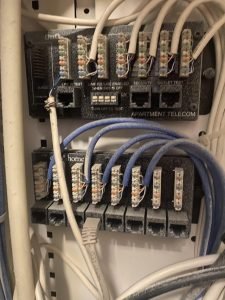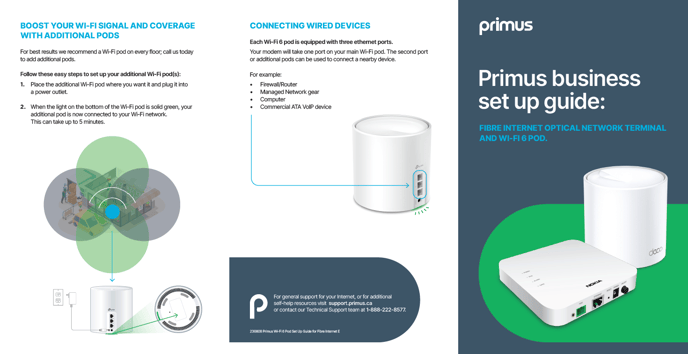
Are you struggling to get your smart home devices working smoothly? Connecting your mesh WiFi to your smart home hub is the key to unlocking faster, more reliable control over everything from lights to security cameras.
Imagine walking into your home and having all your gadgets respond instantly, without any frustrating delays or dropped signals. You’ll discover simple steps to link your mesh WiFi system with your smart home hub, making your smart devices smarter and your life easier.
Keep reading to transform your home into the seamless smart environment you deserve.
Mesh Wifi Basics
Mesh wifi helps spread internet evenly around your home. It uses several devices called nodes.
Each node works together to give a strong signal in every room. This improves your smart home experience.
What Is Mesh Wifi
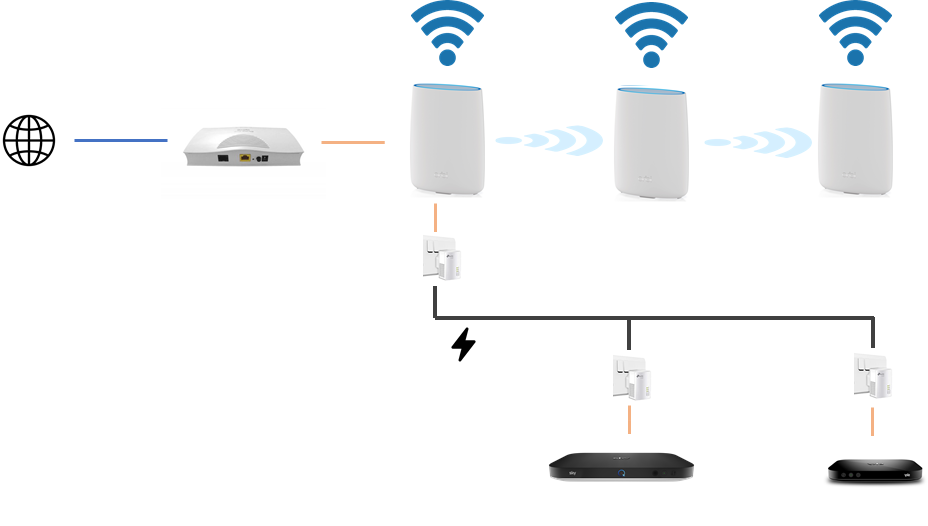
Mesh wifi is a system with multiple devices that connect to the internet. Nodes communicate with each other to cover a large area.
- One main router connects to your modem.
- Additional nodes spread the wifi signal.
- Devices connect to the nearest node automatically.
- This creates a single, seamless network.
Benefits For Smart Homes
| Benefit | Description |
| Better Coverage | Strong signal in every room for smart devices. |
| Easy Setup | Nodes connect automatically without complex wiring. |
| Reliable Connection | Less signal dropouts for smart home controls. |
| Supports Many Devices | Handles multiple smart devices at once without slowing down. |
Credit: digitalelysium.medium.com
Smart Home Hub Essentials
A smart home hub connects and controls your smart devices. It allows you to manage lights, locks, cameras, and more from one place.
Using a mesh WiFi system can improve your smart home hub’s connection. It helps devices stay connected in every room.
Types Of Smart Home Hubs
There are different kinds of smart home hubs. Some work with voice assistants, and others focus on security or automation.
- Voice-Controlled Hubs: Use Alexa, Google Assistant, or Siri.
- Security Hubs: Focus on cameras and alarms.
- Automation Hubs: Create routines and schedules for devices.
- Open-Source Hubs: Allow custom setups and advanced control.
Compatibility With Mesh Networks
Most smart home hubs work well with mesh WiFi systems. Mesh networks spread WiFi signals evenly in your home.
Ensure your mesh network supports the hub’s connection needs. Some hubs use WiFi, others use Zigbee or Z-Wave.
- WiFi Hubs: Connect directly to mesh WiFi nodes.
- Zigbee/Z-Wave Hubs: Use a bridge connected to mesh WiFi.
- Check if your mesh system blocks certain signals.
- Place hubs near mesh nodes for stronger links.
Preparing Your Network
Connecting your mesh WiFi to a smart home hub needs a strong network setup. Preparing your network ensures smooth operation and fewer connection problems.
This guide helps you get your mesh WiFi ready and adjust network settings for the best smart home experience.
Setting Up Mesh Wifi
Start by placing your mesh WiFi nodes in open areas around your home. Avoid walls or objects that block signals.
Follow the mesh WiFi system instructions to connect the main router to your internet modem. Power on all nodes and wait for them to link together.
- Place nodes in central spots for good coverage
- Keep nodes away from metal objects and microwaves
- Use the mesh app to check signal strength between nodes
- Update the firmware if the system asks you to
Configuring Network Settings
Access the mesh WiFi settings using the app or web interface. Set a strong WiFi name and password that your smart home hub will use.
Enable DHCP so your smart home hub gets an IP address automatically. Check that the network uses a compatible frequency band, usually 2.4 GHz, for smart devices.
- Set WiFi SSID and password
- Turn on DHCP for automatic IP assignment
- Confirm 2.4 GHz band is active for device compatibility
- Disable guest network or separate SSIDs if needed
Connecting The Hub
Connecting your smart home hub to a mesh WiFi system improves your network reach. This guide explains how to connect the hub properly.
We will cover the main connection types and a simple process to get your devices working together.
Wired Vs Wireless Connection
You can connect your smart home hub to the mesh WiFi using a wired or wireless method. Each has benefits and limits.
- Wired Connection:Uses an Ethernet cable for a stable and fast link.
- Wireless Connection:Connects via WiFi without cables, offering more flexibility.
Wired connections reduce interference and delays. Wireless connections make setup easier and cleaner.
Step-by-step Connection Process
Follow these steps to link your smart home hub to the mesh WiFi network.
- Plug in the smart home hub near your mesh WiFi router or node.
- If using a wired connection, connect an Ethernet cable from the hub to the router.
- Power on the hub and wait for the lights to show it is ready.
- Open the hub’s app or web interface on your phone or computer.
- Select the mesh WiFi network from the available list.
- Enter the network password if needed and confirm the connection.
- Check the hub’s status to ensure it is connected to the mesh WiFi.
- Test the smart devices linked to your hub to verify proper communication.
Optimizing Performance
Connecting your mesh WiFi to a smart home hub needs careful setup. Good placement and fixing connection problems keep your devices fast and reliable.
Follow these tips to improve your network’s performance and avoid common issues. This helps your smart home run smoothly every day.
Placement Tips For Devices
Where you put your mesh WiFi units and smart home hub matters. Place devices to get the best signal and avoid interference.
- Put mesh WiFi nodes in open spaces, not inside cabinets.
- Keep the smart home hub near the center of your home.
- Avoid placing devices near microwaves or cordless phones.
- Place nodes at about eye level for better signal range.
- Keep some distance between mesh nodes and large metal objects.
Troubleshooting Connectivity Issues
Sometimes devices lose connection or slow down. Check these common problems to fix your smart home network.
| Problem | Possible Cause | Solution |
| Smart hub not connecting | Weak WiFi signal | Move hub closer to mesh node |
| Slow device response | Network congestion | Reduce number of active devices |
| Intermittent disconnects | Interference from other electronics | Change WiFi channel in router settings |
| Mesh nodes offline | Power issues | Check power adapters and cables |
Security Considerations
Connecting a mesh WiFi to your smart home hub offers convenience. Yet, security is important to protect your home network.
Understanding security features helps in safeguarding your devices and information.
Securing Your Mesh Network
A secure mesh network keeps your data safe. It prevents unauthorized access to your smart home devices.
- Use strong passwords for your network.
- Enable network encryption settings.
- Update firmware regularly to fix security flaws.
Protecting Smart Home Devices
Smart home devices need protection from cyber threats. This ensures your privacy and the functionality of the devices.
Consider setting up a guest network for visitors. This keeps your main network private and secure.
| Device Type | Security Feature |
| Smart Cameras | Two-factor authentication |
| Smart Locks | Biometric access |
| Smart Lights | Firmware updates |
Advanced Features
Connecting a mesh WiFi system to your smart home hub can enhance your network performance. Advanced features like network prioritization and voice assistant integration can improve your smart home experience.
These features ensure your smart devices work efficiently and seamlessly across your home network.
Network Prioritization
Network prioritization helps in managing your internet speed by prioritizing certain devices. This is useful for streaming or gaming devices that need more bandwidth.
- Boosts performance for specific devices
- Reduces lag during video calls or gaming
- Ensures stable connections for essential devices
Integrating Voice Assistants
Voice assistants like Alexa or Google Assistant can be integrated with your mesh WiFi. This allows you to control your smart home devices with voice commands.
| Assistant | Compatible Devices |
| Alexa | Echo, Smart Plugs |
| Google Assistant | Google Home, Smart Lights |
| Siri | HomePod, Smart Thermostats |
Credit: www.androidpolice.com

Credit: www.smarthome.com.au
Frequently Asked Questions
How Do I Connect Mesh Wifi To A Smart Home Hub?
To connect mesh WiFi to a smart home hub, first ensure both devices are powered on. Use the hub’s app to scan for WiFi networks. Select your mesh WiFi network and enter the password. This allows seamless communication between your smart hub and devices.
Can Mesh Wifi Improve Smart Home Hub Performance?
Yes, mesh WiFi improves smart home hub performance by providing strong, consistent coverage. It reduces dead zones and latency, ensuring smart devices respond quickly. This enhances overall connectivity and stability, especially in larger homes or spaces with multiple smart devices.
What Mesh Wifi Settings Optimize Smart Home Hubs?
Optimize mesh WiFi for smart hubs by enabling QoS (Quality of Service) to prioritize smart devices. Use a dedicated SSID for smart home gadgets if supported. Ensure firmware updates are applied to both mesh nodes and the hub for best compatibility.
Are All Smart Home Hubs Compatible With Mesh Wifi?
Most smart home hubs are compatible with mesh WiFi systems as they connect via standard WiFi protocols. However, check your hub’s specifications to confirm compatibility. Some hubs may require specific network settings or ports to function properly with mesh networks.
Conclusion
Connecting your mesh WiFi to a smart home hub improves your device control. It helps devices talk to each other without delays. A strong WiFi signal means fewer interruptions in your smart home. Follow simple steps to set up the connection easily.
Enjoy smoother automation and better coverage in every room. Keep your network secure by updating settings regularly. This small effort makes your smart home work better. Easy, fast, and reliable — that’s the goal.