Struggling with slow WiFi or dead zones at home? A mesh WiFi system under $200 could be the fix you need.
But setting it up and troubleshooting problems can feel tricky if you’re not a tech expert. Don’t worry—you’re not alone, and this guide is here to help you get your network running smoothly without frustration. Keep reading, and you’ll learn simple steps to set up your mesh WiFi and quickly solve common issues, so your connection stays strong and reliable.

Credit: www.cnet.com
Choosing Budget Mesh Wifi
Mesh WiFi systems are great for covering large homes with strong signals. You can find good models under $200. These devices help fix dead spots and keep your internet fast everywhere.
This guide will help you pick a budget mesh WiFi that fits your needs. Learn about top models, key features, and how to compare their performance and range.
Top Models Under $200
Several mesh WiFi systems offer good value under $200. They usually include two or three units for whole-home coverage. Some popular options are:
- TP-Link Deco M4 – Reliable and easy to set up
- Google Nest Wifi (single unit on sale) – Good for smaller areas
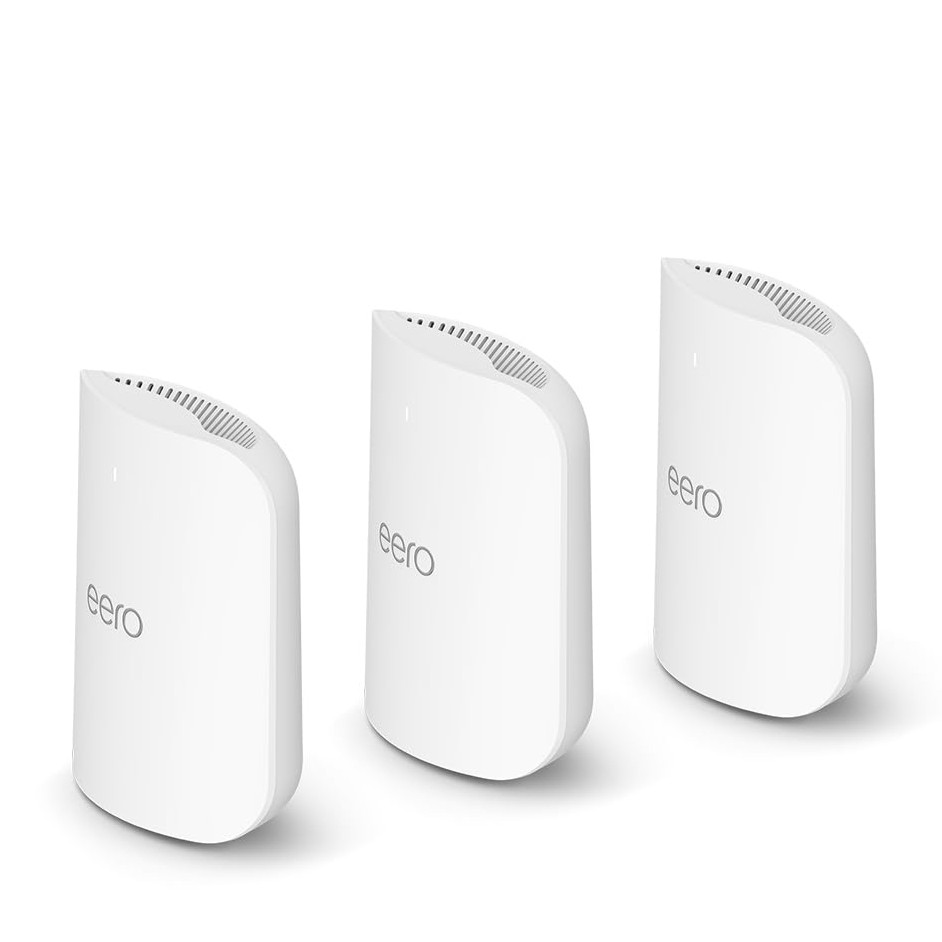
- Amazon Eero 6 – Supports WiFi 6 on a budget
- Netgear Orbi RBK13 – Covers medium-sized homes well
Key Features To Look For
Choosing the right mesh WiFi means checking important features. These include speed, coverage, and ease of use. Also, look for security and app controls.
- WiFi Standard:WiFi 5 is common; WiFi 6 is faster but may cost more
- Coverage Area:Check how many square feet the system covers
- Number of Units:More units mean better coverage in large homes
- Setup and App:Look for simple setup and good user apps
- Security Features:WPA3 support and automatic updates help protect your network
Comparing Performance And Range
| Model | Max Speed | Coverage | Units Included | WiFi Standard |
|---|---|---|---|---|
| TP-Link Deco M4 | AC1200 | 3,800 sq ft | 2 or 3 | WiFi 5 |
| Google Nest Wifi (Single Unit) | AC2200 | 1,600 sq ft | 1 | WiFi 5 |
| Amazon Eero 6 | AX1800 | 1,500 sq ft | 1 or 2 | WiFi 6 |
| Netgear Orbi RBK13 | AC1300 | 3,000 sq ft | 2 | WiFi 5 |
Setting Up Your Mesh Wifi
Setting up your mesh wifi can improve your home internet. It helps spread the signal evenly in every room.
This guide shows you how to start, connect, and place your mesh wifi nodes properly.
Unboxing And Initial Placement
Open the box carefully and check all parts. Usually, you will find nodes, power adapters, and a quick start guide.
Place the main node near your modem or where you want the strongest signal. Keep it in an open space, not inside cabinets.
- Check for all parts before setup
- Place main node near modem
- Keep nodes in open areas
Connecting To Your Modem
Unplug your modem’s power and connect the main mesh node to the modem using an Ethernet cable. This allows internet access to the mesh system.
Plug the modem and main node back in. Wait a few minutes for them to power up and connect.
- Turn off your modem
- Connect main node with Ethernet cable
- Power on modem and node
- Wait for lights to stabilize
Using The Mobile App
Download the mesh wifi app from your phone’s app store. The app helps you finish setup and manage your network.
Open the app and follow the instructions. It will ask you to create a network name and password.
- Download the mesh wifi app
- Open and follow setup steps
- Create your wifi name and password
- Monitor your network using the app
Optimizing Node Placement
Place additional nodes where the wifi signal is weak. Avoid walls, metal objects, or large appliances between nodes.
Keep nodes within range of each other for a stable connection. Test signal strength in different rooms and adjust nodes as needed.
- Place nodes in open spaces
- Keep nodes close but not too close
- Avoid obstacles like walls and metal
- Test and move nodes for best signal
Common Setup Problems
Setting up a mesh WiFi system under $200 can be simple. Still, some common issues might slow you down.
Knowing these problems helps you fix them faster and get your WiFi working well.
Connection Drops
Your WiFi might lose connection sometimes. This can happen if the mesh nodes are too far apart.
Walls and other objects can block the signal and cause drops.
- Place nodes closer to each other
- Avoid thick walls or metal objects between nodes
- Keep devices near the main router when possible
Slow Speeds
Slow WiFi can happen even with a mesh system. This is often due to poor node placement or interference.
Many devices using WiFi at the same time also slow down your speed.
- Move nodes to open areas
- Limit the number of connected devices
- Check for other electronics causing interference
Device Not Connecting
Sometimes, a device may not connect to the mesh WiFi. This can be due to wrong passwords or network settings.
Another cause is the device being too far from any mesh node.
- Double-check your WiFi password
- Restart your device and router
- Move closer to a mesh node
App Sync Issues
The app used to control your mesh system may not sync properly. This can happen due to outdated software or weak WiFi.
Sync problems stop you from managing your network settings easily.
- Update the app to the latest version
- Restart the app and your phone
- Make sure your phone is on the same WiFi network

Credit: dongknows.com
Quick Fixes For Issues
Mesh WiFi systems under $200 offer good coverage but may face common problems. Quick fixes can help restore your network fast.
This guide covers easy steps like restarting devices and updating firmware to solve typical mesh WiFi issues.
Restarting Devices
Restarting your mesh WiFi devices can clear temporary glitches and improve connection speed. Turn off each device, wait 30 seconds, then turn them back on.
Firmware Updates
Keep your mesh system’s firmware up to date. Updates fix bugs and improve performance. Check your app or website for the latest version.
- Open your mesh WiFi app
- Go to settings or system update
- Download and install any available updates
- Restart devices after update
Resetting The Mesh Network
If problems continue, reset the mesh network to factory settings. This erases custom settings but can fix deep issues.
- Find the reset button on each device
- Press and hold for 10-15 seconds
- Wait for devices to reboot fully
- Set up your network again using the app
Adjusting Channel Settings
WiFi channel interference can slow down your mesh network. Changing channels reduces this problem. Use the table below to pick the best channel for your area.
| Channel | Frequency Band | Best Use |
| 1 | 2.4 GHz | Less crowded, good range |
| 6 | 2.4 GHz | Common channel, check for interference |
| 11 | 2.4 GHz | Often least crowded channel |
| 36 | 5 GHz | Faster speeds, shorter range |
| 40 | 5 GHz | Good for medium range |
| 44 | 5 GHz | Less interference |
Improving Mesh Wifi Performance
Mesh Wifi systems offer better coverage for your home or office. They use multiple nodes to spread the signal evenly.
Good setup and maintenance help you get the best speed and reliability. Let’s look at ways to improve your mesh Wifi.
Avoiding Interference
Interference can slow down your Wifi or cause drops. Other wireless devices and physical objects block signals.
Keep your mesh nodes away from microwaves, cordless phones, and thick walls. Place nodes in open areas for better signals.
- Move nodes away from metal and glass
- Use different Wifi channels if crowded
- Turn off unused wireless devices
Expanding Coverage
To cover large spaces, add more mesh nodes. Each node boosts the Wifi signal in its area.
Place nodes in central locations with clear paths between them. Avoid placing nodes too far apart or too close.
- Use a node every 30 to 40 feet indoors
- Place nodes on shelves or high spots
- Test signal strength after setup
Managing Network Traffic
Too many devices can slow your Wifi. Limit bandwidth for less important devices to keep main ones fast.
Use Quality of Service (QoS) settings to prioritize traffic. This keeps video calls and gaming smooth.
- Set limits on guest network devices
- Prioritize devices like laptops and phones
- Check network usage regularly
Securing Your Network
A secure network protects your data and stops unauthorized users. Use strong passwords and encryption.
Keep your mesh system’s firmware up to date. Turn on network security features in the settings.
- Use WPA3 or WPA2 security protocols
- Change default admin passwords
- Enable automatic updates for nodes
When To Seek Professional Help
Setting up a mesh WiFi system under $200 can be a great way to improve home connectivity. Sometimes, issues arise that require expert intervention. Knowing when to call a professional can save time and prevent frustration.
Understanding common problems can help you decide if professional help is necessary. Here are some scenarios where expert advice might be needed.
Persistent Connectivity Problems
If your mesh WiFi frequently disconnects, it might be due to signal interference. Simple fixes like repositioning nodes may not work.
Professional technicians can use tools to analyze and fix stubborn connectivity issues. This ensures stable internet access throughout your home.
- Frequent disconnects despite resetting the system
- Devices not connecting automatically
- Weak signals in areas with nodes
Hardware Failures
Hardware failures can occur if your WiFi devices are not working as expected. This could mean that nodes or routers are defective.
A professional can diagnose if the problem is with the hardware. They can recommend repairs or replacements to ensure full functionality.
- Node lights are not turning on
- Unusual noises from devices
- Overheating of routers
Advanced Configuration Needs
Sometimes, basic setup isn’t enough, and advanced configurations are required. This can include setting up VLANs or custom security settings.
Experts can help configure these settings for optimal performance and security. This ensures your network meets specific needs.
- Need for custom network setups
- Advanced parental controls
- Integration with smart home devices
Credit: www.tomsguide.com
Frequently Asked Questions
What Is The Best Mesh Wifi Under $200?
The best mesh WiFi under $200 offers reliable coverage, easy setup, and strong speed. Popular models include TP-Link Deco and Google Nest Wifi. These systems balance cost and performance for typical home use, ensuring smooth streaming and stable connections across multiple devices.
How To Set Up Mesh Wifi Under $200?
To set up mesh WiFi under $200, connect the main unit to your modem. Follow the app instructions to add satellite nodes around your home. Ensure nodes are placed within range for seamless coverage and avoid physical obstructions for optimal performance.
Why Is My Mesh Wifi Not Connecting?
Mesh WiFi may not connect due to weak signal, incorrect setup, or firmware issues. Restart your router and nodes, check app settings, and update firmware. Ensure nodes are within range and connected properly to resolve most connection problems.
How To Improve Mesh Wifi Speed Under $200?
Improve mesh WiFi speed by placing nodes strategically, away from walls and interference. Use wired backhaul if possible and update firmware regularly. Limit connected devices and prioritize bandwidth-heavy activities through QoS settings for better overall performance.
Conclusion
Setting up mesh WiFi under $200 can be simple and effective. Follow the steps carefully to avoid common issues. Restart devices if the signal is weak or drops. Keep your firmware updated for better performance. Place nodes in open areas for stronger coverage.
Troubleshooting helps keep your network running smoothly. Enjoy fast and reliable WiFi without overspending. A good mesh system brings better internet to your home. Stay patient and adjust settings as needed for best results.