Are you ready to boost your home Wi-Fi speed and coverage like never before? Setting up a WiFi 6E mesh router can seem tricky, but it doesn’t have to be.
Imagine streaming, gaming, and working from every corner of your house without any annoying drops or slowdowns. In this guide, you’ll get clear, simple steps to set up your WiFi 6E mesh router quickly and easily. Keep reading, and you’ll unlock the full power of your internet connection—making your online experience smoother and faster right away.

Credit: www.youtube.com
Benefits Of Wifi 6e Mesh Routers
Wifi 6E mesh routers bring new features to home and office networks. They improve how devices connect and communicate.
This new technology helps with speed, range, and the number of devices that can connect at once.
Faster Speeds And Lower Latency
Wifi 6E routers deliver faster internet speeds. They reduce delays when streaming or gaming online. This means less waiting and smoother connections.
- Quick downloads and uploads
- Smoother video calls without lag
- Improved performance in busy networks
Expanded Frequency Bands
Wifi 6E adds a new 6 GHz frequency band. This band is less crowded than older 2.4 GHz and 5 GHz bands. It helps reduce interference from other devices.
| Frequency Band | Common Use | Benefits |
| 2.4 GHz | Basic devices | Good range, slower speed |
| 5 GHz | Faster devices | Better speed, medium range |
| 6 GHz | New devices | High speed, less interference |
Improved Device Capacity
Wifi 6E mesh routers handle more devices at the same time. This stops slowdowns when many gadgets connect to the network.
Benefits of improved device capacity include:
- Support for many smart home gadgets
- Better performance in crowded places
- Stable connections for work and play
Choosing The Right Wifi 6e Mesh Router
Wifi 6E mesh routers offer faster speeds and better coverage. Choosing the right one helps your home network work well.
Look for features that fit your needs. Check if your devices are compatible. Think about your budget before buying.
Key Features To Look For
Focus on speed, range, and security. Wifi 6E uses the 6 GHz band for less interference. This gives faster and stable connections.
- Tri-band support for better device handling
- Strong security with WPA3 encryption
- Easy setup with user-friendly apps
- Good coverage for your home size
Compatibility With Your Devices
Check if your devices support Wifi 6E. Older devices may not use the 6 GHz band. They will still connect but slower.
Make sure the router works with your internet service. Some routers have extra features for smart homes and gaming.
Budget Considerations
Wifi 6E mesh routers vary in price. Higher cost usually means more features and better performance. Choose one that fits your budget.
Think about how many rooms you need to cover. More nodes increase the price but improve coverage. Balance cost and needs.
Preparing For Installation
Setting up a Wifi 6E mesh router needs some planning. Preparing well makes installation easier and faster.
This guide helps you get ready before you start installing your new mesh router system.
Checking Internet Service And Modem
Confirm your internet service works well before adding a new router. Check your modem is compatible with Wifi 6E.
Make sure your modem is connected and online. Restart it if needed to fix any connection issues.
- Test internet speed with your current setup
- Verify modem supports the latest internet standards
- Check if modem firmware is up to date
- Confirm modem connection to your ISP is stable
Selecting Optimal Router Locations
Place your mesh routers where they can send strong signals. Avoid walls and metal objects that block signals.
Choose central spots in your home for better coverage. Keep routers away from microwaves and cordless phones.
- High and open places work best
- Keep routers visible and not hidden
- Place nodes evenly to cover large areas
- Avoid thick walls and large metal appliances
Gathering Required Equipment
Collect all items needed before you start. This saves time and prevents interruptions during setup.
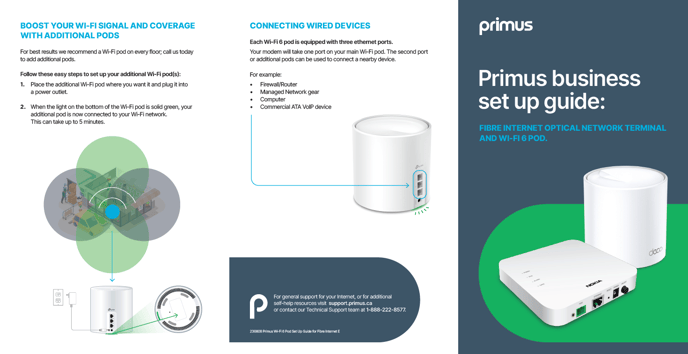
Check for power adapters, Ethernet cables, and any instructions that come with the mesh router.
- Wifi 6E mesh router units and power cords
- Ethernet cables for modem to router connection
- Smartphone or computer for setup app
- User manual or quick start guide
- Access to your Wi-Fi network name and password
Setting Up The Primary Router
Setting up your Wifi 6E mesh router starts with the primary router. This device connects your home network to the internet. Follow these steps to get your router ready.
Make sure you have your modem and router ready. The setup will help your mesh network work smoothly.
Connecting To The Modem
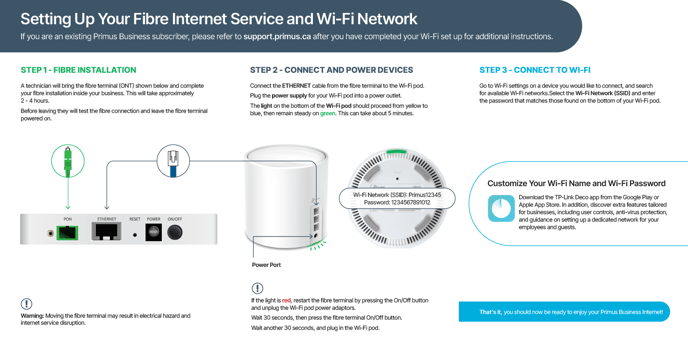
First, find the Ethernet cable that came with your router. Plug one end into the modem and the other into the router’s WAN port.
Make sure the modem is on and working before you connect the router. This connection allows internet access to your router.
- Turn off the modem before connecting
- Use the Ethernet cable to link modem to router
- Plug the cable into the WAN port on the router
- Turn the modem back on after connecting
Powering On And Initial Configuration
After connecting, plug in your router’s power adapter. Turn on the router by pressing the power button if needed.
Wait for the router’s lights to turn stable. This means it is ready for configuration.
- Connect the power adapter to the router
- Press the power button to turn it on
- Watch the LEDs until they stop blinking
- Ensure the router is fully powered before next steps
Accessing The Router Interface
Use a computer or phone to connect to the router’s Wi-Fi or use an Ethernet cable. Open a browser and enter the router’s IP address.
The router interface lets you set up your Wi-Fi name and password. Follow the on-screen instructions to finish the setup.
- Connect device to router’s network
- Open a web browser
- Type the router’s IP address (usually 192.168.1.1)
- Log in with default username and password
- Complete the setup steps shown on screen
Adding Mesh Nodes
Adding mesh nodes expands your WiFi 6E network coverage. It helps eliminate weak signals and dead zones in your home.
Each node works with the main router to create a strong, seamless network. You can add as many nodes as you need for full coverage.
Placing Additional Nodes Strategically
Place nodes where the WiFi signal from the main router starts to weaken. Avoid walls and large objects that block signals.
Keep nodes in open spaces and near areas where you use the internet the most. This helps keep the connection fast and stable.
- Place nodes halfway between the router and dead zones
- Avoid metal objects and microwaves near nodes
- Keep nodes at least 10 feet apart for best performance
Pairing Nodes With The Primary Router
Pair each mesh node to the main router using the app or web interface. Follow your router’s setup instructions carefully.
Usually, you press a button on the node and router to start pairing. The app will show when pairing is complete and successful.
- Turn on the mesh node near the router
- Press the sync or WPS button on the router and node
- Use the app to confirm the node is connected
Verifying Node Connectivity
Check the app or router dashboard to see if the nodes are online. Look for signal strength and connection status.
Test the WiFi speed near each node. If speeds are slow or nodes are offline, try repositioning the nodes or restarting them.
- Use the app to view node health and connection quality
- Run speed tests near each mesh node
- Move nodes if the signal is weak or drops often
Configuring Network Settings
Setting up a Wifi 6E mesh router involves configuring various network settings. This guide will help you understand how to set up your network securely and efficiently.
Follow the steps to ensure your network is optimized for speed and security. Each section will cover a specific setting for your mesh router.
Setting Ssid And Password
The SSID is the name of your network. Make it easy to identify but hard to guess. Secure your network with a strong password.
- Access the router’s admin page using a web browser.
- Find the wireless settings section.
- Enter a unique SSID for your network.
- Create a strong password with at least 12 characters.
Enabling Security Protocols
Security protocols protect your network from unauthorized access. Ensure you enable the latest protocols for maximum security.
| Protocol | Description |
| WPA3 | Most secure, recommended for modern devices. |
| WPA2 | Widely used, still secure for most home networks. |
| WEP | Outdated, avoid using if possible. |
Customizing Advanced Features
Advanced features can enhance the performance and security of your network. Explore and customize settings based on your needs.
Consider enabling features like:
- Guest network for visitors
- Quality of Service (QoS) to prioritize devices
- Parental controls to manage family access
Optimizing Performance
Wifi 6E mesh routers offer faster speeds and better coverage. To get the most out of your router, optimize its performance.
Proper setup and maintenance ensure your network runs smoothly. Follow these tips for optimal performance.
Updating Firmware Regularly
Firmware updates improve security and performance. Check for updates every few months.
Manufacturers release updates to fix bugs and enhance features. Updating is simple and takes a few minutes.
- Log into your router’s admin panel
- Navigate to the firmware update section
- Follow the instructions to install updates
Managing Bandwidth And Traffic
Manage bandwidth to ensure all devices get enough speed. Prioritize important devices for better performance.
Traffic management helps prevent slowdowns during peak times. Use Quality of Service (QoS) settings to control this.
| Device | Priority |
| Work Laptop | High |
| Gaming Console | Medium |
| Streaming Device | Low |
Troubleshooting Common Issues
Common issues can include slow speeds or connection drops. Simple troubleshooting can often fix these problems.
Restarting your router can solve many issues. Check cables and connections if problems persist.
- Restart the router and devices
- Ensure cables are securely connected
- Check for interference from other devices
Credit: helpcentre.primus.ca
Maintaining Your Wifi 6e Mesh Network
Keeping your Wifi 6E mesh network running well needs regular care. Good maintenance helps keep fast and stable internet.
This guide covers easy ways to keep your mesh network healthy and working at its best.
Monitoring Network Health
Check your network often to find any slow or weak spots. Use your router’s app or web page to see device status.
Look for devices using too much data or signals that are weak. Fix problems by moving nodes or reducing interference.
- Check connection speed for each node
- Watch for devices with slow connections
- Note any frequent disconnects
- Adjust node placement if signals are weak
Scheduling Regular Reboots
Restart your mesh router regularly to clear temporary issues. This helps keep your network fast and stable.
Set your router to reboot automatically once a week or once a month. Choose a time when few devices use the internet.
- Use the router’s app or settings page to schedule reboots
- Pick off-hours like late night for rebooting
- Reboots fix memory leaks and slowdowns
Expanding Mesh Network When Needed
Add extra nodes if you see dead zones or slow speeds in parts of your home. New nodes extend coverage and improve speed.
Place new nodes halfway between the main router and the area needing better signal. Make sure new nodes connect well to existing ones.
- Check your home for weak signal spots
- Buy compatible Wifi 6E mesh nodes
- Place new nodes to cover dead zones
- Follow setup steps in your router app

Credit: www.youtube.com
Frequently Asked Questions
What Is Wifi 6e And Why Choose A Mesh Router?
WiFi 6E extends WiFi 6 into the 6 GHz band, reducing interference. Mesh routers provide seamless coverage by connecting multiple nodes. Together, they enhance speed, capacity, and reduce dead zones in your home or office.
How Do I Start Setting Up A Wifi 6e Mesh Router?
Begin by connecting the main router to your modem. Power on all mesh nodes and follow the manufacturer’s app instructions. Create a network name and password, then place nodes strategically for optimal coverage.
Can Wifi 6e Mesh Routers Improve Network Speed?
Yes, WiFi 6E supports faster speeds due to the 6 GHz band. Mesh technology distributes the signal efficiently. This combination reduces congestion and improves overall network performance.
What Devices Support Wifi 6e Connectivity?
Devices with WiFi 6E chipsets support the 6 GHz band. This includes newer smartphones, laptops, and smart home gadgets. Check your device specs to confirm compatibility before upgrading.
Conclusion
Setting up a WiFi 6E mesh router improves your home internet. It gives faster speeds and better coverage in every room. Follow the steps carefully for smooth installation. Check connections and update the router’s firmware regularly. Place nodes in open areas for the best signal.
Enjoy fewer dead zones and stronger WiFi signals. A well-set mesh router keeps all your devices connected. Stay patient and double-check settings if problems arise. Good WiFi makes work, study, and entertainment easier at home.


