Are you tired of your Google Home cutting out or struggling to hear you in certain rooms? Your smart assistant needs a strong and steady WiFi signal to work its best.
That’s where mesh WiFi comes in. Imagine seamless internet coverage everywhere in your home, so your Google Home listens and responds no matter where you are. You’ll discover how mesh WiFi can transform your smart home experience and why it’s the perfect match for your Google Home.
Keep reading to learn how to make your voice assistant smarter, faster, and more reliable.

Credit: www.walmart.ca
Benefits Of Mesh Wifi
Mesh wifi improves your home internet by covering all areas. It stops weak signals in hard-to-reach places.
This system is easy to set up and grows with your needs. It keeps your devices connected smoothly.
Eliminating Dead Zones
Mesh wifi uses several units to cover your entire home. Each unit talks to the others and sends strong signals.
- Stops wifi black spots in rooms and corners
- Works well through walls and floors
- Lets you use the internet anywhere in your house
Consistent Connection
Mesh wifi gives steady internet, even if many devices connect at once. It switches you to the best signal automatically.
| Feature | Benefit |
| Multiple Access Points | Reduces signal dropouts |
| Automatic Switching | Keeps connection strong on the move |
| Load Balancing | Handles many devices smoothly |
Easy Network Expansion
You can add more mesh units anytime. This fits bigger homes or changing needs without complex setup.
Advantages of adding units:
- Expand coverage to new rooms
- Improve speed in weak areas
- No need to change main router
- Simple app control for adding units
Choosing The Right Mesh Wifi
Mesh wifi systems help spread internet signals across your home. They reduce dead zones and keep devices connected well.
Picking the right mesh wifi is key for a smooth Google Home experience. This guide will help you choose the best one.
Compatibility With Google Home
Check if your mesh wifi works with Google Home devices. Some systems have built-in support for smart home controls.
Compatibility means easier setup and better control of your network through Google Assistant.
- Look for mesh wifi that supports Google Home integration
- Ensure the system can connect with Google Assistant
- Confirm the app works well with your Google Home
Speed And Coverage
Choose mesh wifi that matches your home size and internet speed. Good coverage means no slow spots in your house.
Faster speeds help Google Home respond quickly and stream music without buffering.
- Pick a system rated for your internet plan speed
- Check how many rooms or square feet the mesh covers
- Consider the number of devices that will connect
Security Features
Security protects your data and devices connected to the mesh wifi. Choose systems with strong protection options.
Good security helps keep Google Home and other devices safe from hackers.
- Look for mesh wifi with WPA3 encryption
- Check if the system offers automatic updates
- Choose options with built-in firewall or malware protection
Setting Up Mesh Wifi With Google Home
Mesh Wifi systems improve your home internet by spreading signal evenly. Google Home helps you control and manage your Mesh Wifi easily.
This guide shows how to set up Mesh Wifi with Google Home step by step. Follow these simple instructions to get your network running smoothly.
Unboxing And Initial Setup
Start by unboxing your Mesh Wifi devices carefully. Check that you have all parts like routers, power adapters, and cables.
Place the main router near your modem. Connect it to power and internet cables. Turn on the device and wait for the indicator light to show it is ready.
- Unpack all Mesh Wifi components
- Connect main router to modem
- Plug in power cables
- Wait for the device to power up
Connecting Google Home Devices
Open the Google Home app on your smartphone. Make sure your phone is connected to the Mesh Wifi network.
Follow the app instructions to add your Google Home devices. The app will detect the devices and connect them to your Mesh Wifi.
- Open Google Home app
- Connect phone to Mesh Wifi
- Tap to add new devices
- Follow setup instructions in app
Optimizing Network Settings
Use the Google Home app to check your network status. The app helps you see connected devices and signal strength.
Adjust settings like device priority or family Wi-Fi to improve your network performance. You can also run speed tests to check your internet speed.
- Check network status in Google Home app
- Set device priority for faster speeds
- Use Family Wi-Fi settings for control
- Run speed tests to monitor connection

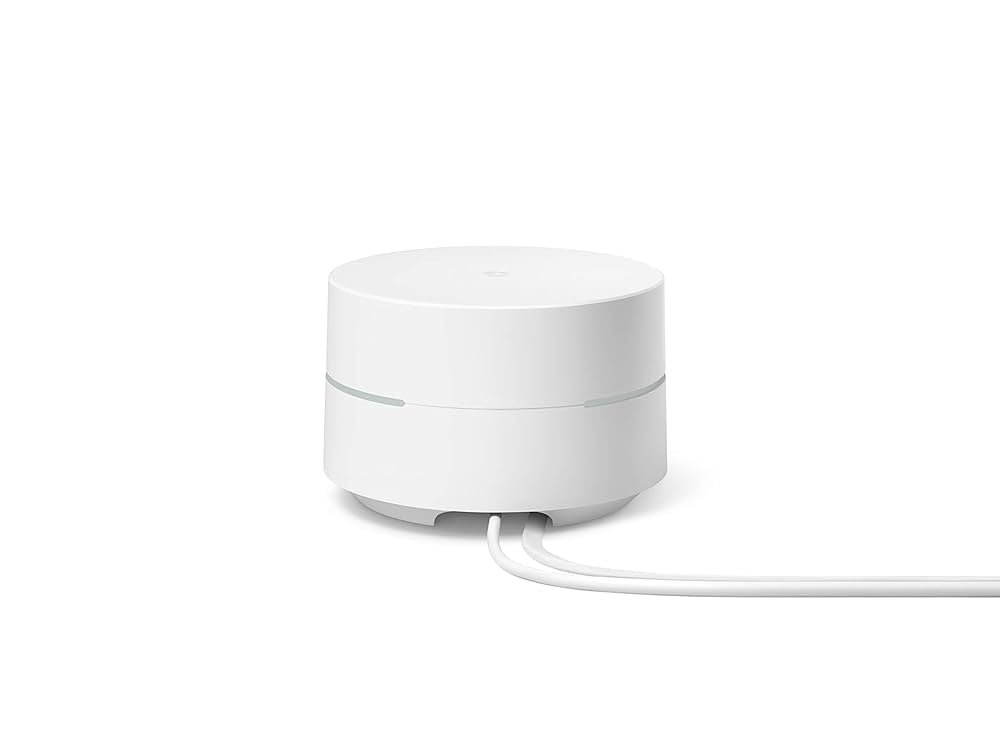
Credit: www.amazon.ca
Troubleshooting Common Issues
Mesh WiFi systems for Google Home improve your internet coverage. Sometimes, you may face issues that stop your network from working well.
This guide helps you fix common problems with your mesh WiFi setup. Follow simple steps to get your connection back on track.
Connection Drops
Connection drops happen when your device loses WiFi signal suddenly. This can interrupt video calls or streaming.
- Check if the mesh nodes are too far apart.
- Move nodes closer for a stronger signal.
- Restart your Google Home and mesh devices.
- Update the firmware of your mesh WiFi system.
- Reduce interference from other electronics.
Device Not Recognized
Sometimes, Google Home does not recognize a device connected to your mesh WiFi. This stops you from controlling it with voice commands.
Try these fixes if your device is missing:
- Make sure the device is powered on and in range.
- Restart your Google Home and the device.
- Check if the device supports Google Home integration.
- Remove and re-add the device in the Google Home app.
- Verify your mesh WiFi allows device connections.
Slow Speeds
Slow internet speeds cause delays and buffering. Several reasons can reduce your mesh WiFi speed.
| Cause | Solution |
| Too many devices connected | Limit devices or upgrade your plan |
| Mesh nodes placed poorly | Place nodes in open areas, avoid walls |
| Old firmware or software | Update firmware and device software |
| Interference from other networks | Change WiFi channel in settings |
| Distance from main router | Move nodes closer to the main router |
Advanced Tips For Seamless Connectivity
Mesh WiFi improves your home internet by spreading signals evenly. It helps devices stay connected without drops or delays.
Using Google Home with Mesh WiFi can boost your smart home experience. Here are some tips to keep your network smooth and fast.
Prioritizing Devices
Some devices need faster internet for better performance. You can set your Mesh WiFi to give these devices priority.
Prioritizing helps video calls, streaming, and gaming work without lag. It makes sure important devices get enough bandwidth.
- Open your Mesh WiFi app or Google Home app
- Find the device priority or QoS settings
- Select devices you want to prioritize
- Save changes to apply the priority
Firmware Updates
Firmware updates improve Mesh WiFi security and speed. They fix bugs and add new features.
Check for updates regularly to keep your network working well with Google Home. Most systems update automatically.
- Open your Mesh WiFi management app
- Go to the system or settings tab
- Look for firmware update option
- Start update if available
Using Guest Networks
Guest networks keep visitors separate from your main devices. This protects your smart home and keeps your network safe.
Enabling a guest network is easy and lets guests use WiFi without accessing your private devices.
- Open your Mesh WiFi or Google Home app
- Find the guest network settings
- Turn on the guest network
- Share the guest password with visitors

Credit: www.pcmag.com
Frequently Asked Questions
What Is Mesh Wifi And How Does It Work With Google Home?
Mesh WiFi uses multiple nodes to create a seamless network. It improves Google Home’s connection by reducing dead zones and buffering. This ensures faster, stable responses and smooth smart home control throughout your home.
Can Mesh Wifi Improve Google Home’s Voice Recognition?
Yes, mesh WiFi strengthens the connection between Google Home and your router. A stable network reduces delays and miscommunication, making voice commands more accurate and responsive.
Which Mesh Wifi Systems Are Best For Google Home?
Google Nest Wifi, Eero, and Orbi are top mesh systems. They offer strong coverage, easy setup, and excellent compatibility with Google Home devices for reliable smart home control.
How Do I Set Up Mesh Wifi For Google Home?
Set up your mesh WiFi nodes following the manufacturer’s instructions. Connect Google Home to the new network via the Google Home app for optimized performance and seamless integration.
Conclusion
Mesh WiFi improves your Google Home’s connection and range. It helps avoid weak signals and keeps devices online. With better WiFi, your Google Home responds faster and works more smoothly. Setting up mesh systems is simple and fits most homes.
Enjoy clear voice commands and fewer interruptions. Strong WiFi means better smart home control every day. Choose mesh WiFi to make Google Home more reliable and easy to use. Simple, steady internet makes your smart home experience better.