Is your WiFi struggling to reach every corner of your large home? You’re not alone.
Dead zones, slow connections, and constant buffering can turn your online experience into a frustrating challenge. But what if you could enjoy strong, reliable WiFi no matter where you are in your house? Setting up a mesh WiFi system is the solution you need.
In this guide, you’ll learn exactly how to install and optimize mesh WiFi so your entire home stays connected effortlessly. Keep reading to discover simple steps that will transform your internet experience and keep every device running smoothly.
Benefits Of Mesh Wifi
Mesh wifi systems help cover large homes with strong internet signals. They use many devices that work together as one network.
This setup improves wifi speed and reliability. It also makes it easier to connect many devices without losing signal.
Eliminating Dead Zones
Mesh wifi removes areas in your home where the signal is weak or missing. These dead zones can stop devices from working well.
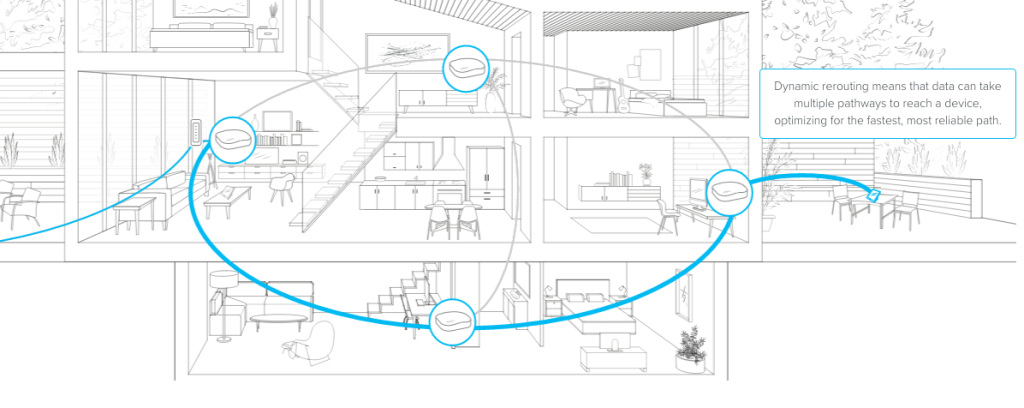
By placing nodes around the house, the mesh system sends wifi signals everywhere. This makes sure every room has good internet access.
Easy Network Expansion
You can add more nodes to a mesh system anytime. This helps cover new rooms or bigger spaces without changing the whole network.
Adding nodes is simple and does not require complex setup. The system will automatically include new nodes in the network.
Consistent Connection Quality
Mesh wifi keeps your connection strong as you move around your home. It switches your device to the best node without losing signal.
This seamless handoff means you get smooth video calls, fast downloads, and no internet dropouts in any room.

Credit: dongknows.com
Choosing The Right Mesh System
Setting up mesh wifi in a large home needs the right system. The right mesh system gives good coverage and fast internet.
Look at key points before picking a mesh wifi system. This helps you get the best fit for your home.
Coverage Area Needs
Check how much space you need to cover with wifi. Large homes need multiple units to avoid dead spots.
- Measure your home’s square footage
- Count walls and floors between rooms
- Think about outdoor coverage if needed
- Choose a system with enough units for full coverage
Device Compatibility
Make sure the mesh system works with your devices. Some systems support older and newer devices better.
| Device Type | Compatibility Tips |
| Smartphones | Works with most wifi systems |
| Smart TVs | Check for 5GHz support for streaming |
| Computers | Look for ethernet ports if needed |
| Smart Home Devices | Check 2.4GHz support for range |
Speed And Bandwidth Requirements
Think about how fast your internet is and how many devices use it. Choose a mesh system that matches your speed needs.
- Check your internet plan speed
- Count all devices that use wifi at the same time
- Pick a mesh with high bandwidth for many devices
- Look for the latest wifi standards like Wi-Fi 6
Budget Considerations
Set a budget before buying a mesh system. Prices vary by brand, features, and coverage.
| Price Range | Features Included | Best For |
|---|---|---|
| Under $150 | Basic coverage, fewer units | Small to medium homes |
| $150 – $300 | Good coverage, moderate speed | Medium to large homes |
| Above $300 | Wide coverage, fast speeds, extra features | Large homes with many devices |
Planning Your Mesh Network Layout
Setting up a mesh WiFi system in a large home needs careful planning. A well-planned layout ensures strong and fast internet coverage everywhere.
Focus on key areas where WiFi is needed, place nodes smartly, and reduce interference for best results.
Identifying Key Coverage Areas
Start by listing all rooms and spaces where WiFi will be used. Prioritize areas where you stream videos, work, or use smart devices.
- Living rooms and family rooms
- Home offices
- Bedrooms
- Outdoor spaces like patios
- Basements or attics
Optimal Node Placement
Place mesh nodes so each one connects well to the next. Avoid putting nodes too far apart or too close.
| Placement Tip | Reason |
|---|---|
| Central location in coverage area | Helps spread signal evenly |
| Elevated spots like shelves | Reduces signal block by furniture |
| Keep nodes visible to each other | Improves signal strength |
| Avoid placing near walls or floors | Prevents signal loss |
Avoiding Interference
Interference can weaken WiFi signals. Keep mesh nodes away from devices that cause interference.
Common interference sources include:
- Microwaves
- Wireless phones
- Bluetooth devices
- Thick walls and metal objects

Credit: www.reddit.com
Setting Up Your Mesh Wifi System
Mesh wifi helps cover large homes with strong internet signals. Setting it up right improves your connection.
This guide shows how to connect the primary router, add nodes, and configure settings easily.
Connecting The Primary Router
Start by placing your main router where your internet enters the home. This is usually near the modem.
Use an Ethernet cable to connect the primary router to the modem. Plug in power and turn on the router.
- Choose a central spot for the router
- Connect router to modem with Ethernet cable
- Plug in power and switch on the router
Adding And Positioning Nodes
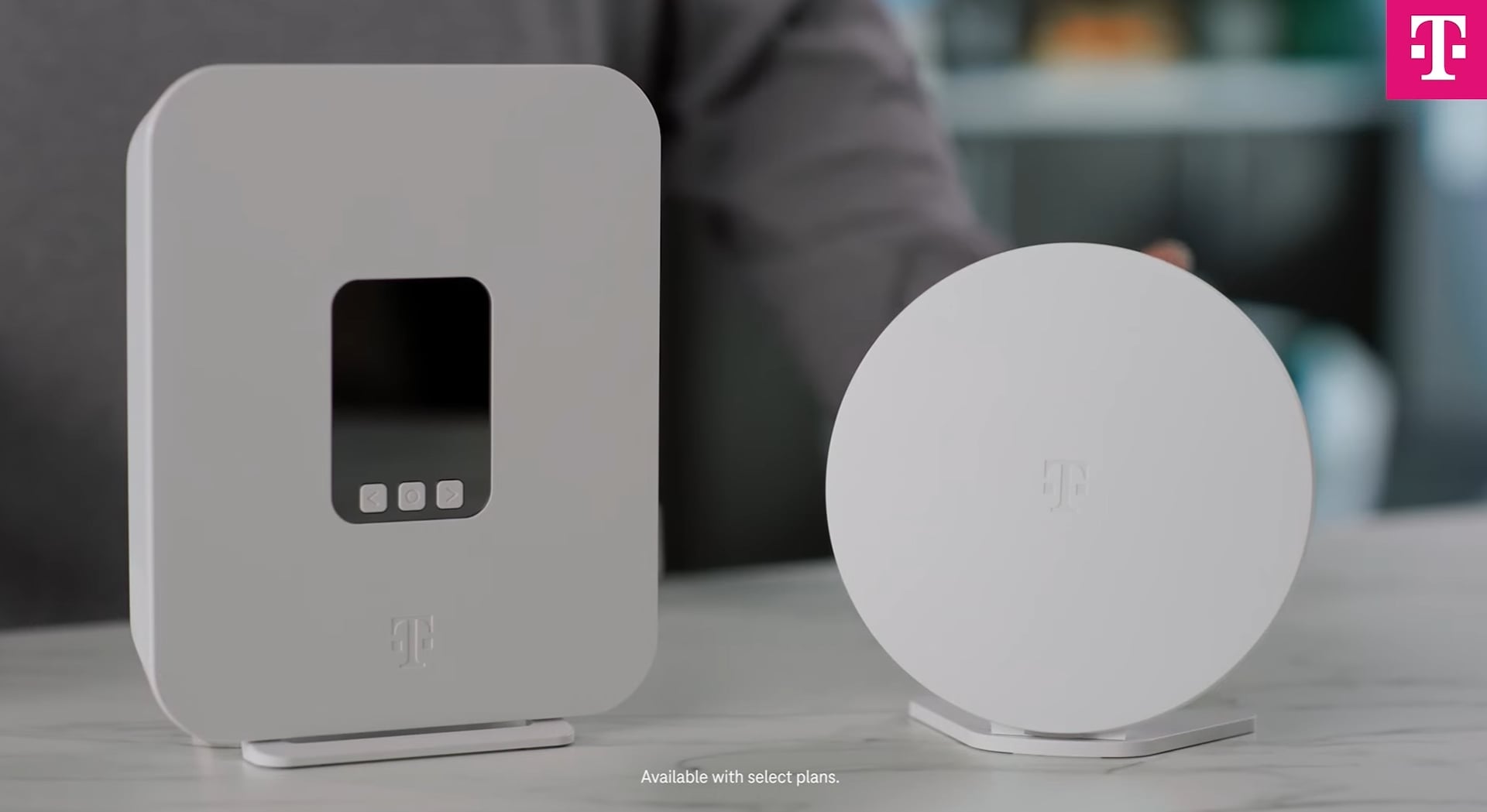
Add mesh nodes to expand wifi coverage. Place them in areas far from the main router but within range.
Nodes should be near devices that need strong wifi. Avoid placing nodes near thick walls or metal objects.
- Place nodes 30-50 feet apart for best coverage
- Keep nodes in open spaces, away from obstacles
- Position nodes where wifi signals are weak
Configuring Network Settings
Use the mesh system’s app or website to set up your network. Create a network name and password for security.
Check for firmware updates and install them. Adjust settings like guest access or parental controls if needed.
- Create a unique network name (SSID)
- Set a strong password for the wifi
- Update firmware for better performance
- Enable features like guest network or parental controls
Optimizing Performance
Setting up mesh WiFi in a large home can improve your internet connection. Good setup helps the network work fast and steady.
To get the best results, focus on key areas like firmware updates, channel selection, and managing device connections.
Firmware Updates
Keep your mesh WiFi system’s firmware up to date. Updates fix bugs and improve security and performance.
Check for updates regularly through the app or web interface of your mesh system. Install them as soon as they are available.
Channel Selection
Choose the best wireless channel to reduce interference. Many devices use the same channels, causing slow speeds.
Use tools or your mesh system’s app to scan for the least crowded channels. Switch to those channels for better signals.
- 2.4 GHz band: Choose channels 1, 6, or 11 to avoid overlap
- 5 GHz band: Pick channels with less traffic for higher speeds
- Recheck channels occasionally as interference may change
Managing Device Connections
Limit the number of devices connected to each mesh node. Too many devices on one node can slow down the network.
Assign devices to the closest node and disconnect devices not in use. Use your mesh system’s tools to monitor device connections.
- Group devices by usage and priority
- Disconnect idle devices to free bandwidth
- Use guest networks for visitors to keep your main network clear
Credit: www.t-mobile.com
Troubleshooting Common Issues
Setting up mesh WiFi in a large home can solve coverage problems. Yet, sometimes issues like connection drops or slow speeds arise.
Here, we explore common problems and how to fix them easily.
Connection Drops
If your WiFi connection drops, check the distance between nodes. Nodes should be within a reasonable range to maintain a strong connection.
- Ensure nodes are not too far apart
- Remove physical barriers like walls
- Check for firmware updates on your devices
Slow Speeds
Slow speeds can result from network congestion or interference. Try changing the channel on your router to lessen interference.
Consider these steps to improve speed:
- Switch to a less crowded WiFi channel
- Minimize the number of connected devices
- Place nodes away from electronic devices
Node Synchronization Problems
Node synchronization ensures a seamless network. If nodes aren’t syncing, restart them. Check that they are on the same network name.
| Issue | Solution |
| Nodes not syncing | Restart nodes |
| Different network names | Reconfigure network settings |
| Firmware mismatch | Update firmware |
Maintaining Your Mesh Network
Mesh WiFi systems help cover large homes with strong internet. To keep it running smoothly, regular maintenance is key.
Learn how to update, secure, and monitor your mesh network for best performance.
Regular Updates
Updating your mesh network ensures it stays fast and secure. Most systems update automatically, but check settings to confirm.
- Access the mesh network app on your phone.
- Check for available updates in settings.
- Enable automatic updates for future improvements.
Network Security Tips
Protecting your network from unauthorized access is important. Use strong passwords and encryption for added security.
- Use a unique, strong password for your network.
- Enable WPA3 encryption if available.
- Disable remote management unless needed.
Monitoring Network Health
Monitoring your network helps identify issues early. Use tools and apps to keep track of performance and connected devices.
| Check | Frequency |
| Device connectivity | Weekly |
| Speed tests | Monthly |
| Firmware updates | Quarterly |
Frequently Asked Questions
What Is Mesh Wifi And Why Use It In Large Homes?
Mesh WiFi uses multiple nodes to create one seamless network. It eliminates dead zones and ensures strong signals across large homes. This system is ideal for large spaces where a single router can’t cover effectively.
How Many Mesh Nodes Are Needed For A Large Home?
Typically, 3 to 5 nodes cover a large home well. The exact number depends on the house size, layout, and building materials. More nodes improve coverage but may increase cost.
Where Should I Place Mesh Wifi Nodes For Best Coverage?
Place nodes evenly throughout the home, avoiding thick walls or metal objects. Keep nodes in open areas and within range of each other for stable connections. Central locations usually work best.
Can Mesh Wifi Improve Internet Speed In Big Houses?
Yes, mesh WiFi enhances speeds by reducing dead zones and signal drops. It balances traffic across nodes, ensuring devices connect to the strongest signal. This leads to faster and more reliable internet.
Conclusion
Setting up mesh WiFi in a large home improves internet coverage. It helps reduce dead zones and keeps your connection strong. Place nodes in key spots for best results. Check the signal and adjust as needed. A good mesh system makes streaming and browsing smooth.
Enjoy faster, more reliable WiFi throughout your house. This simple setup helps everyone stay connected easily. Try it today for better home internet!


