Struggling with slow WiFi in your large house? You’re not alone.
When your home has multiple floors or thick walls, a single router often can’t keep up. That’s where mesh WiFi comes in—it can cover every corner with strong, reliable signal. But setting it up right is key to getting the best performance.
You’ll discover simple, effective mesh WiFi setup tips that help you say goodbye to dead zones and buffering. Keep reading to make your whole house a WiFi hotspot you can count on.

Credit: dongknows.com
Choosing The Right Mesh System
Setting up mesh WiFi in a large house needs careful planning. The right system keeps your internet strong everywhere.
Look at how much space you need to cover, how many nodes are needed, and device compatibility before buying.
Coverage Needs For Large Spaces
Large houses have many rooms and floors. Walls and furniture can block signals. Choose a mesh system with wide coverage to avoid weak spots.
- Check the total square footage of your house.
- Look for mesh systems designed for large areas.
- Consider systems with strong signal range and good speed.
- Read reviews about coverage in homes similar to yours.
Number Of Nodes Required
The number of nodes depends on your house size and layout. More nodes help spread the WiFi signal evenly.
| House Size | Recommended Nodes |
| Up to 2,000 sq ft | 2–3 nodes |
| 2,000–4,000 sq ft | 3–5 nodes |
| Over 4,000 sq ft | 5+ nodes |
Compatibility With Devices
Make sure the mesh system works with your devices. Some systems support more devices and newer WiFi standards.
- Check if your devices support WiFi 5 or WiFi 6.
- Look for mesh systems compatible with smartphones, laptops, and smart home gadgets.
- Choose a system that can handle many devices without slowing down.
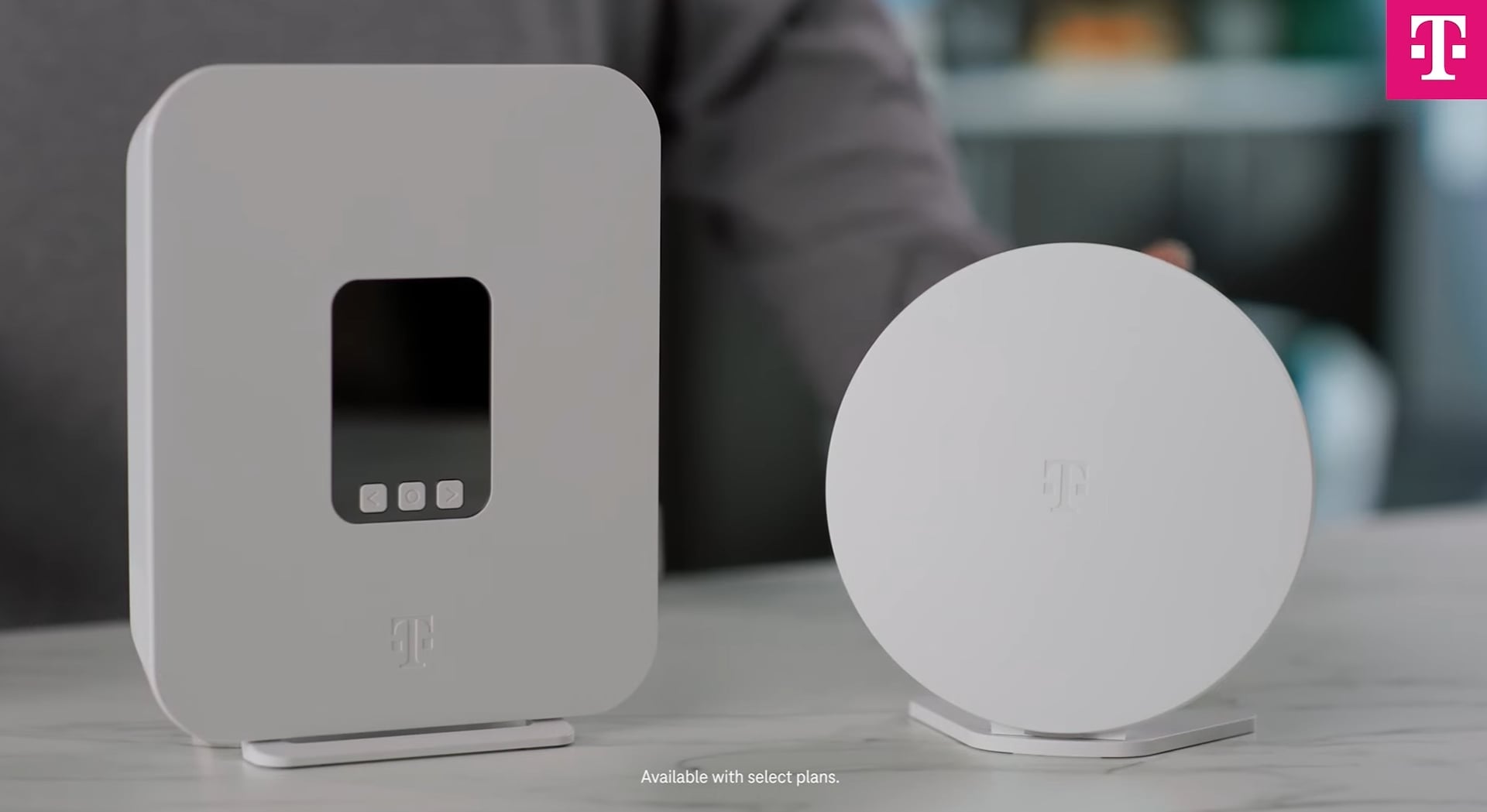
Credit: www.t-mobile.com
Optimal Node Placement
Setting up mesh WiFi in a large house needs careful node placement. Good placement helps give strong WiFi signals everywhere. You get better speed and fewer dead zones.
This guide covers key tips to place your main router and nodes for best coverage. Follow these simple ideas to improve your home network.
Centralizing The Main Router
Place the main router near the center of your home. This lets the signal reach all rooms more easily. Avoid putting the router in a corner or basement.
Keep the router off the floor and away from thick walls. Higher placement helps signals spread better. Try to place it in an open area without many obstructions.
Spacing Nodes For Maximum Coverage
Nodes should be spaced to cover your entire house without overlap or gaps. Too close means waste of signal. Too far means weak connection.
- Place nodes where the signal from the main router is still strong.
- Keep nodes in open spaces, not behind furniture.
- Use a node on each floor for multi-level homes.
- Test signal strength after placing each node.
Avoiding Signal Interference
Signal interference lowers WiFi speed and reliability. Keep nodes away from these common sources:
| Interference Source | Distance to Keep |
| Microwaves | At least 3 feet |
| Cordless Phones | At least 3 feet |
| Bluetooth Devices | At least 2 feet |
| Thick Walls (Concrete/Brick) | Place nodes on same side if possible |
Network Configuration Tips
Setting up a mesh WiFi system in a large house needs careful network planning. Correct configuration ensures fast and reliable connections everywhere.
These tips focus on key settings to improve your mesh network’s performance and coverage.
Setting Up Ssids And Passwords
Use clear and simple SSID names for easy recognition. Keep the same SSID for all mesh nodes to allow smooth device roaming.
- Choose a strong password with letters and numbers.
- Use WPA3 security if your router supports it.
- Update passwords regularly to keep your network safe.
- Label each node in your app for easy management.
Enabling Band Steering
Band steering helps devices connect to the best frequency band automatically. It improves speed and reduces interference.
| Band | Best Use |
| 2.4 GHz | Long range, slower speeds |
| 5 GHz | Short range, faster speeds |
| Band Steering | Switch devices to 5 GHz when close |
Using Ethernet Backhaul
Ethernet backhaul links mesh nodes with cables. This reduces wireless traffic and boosts stability.
- Connect nodes with Ethernet cables if possible.
- Use quality cables for best performance.
- Check cable connections regularly.
- Ethernet backhaul is best for large homes with many walls.
Improving Signal Strength
Mesh WiFi helps cover large houses with good internet. Strong signals make sure devices work well everywhere.
Some simple tips can improve your mesh WiFi signal. These tips help reduce dead spots and slow connections.
Minimizing Physical Obstructions
Walls, floors, and furniture block WiFi signals. Thick materials like concrete and metal cause more problems.
Place mesh nodes in open spaces. Avoid hiding them inside cabinets or behind large objects.
- Keep nodes away from thick walls and metal appliances
- Place nodes on shelves or high surfaces
- Try to keep line of sight between nodes
Updating Firmware Regularly
Firmware updates fix bugs and improve WiFi performance. They help your mesh system run smoothly.
Check for updates in your mesh WiFi app or device settings. Install updates as soon as they are available.
- Updates can improve signal strength
- They add security patches to protect your network
- Firmware updates often improve device compatibility
Adjusting Channel Settings
WiFi channels carry your signal. Many devices on the same channel cause interference and slow speeds.
Change channels to find a less crowded one. Some mesh systems do this automatically, but manual settings help too.
- Use 2.4 GHz channels 1, 6, or 11 for less overlap
- For 5 GHz, pick channels with less traffic
- Test different channels to find the best signal
Troubleshooting Common Issues
Mesh WiFi systems help cover large houses with strong signals. Sometimes, issues can slow down or block your internet.
Understanding how to fix these problems keeps your network fast and reliable. Below are some tips to solve common mesh WiFi issues.
Identifying Dead Zones
Dead zones are areas in your house where WiFi is weak or missing. They cause slow internet or no connection on devices.
Walk around your home with a phone or laptop to check signal strength. Note where the connection drops or slows down.
- Use WiFi analyzer apps to see signal levels in each room.
- Check if walls or furniture block signals in dead zones.
- Mark dead zones to place nodes closer or add extra nodes.
Restarting And Resetting Nodes
Restarting mesh nodes often fixes connection problems. It refreshes the system and clears small errors.
If restarting does not help, reset the nodes to factory settings. This removes old settings and allows fresh setup.
- Unplug the node, wait 10 seconds, then plug it back in to restart.
- To reset, press and hold the reset button for 10 seconds.
- After reset, follow the setup guide to add the node again.
Managing Network Traffic
High network traffic slows WiFi for everyone. Devices streaming videos or downloading files use more bandwidth.
Control traffic to keep your mesh WiFi fast and stable. Limit heavy use during busy hours or split devices into groups.
- Pause or schedule large downloads and updates for off-peak times.
- Use Quality of Service (QoS) settings to prioritize important devices.
- Disconnect unused devices to free bandwidth for others.
Advanced Features To Enhance Performance
Setting up a mesh WiFi system in a large house can greatly improve your internet experience. Knowing the advanced features can make your network more efficient and secure.
In this guide, we explore some key features that can enhance your mesh WiFi setup. These include parental controls, quality of service settings, and integration with smart home devices.
Parental Controls And Security
Parental controls help you manage what your kids can access online. Security features keep your network safe from threats.
- Set up filters to block harmful websites.
- Schedule internet access to limit screen time.
- Use WPA3 encryption for better security.
- Enable guest network for visitors.
Quality Of Service Settings
Quality of Service (QoS) settings allow you to prioritize certain types of internet traffic. This ensures that important tasks get the bandwidth they need.
| Priority Level | Application |
| High | Video Conferencing |
| Medium | Online Gaming |
| Low | File Downloads |
Integrating Smart Home Devices
Smart home devices can make your life easier. Integrating them with your mesh WiFi network ensures they work smoothly.
Ensure your mesh system supports the devices you own. Check for compatibility with platforms like Alexa or Google Assistant.

Credit: dongknows.com
Frequently Asked Questions
How Do I Place Mesh Wifi Nodes In A Large House?
Place mesh nodes evenly to avoid dead zones. Keep nodes within range, ideally 30-50 feet apart. Avoid placing near thick walls or metal objects that block signals. Central locations on each floor work best for optimal coverage.
Can Mesh Wifi Improve Speed In Big Homes?
Yes, mesh WiFi boosts speed by distributing signals evenly. Multiple nodes reduce congestion and dead zones. This setup ensures devices connect to the strongest signal, improving overall internet speed throughout your home.
What’s The Best Mesh Wifi Setup For Multi-story Homes?
Place a primary node on the main floor near the modem. Install additional nodes on upper and lower floors. Position nodes centrally and avoid interference for seamless coverage across all levels of the house.
How Many Mesh Wifi Nodes Do I Need For Large Houses?
Large homes typically need 3 to 5 nodes. The exact number depends on house size, layout, and wall thickness. More nodes ensure better coverage and stronger connections in every room.
Conclusion
Setting up mesh WiFi in large houses improves internet speed everywhere. Place nodes in open areas for better signals. Avoid obstacles like thick walls or metal objects. Test the connection in different rooms to find weak spots. Adjust node positions to cover dead zones fully.
Keep your system updated for best performance. A strong mesh network means smooth streaming and fast browsing. Simple steps bring reliable WiFi to every corner. Enjoy hassle-free internet throughout your home.