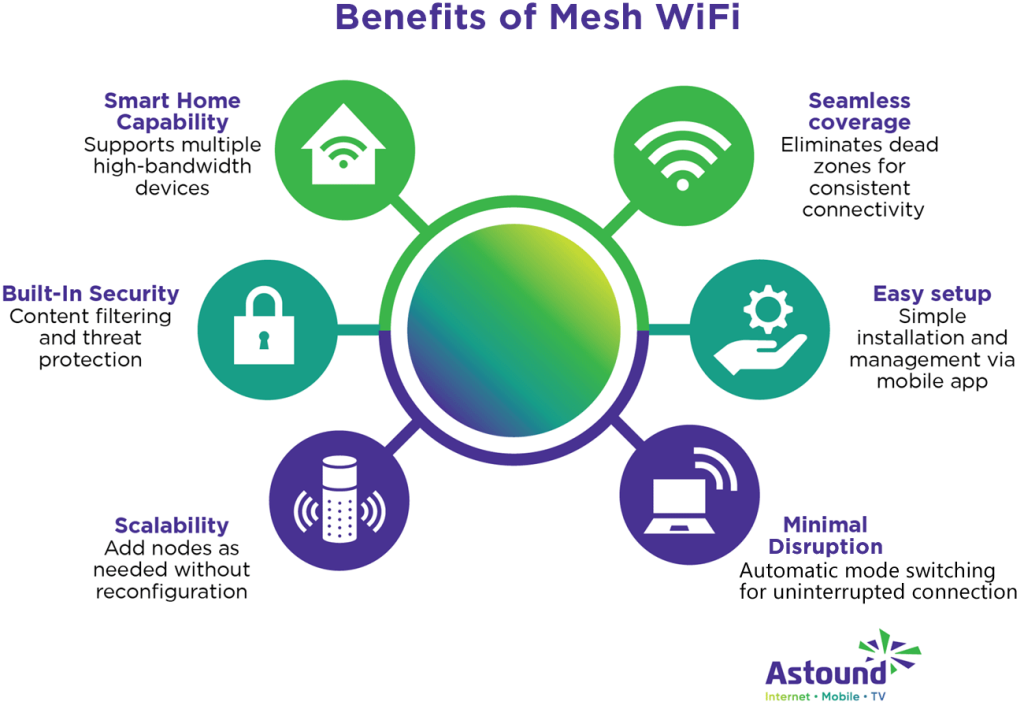
Is your smart home struggling with slow or spotty WiFi? You’re not alone.
As you add more devices—from security cameras to smart speakers—your current mesh WiFi system might start to feel overwhelmed. But don’t worry, upgrading your mesh WiFi can be simpler than you think. In this guide, you’ll discover clear, practical steps to boost your network’s speed and reliability.
Imagine seamless streaming, faster responses from your smart devices, and no more frustrating dead zones. Ready to unlock the full potential of your smart home? Let’s dive in.
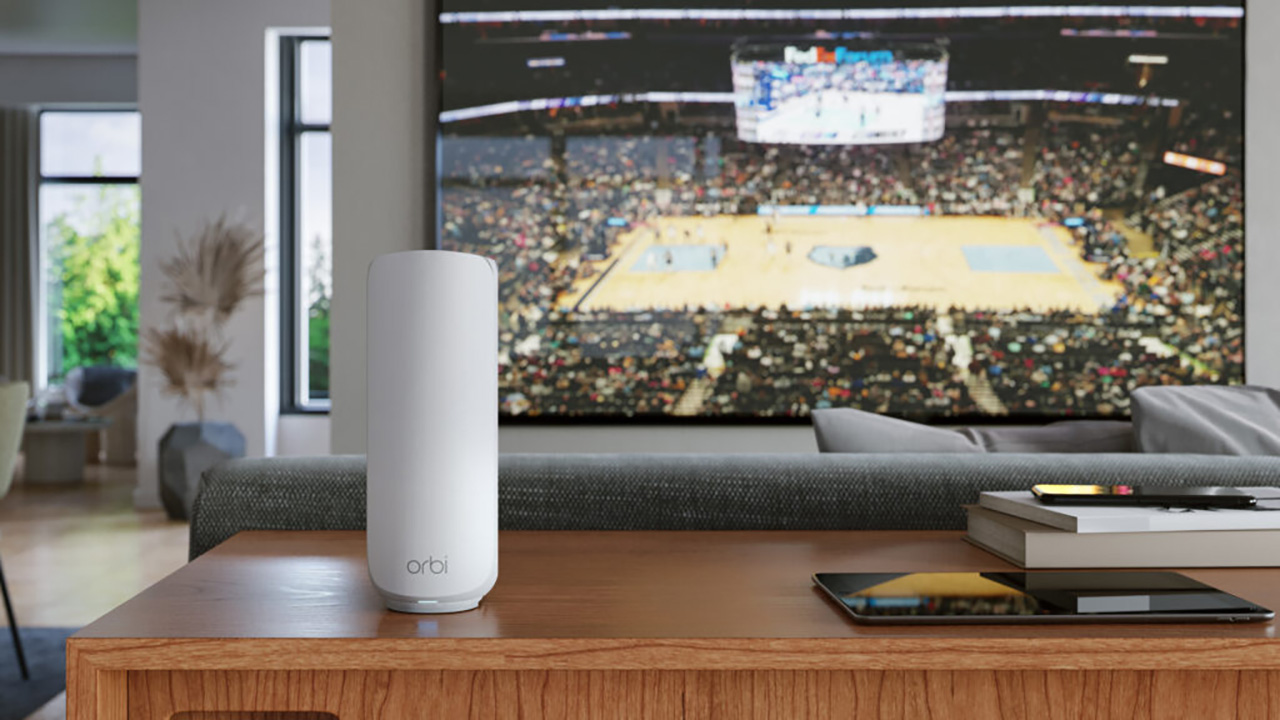
Credit: www.t3.com
Choosing The Right Mesh System
Upgrading your mesh WiFi helps your smart home run smoothly. Picking the best system matters for fast and steady internet. This guide will help you choose well.
Look at your home’s size, device needs, and internet speed. These factors affect which mesh system works best for you.
Evaluating Coverage Needs
Measure the area your WiFi should cover. Large homes need more nodes to avoid dead spots. Walls and floors can block signals.
- Count how many rooms need WiFi
- Check for thick walls or floors
- Think about outdoor coverage needs
- Plan for future home expansions
Comparing Router Speeds
Look at the speed ratings of mesh routers. Faster speeds help with streaming, gaming, and many devices. Match the router speed to your internet plan.
| Speed Type | Recommended For |
| AC1200 | Small homes, few devices |
| AC3000 | Medium homes, multiple devices |
| AX6000 | Large homes, heavy internet use |
Considering Device Compatibility
Check if the mesh system works with your smart home devices. Some devices need specific WiFi bands or protocols.
Here are key points to check for compatibility:
- Supports 2.4 GHz and 5 GHz bands
- Works with WiFi 5 (802.11ac) or WiFi 6 (802.11ax)
- Compatible with smart home hubs and assistants
- Allows easy device management via apps

Credit: www.digitaltrends.com
Optimizing Router Placement
Good router placement helps improve your mesh WiFi signal. It makes your smart home devices work better.
Small changes in where you place the router can make a big difference in coverage and speed.
Centralizing The Main Router
Put the main router in the center of your home. This helps the signal reach every room evenly.
A central spot reduces dead zones and keeps your smart devices connected all the time.
Avoiding Physical Obstructions
Walls, furniture, and metal objects can block WiFi signals. Keep the router away from these obstacles.
- Do not place the router behind thick walls.
- Avoid hiding it inside cabinets or behind large metal objects.
- Keep the area around the router clear of clutter.
- Stay away from mirrors and aquariums, as they reflect signals.
Using Elevated Positions
Place the router on a high shelf or mount it on a wall. Elevation helps signals travel farther.
| Position | Signal Strength |
|---|---|
| Floor Level | Weak |
| Desk Height | Moderate |
| High Shelf or Wall | Strong |
Configuring Network Settings
Configuring your mesh WiFi network is important for a smart home. Good settings keep devices running smoothly. It also helps protect your network.
This guide covers key settings to upgrade your mesh WiFi. You will learn about firmware updates, quality of service, and separating smart device networks.
Updating Firmware Regularly
Keep your mesh WiFi firmware up to date. Firmware updates fix bugs and improve security. They also add new features to your devices.
- Check your router’s app or website for updates.
- Install updates as soon as they are available.
- Restart your mesh system after updating.
- Set up automatic updates if your router supports it.
Setting Up Quality Of Service
Quality of Service (QoS) helps manage internet speed for smart home devices. It lets you prioritize important devices or applications. This keeps video calls and streaming smooth.
| Device Type | Priority Level |
| Smart Thermostat | High |
| Security Cameras | High |
| Streaming Devices | Medium |
| Smart Lights | Low |
| Guest Devices | Low |
Use your router’s QoS settings to assign priority. Follow the device list to improve your smart home’s performance.
Separating Smart Devices Network
Separate smart home devices from your main network. Use a guest or dedicated network for smart devices. This increases security and reduces network traffic.
- Create a new WiFi network for smart devices in your router’s settings.
- Use a different name and password for this network.
- Connect all smart home devices to the new network.
- Keep your personal devices on the main network.
Enhancing Signal Strength
Strong WiFi signals are important for smart homes. They help devices connect without interruptions. You can upgrade your mesh WiFi to get better signal strength.
Improving your mesh network makes all your smart devices work smoother. This guide covers ways to boost your WiFi signal at home.
Adding More Mesh Nodes
Adding extra mesh nodes spreads your WiFi signal over a larger area. It helps cover blind spots and rooms far from the main router.
- Place nodes in open spaces, not behind furniture.
- Keep nodes at a medium distance for strong connections.
- Use nodes that match your mesh system brand for best results.
- Check signal strength on each node using the mesh app.
Using Wired Backhaul Connections
Wired backhaul uses Ethernet cables to link mesh nodes. This creates a stable connection and frees wireless signals for your devices.
| Benefit | Explanation |
| Stable Connection | Ethernet cables avoid wireless drops between nodes. |
| Improved Speed | Data moves faster using wired links than wireless ones. |
| Less Wireless Traffic | Nodes talk over cables, freeing WiFi for your devices. |
| Better Coverage | Wired nodes can be placed farther apart. |
Minimizing Wireless Interference
Wireless interference can weaken your mesh WiFi signal. Many household devices create this interference.
Here are simple ways to reduce interference:
- Keep mesh nodes away from microwaves and cordless phones.
- Place nodes high, not on the floor or inside cabinets.
- Use 5 GHz band for less crowded WiFi channels.
- Change your WiFi channel to avoid neighbors’ networks.
- Turn off unused Bluetooth devices near your router.
Integrating Smart Home Devices
Smart home devices rely on a strong and stable WiFi connection. Upgrading your mesh WiFi can improve how these devices work together.
Organizing and managing your smart devices helps keep your home network efficient and secure.
Prioritizing Critical Devices
Some smart devices need more bandwidth or faster response times. These include security cameras, smart locks, and voice assistants.
- Identify devices that control safety or security.
- Set these devices to have higher priority on your mesh WiFi.
- Use your router’s quality of service (QoS) settings for this.
Grouping Devices By Function
Grouping devices makes managing your network easier. You can create groups for lighting, entertainment, and security devices.
| Device Group | Example Devices |
| Lighting | Smart bulbs, switches |
| Entertainment | Smart TVs, speakers |
| Security | Cameras, alarms, locks |
Ensuring Firmware Updates
Firmware updates keep your devices safe and working well. They fix bugs and improve performance.
Follow these tips for updates:
- Check device apps regularly for update alerts.
- Set devices to update automatically if possible.
- Restart devices after updates to apply changes.
Monitoring Network Performance
Upgrading your mesh WiFi helps your smart home run smoothly. Monitoring network performance is key to ensure everything works well.
Keeping an eye on your network helps you find and fix issues quickly. This guide will show you how to monitor your network effectively.
Using Network Monitoring Apps
Network monitoring apps help you track your WiFi’s performance. They show you which devices are connected and how much data they use.
These apps also alert you if there are any problems. You can download them on your smartphone or tablet for easy access.
- Shows connected devices
- Tracks data usage
- Alerts for issues
Analyzing Bandwidth Usage
Understanding bandwidth usage helps you see how your network is used. High usage can slow down your WiFi.
Look at which devices use the most data. You can adjust settings to limit their usage if needed.
| Device | Data Usage |
| Smart TV | High |
| Smartphone | Medium |
| Smart Speaker | Low |
Identifying Bottlenecks
Bottlenecks slow down your network. Identifying them is important for a smooth WiFi experience.
Find out where the slow points are in your network. This helps you know what needs fixing or upgrading.
Consider upgrading routers or adding more nodes to improve performance.

Credit: www.reddit.com
Frequently Asked Questions
What Is The Best Way To Upgrade Mesh Wifi For Smart Homes?
Upgrading mesh WiFi involves adding more nodes, updating firmware, and optimizing placement. This boosts coverage and speeds for all smart devices.
How Do I Improve Mesh Wifi Signal Strength At Home?
Place mesh nodes centrally and away from obstructions. Avoid interference from electronics, and use the latest WiFi standards for stronger signals.
Can Upgrading Mesh Wifi Enhance Smart Home Device Performance?
Yes, upgrading mesh WiFi reduces latency and dead zones. This ensures smoother operation and faster response for smart home devices.
How Often Should I Update Mesh Wifi Firmware?
Update firmware every few months or when notified. Firmware updates improve security, fix bugs, and enhance performance.
Conclusion
Upgrading your mesh WiFi helps your smart home work better. Strong, fast signals keep devices connected all the time. Place nodes where signals are weak for wider coverage. Choose the right system that fits your home size. Regular updates keep your network safe and smooth.
Small changes can make a big difference in your smart home experience. Enjoy easier control and fewer connection problems every day. Stay connected, stay smart.