Are you tired of slow internet and dead zones in your smart home? Setting up mesh WiFi can change everything.
Imagine every corner of your home having strong, reliable WiFi that keeps all your smart devices connected without interruption. In this guide, you’ll learn simple, step-by-step instructions to set up mesh WiFi quickly and easily. By the end, you’ll enjoy seamless internet that powers your smart home like never before.
Ready to unlock the full potential of your devices? Let’s dive in!

Credit: www.youtube.com
Choosing The Right Mesh Wifi System
Setting up mesh wifi for your smart home needs careful choice. The right system helps all devices connect smoothly.
Consider key factors like device compatibility, coverage, speed, and budget. These will guide your selection.
Compatibility With Smart Devices
Check if the mesh system supports your smart home devices. Most systems work well with common brands.
Look for compatibility with voice assistants, smart lights, cameras, and thermostats to avoid connection issues.
Coverage Area And Scalability
Measure your home size to pick a system that covers every corner. Extra units can expand coverage as needed.
- Small homes (up to 1,500 sq ft): 1-2 nodes
- Medium homes (1,500-3,000 sq ft): 2-3 nodes
- Large homes (over 3,000 sq ft): 3 or more nodes
Speed And Performance Factors
Choose systems that support the latest wifi standards for faster speeds. Look for dual-band or tri-band options.
| Feature | Effect on Performance |
| Dual-band wifi | Good speed and device handling |
| Tri-band wifi | Better speed with many devices |
| Ethernet backhaul | Stable wired connection between nodes |
| MU-MIMO | Supports multiple devices at once |
Budget Considerations
Mesh wifi systems come in many price ranges. Balance cost with features you need for your smart home.
- Basic models fit small homes and few devices
- Mid-range systems offer better speed and coverage
- High-end models support many devices and large areas
Preparing Your Home Network
Setting up mesh WiFi for your smart home needs good preparation. A strong network helps your devices work well.
Start by checking your current setup and finding weak WiFi spots. Then plan where to place mesh nodes.
Assessing Current Router Setup
Look at your current router’s location and settings. A central spot helps WiFi reach all rooms.
Check if your router is old or slow. An outdated router can limit your network speed and range.
- Find your router’s physical location
- Note the router model and age
- Check if it supports mesh networks
- Review connected devices and network speed
Identifying Wifi Dead Zones
Walk around your home with a phone or laptop. Test the WiFi signal in each room.
Mark spots where WiFi is weak or drops out. These dead zones need better coverage.
- Use WiFi analyzer apps to measure signal strength
- Note areas with slow or no connection
- Check places with many walls or floors
- Include outdoor areas if needed
Planning Node Placement
Place mesh nodes where the signal is good and can reach dead zones. Avoid thick walls or metal objects.
Nodes should be close enough to connect but spread out to cover more area.
- Start with one node near the router
- Add nodes halfway to dead zones
- Keep nodes in open spaces, not inside cabinets
- Place nodes on shelves or high spots
Setting Up The Mesh Wifi Hardware
Setting up mesh wifi hardware is key for a smart home network. It helps spread wifi evenly around your house.
This guide explains how to unbox, connect, and place your mesh wifi nodes for best coverage.
Unboxing And Initial Setup
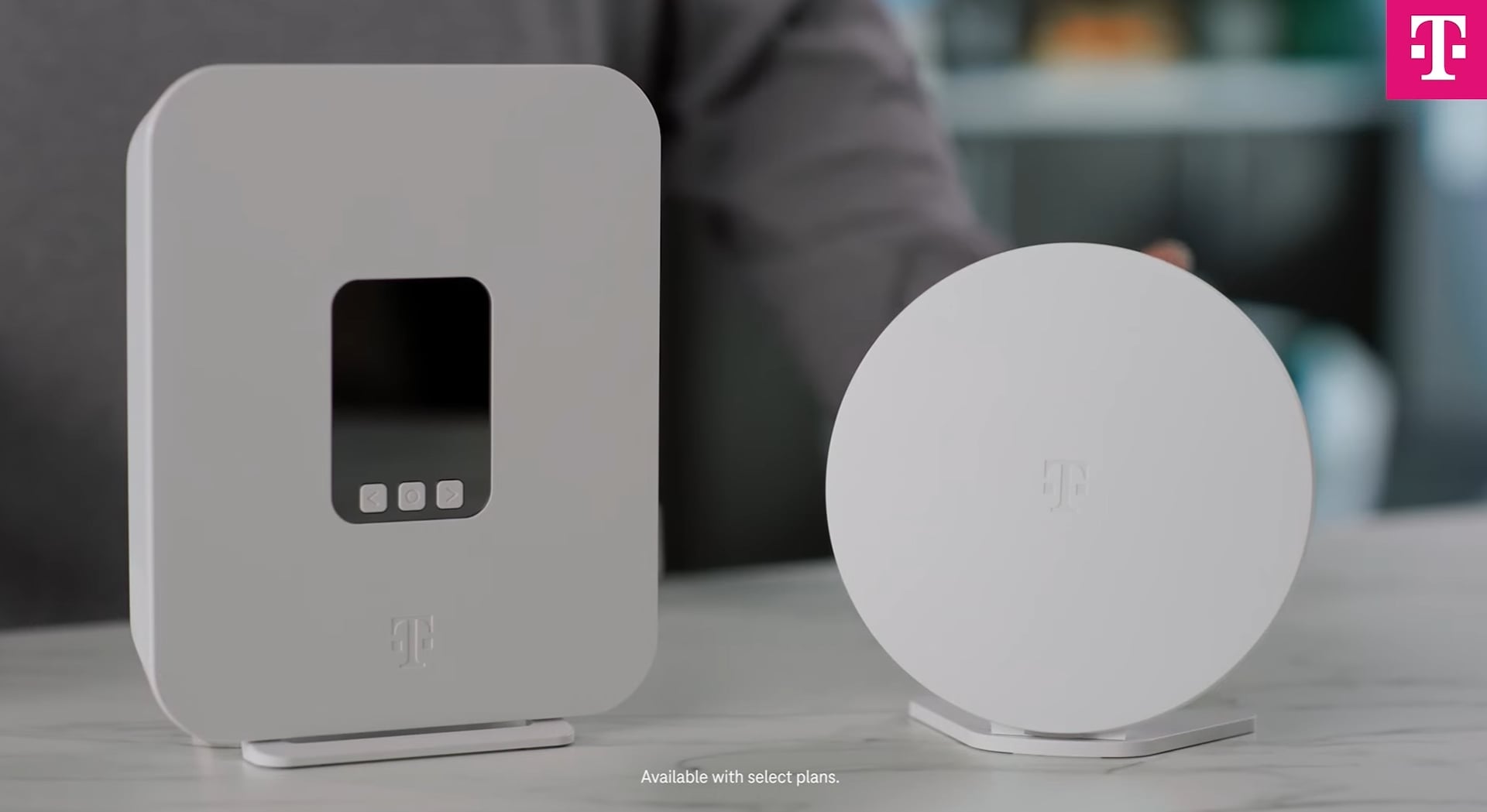
Start by opening the mesh wifi box carefully. Inside, you will find the main router and extra nodes.
Check that you have all parts: power adapters, Ethernet cables, and quick start guides.
- Primary router unit
- Additional wifi nodes
- Power adapters for each device
- Ethernet cables for connecting nodes
- Instruction manual or quick start guide
Connecting The Primary Node
Connect the primary node to your internet modem using an Ethernet cable. This node controls your network.
Plug in the power adapter and turn on the primary node. Wait a few minutes for it to boot up fully.
- Use Ethernet cable from modem to primary node
- Plug in power and switch on the device
- Wait until indicator lights show it is ready
Powering And Positioning Additional Nodes
Place additional nodes around your home to extend wifi coverage. Each node needs a power outlet.
Try to put nodes where wifi signal from the primary node is still strong. Avoid thick walls or metal objects.
- Plug each node into a power outlet
- Place nodes in open areas, not hidden
- Keep nodes within range of the main router
- Check indicator lights to confirm connection
Configuring The Mesh Network
Setting up your mesh WiFi network correctly helps your smart home run smoothly. It improves signal strength and device connections.
Follow these steps to configure your mesh network for the best smart home experience.
Using The Manufacturer’s App
Most mesh WiFi systems come with a special app from the maker. Use this app to set up and manage your network.
The app guides you through connecting each mesh node and checking signal strength in your home.
- Download the app on your phone or tablet
- Create or log in to your account
- Follow on-screen instructions to add devices
- Monitor your network status and connected devices
Setting Network Name And Password
Choose a clear network name (SSID) that you recognize easily. Avoid using personal information.
Set a strong password to protect your smart home devices from unauthorized access.
- Pick a unique network name for easy identification
- Create a password with letters, numbers, and symbols
- Make sure the password has at least 8 characters
- Change the default network name and password immediately
Enabling Guest Networks
Guest networks let visitors use your WiFi without accessing your smart home devices. This keeps your main network safe.
Turn on the guest network option in the app and set a separate name and password for guests.
- Enable guest access in the mesh app settings
- Choose a guest network name different from the main one
- Set a simple password for guests to use
- Limit guest network access to internet only, no smart devices
Updating Firmware
Keep your mesh system’s firmware up to date. Updates fix bugs and improve security.
Check for updates in the app regularly and install them as soon as they are available.
- Open the mesh app and go to system settings
- Look for firmware or software update option
- Download and install updates when prompted
- Restart the mesh devices if needed after updates
Integrating Smart Home Devices
Setting up a mesh WiFi network helps connect all your smart home devices easily. It creates a strong signal that covers every corner of your home.
This guide shows how to connect devices, place them well, and fix common connection problems.
Connecting Devices To The Mesh Network
Turn on your smart device and open its app or settings menu. Look for the WiFi setup option to start connecting.
Select your mesh network name and enter the password. Wait for the device to confirm it is online.
- Use the device’s app for easy setup
- Connect to the mesh WiFi network, not the old router
- Follow on-screen instructions in the device app
Optimizing Device Placement
Place smart devices where they get strong WiFi signals. Avoid walls and large metal objects that block the signal.
Keep devices in open spaces and near mesh WiFi points for better connection and speed.
- Put mesh points in central locations
- Keep devices away from microwaves and cordless phones
- Use mesh nodes on different floors for full coverage
Troubleshooting Connectivity Issues
If a device loses connection, restart it and your mesh WiFi node. This can fix many problems.
Check if your mesh system and devices have the latest software updates. Updates improve performance and fix bugs.
- Restart devices and mesh WiFi nodes
- Move devices closer to mesh points if signal is weak
- Update firmware for mesh system and smart devices
- Reset devices and reconnect if problems continue
Enhancing Network Security
Setting up a mesh Wi-Fi system for your smart home can make your internet faster and more reliable. But it’s also important to keep your network secure. Here are some steps to enhance your network security.
By securing your mesh network, you can protect your smart devices and personal information. Follow these guidelines to ensure your network is safe.
Changing Default Credentials
Default credentials are easy for hackers to guess. Change them as soon as you set up your network. Create a strong password with letters, numbers, and symbols.
Make sure your new credentials are unique and not used for other accounts. This reduces the risk of unauthorized access to your network.
- Use at least 12 characters
- Include uppercase and lowercase letters
- Add numbers and symbols
Setting Up Parental Controls
Parental controls help manage what kids can see online. You can block harmful websites and set time limits. This keeps children safe while they use the internet.
Customize the controls to fit your family’s needs. Adjust settings based on age and maturity level.
- Block adult content
- Set daily usage limits
- Monitor online activity
Enabling Network Encryption
Encryption protects your data as it travels through your network. Enable WPA3 encryption for the best security. This makes it harder for outsiders to intercept your data.
Check your mesh Wi-Fi system’s settings to ensure encryption is turned on. Strong encryption can keep your personal information safe from hackers.
- Use WPA3 if available
- Update firmware regularly
- Disable older protocols like WEP
Maintaining Your Mesh Wifi System
Keeping your mesh Wifi system in top shape helps your smart home run smoothly. Regular checks ensure your network is fast and reliable.
A well-maintained system supports all your smart devices without interruptions. Here are some tips to keep your mesh Wifi in good condition.
Regular Firmware Updates
Firmware updates improve your Wifi system’s performance and security. These updates fix bugs and add new features.
Check for updates monthly to keep your system safe. Most routers update automatically, but it’s good to verify.
- Check router settings for update options
- Enable automatic updates if available
- Manually update if needed
Monitoring Network Performance
Regularly monitor your network’s performance to ensure all devices work well. Use network management apps for this task.
These apps show you which devices use the most bandwidth. This helps you spot any issues quickly.
- Install a network management app
- Check device connection strength
- Identify devices using excess bandwidth
Expanding Coverage When Needed
If your Wifi signal is weak in some areas, expand your coverage. Add more nodes to your mesh system for better reach.
Position additional nodes in areas with poor signal. This helps your smart devices stay connected.
- Identify weak signal spots
- Add more nodes to your system
- Test signal strength after adding nodes

Credit: www.youtube.com
Credit: www.t-mobile.com
Frequently Asked Questions
What Is Mesh Wifi And Why Use It For Smart Homes?
Mesh WiFi uses multiple nodes to create seamless coverage. It eliminates dead zones, ensuring smart devices stay connected everywhere. This improves reliability and speed, perfect for smart home automation and streaming.
How Do I Choose The Best Mesh Wifi System?
Look for compatibility with your smart devices and home size. Check speed, security features, and ease of setup. Reading reviews and comparing brands helps pick the best system for your smart home.
Where Should I Place Mesh Wifi Nodes In My Home?
Place nodes centrally and evenly spaced for maximum coverage. Avoid obstructions like walls and metal objects. Position near smart hubs and high-traffic areas to boost signal strength and device connectivity.
Can Mesh Wifi Improve Smart Home Security?
Yes, mesh WiFi often includes enhanced security features. It offers encryption, guest networks, and regular updates. These protect your smart home devices from cyber threats effectively.
Conclusion
Setting up mesh WiFi can make your smart home work better. It spreads WiFi evenly to every corner. Devices stay connected without drops or slowdowns. You only need to follow simple steps. This helps all your gadgets talk to each other smoothly.
A strong WiFi network means less frustration and more fun. Try setting it up today for a smarter home. Easy, fast, and useful.