Is your smart home acting up because your mesh WiFi isn’t working right? You rely on a strong, steady connection to keep everything—from lights to security cameras—running smoothly.
When your mesh WiFi struggles, frustration builds fast. But don’t worry, you’re not alone, and fixing it might be simpler than you think. You’ll discover easy, practical steps to troubleshoot your mesh WiFi and restore your smart home’s seamless performance.
Keep reading, and get ready to take control of your connection again.
Common Mesh Wifi Issues
Mesh Wifi systems help spread internet in your home. They improve connection in many rooms.
Sometimes, these systems face problems. Knowing common issues can help you fix them fast.
Slow Speeds
Slow internet speeds happen when the wifi signal is weak. It can be due to distance or walls.
Too many devices using the network can also slow down speeds.
- Place mesh nodes closer to each other
- Limit devices using the network at the same time
- Check your internet plan speed
Connection Drops
Connection drops happen when your device loses the wifi signal. This can interrupt your work.
Interference from other electronics or thick walls can cause drops in connection.
- Keep mesh nodes away from microwaves and cordless phones
- Restart your mesh router and nodes often
- Update your mesh system’s firmware
Device Compatibility
Some smart home devices may not work well with certain mesh systems. This causes poor performance.
Check if your devices support the wifi bands your mesh system uses.
- Use dual-band or tri-band mesh systems for better compatibility
- Update device software regularly
- Check device manuals for wifi requirements
Coverage Gaps
Coverage gaps are areas in your home with little or no wifi signal. This stops devices from connecting.
These gaps happen if mesh nodes are too far apart or blocked by walls.
- Place mesh nodes in open spaces
- Add more nodes to cover larger homes
- Avoid placing nodes near metal objects or thick walls
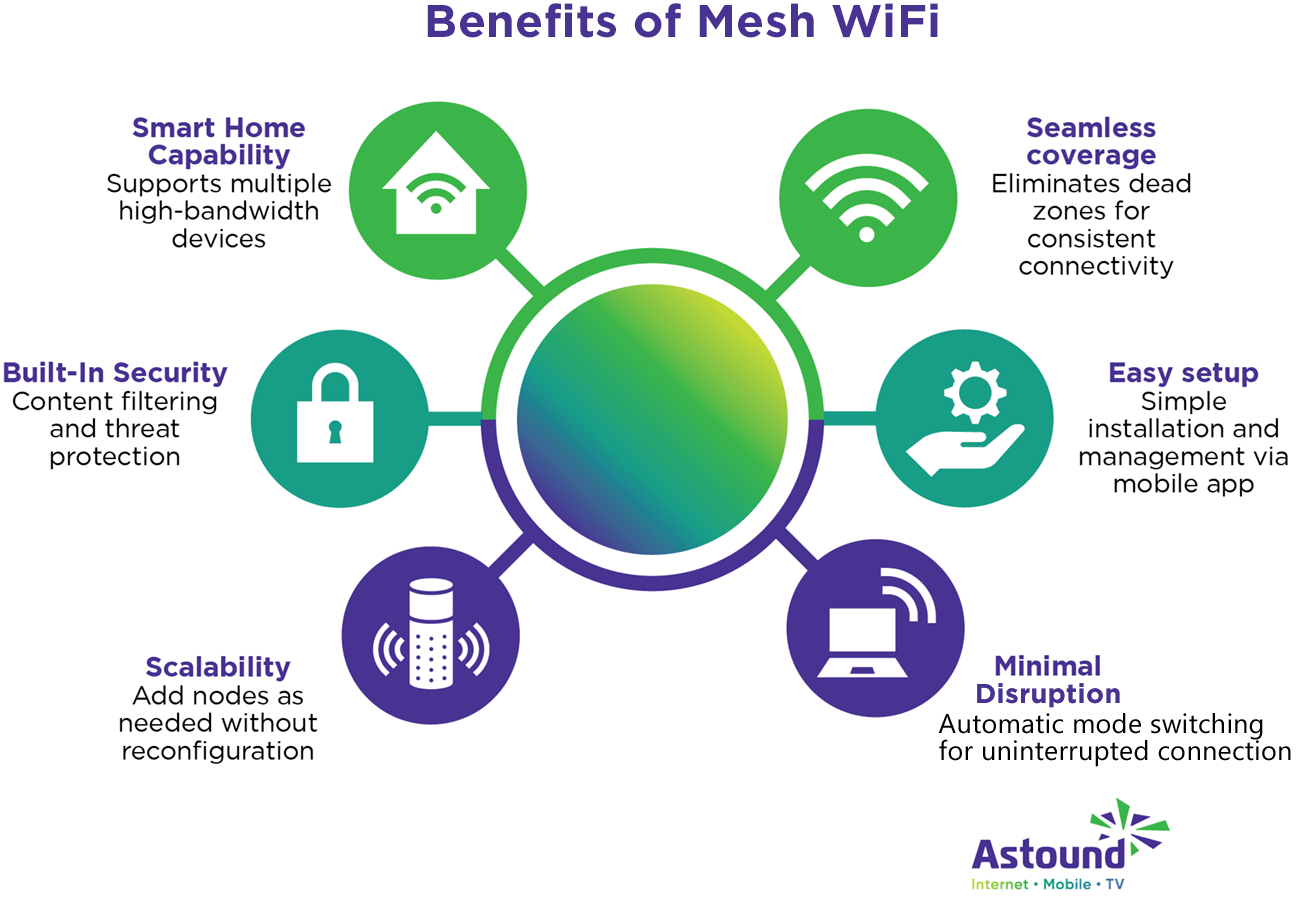
Credit: www.astound.com
Basic Troubleshooting Steps
Mesh WiFi systems help cover your home with strong internet signals. Sometimes, your smart home devices may lose connection. This guide shows easy ways to fix common problems.
Follow these steps to check and improve your mesh WiFi system’s performance. These tips work for most brands and setups.
Restarting Your Mesh System
Restarting your mesh system can clear temporary errors. Turn off all mesh units and unplug them. Wait for 30 seconds, then plug them back in. Turn them on starting with the main unit.
This simple reset often fixes slow speeds and dropped connections.
Checking Device Placement
Where you place your mesh units affects your WiFi signal. Keep these tips in mind:
- Place units in open areas, away from walls and metal objects.
- Keep units high, like on shelves or tables.
- Avoid placing units near microwaves or cordless phones.
- Make sure units are not too far from each other.
- Place units near your smart home devices if possible.
Updating Firmware
Firmware updates improve your mesh system’s performance and security. Check for updates regularly using the system’s app. Follow these steps:
| Action | Description |
|---|---|
| Open App | Launch the mesh system’s official app on your phone or computer. |
| Check Firmware | Look for a “Firmware Update” or “System Update” section. |
| Download & Install | If an update is available, download and install it following prompts. |
| Restart System | After updating, restart your mesh system to apply changes. |
Verifying Internet Connection
Make sure your internet connection is active before blaming your mesh system. Try these checks:
- Connect a device directly to your modem with an Ethernet cable.
- Open a web page to see if the internet works.
- Restart your modem if no internet is detected.
- Contact your internet service provider if problems continue.
Advanced Fixes
Troubleshooting mesh WiFi for your smart home can need deeper fixes. These advanced steps help improve your network’s stability and speed.
Use these tips if basic troubleshooting does not solve your connection problems. They target specific settings and controls in your mesh system.
Adjusting Channel Settings
Changing the wireless channels can reduce interference from other devices. Many mesh systems let you set channels for 2.4 GHz and 5 GHz bands manually.
- Access your router’s admin panel.
- Find the wireless settings section.
- Select a less crowded channel for each band.
- Save changes and restart the router.
- Test your smart home devices for better connection.
Optimizing Band Steering
Band steering moves devices to the best frequency band automatically. This helps balance the load and improves speed.
| Band Steering Setting | Effect |
| Enabled | Devices switch between 2.4 GHz and 5 GHz for best speed. |
| Disabled | Devices stay on their connected band, which can cause slowdowns. |
| Auto | Router decides the best band based on device type and signal. |
Configuring Quality Of Service
Quality of Service (QoS) lets you prioritize traffic for smart home devices. This avoids lag or interruptions during important tasks.
- Log in to your router’s admin page.
- Locate the QoS settings.
- Add your smart devices by IP or MAC address.
- Set the highest priority for these devices.
- Apply the settings and reboot your network.
Resetting To Factory Defaults
If other fixes fail, reset your mesh WiFi to factory defaults. This clears all settings and can fix hidden issues.
To reset your mesh system:
- Find the reset button on your router or node.
- Press and hold it for 10-15 seconds.
- Wait for the device to reboot fully.
- Reconfigure your network from scratch.
Smart Home Integration Tips
Mesh WiFi helps smart devices work better in your home. It spreads WiFi signals to cover all rooms.
Sometimes smart devices can slow down or lose connection. These tips help you fix common problems fast.
Prioritizing Smart Devices
Give priority to important smart devices on your network. This keeps them running smoothly without delays.
You can set priority in your mesh WiFi app or router settings. This helps smart lights, security cameras, and alarms work well.
- Identify devices that need stable connection
- Use Quality of Service (QoS) settings to prioritize
- Check device performance after changes
Securing Your Network
Protect your mesh WiFi to keep smart devices safe. Use strong passwords and update your router regularly.
Secure networks prevent hackers from accessing your smart home. Use WPA3 security if your router supports it.
- Create a long, unique WiFi password
- Change default router login details
- Keep firmware updated for security patches
Using Guest Networks
Guest networks keep your smart devices separate from visitors’ devices. This reduces risk and keeps your main network fast.
Enable guest mode in your mesh WiFi settings. Share the guest network password with visitors without exposing your smart home devices.
- Turn on guest network feature in router app
- Use a different password for guests
- Limit guest network access to internet only
Managing Device Load
Too many devices can slow your mesh WiFi. Disconnect devices not in use to free up bandwidth.
Check how many devices connect at once. Remove or turn off unused smart devices to keep the network fast and stable.
- Monitor connected devices in router app
- Disconnect or remove inactive devices
- Limit video streaming or downloads during peak times
When To Contact Support
Mesh WiFi helps connect smart home devices smoothly. Sometimes, problems need expert help. Knowing when to ask for support saves time.
Support teams can guide you through tough issues. This guide shows when to reach out for help with your mesh WiFi system.
Persistent Connection Problems
If your devices lose connection often or the WiFi is very slow, it may be time to contact support. Troubleshooting on your own might not fix deep network issues.
- Frequent disconnections without clear cause
- Slow internet despite good signal strength
- Devices unable to connect to the mesh network
Hardware Malfunctions
Hardware problems can cause your mesh WiFi to fail. If you see blinking error lights or devices that never power on, ask for support. They can help confirm if parts need repair or replacement.
| Symptom | Possible Cause |
| Red or blinking lights | Hardware error or firmware issue |
| No power to a node | Power supply or internal fault |
| Overheating units | Ventilation problem or defect |
Compatibility Issues
Some smart devices may not work well with your mesh system. Support can check if your devices and WiFi are compatible. They can also suggest settings to improve connection.
- Devices not recognized by the mesh network
- Frequent drops only on certain devices
- Problems after firmware updates
Professional Setup Assistance
Setting up a mesh WiFi for a smart home can be complex. Support can provide professional help to optimize your network. They may assist with placement, configuration, and integration.
- Correct node placement for best coverage
- Proper configuration for device compatibility
- Security settings to protect your network
- Advice on expanding your mesh system
Credit: helpdeskgeek.com

Credit: www.youtube.com
Frequently Asked Questions
How Do I Reset My Mesh Wifi System?
To reset your mesh WiFi, press and hold the reset button on each node for 10 seconds. This clears settings and restores factory defaults. Then, reconfigure your network using the app or web interface to ensure proper connectivity.
Why Is My Smart Home Device Not Connecting?
Check if your smart device is within mesh WiFi range. Ensure the device supports your network’s frequency band. Restart the device and mesh nodes to refresh connections. Also, verify your router’s firmware is updated for compatibility.
How Can I Improve Mesh Wifi Coverage At Home?
Place mesh nodes in open, central locations away from walls or interference. Avoid electronic devices that cause signal disruption. Add more nodes to cover large spaces. Regularly update firmware to enhance performance and stability.
What Causes Frequent Mesh Wifi Disconnections?
Interference from other wireless devices, outdated firmware, or improper node placement can cause drops. Overloaded network traffic may also disrupt connections. Restarting nodes and updating firmware often resolves issues.
Conclusion
Troubleshooting mesh WiFi for your smart home does not have to be hard. Start by checking your device connections and signal strength. Restart your router and nodes to refresh the network. Keep your firmware updated for better performance. Place nodes in open areas to avoid interference.
Test your internet speed to spot issues quickly. Small steps can fix most problems fast. Stay patient and follow these tips to keep your smart home connected. Simple actions make a big difference in network reliability.