Are you tired of slow Wi-Fi and dead zones in your home? Your Google Nest Mesh WiFi system can fix that—but only if you place the nodes in the right spots.
Where you put these nodes makes a huge difference in speed, coverage, and reliability. You’ll discover simple tips to find the best placement for your Nest WiFi nodes. By the end, you’ll know exactly how to set up your network so every corner of your home gets strong, fast internet.
Keep reading to unlock the full power of your Google Nest Mesh WiFi.
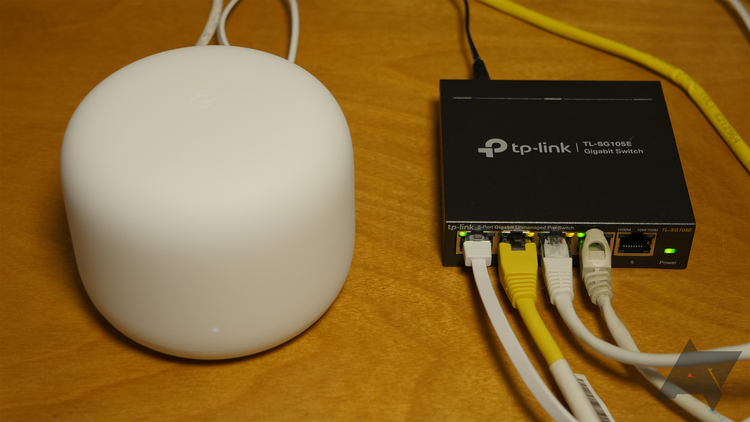
Credit: www.androidpolice.com
Choosing Node Locations
Placing Google Nest Mesh Wifi nodes correctly improves your network’s strength. Good placement helps devices connect faster and more reliably.
Choose locations that spread the signal well and reduce weak spots. Think about the layout of your home and where you use your devices most.
Centralizing The Main Router
Put the main router in the middle of your home. This helps the signal reach all corners more evenly. Avoid putting it near windows or outside walls.
Avoiding Physical Obstructions
Physical barriers like walls and furniture block wifi signals. Place nodes in open areas, away from thick walls and metal objects.
- Keep nodes off the floor and away from large appliances
- Avoid placing nodes behind TVs or inside cabinets
- Use higher shelves for better coverage
- Stay clear of mirrors and glass that can reflect signals
Considering Device Density Areas
Place nodes near areas with many devices. This includes living rooms, home offices, and gaming rooms. More nodes in these spots reduce slow connections.
| Area | Recommended Node Placement |
| Living Room | Center or near the main seating area |
| Home Office | Close to the desk or computer station |
| Kitchen | On a counter or shelf, away from appliances |
| Bedrooms | Near the door or a central wall |
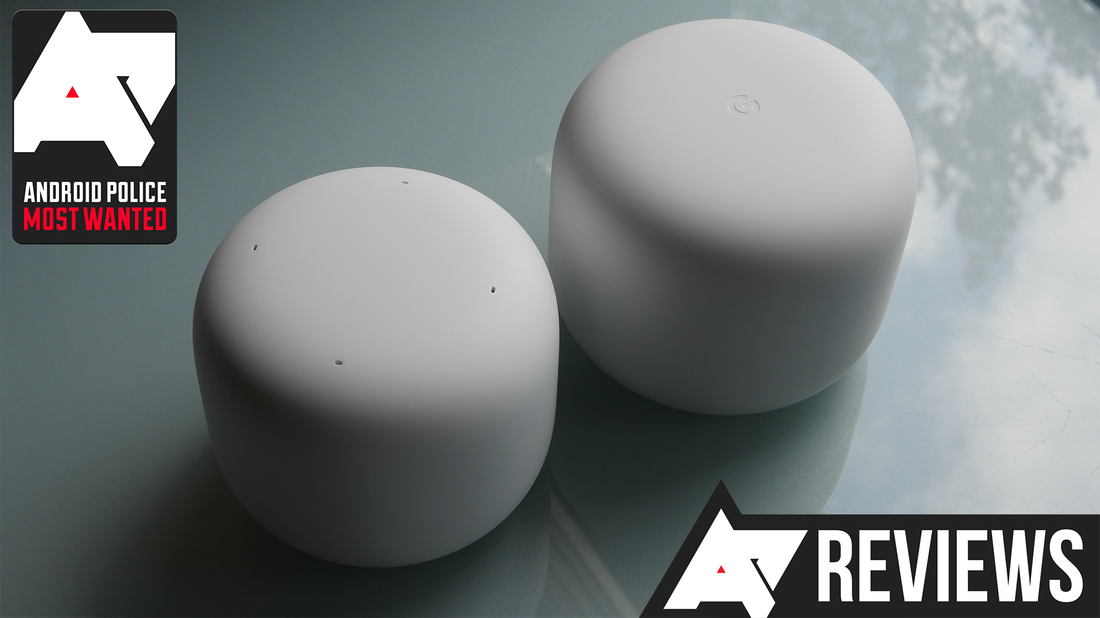
Credit: www.androidpolice.com
Optimizing Node Distance
Google Nest Mesh Wifi uses multiple nodes to spread Wi-Fi in your home. Placing these nodes at the right distance helps keep a strong and steady connection.
If nodes are too close, they may cause interference. If too far, the signal gets weak. Finding the right balance improves your internet speed and coverage.
Ideal Spacing Between Nodes
Nodes should be placed about 30 to 40 feet apart in open areas. Walls and furniture can reduce this distance. Adjust spacing based on your home’s layout.
Try to keep nodes visible to each other without many obstacles. This helps maintain a strong connection between them.
Balancing Signal Strength And Coverage
Strong signals come from nodes that are close, but coverage needs nodes spread out. Too close means less coverage, too far means weak signal.
Place nodes where signal strength is good and coverage reaches all rooms. Avoid placing nodes near metal objects or thick walls.
- Keep nodes away from microwaves and cordless phones
- Place nodes in central areas of your home
- Elevate nodes off the floor for better reach
Using Signal Strength Indicators
Google Nest app shows signal strength between nodes. Use this to adjust your node placement for the best connection.
Green means strong signal, yellow means okay, and red means weak. Move nodes until most connections show green or yellow.
- Start placing nodes where signal is green
- Move nodes closer if you see red or no connection
- Test your internet speed after changes
Utilizing Multiple Floors
Using Google Nest Mesh Wifi nodes in a multi-floor home can improve your wifi coverage. Placing nodes correctly helps avoid dead zones on each floor.
Good placement ensures strong signals throughout the house. It also reduces connection drops when moving between floors.
Placing Nodes On Different Levels
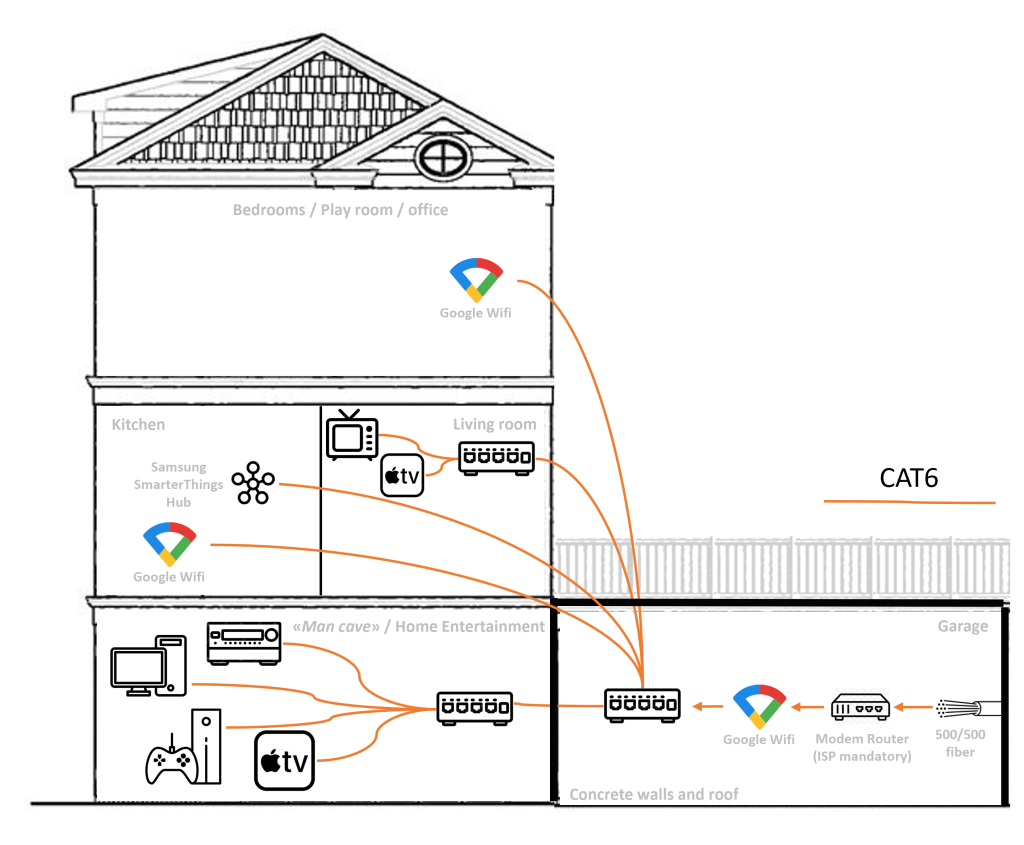
Put one node on each floor to cover all areas well. Place the main node near your modem on the first floor.
Secondary nodes should be near high-usage spots on upper floors. Avoid placing nodes too close or too far from each other.
- Place main node close to the modem.
- Put nodes on each floor for full coverage.
- Keep nodes within a good signal range.
Avoiding Interference From Floors
Floors can block wifi signals, especially if made from thick materials. Avoid placing nodes directly above or below each other.
Use open areas free of metal or concrete to reduce interference. This helps your wifi signals pass through floors more easily.
- Do not place nodes directly above/below another node.
- Avoid thick floors with metal or concrete near nodes.
- Use open spaces to help signals travel vertically.
Strategic Vertical Placement
Place nodes at mid-level height on each floor for better signal spread. Avoid placing nodes on the floor or too high near the ceiling.
Try to align nodes vertically but offset horizontally. This helps the mesh network connect smoothly between floors.
- Place nodes about waist to chest height.
- Do not place nodes on the ground or very high.
- Align nodes vertically with some horizontal offset.
Credit: help.firewalla.com
Minimizing Interference
Placing Google Nest Mesh Wifi nodes correctly helps reduce interference. Less interference means better internet speed and connection.
Interference comes from many sources. Avoiding these helps your mesh wifi work well.
Keeping Away From Electronics
Electronic devices give off signals that can interfere with wifi nodes. Keep your mesh nodes far from these devices.
Common electronics that cause interference include microwaves, cordless phones, and baby monitors.
- Do not place nodes near microwaves
- Avoid cordless phones and baby monitors
- Keep distance from Bluetooth devices
Avoiding Metal And Thick Walls
Metal objects block wifi signals. Thick walls reduce signal strength too. Place nodes where walls and metal do not block signals.
Metal furniture, mirrors, and appliances can stop wifi waves. Thick concrete or brick walls also weaken the signal.
- Do not put nodes behind metal objects
- Avoid placing nodes near large metal appliances
- Try to place nodes in open areas or rooms with thin walls
Reducing Wireless Channel Overlaps
Wifi uses channels to send data. If many devices use the same channel, interference happens. Set nodes to different channels if possible.
Using non-overlapping channels helps reduce interference from other networks nearby.
- Use channels 1, 6, or 11 on 2.4 GHz band
- Check for busy channels and avoid them
- Let your router pick the best channel automatically if unsure
Testing And Adjusting Placement
Placing Google Nest Mesh Wifi nodes correctly is important. It ensures a strong and reliable network. Testing and adjusting the placement helps find the best spots.
Follow these steps to use the right tools and perform tests. This will help you fine-tune the positions of your nodes.
Using The Google Home App Tools
The Google Home app offers tools to help with placement. You can see the connection strength for each node.
- Open the Google Home app.
- Select the Wifi device.
- Check the connection quality.
Performing Speed Tests
Speed tests show how fast your internet is. They help determine the best position for your nodes.
| Location | Download Speed | Upload Speed |
| Living Room | 50 Mbps | 10 Mbps |
| Bedroom | 30 Mbps | 8 Mbps |
| Kitchen | 45 Mbps | 9 Mbps |
Fine-tuning Node Positions
Adjust node positions based on test results. This improves the network’s reach and speed.
Try moving nodes to different heights or angles. Avoid placing them near metal objects or thick walls.
Special Scenarios
Placing Google Nest Mesh WiFi nodes can be tricky in special cases. Different home setups need different strategies.
This guide covers unique situations to help you get the best WiFi coverage.
Covering Large Outdoor Areas
Outdoor areas need careful placement to keep a strong signal. Walls and trees can block WiFi signals.
Place nodes near doors or windows that face the outdoor space. This helps the signal reach outside better.
- Use weather-protected spots for outdoor nodes
- Keep nodes elevated for wider coverage
- Avoid metal objects that block signals
Integrating With Existing Networks
You can add Nest Mesh nodes to an existing WiFi network. This improves coverage without replacing all equipment.
Place new nodes near the edge of your current WiFi range. This helps the mesh connect smoothly to the old network.
- Check if your router supports mesh networking
- Keep nodes within range of the main router
- Use the Google Home app to link nodes correctly
Placement In Unusual Home Layouts
Odd home shapes can cause WiFi dead zones. Long hallways, thick walls, or split levels need special care.
Place nodes in central spots and near problem areas. Test signal strength and move nodes as needed.
- Put nodes on each floor of a multi-story home
- Avoid placing nodes inside cabinets or behind thick walls
- Use open areas to let signals spread evenly
Frequently Asked Questions
Where Should I Place Google Nest Wifi Nodes At Home?
Place Nest Wifi nodes in open spaces, away from walls and electronics. Position nodes evenly to cover dead zones and avoid interference. Central locations on each floor improve signal strength and provide seamless coverage throughout your home.
How Far Apart Should Google Nest Wifi Nodes Be?
Keep nodes 30 to 40 feet apart for optimal performance. Avoid placing nodes too close, which causes signal overlap. Too far apart nodes may lose connection. Adjust distance based on home size and building materials.
Can I Place Google Nest Nodes Outdoors?
Google Nest Wifi nodes are designed for indoor use only. Outdoor placement exposes them to weather damage and connectivity issues. Use indoor nodes near windows for better outdoor signal reach instead.
Should I Place Google Nest Wifi Near Other Electronics?
Avoid placing Nest Wifi nodes near microwaves, cordless phones, or Bluetooth devices. These electronics cause signal interference and reduce network performance. Keep nodes at least 3 feet away from such devices for best results.
Conclusion
Placing Google Nest Wifi nodes well improves your internet connection. Keep nodes in open spaces, away from walls and electronics. Spread them evenly across your home for better coverage. Avoid placing nodes too far apart to prevent weak signals. Test different spots to find the best setup.
Good placement helps all your devices work smoothly. A strong Wi-Fi network makes daily tasks easier and faster. Simple changes can make a big difference in your home network.


