Struggling with weak WiFi signals in some parts of your home? You’re not alone.
The Google Nest Mesh WiFi system promises to spread strong, reliable internet everywhere you need it. But how much area can it really cover? Understanding the Google Nest Mesh WiFi coverage area can help you decide if it’s the right solution for your space.
Keep reading to discover how this system works, what to expect from its coverage, and how to get the best performance for your home or office. Your search for seamless WiFi might just end here.
Google Nest Mesh Wifi Basics
Google Nest Mesh Wifi helps cover your whole home with strong internet. It uses several devices that work together. This system improves wifi where one router cannot reach.
Each device connects to the others to share internet signals. This creates a wide and steady wifi network. It is easy to set up and control from your phone.
How Mesh Wifi Works
Mesh wifi uses multiple units called nodes. Each node sends wifi signals to nearby areas. They work as one large network instead of separate ones.
- One main router connects to the internet source.
- Additional nodes spread out to cover dead zones.
- Nodes communicate to share data and internet access.
- Devices connect to the strongest nearby node automatically.
- The system adapts to keep the connection smooth.
Key Features Of Nest Wifi
Google Nest Wifi offers many useful features for home users. It balances speed, coverage, and easy management.
| Feature | Description |
| Automatic Updates | Keeps your network secure and fast. |
| Smart Home Integration | Works with Google Assistant devices. |
| Parental Controls | Manage internet access for family members. |
| Easy App Control | Set up and monitor your network from a phone. |
| Expandable Network | Add more nodes to increase coverage. |
Coverage Area Insights
Google Nest Mesh Wifi helps spread internet in your home. It uses several points to cover large areas. Understanding coverage helps place points well.
This guide explains how far each Nest point can reach. It also covers what changes the coverage size. Knowing these can improve your wifi setup.
Typical Range Per Nest Point
Each Nest Wifi point covers a certain distance. The exact range depends on the model and home layout. Usually, one point covers about 1,500 to 2,200 square feet.
| Device | Approximate Coverage |
|---|---|
| Nest Wifi Router | Up to 2,200 sq ft |
| Nest Wifi Point | Up to 1,600 sq ft |
| Nest Wifi Pro | Up to 2,200 sq ft |
Factors Affecting Coverage
Several things can change how far your Nest Wifi signal goes. These include walls, materials, and interference. Knowing these helps place devices right.
- Walls made of concrete or metal block signals more than wood or drywall.
- Distance between points affects signal strength. Larger gaps reduce coverage.
- Other wireless devices or appliances can cause interference.
- Furniture and large objects can weaken signals.
- Placement height matters. Higher placement usually improves coverage.
Optimizing Router Placement
Good router placement helps improve your Google Nest Mesh Wifi coverage. It ensures a strong signal in every part of your home.
Placing Nest points correctly reduces dead spots and keeps your connection fast and stable.
Ideal Locations For Nest Points
Place Nest points in open areas for the best signal spread. Avoid putting them in closets or behind furniture.
High locations help signals travel farther. Try placing them on shelves or tables.
- Central spots in your home work best
- Keep Nest points visible and not blocked
- Use multiple points for larger homes
- Place points away from thick walls
Avoiding Interference Zones
Avoid placing Nest points near devices that cause signal interference. These can weaken your wifi strength.
Common interference sources include microwaves, cordless phones, and metal objects.
- Keep Nest points away from kitchen appliances
- Do not place near large metal objects or mirrors
- Stay clear of thick walls with metal studs
- Avoid crowded power strips and electronic hubs
Expanding Coverage With Additional Points
Google Nest Mesh Wifi helps cover your home with strong internet signals. Adding more points can widen the coverage. This guide explains when and how to add extra units.
Using additional points improves connection in hard-to-reach areas. It creates a seamless network for all your devices to stay online.
When To Add More Units
Add extra Nest Wifi points if you notice weak signals in some rooms. Large homes or places with thick walls often need more units. Also, add units if many devices connect at once.
- Signal drops in distant rooms
- Dead zones with no Wi-Fi
- Large or multi-story homes
- Multiple devices using internet
- Outdoor areas needing coverage
Seamless Network Expansion Tips
Place new points where the signal starts to weaken. Avoid spots near microwaves or thick metal objects. Keep points visible and off the floor for best reach.
| Tip | Details |
| Location | Place points in open areas, central to weak signal zones |
| Distance | Keep points 30 to 40 feet apart for strong connection |
| Interference | Avoid walls with metal, thick concrete, or appliances |
| Height | Place points on shelves or tables, not on the floor |
Troubleshooting Coverage Issues
Google Nest Mesh Wifi is designed to cover large areas with strong Wi-Fi signals. Sometimes, you may face coverage problems that affect your internet speed. This guide helps you find and fix common issues.
Check your mesh network carefully. Small changes can improve your signal and make your connection stable.
Common Signal Problems
Weak Wi-Fi signals can happen for many reasons. Walls, distance, and electronic devices can block the signal. Sometimes, the placement of your Nest Wifi points causes weak coverage.
Interference from other networks or devices can slow your Wi-Fi. Overlapping channels or many connected devices also cause problems.
Fixes And Workarounds
Move your Nest Wifi points to open spaces away from thick walls and metal objects. This helps the signal travel better.
Restart your router and points to refresh the network. This can fix temporary issues and improve coverage.
- Place Wifi points in central locations
- Keep them away from microwaves and cordless phones
- Use the Google Home app to check signal strength
- Update your device firmware regularly
- Limit the number of devices connected at once

Credit: www.clinicabeautylounge.com
Advanced Settings To Enhance Performance
The Google Nest Mesh Wifi provides reliable internet coverage. Adjusting settings can improve its performance.
Learn how to optimize your network with these advanced settings. Customize your Google Nest for better speed and connectivity.
Adjusting Channel Settings
Changing channel settings can reduce interference. This helps in areas with many wifi networks.
| Channel | Best Use |
| 1 | Less crowded areas |
| 6 | Most devices |
| 11 | High interference areas |
Prioritizing Devices
Prioritizing devices can improve the network for important tasks. This is useful for streaming or video calls.
- Open the Google Home app
- Select “Wifi” and tap on “Devices”
- Choose the device to prioritize
- Set the time duration for prioritization
Comparing Nest Wifi With Other Mesh Systems
Google Nest Wifi is a popular choice for home internet. It offers mesh coverage for seamless connectivity. This content compares Nest Wifi to other mesh systems.
The focus will be on coverage, speed, cost, and features. This helps users make informed decisions.
Coverage And Speed Comparison
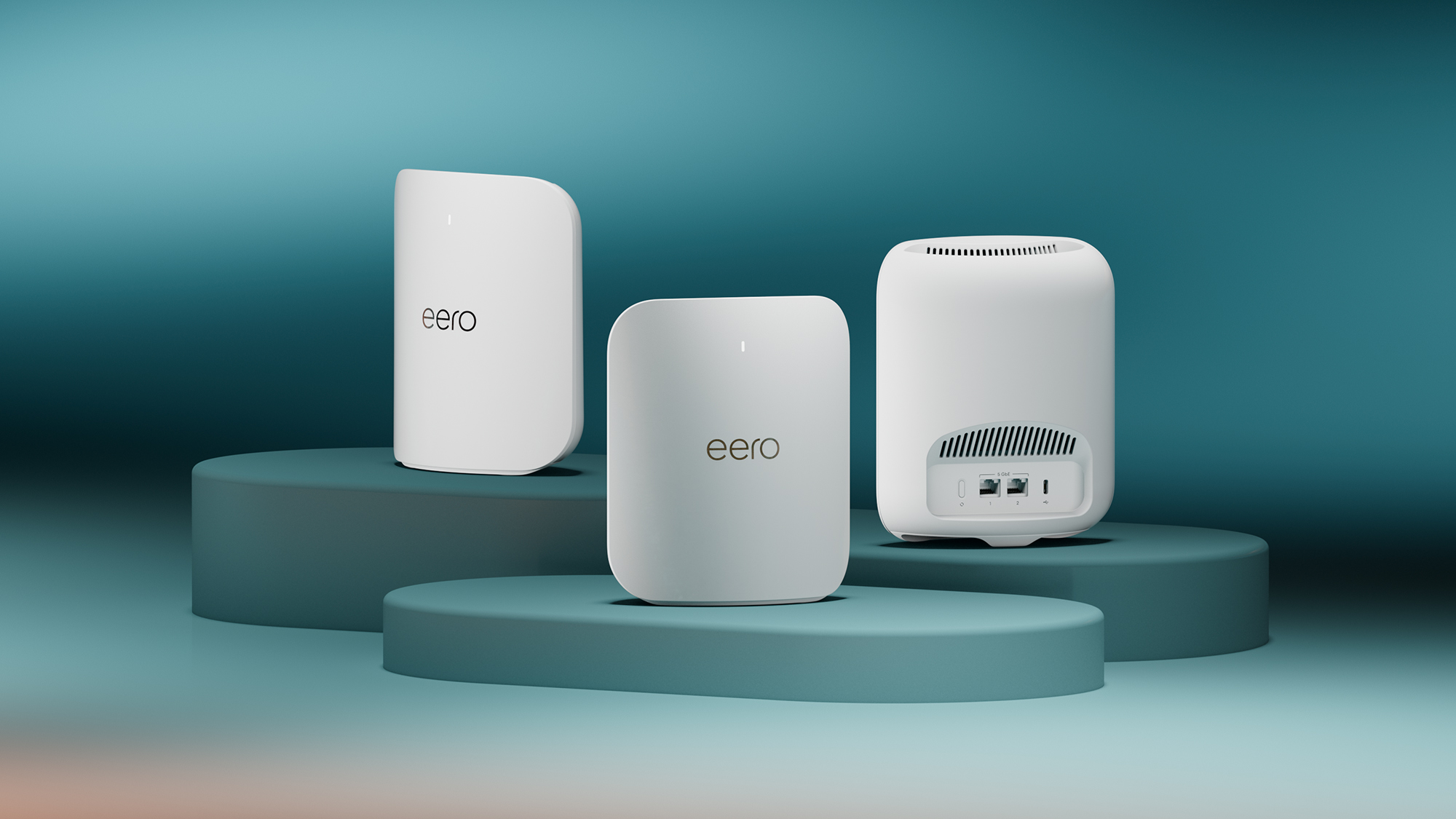
Coverage area is crucial for mesh systems. Nest Wifi covers up to 4,400 square feet with two devices. Other systems like Eero and Orbi cover similar areas.
Speed is another important factor. Nest Wifi supports speeds up to 2.2 Gbps. Competitors offer speeds in the same range.
- Nest Wifi: Up to 4,400 sq. ft. coverage
- Eero: Up to 5,000 sq. ft. coverage
- Orbi: Up to 5,000 sq. ft. coverage
- Nest Wifi Speed: Up to 2.2 Gbps
- Eero Speed: Up to 2 Gbps
- Orbi Speed: Up to 6 Gbps
Cost And Features
Cost is a key consideration. Nest Wifi is affordable compared to some other systems. It offers a balance of price and performance.
Features also matter. Nest Wifi has Google Assistant integration. Other systems may offer additional smart home features.
| Product | Cost | Features |
| Nest Wifi | Moderate | Google Assistant, Easy Setup |
| Eero | Moderate to High | Alexa Integration, Easy Setup |
| Orbi | High | Advanced Features, High Speed |
Credit: www.t3.com

Credit: www.amazon.ca
Frequently Asked Questions
What Is The Coverage Area Of Google Nest Wifi?
Google Nest Wifi covers up to 2200 square feet per router unit. Adding additional points expands coverage, ideal for larger homes or offices.
How Many Nest Wifi Points Cover A 4000 Sq Ft Home?
Two Nest Wifi points typically cover up to 4400 square feet. This setup ensures strong and consistent Wi-Fi throughout the entire space.
Can Google Nest Wifi Cover Multiple Floors?
Yes, Google Nest Wifi supports multi-floor coverage. Placing points on different levels improves signal strength across all floors effectively.
Does Nest Wifi Coverage Vary By Home Layout?
Yes, walls and materials affect Nest Wifi coverage. Open layouts allow better range, while thick walls may reduce signal strength.
Conclusion
Google Nest Mesh Wifi covers large areas with strong signals. It helps reduce dead zones in homes or offices. You can add more points to extend the range. Setup is simple and user-friendly for most people. This system works well for many room layouts and sizes.
Choosing the right number of devices is key. Good wifi means better streaming, gaming, and work. Nest Mesh Wifi offers reliable internet throughout your space. It’s a smart choice for steady wireless coverage.