Struggling with slow WiFi in some rooms? You’re not alone.
Setting up a mesh WiFi system can fix dead zones and boost your internet speed. But many think it’s expensive or too complicated. What if you could create a strong, reliable network without breaking the bank? This guide will show you exactly how to set up a budget mesh WiFi system that works for your home.
Keep reading, and you’ll get simple steps, smart tips, and the confidence to enjoy faster WiFi everywhere. Your online experience is about to get a serious upgrade!

Credit: www.reddit.com
Choosing The Right Budget Mesh Wifi
Finding a budget mesh wifi system can be tricky. You want good coverage without paying too much.
This guide helps you pick the best mesh wifi that fits your budget and needs.
Key Features To Look For
Look for easy setup and strong signal range. Good speed and device support matter too.
- Coverage area suitable for your home size
- Dual-band or tri-band wifi for better speed
- Simple mobile app for setup and controls
- Number of devices the system can handle
- Security features like automatic updates
Top Affordable Mesh Wifi Brands
Some brands offer reliable mesh wifi at low prices. These are good choices for budget buyers.
- TP-Link
- Netgear
- Google Nest Wifi
- Amazon eero
- Linksys
Comparing Performance And Price
| Brand | Max Coverage (sq ft) | Max Speed (Mbps) | Price Range (USD) |
|---|---|---|---|
| TP-Link Deco | 5,500 | 1200 | $120 – $200 |
| Netgear Orbi | 6,000 | 1750 | $180 – $220 |
| Google Nest Wifi | 4,400 | 1200 | $150 – $200 |
| Amazon eero | 5,000 | 1300 | $140 – $180 |
| Linksys Velop | 4,500 | 1200 | $160 – $210 |
Credit: help.firewalla.com
Preparing For Setup
Setting up a budget mesh WiFi system starts with good preparation. Taking the time to get ready helps avoid problems during installation.
Focus on checking your internet connection, planning where to place nodes, and gathering the right tools. These steps make setup easier and faster.
Checking Your Internet Connection
Make sure your internet connection works well before adding mesh nodes. A stable connection ensures the mesh system runs smoothly.
- Test your current internet speed using online tools.
- Check if your modem and router are working properly.
- Restart your modem and router to clear any issues.
- Confirm your internet service plan supports your needs.
Planning Node Placement
Place mesh nodes in spots that give the best coverage. Good placement helps avoid dead zones and keeps your network strong.
| Node Location | Placement Tips |
| Living Room | Central spot, away from walls |
| Hallway | Midway between nodes |
| Bedroom | Near devices, not on the floor |
| Office | Close to work devices |
Gathering Necessary Tools
Having the right tools ready makes setup smoother. Keep these items close before you start.
- Power adapters for each node
- Ethernet cables for wired connections
- Smartphone or tablet for app setup
- Notebook and pen for notes
Step-by-step Installation
Setting up a budget mesh WiFi system helps spread internet across your home. This guide shows how to install it easily.
Follow clear steps to connect nodes and adjust network settings for good coverage and speed.
Connecting The Primary Node
Place the primary node near your modem or internet source. Use the included Ethernet cable to connect them.
Plug in the primary node and wait for its light to turn solid. This means it is ready for setup.
Adding Additional Nodes
Put extra nodes in areas where WiFi is weak. Keep them midway between the primary node and weak spots.
- Plug in the new node and wait for it to power on.
- Press the sync button on the primary node.
- Press the sync button on the new node within two minutes.
- Wait for the new node’s light to turn solid, showing connection.
- Repeat for more nodes, if needed.
Configuring Network Settings
Use the mesh system app or web page to set your network name and password. Change settings to fit your needs.
| Setting | Description |
| Network Name (SSID) | Name your WiFi network for easy finding |
| Password | Set a strong password to protect your network |
| Guest Network | Enable to let visitors use WiFi without accessing your main network |
| Firmware Update | Check and update the system software for best performance |
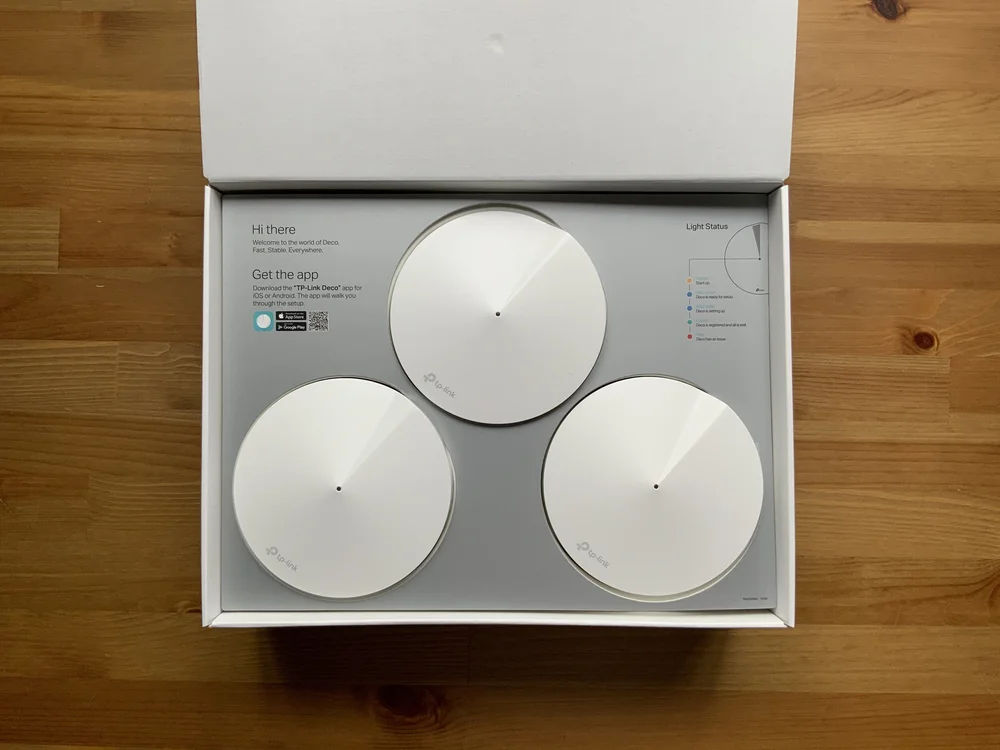
Credit: evanmccann.net
Optimizing Signal Strength
Strong WiFi signals help your devices connect faster and stay stable. Mesh WiFi systems cover large areas well. You can improve your mesh network by placing nodes in smart spots.
Understanding interference and using app tools also boost your signal strength. This guide shares simple tips for better mesh WiFi setup.
Ideal Node Placement Tips
Place mesh nodes where they get clear signals and spread coverage evenly. Avoid blocking walls or furniture between nodes.
- Put the main node near your internet source and open space.
- Place nodes halfway between the main node and dead zones.
- Keep nodes away from metal objects and thick walls.
- Elevate nodes on shelves or tables for better range.
- Don’t place nodes in cabinets or behind TVs.
Avoiding Common Interference
Signals weaken when other devices or materials block them. Avoid common interference to keep your mesh strong.
| Interference Source | Effect on Signal | How to Avoid |
| Microwaves | Block WiFi frequencies | Keep nodes away from kitchen |
| Thick Walls | Reduce signal strength | Place nodes in open areas |
| Bluetooth Devices | Cause signal noise | Limit nearby Bluetooth use |
| Other WiFi Networks | Signal overlap causes slow speed | Change WiFi channels in app |
Using Mesh App Features
Mesh apps help you place nodes and check signal quality. Use app tools to get the best setup.
- Use signal strength maps to find weak areas.
- Run speed tests to check node performance.
- Adjust node placement based on app suggestions.
- Update firmware regularly for better stability.
- Set up parental controls and device prioritization.
Troubleshooting Common Issues
Setting up a budget mesh WiFi system can bring strong internet to your whole home. Sometimes, problems may appear that slow down your connection or cause drops. This guide helps you fix common issues easily.
Follow the tips below to keep your mesh WiFi running smoothly and stay connected without interruptions.
Dealing With Connection Drops
Connection drops happen when your device loses contact with the mesh network. This can be caused by distance, obstacles, or interference.
Try moving your mesh nodes closer together. Avoid placing them near thick walls or metal objects. Keep other electronics like microwaves or cordless phones away from the nodes to reduce interference.
- Place nodes in open spaces
- Keep nodes within range of each other
- Reduce electronic interference
Resolving Slow Speeds
Slow internet can happen if many devices use the network at once or if the nodes are far apart. Check your internet plan to ensure it matches your needs.
Restart your mesh router and nodes to clear temporary issues. Also, limit devices that use heavy data to improve speed for everyone.
- Restart mesh system regularly
- Limit high-data devices
- Check internet plan speed
- Move nodes closer if needed
Resetting And Updating Firmware
Resetting your mesh system can fix many problems by restoring settings to default. This is useful if the network acts strange or stops working.
Check for firmware updates from your mesh system’s app or website. Updates improve performance and fix bugs. Always update to keep your network secure and fast.
- Reset mesh nodes using the reset button
- Backup settings before resetting if possible
- Check for firmware updates regularly
- Follow update instructions carefully
Maintaining Your Mesh Network
Mesh networks are great for wide coverage and strong signals. Keeping them running well is important. Regular maintenance makes sure your network stays fast and reliable.
This guide will help you keep your mesh network in top shape. We will cover updates, monitoring, and expansion.
Regular Firmware Updates
Firmware updates fix bugs and improve security. They help your mesh network work better. Regular updates ensure you have the latest features and protections.
Check for firmware updates at least once a month. This way, your system stays current and secure.
Monitoring Network Performance
Monitoring your network helps you spot issues early. Use tools to track speed and signal strength. This keeps your internet running smoothly.
Watch for any drops in performance. Quick fixes can prevent bigger problems later on.
- Check internet speed weekly
- Test signal strength in different rooms
- Look for devices that use too much bandwidth
Expanding Your Mesh System
Adding more nodes can improve coverage. This is useful if you have dead zones in your home. Place nodes where the signal is weak.
Ensure new nodes are compatible with your existing system. This helps keep your network stable and efficient.
- Identify areas with poor coverage
- Choose nodes that work with your system
- Set up nodes in strategic locations
Frequently Asked Questions
What Is A Budget Mesh Wifi System?
A budget mesh WiFi system is an affordable network solution that uses multiple devices. It provides seamless internet coverage across your home, eliminating dead zones and ensuring stable connections for all devices without high costs.
How To Choose The Best Budget Mesh Wifi?
Look for strong signal range, easy setup, and good speed. Check device compatibility, number of nodes, and user reviews. Prioritize systems offering parental controls and security features within your budget.
Can Budget Mesh Wifi Improve Slow Internet?
Yes, mesh WiFi enhances slow internet by expanding coverage and reducing interference. It distributes your connection evenly, preventing congestion and improving speed in hard-to-reach areas of your home.
Is Diy Setup Possible For Budget Mesh Wifi?
Absolutely, most budget mesh WiFi systems come with user-friendly apps and guides. They allow easy DIY setup without technical skills, making installation quick and hassle-free for average users.
Conclusion
Setting up a budget mesh WiFi system is simple and smart. It improves your home internet without high costs. Choose the right devices, place them well, and enjoy better coverage. This guide helps you avoid common mistakes and get fast, stable WiFi everywhere.
Stay connected for work, study, or fun without worry. A strong WiFi network makes life easier every day. Start your setup today and feel the difference.