Are you tired of slow internet and dead zones in your home? Imagine having strong, reliable WiFi everywhere you go, all controlled right from your phone.
Google Nest Mesh Wifi with App Control makes this possible. It’s designed to keep your connection fast and smooth, no matter where you are in your house. You’ll discover how easy it is to set up, manage, and customize your WiFi using just an app.
Ready to transform your internet experience? Keep reading to find out how Google Nest Mesh Wifi can change the way you connect.
Google Nest Mesh Wifi Features
The Google Nest Mesh Wifi system helps create strong internet connections across your home. It uses multiple devices working together to cover large areas.
You control the system easily with a mobile app. This lets you manage settings and monitor your network anytime.
Design And Build
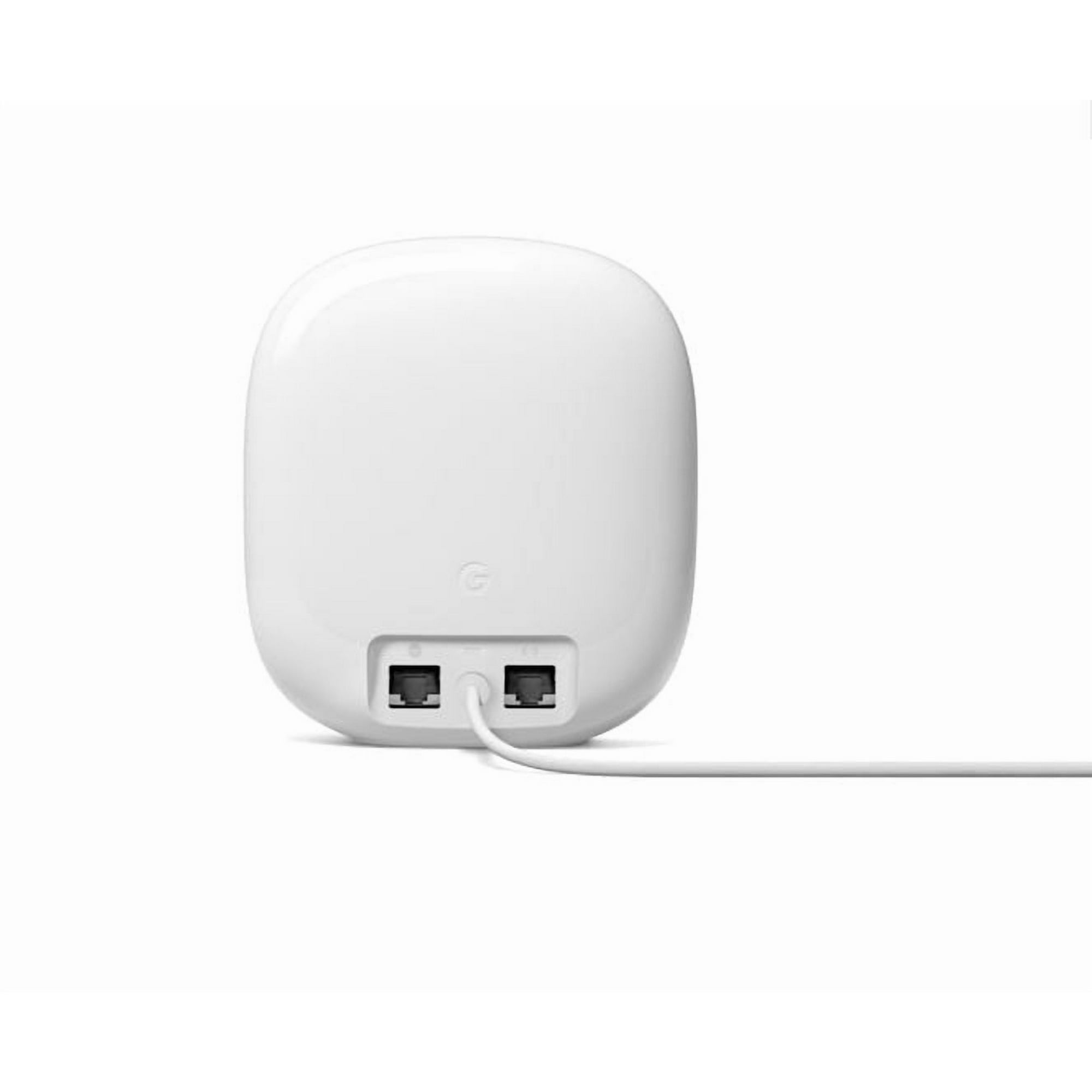
The Nest Wifi units have a simple, clean look that fits in any room. They are small and round, making them easy to place on shelves or tables.
Coverage And Range
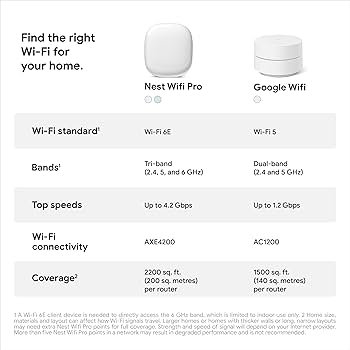
The system uses several devices to spread Wi-Fi over wide spaces. It can cover homes up to 5,400 square feet with strong signals.
- Supports multiple devices at once
- Eliminates dead zones in large homes
- Automatic connection to the best device
- Expandable with additional Nest Wifi points
Speed And Performance
| Feature | Details |
|---|---|
| Wi-Fi Standard | 802.11s Mesh Network |
| Maximum Speed | Up to 2.2 Gbps |
| Processor | Quad-core CPU |
| Simultaneous Connections | Up to 200 devices |
Security Features
The Nest Wifi system includes built-in security to protect your network. It updates automatically to fix any issues and keep your data safe.
- Automatic security updates
- Built-in firewall and encryption
- Guest network support
- Parental controls via app
Credit: www.walmart.ca
Setting Up Nest Mesh Wifi
The Google Nest Mesh Wifi helps spread your internet in every corner of your home. Setting it up is simple and fast with the right steps.
This guide covers unboxing, app setup, placement tips, and solving common problems.
Unboxing And Initial Setup
Inside the box, you will find the Nest Wifi router, additional points, power adapters, and an Ethernet cable. Before starting, plug in your main router to power and connect it to your modem.
- Unpack all devices and cables carefully.
- Connect the main Nest Wifi router to your modem using the Ethernet cable.
- Plug in the router and wait for the light to turn solid white.
- Power on the extra Nest Wifi points and place them in different rooms.
Using The Google Home App
The Google Home app guides you through setup and lets you control your network. Download it on your smartphone and follow the instructions.
- Open the Google Home app and sign in with your Google account.
- Tap “Add” and choose “Set up device.”
- Select “New devices” and pick your home.
- Follow prompts to connect the Nest Wifi router and points.
- Name your network and create a password.
Placement Tips For Optimal Coverage
Place your Nest Wifi points to cover your entire home. Avoid putting them near metal objects or microwaves.
| Location | Reason |
| Open area | Better signal reach |
| Central spots | Even coverage |
| Off the floor | Less interference |
| Away from thick walls | Stronger connection |
Troubleshooting Common Issues
If your Nest Wifi has trouble connecting, try these fixes before calling support.
- Restart your Nest Wifi router and points by unplugging and plugging them back in.
- Check that the modem is working properly.
- Make sure the Google Home app is updated to the latest version.
- Reset the Nest Wifi devices if needed by holding the reset button for 10 seconds.
- Move points closer to the router if the signal is weak.
App Control And Customization
The Google Nest Mesh Wifi system offers easy control through its app. Users can manage many settings from their phone or tablet. This makes the network easy to use and adjust at any time.
The app puts customization in your hands. You can change network settings, monitor devices, and set rules without complex tools. This helps keep your home internet safe and fast.
Network Management Tools
The app provides simple tools to see your network status. You can check connected devices and signal strength. It also allows you to restart the router remotely if needed.
Parental Controls
Parents can set limits on internet use with the app. You can pause the internet on children’s devices or set time limits. This helps manage screen time and keep kids safe online.
- Pause internet access for specific devices
- Set bedtime schedules for internet use
- Filter content to block adult or unsafe sites
- Receive activity reports on device usage
Device Prioritization
The app lets you choose which devices get faster speeds. This is useful for work calls or streaming videos. You can prioritize one or more devices to improve performance when needed.
| Priority Level | Effect |
| High | Device gets fastest speed |
| Medium | Device gets normal speed |
| Low | Device gets slower speed during high traffic |
Guest Network Setup
You can create a separate guest network with the app. This keeps your main network secure. Guests get internet access without seeing your private devices or files.
- Separate password for guests
- Limits access to your main devices
- Easy to turn on or off via the app
- Improves overall network security

Credit: www.amazon.ca
Integration With Smart Home Devices
Google Nest Mesh Wifi allows easy control of smart home devices. It connects your gadgets for smooth operation.
Use the app to manage your network and devices in one place. This setup supports many smart home brands.
Compatibility With Google Assistant
Google Nest Mesh Wifi works with Google Assistant. You can use voice commands to control devices connected to your network.
Ask Google Assistant to check your wifi status or pause internet on certain devices. This feature adds convenience to your smart home.
Connecting Smart Devices
The Nest Wifi system supports many smart devices like lights, cameras, and thermostats. Connect them easily through the app.
- Smart lights for mood and security
- Security cameras for home monitoring
- Smart thermostats for energy savings
- Voice assistants for hands-free control
Automating Your Home Network
Set rules in the app to automate your network. For example, pause internet during family time or set devices to connect automatically.
| Automation Feature | Description |
| Scheduled Pause | Stops internet access at set times |
| Priority Device | Gives faster wifi to chosen devices |
| Guest Network | Creates separate wifi for visitors |
| Device Grouping | Groups devices for easy control |
Comparing Nest Mesh Wifi To Other Systems
Google Nest Mesh Wifi is a popular choice for home networks. It competes with other mesh wifi systems that offer app control. Comparing these helps you pick the best fit for your needs.
This article looks at price and value, performance benchmarks, ease of use, and customer support. These points show how Nest Mesh Wifi stands against other systems.
Price And Value
Nest Mesh Wifi usually costs more than basic routers but less than some premium mesh systems. It offers good value with its features and app control.
Other systems may be cheaper but lack easy app control or strong security features. Nest’s price matches its simplicity and reliability.
- Nest Mesh Wifi: Mid-range price
- Basic Mesh Systems: Lower price, fewer features
- Premium Mesh Systems: Higher price, extra features
Performance Benchmarks
Nest Mesh Wifi delivers fast and stable connections. It covers large homes well with its mesh technology. Speeds are consistent across devices.
Some other systems may offer higher speeds but need more setup. Nest balances performance with ease for everyday use.
- Good range for most homes
- Stable connections with minimal drops
- Speeds suitable for streaming and gaming
Ease Of Use
The Nest app is simple and clear. It helps users set up the network quickly. Controls like guest access and device priority are easy to manage.
Other mesh systems may have complex apps or require more tech knowledge. Nest is built for people who want simple, effective control.
- Step-by-step setup in the app
- Clear status updates and notifications
- Easy device management and parental controls
Customer Support
Google offers support through online guides, chat, and phone. Response times are generally fast. The community forums are active and helpful.
Some other brands provide 24/7 support or in-person help. Nest’s support is reliable but may not cover all time zones equally.
- Online help center with FAQs
- Live chat and phone support during business hours
- Active user community for tips and advice
Tips For Maximizing Home Connectivity
Google Nest Mesh Wifi offers seamless internet coverage for your home. To get the best performance, consider these helpful tips.
These simple steps can enhance your network’s speed and security. Enjoy a stable connection throughout your home.
Optimizing Router Placement
Place your router in a central location for best coverage. Avoid placing it near walls or metal objects.
Keep the router off the floor. Higher placement can improve signal strength across different rooms.
- Avoid corners and enclosed spaces
- Position away from electronic devices
- Use a shelf for better elevation
Managing Network Traffic
Limit the number of devices connected at the same time. Too many connections can slow down the network.
Set priorities for certain devices using the Google Home app. This ensures important tasks get the bandwidth they need.
- Disconnect unused devices
- Prioritize work or study devices
- Manage streaming and downloads
Updating Firmware Regularly
Keep your router’s firmware updated for optimal performance. Updates fix bugs and can improve security.
Check for updates using the Google Home app. Regular updates can also bring new features to your device.
- Enable automatic updates
- Check for updates monthly
- Follow Google’s guidance for updates
Security Best Practices
Secure your network with a strong password. Avoid using common words or simple number sequences.
Enable network encryption and keep your security settings up to date. This helps protect your personal data.
- Change passwords regularly
- Use WPA3 encryption
- Monitor connected devices
Credit: www.engadget.com
Frequently Asked Questions
What Is Google Nest Mesh Wifi With App Control?
Google Nest Mesh Wifi is a system that improves home Wi-Fi coverage. It uses multiple devices to create a strong network. The app control lets users manage settings easily from their smartphone. This setup ensures seamless internet across all rooms.
How Does The App Control Improve User Experience?
The app control simplifies network management. Users can monitor device connections, set parental controls, and prioritize devices. It also allows easy troubleshooting and firmware updates. This makes managing your Wi-Fi faster and more convenient from anywhere.
Can Google Nest Mesh Wifi Handle Multiple Devices?
Yes, Google Nest Mesh Wifi supports many devices simultaneously. It prioritizes bandwidth to ensure smooth streaming and gaming. The mesh system reduces dead zones for consistent connectivity. This makes it ideal for smart homes with many connected gadgets.
Is Google Nest Mesh Wifi Easy To Set Up?
Yes, setup is straightforward using the Google Home app. The app guides users step-by-step through installation and configuration. It automatically optimizes network settings for best performance. This makes it accessible even for users with minimal tech experience.
Conclusion
Google Nest Mesh Wifi with app control offers strong, reliable internet at home. You can easily manage your network from your phone. The setup is quick and simple for everyone. It helps reduce dead zones and keeps devices connected smoothly.
Parents can also control internet access for kids. This system fits well in any home size or style. A smart choice for better wifi without hassle.


