Are you ready to get your portable router up and running with a SIM card but don’t know where to start? Installing a SIM in your portable router might seem tricky at first, but it’s actually a simple process that anyone can do.
Imagine having fast, reliable internet wherever you go—without relying on Wi-Fi hotspots. In this guide, you’ll discover easy, step-by-step instructions to install your SIM card quickly and correctly. By the end, you’ll be connected and ready to enjoy seamless internet anytime, anywhere.
Let’s get your portable router working for you!
Choose The Right Sim Card
Choosing the right SIM card for your portable router is crucial for smooth internet connectivity. The wrong SIM can cause compatibility issues or unexpected charges. Taking time to pick a SIM that matches your device and usage needs saves frustration and money down the road.
Check Compatibility
Not all SIM cards fit every portable router. You need to know the SIM size your router requires—standard, micro, or nano. Check the router’s manual or official website to confirm this detail.
Beyond size, compatibility with your router’s network bands matters. Some routers only support specific frequencies, so pick a SIM from a carrier that covers those bands well in your area. I once bought a SIM from a popular provider only to find my router didn’t support their 5G bands, which slowed down my connection unexpectedly.
Ask yourself: Does your router support the SIM card’s network technology (3G, 4G, 5G)? Ignoring this can lead to poor performance or no signal at all.
Select Data Plan
Choosing the right data plan depends on how you use your portable router. Do you stream videos or just browse the web? Your plan should reflect your typical data consumption.
Look for plans with enough data allowance and fair pricing. Some providers offer unlimited data plans tailored for portable routers, but these often come with speed limits after a certain threshold. If you travel, consider plans with good roaming options or multi-country coverage.
Think about your budget and daily needs. Would a prepaid plan with pay-as-you-go options suit you better, or is a monthly subscription more convenient? I switched to a prepaid plan during a short trip and avoided paying for unused data, which saved me money.

Credit: www.youtube.com
Power Off The Router
Powering off your portable router before installing a SIM card is a crucial step that protects both your device and the SIM card from potential damage. It helps prevent electrical shorts and ensures the router properly recognizes the new SIM once powered back on.
Skipping this step can cause your router to malfunction or fail to detect the SIM card, leading to frustrating connectivity issues. Have you ever tried inserting a SIM while the router was still on and ended up with no signal? That’s exactly what you want to avoid.
Locate The Power Button
First, find the power button on your portable router. It’s usually on the side or top and marked with a power symbol.
If you’re unsure, check the user manual or look for a small switch that can turn the device on or off.
Press And Hold To Turn Off
Press and hold the power button until the router’s lights go off. This usually takes a few seconds.
Don’t just tap the button; holding it ensures the router fully shuts down instead of entering sleep mode.
Verify The Device Is Off
Look for all indicator lights to be off. If any light remains on, the router might still be powered.
Sometimes, routers show a blinking light when they’re in standby mode, so be sure everything is completely off before proceeding.
Unplug From Power Source If Necessary
If your router is connected to a charger or power adapter, unplug it to avoid any accidental power surge during the SIM installation.
This step adds an extra layer of safety for your device and your SIM card.
Locate The Sim Card Slot
Locating the SIM card slot in your portable router is a crucial step before you can connect to the internet. Knowing exactly where it is helps you avoid frustration and potential damage to your device. Let’s go through how to find that slot easily and safely.
Open The Back Cover
Start by turning your portable router over and looking for a removable back cover. Most routers have a small notch or indentation to help you pry it open gently.
Use your fingernail or a plastic tool to lift the cover without forcing it. If it feels stuck, double-check for tiny screws that might be holding it in place.
Remember, rushing this step can break the cover, so take your time and handle your device carefully.
Find The Sim Tray
Once the back cover is off, scan the inside for a small slot labeled “SIM” or an icon resembling a SIM card. It’s usually near the battery compartment or alongside other slots like microSD.
The SIM tray can look like a thin metal holder or a small plastic slot where you slide the SIM card in. Sometimes it requires a gentle push to open or a tray ejector tool similar to those used for smartphones.
If you don’t see it immediately, check your router’s manual or model number online. Have you ever struggled to find a tiny component like this before? It’s surprisingly common, so don’t feel alone.
Insert The Sim Card
Inserting the SIM card into your portable router is a simple but important task. The SIM card connects your router to the mobile network. This allows you to access the internet anywhere with signal coverage. Follow clear steps to avoid damage and ensure proper connection.
Align The Sim Correctly
Check the shape of the SIM card and the slot. Most SIM cards have a small cut corner. Match this corner with the slot’s shape. Place the card gently without forcing it. The metal contacts should face down towards the router’s contacts.
Careful alignment prevents damage to the SIM or the router. It also ensures the card reads correctly. If the SIM does not fit easily, double-check the direction. Never use excessive force to insert the SIM.
Secure The Sim In Place
Push the SIM card gently into the slot until it clicks or fits snugly. Some routers have a small tray or cover to hold the SIM. Close the tray or cover firmly but without pressure.
A secured SIM prevents it from moving or disconnecting during use. Loose SIM cards cause network errors and connection drops. Confirm the SIM is fully inserted and stable before powering on the router.
Close The Router Cover
Close the router cover carefully after inserting the SIM card to ensure protection and secure connectivity. Properly covering it helps maintain the device’s performance by preventing dust and damage. A well-sealed router ensures a stable internet connection for all your devices.
To ensure your portable router functions properly, closing the cover is vital. This step protects the SIM card and internal components from dust or damage. Properly closing the cover also ensures the router operates efficiently, maintaining a secure connection. Follow these steps to close the router cover correctly.Check Sim Card Placement
Ensure the SIM card is seated in the slot correctly. The gold contacts should face down. Align the card with the slot edges to avoid damage. A well-placed SIM is key for optimal performance.Align The Cover
Position the cover over the router. Make sure all edges align with the device. This prevents gaps that may expose internal parts. A snug fit is essential.Snap The Cover Into Place
Press gently on the cover until it clicks. This sound confirms the cover is secure. Avoid using excessive force. Gentle pressure prevents damage to the device.Verify The Cover Is Secure
Inspect all sides of the router. Ensure no gaps are visible. The cover should be flush with the router body. A secure fit keeps your device safe.Power On The Router
With the cover secured, switch on the router. Observe indicator lights for connectivity. A stable light usually means everything is functioning well. If there are issues, check the cover again. By following these steps, you ensure your portable router is ready for use. Proper closure extends the device’s lifespan and performance.Power On And Configure
Powering on and configuring your portable router is the next important step after inserting the SIM card. This process activates the device and connects it to the mobile network. Proper configuration ensures a stable and fast internet connection. Follow the steps below carefully to set up your router correctly.
Access Router Settings
Turn on your portable router by pressing the power button. Wait for the device to fully start, indicated by steady lights. Connect your computer or smartphone to the router’s Wi-Fi network. Open a web browser and enter the router’s IP address into the address bar. Common addresses include 192.168.0.1or 192.168.1.1. Log in using the default username and password. These details are often found on the router label or in the manual. Accessing the settings page allows you to control all router functions.
Enter Sim Details
Locate the mobile or SIM settings tab in the router’s interface. Enter your SIM card’s PIN code if it is protected. Input the Access Point Name (APN) provided by your mobile carrier. This step is crucial for the router to connect to the internet. Save the settings and restart the router if needed. The router will then register on the mobile network and start providing internet access. Check the signal strength and connection status on the dashboard to confirm.
Test The Connection
Testing the connection is a vital step after installing a SIM card in your portable router. This step ensures the device can access the internet properly. A strong and stable connection guarantees smooth browsing and device performance.
Check Signal Strength
Start by checking the signal strength on your router’s interface. Most routers display signal bars or a percentage. A higher number means better reception and faster internet speeds.
Locate the signal indicator in the router’s dashboard or app. Make sure it shows at least a moderate signal level. If the signal is weak, try moving the router to a different spot or near a window.
Browse To Confirm
Open a web browser on a device connected to the router. Try visiting a few websites to test the connection speed and stability. Pages should load quickly without errors or delays.
If pages do not load, check the router settings again. Restart the router and test the browsing once more. Confirming internet access means the SIM installation is successful and the router works well.
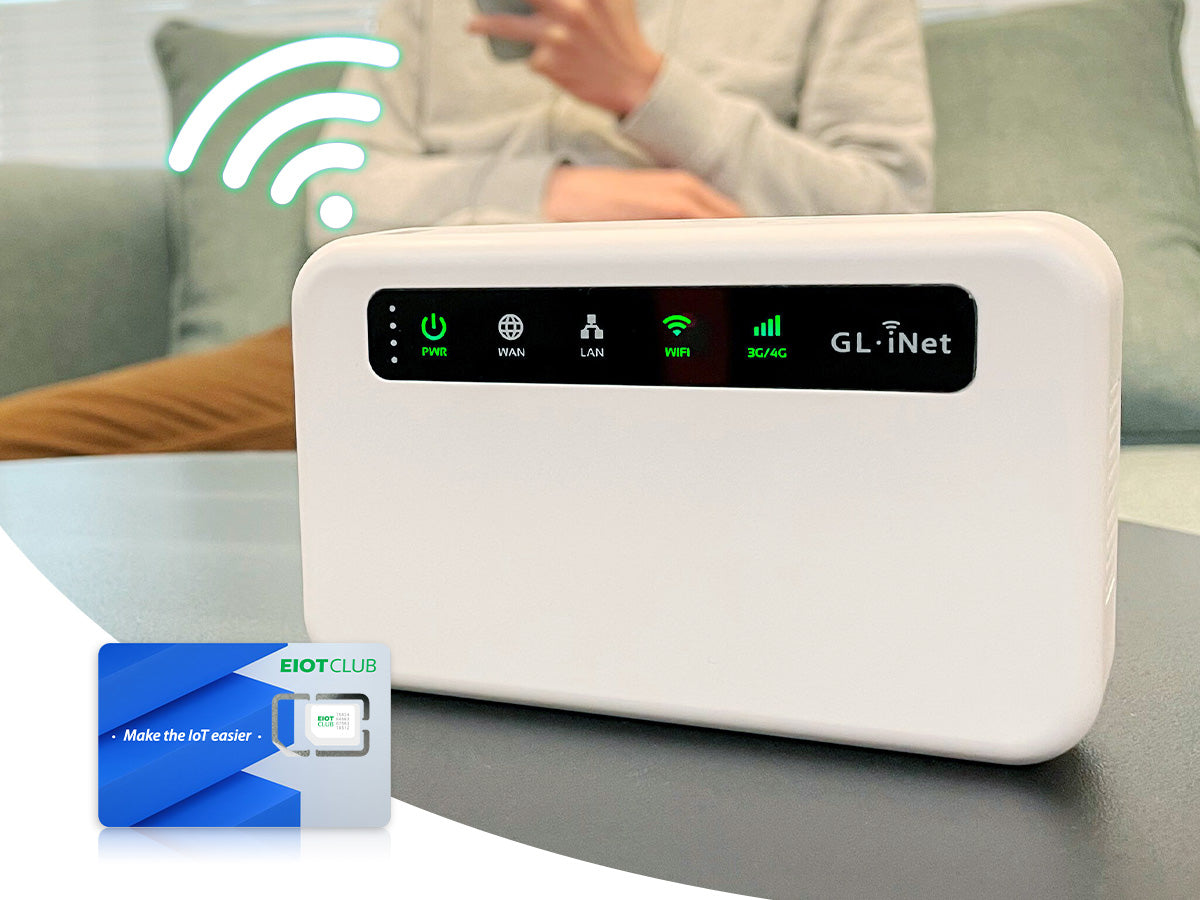
Credit: www.eiotclub.com
Troubleshooting Tips
Troubleshooting SIM installation in a portable router can save time and avoid frustration. Issues like the SIM not being detected or slow internet speeds are common. Simple checks and adjustments often fix these problems quickly. Follow easy tips below to get your router working smoothly.
Sim Not Detected
Check if the SIM card is properly placed in the slot. Remove and reinsert it gently to ensure good contact.
Clean the SIM card with a soft cloth to remove dirt or dust. Avoid using liquids or sharp objects.
Restart the router after inserting the SIM. This helps the device recognize the card.
Verify the SIM card is activated and not locked with a PIN code. Disable the PIN if required.
Try the SIM card in another device. If it still doesn’t work, the SIM might be damaged.
Slow Internet Speeds
Check signal strength. Poor signal reduces speed significantly.
Move the router near a window or higher place for better reception.
Limit the number of devices connected to the router to avoid congestion.
Update the router’s firmware to the latest version for improved performance.
Restart the router to clear temporary glitches and refresh the connection.
Contact your network provider to check for outages or data limits on your plan.

Credit: deviceguides.vodafone.co.uk
Frequently Asked Questions
How Do I Insert A Sim Into A Portable Router?
To insert a SIM, first power off your router. Locate the SIM slot, usually under a removable panel. Gently place the SIM card with the metal contacts facing down. Close the panel and power on the router to activate the SIM connection.
Can Any Sim Card Work With Portable Routers?
Most portable routers support standard SIM cards from major carriers. However, check your router’s specifications for compatibility. Some routers only support specific network bands or SIM types like nano or micro. Always confirm before purchasing or inserting a SIM card.
How To Activate The Sim In A Portable Router?
After inserting the SIM, power on the router. Access the router’s web interface through a browser. Enter the default IP address and login credentials. Follow the on-screen instructions to configure APN settings and activate the SIM for internet access.
Why Is My Portable Router Not Detecting The Sim?
If your router doesn’t detect the SIM, check if the SIM is properly inserted. Ensure the SIM card is active and has data service. Restart the router and verify APN settings. If issues persist, try the SIM in another device to rule out hardware faults.
Conclusion
Installing a SIM card in your portable router is simple and quick. Just follow the steps carefully to avoid any issues. Make sure the router is off before inserting the SIM. After placing the SIM, turn the router on and check the connection.
This helps you stay connected wherever you go. A working SIM card makes your portable router useful and reliable. Keep your SIM and router safe to enjoy smooth internet access anytime. Now, you can enjoy mobile internet without hassle. Easy and ready to use!