Are you sure your budget router is running the latest firmware? Keeping your router’s software up to date is key to fast internet, strong security, and smooth performance.
But how do you check if your router’s firmware needs an update? Don’t worry—this guide will walk you through simple steps to check your budget router’s firmware quickly and easily. By the end, you’ll know exactly what to do to keep your home network safe and reliable.
Keep reading, and take control of your internet experience today!
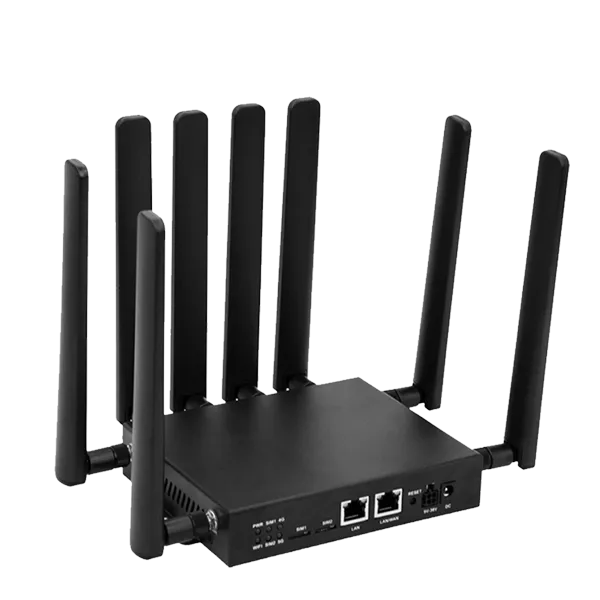
Credit: huasifei-link.com
Identify Your Router Model
Identifying your router model is the first step to check its firmware. Knowing the exact model helps find the right updates. Each router has a unique model number that guides you to the correct firmware version. This number is easy to find with simple checks.
Locate Model Number
Look on the back or bottom of your router for a sticker. This sticker usually shows the model number clearly. The model number often starts with letters followed by numbers. Note down this number exactly as it appears. This detail is crucial for searching firmware updates on the manufacturer’s website.
Check Manufacturer Label
The manufacturer label also provides useful information. It shows the brand name and sometimes the series of the router. This label can help confirm the model number you found. Sometimes, the firmware updates depend on the series, not just the model. Keep this label visible for quick reference during your firmware search.
Access Router Settings
Accessing your router settings is the first and most crucial step to checking your budget router’s firmware. Without entering these settings, you can’t see what firmware version your device is running or update it if necessary. Understanding how to navigate this process puts you in control of your network’s security and performance.
Connect To Router Network
To start, make sure your device is connected to the router’s network. This can be a Wi-Fi connection or a wired Ethernet link. If you’re using Wi-Fi, connect to the network name (SSID) that your router broadcasts.
Sometimes, routers have multiple networks, like a guest network. Make sure you’re connected to the main one, as guest networks often block access to router settings. If you face any connection issues, restarting your router or device can resolve simple glitches quickly.
Open Router Admin Page
Once connected, open a web browser and type the router’s IP address into the address bar. Common addresses are 192.168.0.1or 192.168.1.1, but you can find the exact IP on the back of your router or in its manual.
After entering the IP, you’ll be prompted to log in with a username and password. If you haven’t changed these, the default credentials are usually “admin” for both fields. Still, if these don’t work, check your router’s documentation or the label on the device.
Have you ever wondered why some routers don’t let you find the admin page easily? It’s usually for security reasons. Keeping your router’s default credentials updated protects your network from unauthorized access.
Find Firmware Version
Finding the firmware version of your budget router helps ensure it runs smoothly. Firmware controls how the router operates and connects to the internet. Checking its version tells you if updates are needed for better performance or security. The process involves accessing the router’s settings and locating the firmware details. Follow simple steps to find this information quickly.
Navigate To Firmware Section
Start by opening a web browser on a device connected to your router. Enter the router’s IP address in the address bar, usually something like 192.168.1.1or 192.168.0.1. Log in with your username and password. These credentials are often found on the router label or user manual.
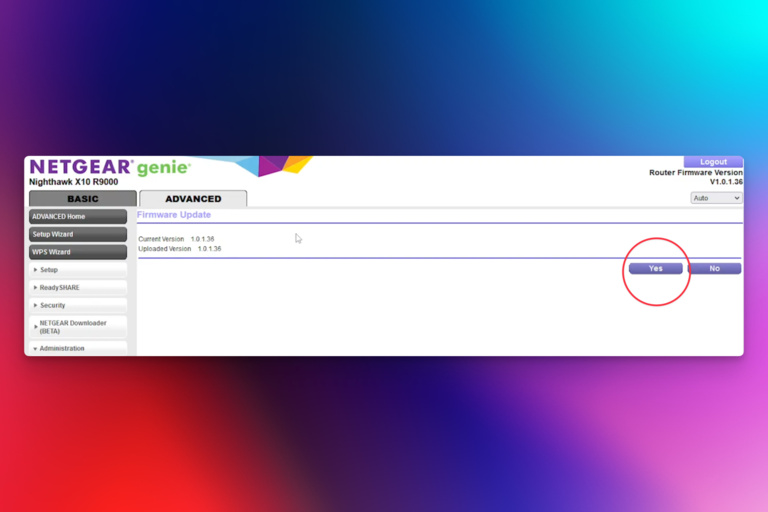
After logging in, look for the section labeled “Firmware,” “System,” or “Administration.” This area holds the router’s software information. The menu names vary by brand but commonly appear on the main dashboard or under settings.
Check Current Version Details
In the firmware section, find the current version number displayed clearly. It might say “Firmware Version” or “Software Version.” Note the exact number and date shown. This information confirms which firmware your router runs right now.
Compare this version with the latest one available on the router manufacturer’s website. Updating firmware improves security patches and adds new features. Knowing your version helps decide if updating is necessary.

Credit: datafeature.com
Compare With Latest Firmware
Checking your budget router’s firmware version helps ensure it runs smoothly. Visit the router’s settings page to find the current firmware. Then, compare it with the latest firmware available on the manufacturer’s website.
Understanding how to compare your budget router’s firmware with the latest version can be crucial for maintaining optimal performance and security. Regular updates can fix bugs, add new features, and protect against vulnerabilities. It’s a simple process that can make a significant difference in your internet experience.Visit Manufacturer Website
Start by visiting the manufacturer’s official website. You can usually find a dedicated section for support or downloads. This is where they list the latest firmware versions for all their models. Manufacturers often provide detailed release notes. These notes can inform you about what each update includes. Are there any new features you’re excited about or bugs that have been fixed?Download Firmware Updates
Once you have identified the latest firmware version, download it to your computer. Ensure you select the correct model number to avoid compatibility issues. It’s essential to have a stable internet connection to prevent any interruptions during the download. Before proceeding with the installation, back up your current settings. This way, if something goes wrong, you can easily revert back. Have you ever experienced unexpected glitches after an update? Checking and updating your router’s firmware might seem tedious, but it’s a straightforward way to enhance your network’s efficiency and security. Don’t underestimate the power of a well-maintained router.Update Router Firmware
Updating your router’s firmware keeps it secure and working well. Firmware updates fix bugs and add new features. Regular updates can improve your internet speed and stability. Follow these steps to update your budget router’s firmware safely.
Backup Current Settings
Save your current router settings before updating. This helps restore your setup if anything goes wrong. Log in to your router’s admin page. Look for the backup option, usually under “System” or “Maintenance.” Download the settings file and keep it safe on your computer.
Upload New Firmware
Download the correct firmware file from your router’s official website. Check the model number carefully to avoid errors. On the router’s admin page, find the firmware update section. Click “Choose File” and select the downloaded firmware. Start the upload and wait until it finishes completely.
Restart Router
After the firmware uploads, restart the router to apply changes. Some routers restart automatically, others need a manual reboot. Wait at least two minutes before using the router again. Check your internet connection and router settings to confirm the update was successful.
Troubleshoot Firmware Issues
Firmware issues can cause your budget router to perform poorly or stop working. Troubleshooting these problems helps restore smooth internet access. Identifying and fixing common errors saves time and frustration. Follow clear steps to check and resolve firmware-related troubles effectively.
Common Update Problems
Firmware updates may fail due to several reasons. The router might lose power during the process. This interruption can corrupt the firmware. Another problem is downloading the wrong firmware file. Incompatible files cause the router to malfunction. Network interruptions during updates also lead to failure.
Watch out for these signs:
- Router stops responding after update
- Internet connection drops frequently
- Router interface becomes slow or inaccessible
- Unexpected error messages during update
Checking these issues early helps prevent permanent damage. Always download firmware from the official router website. Verify the model number before updating. Ensure your internet connection is stable during the process.
Resetting Router Safely
Resetting the router can fix firmware issues but must be done carefully. A reset clears all settings and restores factory defaults. Use this step only if other solutions fail. First, power off the router and wait 30 seconds. Press and hold the reset button for 10 seconds. Release the button and wait for the router to restart.
After reset, reconfigure your network settings. Use the router’s manual or online guide for setup help. Avoid resetting too often as it may wear out the device. Keep a backup of important settings before resetting. This practice saves time during reconfiguration.
Maintain Router Performance
Maintaining your router’s performance is crucial for a smooth and reliable internet experience. Firmware updates and proper settings can dramatically improve speed, security, and connectivity. Ignoring these aspects can leave your network vulnerable and sluggish without you realizing it.
Regular Firmware Checks
Firmware acts like the brain of your router, controlling how it operates. Checking for updates regularly ensures your router has the latest security patches and performance improvements. You can usually find update options in your router’s admin panel—just log in through your browser using the router’s IP address.
Set a reminder to check firmware at least once a month. Some routers even offer automatic updates—activating this feature can save you time and protect your network effortlessly. Have you ever noticed your connection slowing down after ignoring updates? That’s a clear sign your firmware might be outdated.
Optimize Router Settings
Beyond firmware, the right settings can boost your router’s efficiency. Adjusting channels can reduce interference if your neighbors use the same Wi-Fi frequency. Experiment with different channels to find the clearest one; many routers have built-in tools to help identify this.
Another key setting is Quality of Service (QoS), which prioritizes bandwidth for critical devices or apps. For instance, if you often work from home, setting your laptop as a priority device can prevent lag during video calls. Have you customized your router settings to fit your daily needs, or are you relying on defaults that might not suit your usage?
Credit: datafeature.com
Frequently Asked Questions
How Do I Find My Budget Router’s Firmware Version?
Check your router’s admin page by typing its IP address in a browser. Login and look for firmware info under “System” or “About. ” It shows the current version installed on your device, helping you verify if updates are needed.
Why Should I Update My Budget Router Firmware?
Firmware updates fix security flaws, improve performance, and add new features. Regular updates protect your network from vulnerabilities and enhance stability, ensuring smooth internet connectivity and better device compatibility.
Can I Update Budget Router Firmware Manually?
Yes, download the latest firmware from the manufacturer’s website. Access your router’s admin panel and use the update option to upload the file. Follow instructions carefully to avoid installation errors or device damage.
How Often Should I Check Router Firmware Updates?
Check for updates every 3 to 6 months or when you notice connectivity issues. Staying current ensures your router runs efficiently and is safeguarded against new security threats. Regular checks maintain optimal performance.
Conclusion
Checking your budget router’s firmware is simple and important. Keeping firmware updated helps your router work well and stay safe. You can find the firmware version in the router’s settings page. Visit the manufacturer’s website to see if an update is available.
Regular checks prevent problems and improve your internet speed. Don’t skip this easy step. It keeps your home network running smoothly and securely. Take a few minutes now to check your router’s firmware. It helps avoid bigger issues later. Staying updated is smart and easy.