Are you tired of lag and slow speeds ruining your game time? Connecting your game console to a mesh WiFi system can change everything.
Imagine smooth gameplay, faster downloads, and no more frustrating disconnections. In this guide, you’ll learn simple steps to link your console to your mesh WiFi, unlocking a better gaming experience right at home. Ready to level up your connection? Let’s dive in!
Benefits Of Mesh Wifi For Gaming
Mesh WiFi systems offer clear advantages for gamers looking to enhance their setup. They provide stronger connections throughout your home, which is crucial when your console isn’t near the main router. The difference between a stable connection and frequent disconnects can change your gaming experience entirely.
Improved Coverage And Signal Strength
Mesh WiFi spreads the signal evenly across your home using multiple nodes. This means areas that used to have weak or no signal now get solid coverage. If your gaming console sits far from the router, mesh systems eliminate frustrating dead zones, giving you a reliable connection wherever you play.
Reduced Latency And Lag
Latency is the enemy of smooth gaming. Mesh networks reduce the distance your data travels by connecting to the closest node, cutting down delays. I noticed a big drop in lag after switching to mesh, especially in fast-paced multiplayer games where every millisecond counts.
Seamless Roaming Between Nodes
Ever lost connection while moving your console or gaming on a portable device in different rooms? Mesh WiFi lets your console switch smoothly between nodes without dropping the connection. This seamless handoff keeps your gameplay uninterrupted, whether you’re in the living room or a bedroom upstairs.
Choosing The Right Mesh Wifi System
Choosing the right mesh WiFi system is key for a smooth gaming experience. Not all mesh systems work well with every game console. Picking the right one helps reduce lag and keeps your connection stable.
Compatibility With Game Consoles
Check if the mesh system supports your game console model. Some systems work better with PlayStation, Xbox, or Nintendo Switch. Look for features like Ethernet ports or easy setup for consoles. This ensures your console connects without issues.
Speed And Bandwidth Considerations
Games need fast internet and plenty of bandwidth. Choose a mesh system that offers high speeds, like WiFi 5 or WiFi 6. Look for systems with strong upload and download rates. This helps reduce lag and buffering during gameplay.
Number Of Nodes And Placement
More nodes mean better coverage in larger homes. Place nodes near your gaming area for a strong signal. Avoid walls or objects that block WiFi signals. Proper node placement keeps your console connected without interruptions.
Preparing Your Game Console
Getting your game console ready is a key part of connecting it to a mesh WiFi network. This preparation helps avoid common connection issues and ensures you get the best gaming experience possible. Let’s look at the steps you need to take before linking your console to your mesh system.
Checking Network Settings
Start by diving into your console’s network settings menu. Make sure your console is set to connect via WiFi or Ethernet, depending on what your mesh system supports.
Look for the current connection status and note any saved networks. Clearing old or unused networks can prevent conflicts when connecting to your mesh WiFi.
Have you checked if your console uses a static IP or DHCP? Mesh networks usually work best with DHCP, which automatically assigns IP addresses.
Updating Console Firmware
Next, verify that your console’s firmware is up to date. Updates often fix bugs and improve network compatibility, which can be crucial for smooth online gaming.
If you haven’t updated your console in a while, it might struggle to connect or perform poorly on newer mesh WiFi setups.
Most consoles offer automatic updates, but it’s a good idea to manually check for updates before connecting to a new network to avoid interruptions mid-game.
Identifying Connection Options
Understand the types of connections your console supports. Some consoles have both Ethernet ports and WiFi capability, while others may offer only one option.
For mesh WiFi, wireless connection is common, but using a wired connection to your mesh node can sometimes provide more stable speeds.
Knowing your console’s connection options lets you choose the best setup for your gaming space and your mesh network’s layout.
Connecting Via Wifi
Connecting your game console to a mesh WiFi network can significantly improve your gaming experience by reducing lag and providing a more stable connection. The process is straightforward but requires careful attention to ensure your console connects to the right network and maintains a strong signal throughout your gaming sessions.
Locating Mesh Network Ssid
Start by turning on your game console and navigating to the network settings menu. Here, you will see a list of available WiFi networks. Look for the SSID (network name) of your mesh WiFi system, which is usually the same name you set during the initial setup of your mesh router.
If you have multiple mesh nodes, the SSID remains consistent across the entire coverage area, so you don’t need to connect to each node individually. Make sure you select the exact SSID to avoid connecting to a neighbor’s network or an unsecured public network nearby.
Entering Password And Connecting
Once you select your mesh network SSID, the console will prompt you to enter the WiFi password. Type the password carefully, paying attention to uppercase letters, numbers, and special characters.
Incorrect passwords are a common reason for connection failure, so double-check your input. After entering the password, confirm the connection and wait for the console to authenticate with the network.
Some consoles may offer the option to save the network for automatic reconnection in the future, which is handy if you game frequently in the same location.
Testing Connection Stability
After connecting, it’s essential to test the connection stability to ensure smooth gameplay. Use your console’s built-in network test feature to check the signal strength, download speed, and latency.
If you notice slow speeds or frequent drops, try moving your console closer to the nearest mesh node or reducing interference from other wireless devices. A stable connection means fewer interruptions and a better overall gaming experience.
Have you ever experienced sudden lag spikes during a critical game moment? Testing your connection now can prevent those frustrating disruptions later.
Connecting Via Ethernet
Connect your game console directly to the mesh WiFi router using an Ethernet cable. This ensures a stable and fast internet connection for smooth gameplay. Ethernet connections reduce lag and improve overall gaming performance.
Connecting your game console to mesh WiFi via Ethernet offers a stable connection. This method provides faster speeds and reduces lag during gameplay. It is ideal for competitive gamers who need reliable connections. Using Ethernet ensures minimal interference from other devices.Using Mesh Node Ethernet Ports
Most mesh nodes come with Ethernet ports. These ports allow direct connections to devices. To connect your console, locate an available port on the nearest mesh node. Use an Ethernet cable to link your console to this port. This setup offers a direct line for data, enhancing gaming performance.Setting Up Wired Backhaul
Wired backhaul connects mesh nodes using Ethernet cables. This method boosts overall network performance. To set it up, run Ethernet cables between your mesh nodes. This reduces wireless traffic, freeing up bandwidth for your console. It can improve speed and reduce latency.Benefits Of Wired Connection
Wired connections offer numerous benefits for gamers. They provide consistent speed and minimize lag, crucial for online games. Ethernet reduces packet loss, leading to smoother gameplay. It eliminates interference issues common with wireless connections. This results in a more enjoyable gaming experience.Credit: tcaflisch.medium.com
Optimizing Mesh Network For Gaming
Optimizing your mesh network for gaming is essential to enjoy smooth, lag-free gameplay. A well-tuned mesh setup ensures your console gets the bandwidth it needs, reducing frustrating delays and connection drops. Small tweaks in your network settings can make a noticeable difference in your gaming experience.
Prioritizing Game Console Traffic
Giving your game console priority on your mesh network helps reduce lag during intense multiplayer matches. Many mesh systems allow you to prioritize devices by name or MAC address, so your console gets bandwidth before other devices.
Check your mesh router’s management app or web interface for a “Device Priority” or “Traffic Prioritization” feature. Adding your console to this list ensures it gets faster and more stable connections, especially when others are streaming or downloading.
Adjusting Qos Settings
Quality of Service (QoS) settings let you control how your router handles different types of traffic. By adjusting QoS, you can tell your mesh network to favor gaming packets over less critical activities like file downloads or video streaming.
Look for options such as “Gaming Mode” or “Custom QoS” in your mesh system’s settings. You might assign higher priority to ports and protocols used by your console, which can significantly reduce latency and improve response times.
Minimizing Interference
Wireless interference can cause drops in signal strength and slow down your gaming connection. Placing your mesh nodes away from microwaves, cordless phones, and thick walls can minimize interference.
Using the 5GHz band for your console connection often helps because it faces less interference than 2.4GHz. Also, avoid positioning nodes near large metal objects or mirrors, which can reflect and weaken Wi-Fi signals.
Troubleshooting Common Issues
Troubleshooting common issues with mesh WiFi and game consoles helps keep your gaming smooth. Problems like connection drops, slow speeds, and poor mesh node placement can affect gameplay. Fixing these issues quickly improves your online experience.
Connection Drops And Reconnection
Frequent connection drops interrupt gameplay and cause frustration. Restart your game console and mesh router to refresh connections. Check for firmware updates on both devices. Keep your console close to the mesh node for a stronger signal. Use a wired Ethernet connection if wireless issues persist. Avoid too many devices on the same network to reduce interference.
Slow Speeds And Lag
Slow speeds cause lag and delay game responses. Pause downloads or streaming on other devices to free bandwidth. Run a speed test to check your internet connection quality. Change your mesh system’s channel to reduce interference from neighbors. Lower the game’s graphics settings to reduce data demand. Ensure your console uses the 5 GHz band for faster speeds.
Mesh Node Placement Problems
Incorrect node placement weakens your network signal. Place nodes in open areas away from walls or metal objects. Keep nodes within range of each other to maintain a strong mesh. Avoid placing nodes near microwaves or cordless phones, which cause interference. Position one node near your gaming console for the best connection. Use mesh system apps to find the best spots for nodes.
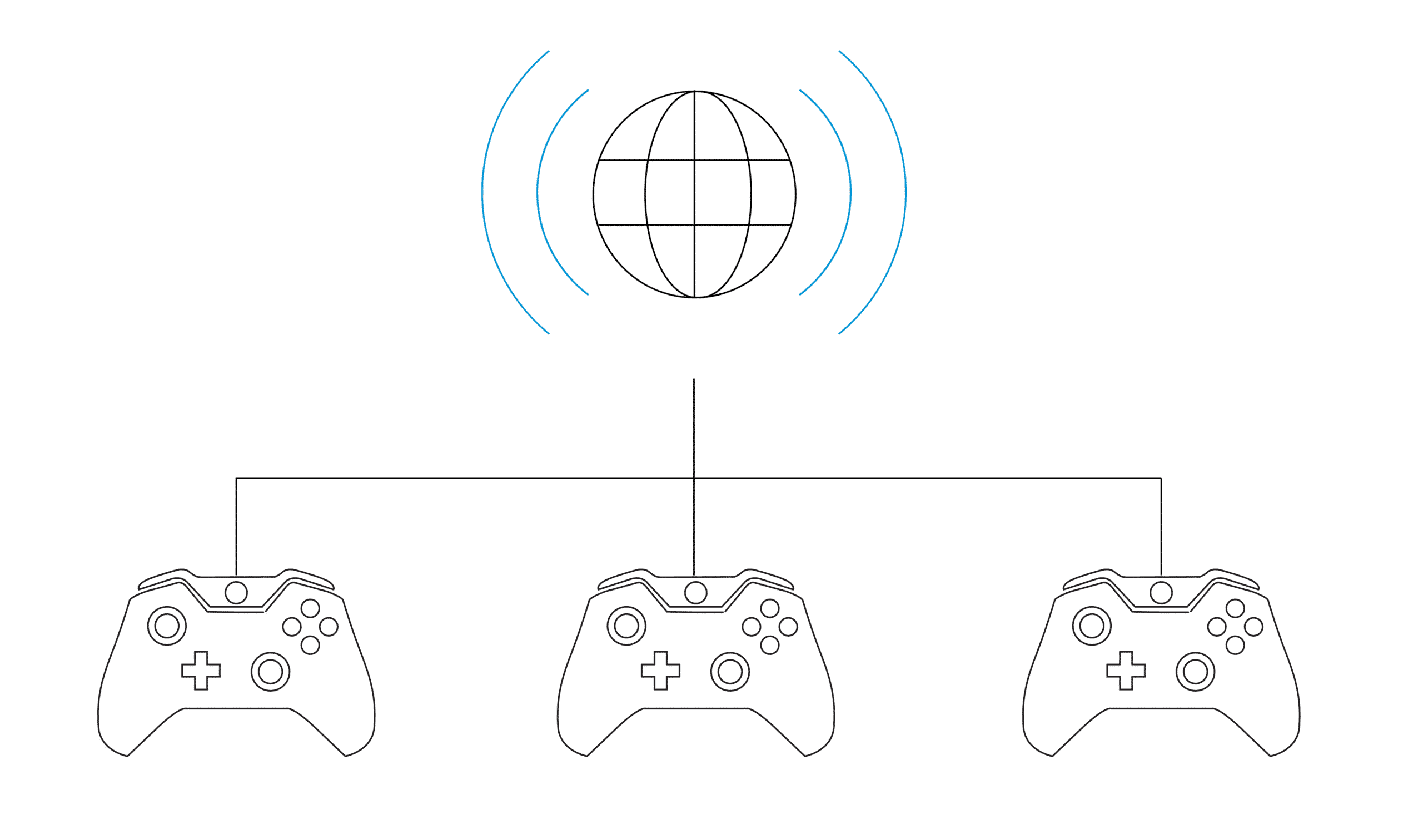
Credit: www.screenbeam.com

Credit: manuals.plus
Frequently Asked Questions
How Do I Connect A Mesh Wifi To My Game Console?
To connect, find your console’s network settings. Select your mesh WiFi network. Enter the password. Save and test the connection. This ensures stable online gaming and faster downloads.
Can Mesh Wifi Improve My Gaming Speed?
Yes, mesh WiFi enhances signal strength and coverage. It reduces lag and buffering by providing a stronger, more consistent connection for your console.
Should I Use 2.4ghz Or 5ghz On Mesh Wifi?
Use 5GHz for faster speeds and less interference. Choose 2. 4GHz for better range but slower speeds. Pick based on your console’s location and needs.
What If My Game Console Doesn’t Detect Mesh Wifi?
Restart your console and mesh router. Check if SSID is hidden. Ensure firmware is updated. If issues persist, reset network settings or contact support.
Conclusion
Connecting your mesh WiFi to a game console is simple and quick. A strong connection helps reduce lag and improve gameplay. Make sure your console is close to a mesh node for the best signal. Use the console’s network settings to connect to your mesh WiFi.
Restart your console if you face any issues. Playing games online becomes smoother with a reliable WiFi setup. Enjoy gaming without interruptions and stay connected easily. This setup works for most game consoles and helps enhance your experience. Give it a try and feel the difference.