Are you struggling to get a strong internet connection on your smart TV? Using a portable router might be the simple fix you need.
Imagine streaming your favorite shows without buffering or annoying interruptions. You’ll discover easy steps to connect your smart TV to a portable router and enjoy faster, more reliable Wi-Fi anywhere in your home. Keep reading, and you’ll learn how to unlock the full potential of your smart TV with a portable router today.
Choosing The Right Portable Router
Choosing the right portable router is essential for a smooth connection with your smart TV. The right device ensures fast speeds and stable signals. It also makes streaming videos and browsing apps easier. Selecting a router with the right features helps avoid interruptions and buffering. Focus on your needs before making a choice.
Key Features To Look For
Battery life matters a lot for portable use. Aim for routers that last several hours. Look for fast Wi-Fi standards like 802.11ac or higher. These provide better speed and range. A compact design makes the router easy to carry. Check for multiple device support to connect your TV and other gadgets. Security features like WPA3 protect your network from threats.
Compatibility With Smart Tvs
Check if the router supports the Wi-Fi bands your smart TV uses. Most smart TVs work well with 2.4 GHz and 5 GHz bands. Ensure the router can handle the TV’s network settings. Some smart TVs prefer specific IP configurations or DNS settings. Reading the TV manual helps match router features. Compatibility avoids connection problems and keeps streaming smooth.
Credit: ihandyandy.com
Preparing Your Smart Tv
Preparing your smart TV is important before connecting it to a portable router. This ensures smooth streaming and a stable internet connection. Taking time to check the TV’s settings and update its software helps avoid common connection issues.
Checking Network Settings
Start by opening your smart TV’s settings menu. Look for the network or internet section. Confirm that Wi-Fi is enabled and ready to scan for networks. Select the portable router’s network name (SSID) from the list. Enter the correct password carefully to avoid connection errors.
Check the IP address and DNS settings. Most smart TVs use automatic settings by default. Manual settings can cause problems unless you know the exact details. Save any changes and test the connection to ensure the TV connects successfully.
Updating Firmware
Firmware updates improve your smart TV’s performance and security. They can fix bugs that affect network connections. Navigate to the system or support section in the settings menu. Look for software update options.
Download and install any available updates. Keep your TV connected to a reliable internet source during this process. After updating, restart your TV. This step helps the new software work properly and can improve compatibility with your portable router.
Setting Up The Portable Router
Setting up a portable router for your smart TV makes streaming flexible and smooth. This device creates a personal Wi-Fi hotspot, providing internet access wherever you need it. The setup process is simple and quick, requiring just a few steps to get started.
Powering On And Initial Configuration
First, plug in your portable router using the provided charger. Press the power button until the lights turn on. Wait for the router to boot up completely.
Next, connect your computer or smartphone to the router’s default Wi-Fi network. The network name and password are usually printed on the router’s label or manual.
Open a web browser and enter the router’s IP address, often 192.168.0.1 or 192.168.1.1. Log in using the default username and password, also found in the manual.
Follow the setup wizard to change your Wi-Fi name (SSID) and password. This step keeps your connection secure and personal. Save your settings before exiting the configuration page.
Connecting To The Internet Source
Choose how your portable router will access the internet. Most routers support mobile data via a SIM card or connect to another Wi-Fi network.
- For SIM card use, insert the card into the router’s slot. The device will connect to the mobile network automatically.
- To connect through Wi-Fi, use the router’s settings page to scan for available networks. Select your source network and enter its password.
Confirm the connection status on the router’s dashboard. When the internet is active, your smart TV can connect to the portable router’s Wi-Fi.
Connecting Smart Tv To Portable Router
Connecting your Smart TV to a portable router allows you to enjoy a flexible and reliable internet connection anywhere. This setup is especially useful during travel, outdoor gatherings, or in places without fixed broadband. Understanding how to link your Smart TV to a portable router ensures smooth streaming and uninterrupted access to your favorite apps.
Accessing Wi-fi Settings On Smart Tv
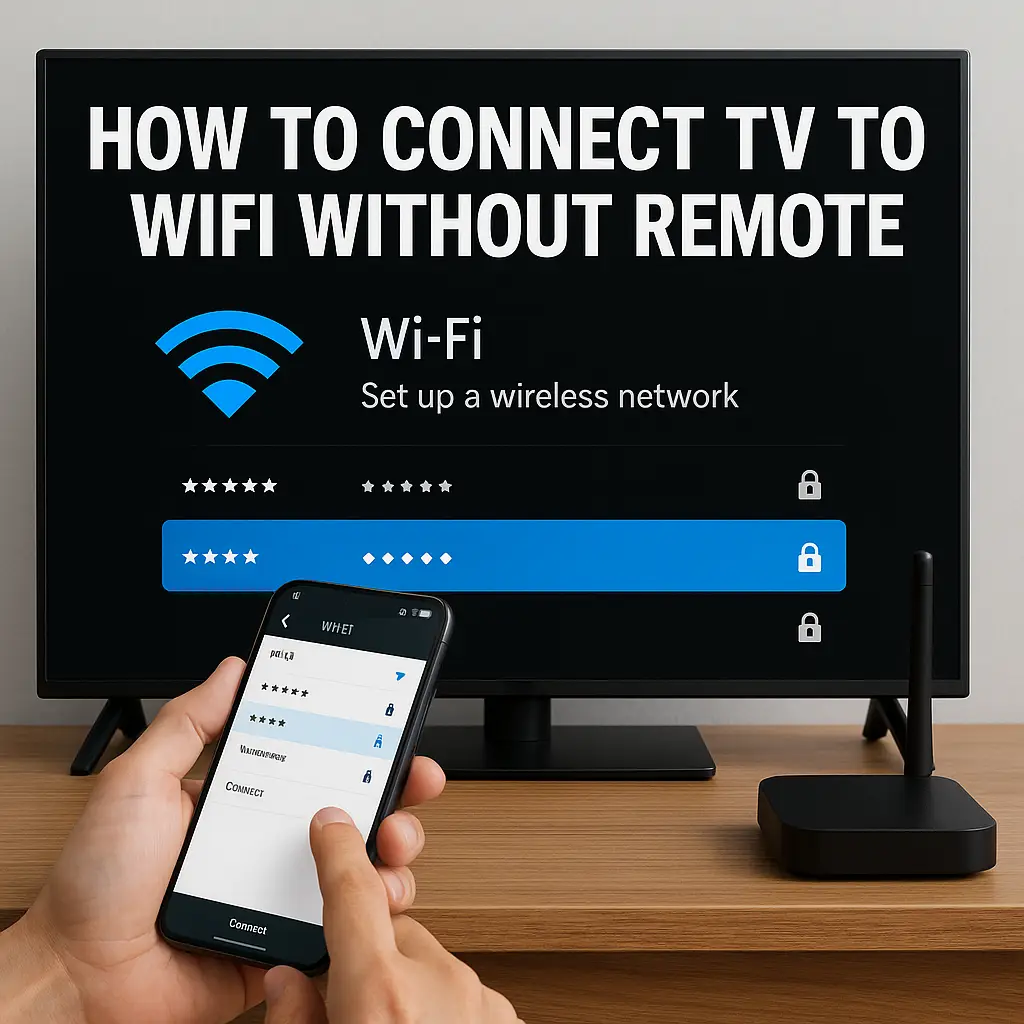
Start by turning on your Smart TV and navigating to the main menu. Look for the settings icon, usually represented by a gear or wrench symbol. Within the settings menu, find and select the network or Wi-Fi options to view available wireless networks.
Keep in mind that some Smart TVs may label this section differently, such as “Internet Settings” or “Network Setup.” If you have trouble locating it, check your TV’s user manual or search online using your TV model. Finding the correct menu is the key to connecting your TV to any Wi-Fi network.
Entering Network Credentials
Once your portable router’s Wi-Fi network appears on the list, select it. Your TV will prompt you to enter the network password. Enter the password carefully, paying attention to uppercase and lowercase letters, as the input is case-sensitive.
If you’re unsure about the password, check the portable router’s label or the app you use to manage it. After entering the credentials, confirm and wait for your TV to establish the connection. Have you noticed how a small typo can prevent the connection? Double-checking here saves a lot of frustration.
Optimizing Connection For Streaming
Getting a smooth streaming experience on your smart TV using a portable router depends heavily on how well you optimize your connection. Small tweaks can significantly reduce buffering and improve video quality. Let’s look at practical ways to get the most out of your setup.
Adjusting Router Placement
Where you place your portable router can make or break your streaming quality. Avoid hiding it inside cabinets or behind furniture, as thick walls and objects block the signal.
Try to position the router in an open, elevated spot closer to your smart TV. Even a few feet can improve the strength and stability of the connection.
Think about interference too. Keep the router away from other electronics like microwaves or cordless phones that might disrupt the Wi-Fi signal.
Managing Bandwidth And Channels
Are you sharing your portable router with multiple devices? Streaming competes for bandwidth with phones, laptops, and other gadgets, which can cause lag.
You can prioritize your smart TV’s connection by accessing your router’s settings and enabling Quality of Service (QoS). This feature assigns more bandwidth to your TV for smoother streaming.
Also, check which Wi-Fi channel your router is using. If many nearby networks use the same channel, interference increases. Switching to a less crowded channel can reduce interruptions.
- Use apps like Wi-Fi Analyzer to find the clearest channel.
- Switch between 2.4 GHz and 5 GHz bands depending on distance and interference.
Have you noticed improved streaming after adjusting your router’s spot or channel? Small changes often create big differences in your viewing experience.

Credit: www.amazon.com
Troubleshooting Common Issues
Check the portable router’s connection and ensure the smart TV is linked to the correct network. Restart both devices to fix common glitches quickly. Clear the TV’s cache if streaming issues persist for smoother performance.
Using a portable router with a smart TV can enhance your streaming experience. Yet, technical issues might arise, disrupting smooth entertainment. Troubleshooting common problems ensures uninterrupted viewing. Below, we address frequent issues and solutions.Connection Drops
Experiencing connection drops can be frustrating. Ensure your router is within range of the TV. Physical barriers like walls can weaken signals. Move the router closer if possible. Check for interference from other devices. Devices like microwaves can disrupt signals. Turn them off while streaming. Updating router firmware might also help. Visit the manufacturer’s website for updates.Slow Streaming Speeds
Slow speeds can ruin your watching time. First, check internet speed using an online tool. Speeds under 5 Mbps may cause buffering. Restart both the router and the TV. This can often resolve minor glitches. Limit the number of devices using the network. Too many devices slow down the connection. Opt for a wired connection if possible. Ethernet cables provide stable speeds.Advanced Tips And Tricks
Using a portable router with your smart TV can open up a world of convenience and flexibility. But beyond just connecting devices, there are advanced tips that can enhance your experience, boost security, and make your setup smarter. Let’s dive into some practical tricks to get the most out of your portable router.
Using Guest Networks
Guest networks are a powerful feature that many portable routers offer. They allow you to create a separate Wi-Fi network for visitors without giving access to your main devices, including your smart TV.
This keeps your primary network safe while still sharing internet access. Imagine hosting friends for a movie night—your guests can stream without slowing down your TV’s performance or risking your personal data.
Setting up a guest network usually involves a few clicks in your router’s settings. You can customize the network name and password, and even limit bandwidth to ensure your smart TV always gets priority.
Securing Your Connection
Security is critical when your smart TV connects to the internet through a portable router. An unsecured network can expose your devices to hackers or unwanted access.
Start by changing the default admin password of your router—it’s surprising how many people overlook this step. Then, enable WPA3 or WPA2 encryption to protect your Wi-Fi signal from intruders.
Consider turning off WPS (Wi-Fi Protected Setup) since it can be a weak point in your network. Also, updating your router’s firmware regularly ensures you have the latest security patches.
Ask yourself: Are you comfortable with who might be able to access your network? Taking these security steps helps you control your digital environment, giving you peace of mind while enjoying your smart TV.

Credit: www.wikihow.com
Frequently Asked Questions
How Do I Connect A Portable Router To My Smart Tv?
To connect, power on your portable router and enable its Wi-Fi. On your smart TV, find and select the router’s network. Enter the password if required. Your smart TV will then connect to the internet through the portable router, enabling streaming and apps.
Can A Portable Router Improve Smart Tv Streaming Quality?
Yes, a portable router can enhance streaming by providing a stable Wi-Fi signal. It reduces buffering and lag if your main router is far or weak. Choose a portable router with good speed and range for the best smart TV experience.
Is A Portable Router Compatible With All Smart Tv Brands?
Most portable routers work with all smart TVs that support Wi-Fi. Compatibility depends on the TV’s network settings, not the router brand. Always check your smart TV’s network requirements and ensure the portable router supports standard Wi-Fi protocols like 802.
11ac or 802. 11n.
How Do I Secure My Smart Tv When Using A Portable Router?
To secure, set a strong password on your portable router. Enable WPA2 or WPA3 encryption in the router settings. Avoid open networks to prevent unauthorized access. Regularly update your router’s firmware to protect your smart TV and other devices.
Conclusion
Using a portable router with your smart TV is simple and helpful. It lets you watch shows and movies without interruption. You can connect easily and enjoy stable internet anywhere. Just follow the steps to set up your router correctly.
This way, your smart TV stays connected on the go. No need to worry about weak signals or slow speeds. Portable routers bring freedom and convenience to your viewing experience. Give it a try and see the difference yourself.