Are you struggling to get your smart TV connected to your mesh WiFi network? You’re not alone.
A strong, reliable connection is key to streaming your favorite shows without annoying buffering or lag. Connecting your smart TV to mesh WiFi can seem tricky, but it doesn’t have to be. In this guide, you’ll find simple, step-by-step instructions that will have your TV online and running smoothly in no time.
Keep reading to unlock the full potential of your smart TV with seamless mesh WiFi connectivity.
Credit: blog.flashrouters.com
Mesh Wifi Basics
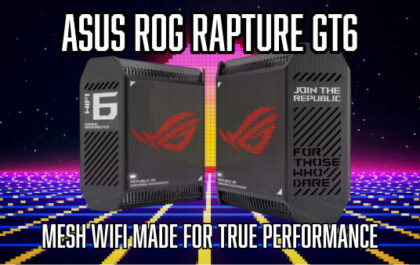
Understanding the basics of mesh WiFi is key before you connect it to your smart TV. This technology has changed how we experience wireless internet at home by offering a more reliable and widespread connection. Knowing what mesh WiFi is, how it benefits streaming, and which systems are popular can help you make the best choice for your setup.
What Is Mesh Wifi
Mesh WiFi is a network system made up of multiple devices called nodes. These nodes work together to cover your entire home with a strong WiFi signal.
Unlike traditional routers that have a single access point, mesh systems spread the signal evenly by communicating with each other. This means fewer dead zones and smoother internet throughout your space.
Benefits For Streaming
When streaming on your smart TV, a steady internet connection is crucial. Mesh WiFi ensures your TV gets a strong signal, even if it’s far from the main router.
This setup reduces buffering, improves video quality, and keeps your streaming uninterrupted. Have you ever been frustrated by a show freezing just at the best moment? Mesh WiFi helps prevent that.
Common Mesh Systems
There are several reliable mesh WiFi systems available, each with unique features. Some popular choices include:
- Google Nest Wifi– Easy to set up and integrates well with Google devices.
- Netgear Orbi– Known for strong coverage and fast speeds.
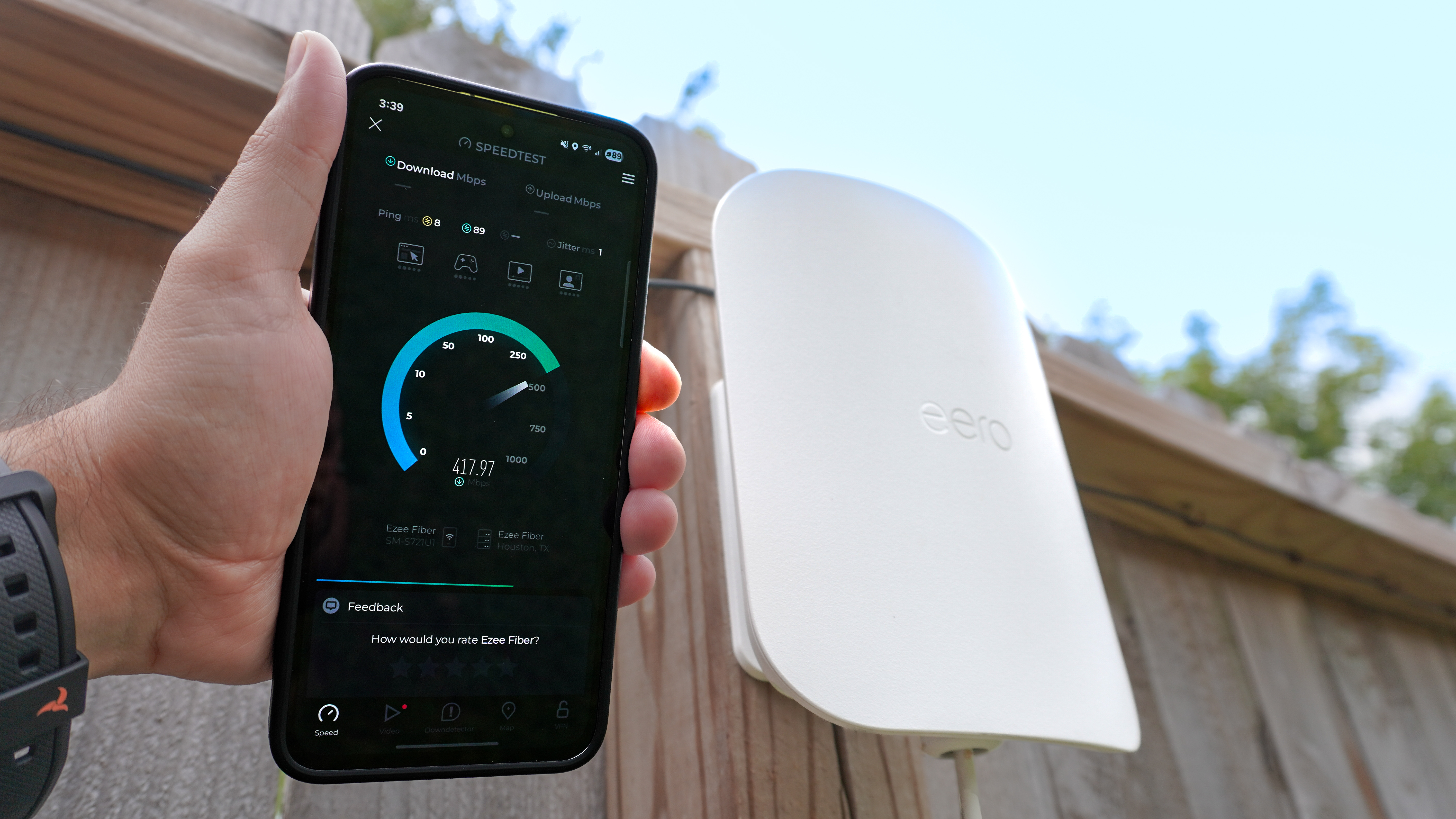
- Amazon Eero– User-friendly with good parental controls.
- TP-Link Deco– Affordable option with solid performance.
Picking the right system depends on your home size, budget, and personal preferences. Which features matter most to you when choosing a mesh network?
Credit: www.tomsguide.com
Preparing Your Smart Tv
Getting your smart TV ready to connect to a mesh WiFi system is key to enjoying seamless streaming and fast internet access. Before you dive into the setup, taking a few simple steps will save you frustration and improve your connection experience.
Check Network Compatibility
Not every smart TV supports every network type. Check if your TV can connect to the 2.4 GHz or 5 GHz bands, as most mesh WiFi systems operate on both.
Look for your TV’s specifications in the manual or settings menu. If your TV supports only one band, make sure your mesh system includes that frequency.
Have you noticed certain devices in your home always struggle with WiFi? This step helps you avoid that problem with your TV.
Update Tv Firmware
Firmware updates often improve network performance and fix bugs related to connectivity. Make sure your smart TV has the latest software installed.
You can usually find the update option in the TV’s settings under “Support” or “About.” Connect to any available network temporarily if needed to download updates.
I once skipped this step and ended up with constant buffering—updating firmware fixed that instantly.
Locate Network Settings
Knowing where to find your TV’s network settings makes the connection process faster. Usually, this is under “Settings” > “Network” or “Connections.”
Here, you’ll see options to select WiFi, enter passwords, or switch between wired and wireless connections.
Spend a few minutes navigating these menus before starting your mesh WiFi setup. It helps you avoid guessing and speeds up the entire process.
Connecting Mesh Wifi To Smart Tv
Connecting your Smart TV to a mesh WiFi network can transform your streaming experience. It ensures a stable, fast internet connection even in rooms where the signal was weak before. If you’ve ever faced buffering or connection drops while watching your favorite show, setting up mesh WiFi is the solution.
Access Wifi Settings On Tv
Start by turning on your Smart TV and navigating to the settings menu. Look for the network or WiFi section—it’s usually labeled clearly. If your TV remote has a dedicated settings button, that can speed things up.
Once inside the network settings, choose the option to connect to a wireless network. This brings up a list of available WiFi networks around you.
Select Your Mesh Network
From the available networks, find the name (SSID) of your mesh WiFi system. Mesh networks often have names similar to your main router but might include “_mesh” or a specific label you set. If you don’t see your mesh network, make sure your TV is within range of a mesh node.
Choosing the correct network is crucial because some routers broadcast multiple signals for different frequency bands. Selecting the 5GHz band, for example, can offer faster speeds but shorter range compared to 2.4GHz.
Enter Password And Connect
After selecting your mesh network, your TV will prompt you to enter the WiFi password. Take your time here—passwords are case-sensitive, and a small typo can prevent connection. Use your remote to carefully input the password.
Once entered, confirm and wait a moment. Your TV should display a message indicating a successful connection. If it doesn’t, double-check the password and try again.
Troubleshooting Connection Issues
Check that your smart TV is within range of the mesh WiFi signal. Restart both the TV and router to refresh connections. Verify the TV’s network settings match your mesh WiFi details for a smooth connection.
Troubleshooting connection issues can be frustrating. Your smart TV might not connect to your mesh WiFi as expected. Several factors can disrupt a smooth connection. Let’s explore some common fixes for these issues.Restart Devices
Restarting your devices can solve many connection problems. Begin with your smart TV. Turn it off, wait a moment, then turn it back on. Do the same with your router. A simple reboot often clears temporary glitches.Check Signal Strength
Your TV might be too far from the router. Check the WiFi signal strength on your TV. Weak signals can cause connection issues. Move your TV closer to the router or ensure no physical barriers block the signal.Adjust Mesh Node Placement
Mesh nodes need proper placement to work effectively. Place nodes in open spaces for better coverage. Avoid placing them near metal objects or thick walls. Adjusting node locations can improve signal reach and stability.Optimizing Streaming Performance
Streaming your favorite shows or movies on a smart TV can be frustrating if the video keeps buffering or the picture quality drops unexpectedly. Optimizing your mesh WiFi setup for your smart TV ensures smooth, high-quality streaming without interruptions. Small adjustments to your network can make a big difference in performance and viewing experience.
Prioritize Smart Tv Traffic
Many mesh WiFi systems allow you to prioritize certain devices or types of traffic. Access your router’s settings and look for options like QoS (Quality of Service). By prioritizing your smart TV, you ensure it gets the bandwidth it needs over other devices.
This is especially useful if multiple users are online simultaneously. Have you noticed your video stuttering when someone else starts a video call? Prioritizing your smart TV can prevent that.
Use Ethernet Backhaul If Possible
Mesh WiFi nodes usually communicate wirelessly, but connecting at least one node via Ethernet cable can stabilize the entire network. This wired connection, known as Ethernet backhaul, reduces wireless interference between nodes and improves overall speed.
If your smart TV is near a mesh node, consider running an Ethernet cable directly to it. This guarantees the fastest and most stable connection for streaming.
Limit Interference From Other Devices
Wireless interference can come from many sources such as microwaves, cordless phones, or even neighboring WiFi networks. Place your mesh nodes and smart TV away from such devices to reduce signal disruption.
Also, keep an eye on how many devices are connected to your network at once. Too many active devices can slow down your smart TV’s streaming. Could turning off WiFi on devices you’re not using help improve your streaming quality?

Credit: manuals.plus
Frequently Asked Questions
How Do I Connect Mesh Wifi To My Smart Tv?
To connect, find your TV’s WiFi settings and select your mesh network name. Enter the password, then confirm the connection. This ensures a strong, stable connection for streaming.
Can Mesh Wifi Improve Smart Tv Streaming Quality?
Yes, mesh WiFi spreads signals evenly, reducing dead zones. This gives your smart TV a faster, more reliable internet connection for smoother streaming.
What If My Smart Tv Doesn’t Find Mesh Wifi?
Restart your router and TV, then try again. Ensure the mesh network is active and within range. Update your TV’s software if needed for better compatibility.
Is Ethernet Better Than Mesh Wifi For Smart Tvs?
Ethernet offers a stable, wired connection but lacks flexibility. Mesh WiFi provides strong wireless coverage, ideal for multiple devices and easy setup without cables.
Conclusion
Connecting your mesh WiFi to a smart TV is simple and quick. Just follow the steps carefully to ensure a stable connection. A good WiFi signal helps stream videos without interruptions. Check your TV’s network settings and select your mesh WiFi name.
Enter the password if needed, and you are set. Enjoy smooth streaming, faster downloads, and better online experiences. Keep your devices updated for best results. Stay connected easily and watch your favorite shows with no hassle.