Struggling with weak WiFi signals in some parts of your home? You’re not alone.
Setting up a mesh WiFi system can change everything by giving you strong, reliable internet everywhere. Imagine no more dead zones or dropped connections—just smooth streaming, fast downloads, and seamless browsing. In this guide, you’ll learn exactly how to set up your mesh WiFi system step-by-step, so you can enjoy better internet without the hassle.
Keep reading, and take control of your home network today.
Choosing The Right Mesh Wifi System
Choosing the right mesh WiFi system is key to improving your home internet. The right choice depends on several factors like brand, home size, and device compatibility. Each factor affects your WiFi speed and coverage. This section will guide you through these important points.
Comparing Popular Brands
Popular mesh WiFi brands include Google Nest, Eero, and Netgear Orbi. Each brand offers different features and price points. Google Nest is simple to set up and use. Eero provides reliable coverage and good app control. Netgear Orbi often delivers faster speeds and wider coverage. Check reviews and user feedback to find the best fit for your needs.
Assessing Home Size And Layout
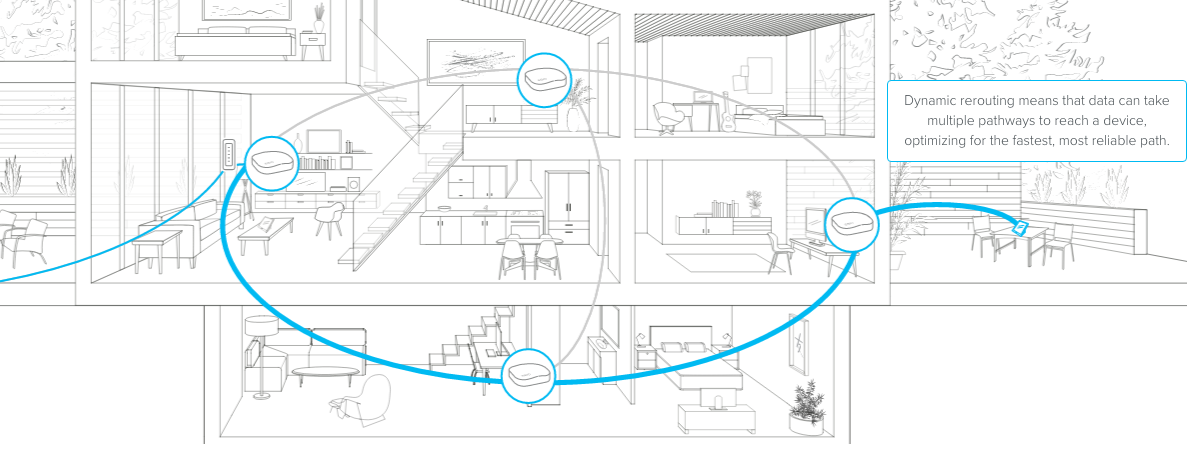
Home size affects how many mesh nodes you need. Small homes may only need two nodes. Larger homes or multi-story houses often require three or more. Open floor plans may need fewer nodes than houses with many walls. Place nodes evenly for the best signal spread. Think about dead zones and where you use WiFi most.
Considering Device Compatibility
Devices need to connect smoothly to your mesh system. Most systems support common devices like phones, laptops, and smart TVs. Check if the system supports older devices if you have them. Some mesh systems work better with specific brands or smart home devices. Make sure your key devices will work without issues.

Credit: www.reddit.com
Preparing For Installation
Preparing for the installation of your mesh WiFi system sets the foundation for a smooth and effective setup. Taking time to check your internet connection, gather the right equipment, and thoughtfully plan where each node will go can save you hours of frustration. These steps help ensure your new system delivers fast, reliable coverage exactly where you need it most.
Checking Internet Connection
Before you start, verify that your current internet connection is stable and functioning properly. You can do this by connecting a device directly to your modem with an Ethernet cable and running a speed test. If your speeds are lower than what your plan promises or if the connection drops frequently, contact your internet provider first.
Why is this important? A mesh system can only distribute the signal you already have. Fixing any issues beforehand means you won’t blame your new setup for problems that aren’t its fault. Have you ever set up something new only to realize the real issue was elsewhere?
Gathering Necessary Equipment
Make sure you have everything you need before unboxing your mesh WiFi system. Typically, you’ll need:
- The mesh router and additional nodes
- An Ethernet cable to connect the main router to your modem
- A power source near each node location
- A smartphone or computer for setup via the system’s app
Sometimes people forget the Ethernet cable or don’t have enough power outlets nearby, which can slow down the process. Double-check your package contents and your home setup to avoid surprises.
Planning Node Placement
Where you place your mesh nodes makes a huge difference in performance. Consider these tips:
- Position the main router near your modem in a central area of your home.
- Place nodes in open spaces, avoiding thick walls or metal objects that block signals.
- Keep nodes within a reasonable distance of each other to maintain strong connections.
Walk through your home thinking about where you experience weak WiFi. Could that spot use a node nearby? Planning with your daily routines in mind helps you decide the best locations to get seamless coverage.
Setting Up The Main Router
Place the main router near your modem and power it on. Connect it to the internet and follow the setup instructions. Ensure the router has a strong signal to cover your home effectively.
Setting up the main router is the heart of establishing a reliable mesh WiFi system. It’s where your internet connection begins its journey to blanket your home with seamless connectivity. By taking a step-by-step approach, you can ensure a smooth and efficient setup process.Connecting To The Modem
Start by connecting your main router to the modem. Use an Ethernet cable to link the router’s WAN or Internet port to the modem. This connection acts as the gateway for your internet access. Ensure the modem is powered on and functioning properly. A quick restart of the modem can sometimes help in clearing any lingering connection issues.Powering Up The Router
Once connected, it’s time to power up your router. Plug the router into a power source and wait for the indicator lights to stabilize. These lights are your first hint that everything is working as expected. Look for the power LED to turn solid. If you notice any blinking or odd behavior, consult the router’s manual for troubleshooting tips.Accessing The Setup Interface
Accessing the setup interface is your next move. Grab a device, like a smartphone or laptop, and connect to the router’s WiFi network. Open a web browser and enter the router’s default IP address in the address bar. This will take you to the setup interface where you can configure network settings. Follow the prompts to complete the setup. You might be asked to create a network name and password, so choose something memorable yet secure. Setting up the main router is a foundational task. Have you encountered any challenges during this step that others could learn from?Adding And Positioning Satellite Nodes
Adding and positioning satellite nodes is crucial to getting the best performance from your mesh WiFi system. These nodes extend your network’s reach, filling in coverage gaps and maintaining strong signals throughout your space. How you connect and place them can make a big difference in your overall internet experience.
Pairing Nodes With Main Router
Start by powering on your main router and satellite nodes. Most mesh systems have a dedicated app that guides you through the pairing process step-by-step. Follow the app’s instructions carefully to link each satellite node to your main router.
Make sure each node is close enough to the main router during pairing to avoid connection failures. Once paired, the nodes will communicate automatically, creating a seamless network. Have you noticed how a quick setup can sometimes save hours of troubleshooting?
Optimizing Node Locations
Place satellite nodes where they can catch a strong signal from the main router. Typically, this means halfway between the router and the dead zones you want to cover. Avoid putting nodes too far apart; if the signal weakens, the network slows down.
Look for open spaces rather than behind furniture or inside cabinets. Walls and large objects block signals, so keep nodes visible and elevated if possible. Have you checked your WiFi strength in different rooms using a smartphone app? It’s a handy way to find the best spots.
Avoiding Interference
Electronics like microwaves, cordless phones, and baby monitors can interfere with your WiFi signal. Keep satellite nodes away from these devices to maintain a stable connection. Also, avoid placing nodes near large metal objects or thick walls.
Try to position nodes on different channels if your system allows it. This reduces signal overlap and interference within your own network. Think about your home setup—are there any unexpected sources of interference that might be hurting your WiFi?
Configuring Network Settings
Configuring network settings is a key step in setting up your mesh WiFi system. These settings control how your devices connect and communicate. Proper configuration improves security and performance. It also helps guests use your network safely without accessing your main devices.
Naming Your Network
Choose a clear, simple name for your network. This name is called the SSID. Avoid personal information in the name. Use something easy to recognize. For example, use “HomeWiFi” or “SmithFamilyNet.” Keep it short and unique to avoid confusion with nearby networks.
Setting A Secure Password
Create a strong password to protect your WiFi. Use a mix of letters, numbers, and symbols. Make it at least 12 characters long. Avoid common words or simple patterns like “123456.” Change the default password that comes with the system. A strong password keeps hackers out and your data safe.
Enabling Guest Networks
Turn on the guest network feature to offer visitors internet access. This network keeps your main devices separate and secure. Set a different name and password for guests. Limit guest access to only the internet, not your files or printers. This setup provides safety and convenience for everyone.
Credit: blog.eero.com
Testing And Troubleshooting
Testing and troubleshooting your mesh WiFi system ensures smooth and fast internet. This process helps identify weak spots and fix common problems. It improves coverage and speeds for all your devices. Regular checks keep your network reliable and efficient.
Checking Signal Strength
Walk around your home with a smartphone or laptop. Use a WiFi analyzer app to check signal strength at different spots. Look for areas with low signals or dead zones. Place mesh nodes closer if the signal is weak. Avoid thick walls or metal objects near nodes.
Running Speed Tests
Run speed tests on devices connected to different mesh nodes. Use websites or apps like Speedtest.net to measure download and upload speeds. Compare results from each node to find slow spots. Test at various times to check for network consistency. Restart the mesh system if speeds drop significantly.
Resolving Common Issues
- Restart your mesh router and nodes to fix minor glitches.
- Ensure firmware is updated on all mesh devices.
- Check cable connections between the modem and the main router.
- Move nodes away from microwaves, cordless phones, and other electronics.
- Reset the mesh system and set it up again if problems persist.
- Contact customer support for persistent or complex issues.
Maintaining Your Mesh Wifi System
Maintaining your mesh WiFi system is key to keeping a strong and steady internet connection. Regular care helps avoid slow speeds and connection drops. Simple tasks can keep your network running smoothly and cover every corner of your home.
Updating Firmware Regularly
Firmware updates fix bugs and add new features. Check the app or website of your mesh system often. Install updates as soon as they are available. This improves security and performance. It also helps your devices work better together.
Monitoring Network Performance
Keep an eye on your network’s speed and connection strength. Use the mesh system’s app to see real-time data. Look for devices using too much bandwidth. Identify weak spots in your coverage. Acting fast solves problems before they get worse.
Expanding Coverage When Needed
Add more nodes if your WiFi does not reach some areas. Place new nodes where the signal is weak. Avoid large metal objects and thick walls. More nodes create a stronger, wider network. This gives all rooms good internet access.

Credit: www.youtube.com
Frequently Asked Questions
What Is A Mesh Wifi System?
A mesh WiFi system uses multiple nodes to provide seamless internet coverage. It eliminates dead zones by creating a unified network throughout your home or office.
How Do I Install A Mesh Wifi System?
Start by connecting the main node to your modem. Place additional nodes in different rooms for optimal coverage. Use the app provided to configure and manage the network easily.
Can Mesh Wifi Improve My Internet Speed?
Yes, mesh WiFi improves speed by reducing interference and extending coverage. It ensures stable connections even in large or multi-story buildings.
How Many Nodes Do I Need For Mesh Wifi?
The number of nodes depends on your space size and layout. Typically, 2 to 3 nodes cover a medium-sized home effectively.
Conclusion
Setting up a mesh WiFi system improves your home internet easily. It spreads the signal to cover every room well. Just follow the steps carefully for best results. Good placement of devices helps avoid weak spots. You will enjoy faster, stable connections everywhere.
A strong WiFi network makes work and fun smoother. Try it yourself and see the difference clearly. Simple steps lead to better internet at home. A mesh system is a smart choice today.