Have you ever struggled with slow or unreliable Wi-Fi while traveling with your Android phone? Imagine having a simple device that boosts your internet connection, keeps your data safe, and lets you connect multiple devices at once.
That’s exactly what a travel router promises—but can it really work with your Android phone? If you want to stay connected effortlessly no matter where you go, keep reading. This guide will reveal how a travel router can change your mobile internet experience and whether it’s the right choice for you.
How Travel Routers Work
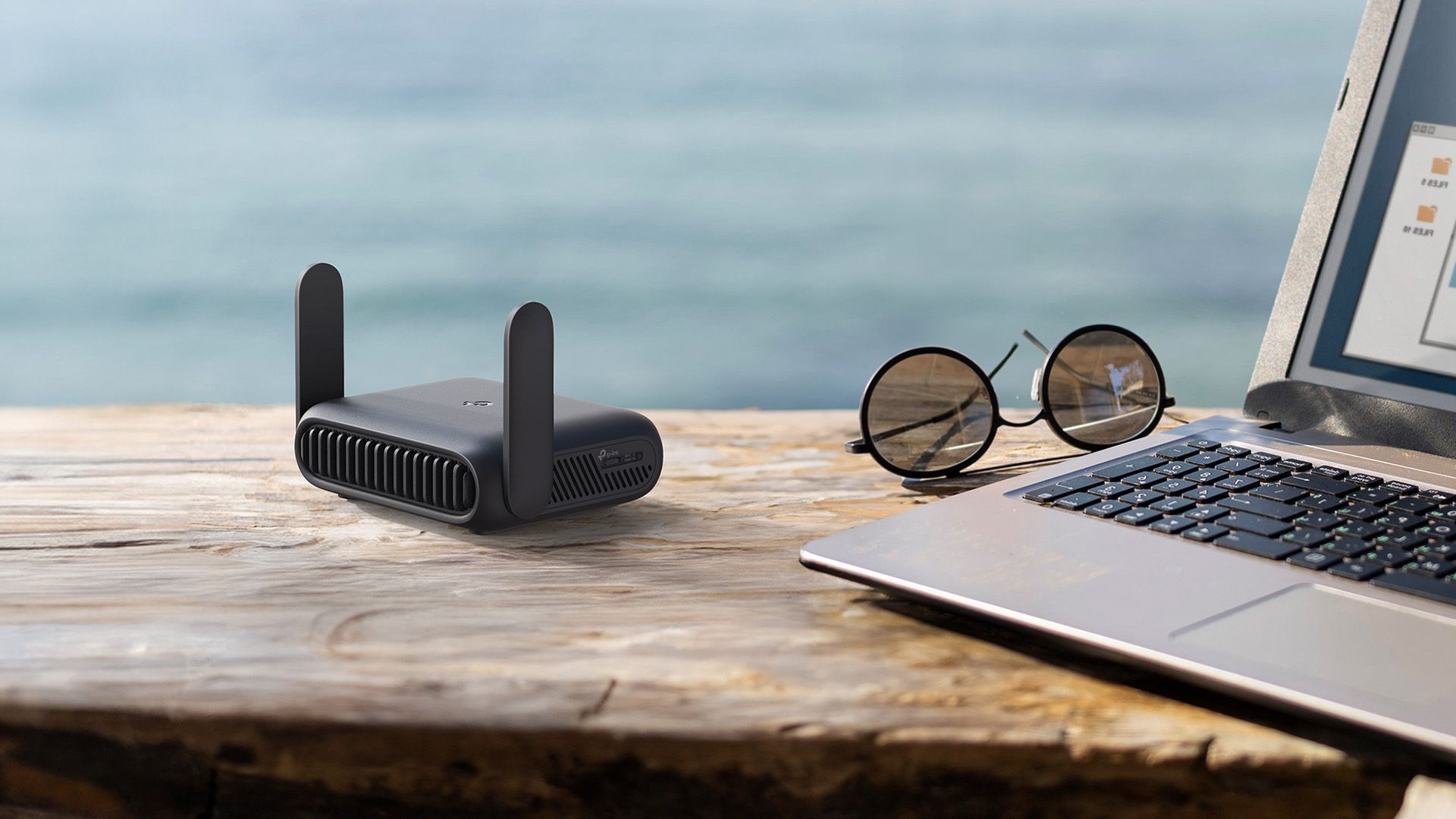
Understanding how travel routers work can change the way you stay connected on the go. These compact devices create a private Wi-Fi network using an existing internet source, like a hotel Ethernet or public hotspot. This means you can connect multiple devices, including your Android phone, to a single internet connection securely and conveniently.
Basic Functions
At its core, a travel router acts as a bridge between your devices and the internet source. It takes in a wired or wireless internet signal and redistributes it as a private Wi-Fi network. This setup helps improve security, especially on public networks, by isolating your devices from others connected to the same hotspot.
Travel routers often come with features like:
- Network encryption:Keeps your data safe from snoopers.
- Multiple device connections:Allows you to connect your phone, laptop, and tablet simultaneously.
- Portability:Small size and battery options make it easy to carry.
Types Of Travel Routers
There are a few varieties of travel routers, each suited for different needs. Some plug directly into an Ethernet port to share wired internet, while others capture and extend existing Wi-Fi signals.
- Wired travel routers:Ideal when you have access to Ethernet but want Wi-Fi for your Android phone and other devices.
- Wireless travel routers:Connect to public Wi-Fi networks and create a private network for your devices.
- Battery-powered models:Perfect for travelers without easy access to power outlets.
Have you ever struggled with slow or insecure hotel Wi-Fi? Using the right travel router can make your Android phone’s internet experience faster and safer. It’s about taking control of your connection rather than just accepting whatever is available.

Credit: www.zdnet.com
Compatibility With Android Phones
Travel routers offer a convenient way to improve your internet connection while on the go, but their effectiveness depends heavily on how well they work with your Android phone. Understanding compatibility is key before investing in a travel router. Let’s explore how these devices connect to Android phones and which versions of Android are best supported.
Connection Methods
Travel routers can link with your Android phone through various connection methods, each with its own advantages. The most common is Wi-Fi, where your phone connects to the travel router’s network just like any other hotspot.
Some travel routers also support USB tethering. This method allows you to connect your phone directly to the router via a USB cable, which can provide more stable and faster internet access compared to wireless connections.
Bluetooth connections are less common but still available on certain models, offering a simple alternative when Wi-Fi signals are weak or crowded.
Supported Android Versions
Compatibility depends on your phone’s Android version. Most travel routers work smoothly with Android 5.0 (Lollipop) and above. This covers a vast majority of devices in use today.
Older Android versions may struggle with certain features like USB tethering or advanced security protocols. If your phone is running an outdated system, it’s worth checking the router’s specs carefully.
Newer Android versions often bring improved support for network management and security, enhancing your experience with travel routers. Are you using the latest Android update to get the best out of your travel router?
Setting Up A Travel Router With Android
Setting up a travel router with an Android phone is simple and quick. It lets you share internet easily on the go. This setup helps when hotel Wi-Fi is weak or limited. Follow clear steps to connect your device.
Initial Configuration
Start by powering on the travel router. Use the included cable or adapter to connect it to power. Open your Android phone’s Wi-Fi settings and find the router’s network name (SSID). This name is usually on the router label or manual.
Connect to the router’s network. Open a browser on your phone and enter the router’s IP address. This IP is often 192.168.0.1 or 192.168.1.1. You will see the router’s setup page.
Log in using the default username and password. These details are on the router or in the manual. Follow the on-screen instructions to set your internet connection type. Choose Wi-Fi repeater or router mode as needed.
Save your settings and wait for the router to restart. Your travel router is now ready to share internet with your Android device.
Connecting Your Android Device
Go to your Android phone’s Wi-Fi settings again. Look for the travel router’s network name. Select it and enter the password you set during configuration.
Your phone will connect to the travel router’s network. This connection uses the router to access the internet. You can now browse, stream, or work online smoothly.
- Ensure your phone stays within range of the router.
- Keep the router powered on for continuous internet access.
- Use the router’s admin page to change settings anytime.
Benefits For Android Users
Using a travel router with your Android phone can significantly enhance your travel experience. Whether you’re a digital nomad or a casual traveler, the benefits can make a noticeable difference. Let’s explore some of these advantages.
Improved Internet Access
Travel routers can provide a more stable and faster internet connection. Imagine being in a hotel with spotty Wi-Fi; a travel router can bridge that gap by connecting to the available network and boosting the signal to your Android phone. This ensures you stay connected without frustrating interruptions, perfect for streaming your favorite shows or making video calls.
Moreover, a travel router can connect multiple devices at once. This means you can use your Android phone while your travel companion watches a movie on their tablet. It’s like having your personal mini network wherever you go.
Enhanced Security
When you’re on the road, security is crucial. Public Wi-Fi networks often pose risks, but a travel router adds a layer of protection. It creates a private network that makes it harder for prying eyes to access your data, giving you peace of mind when checking your bank account or sending sensitive emails.
Have you ever hesitated to log into your accounts at a café or airport? With a travel router, you can confidently surf the web knowing your Android phone is shielded by a secure connection. It’s a small investment for a big leap in online safety.
Common Issues And Fixes
Using a travel router with your Android phone can sometimes lead to hiccups that disrupt your connection or slow down your browsing. Knowing how to spot common issues and fix them quickly can save you from frustration, especially when you’re relying on the internet while on the go. Let’s look at typical problems and practical solutions that you can apply right away.
Connection Problems
One frequent issue is your Android phone not connecting to the travel router’s network. This often happens due to incorrect Wi-Fi passwords or outdated router firmware.
- Double-check the password you entered. A simple typo can block your access.
- Restart both your travel router and Android phone. This can clear temporary glitches.
- Ensure your router’s firmware is up to date. Manufacturers often release fixes that improve compatibility with devices like Android phones.
- Forget the network on your phone and reconnect. This forces your phone to refresh its settings for that network.
Have you ever noticed your phone connects but shows “No internet”? That usually means your travel router isn’t properly linked to the main internet source. Confirm that your travel router is connected to the hotel or public Wi-Fi and check if other devices can access the internet through it.
Performance Troubleshooting
Slow speeds or frequent drops can ruin your browsing experience. Several factors impact your travel router’s performance with an Android phone.
- Check the signal strength. If the router is too far or blocked by walls, move closer or reposition the router.
- Limit the number of devices connected. Too many devices sharing the router’s bandwidth can slow everything down.
- Switch between 2.4 GHz and 5 GHz bands. Your Android phone might perform better on one frequency, depending on interference and distance.
- Close background apps on your phone that use data. This frees up bandwidth for your main tasks.
One personal tip: I once fixed a laggy connection by simply turning off the 5 GHz band on my travel router. My Android phone connected more reliably on 2.4 GHz in that hotel environment. Small changes like this can make a big difference.
What’s your biggest frustration when connecting your Android phone to travel routers? Identifying the problem is the first step toward a smoother online experience.
Credit: www.howtogeek.com
Top Travel Routers For Android
Travel routers make it easy to share internet with multiple devices. Android phones can connect smoothly to many models. Choosing the right travel router depends on budget and features. Here are some top travel routers for Android users.
Budget Options
- TP-Link TL-WR902AC:Compact, easy to use, supports dual-band Wi-Fi.
- GL.iNet GL-AR750S:Affordable, reliable, has good security features.
- NETGEAR N300:Basic and budget-friendly, perfect for light internet tasks.
High-end Models
- Asus RT-AX56U:Fast Wi-Fi 6 support, strong signal, great for multiple devices.
- RAVPower FileHub:Combines travel router with file sharing and power bank.
- GL.iNet GL-MT1300 (Beryl):Powerful processor, advanced VPN support, excellent security.
Tips For Maximizing Connectivity
Maximizing connectivity when using a travel router with your Android phone can make a huge difference in your online experience. Small tweaks to your settings and habits can boost signal strength, improve speed, and extend your device’s battery life. Let’s look at some practical ways to keep your connection strong and your phone ready to go.
Optimizing Settings
Start by adjusting your Android phone’s Wi-Fi settings to prioritize the travel router’s network. You can set it as a “trusted network” to avoid constant reconnection requests.
Turn off features like “Smart Network Switch” that automatically switch between Wi-Fi and mobile data. This can interrupt your connection and reduce overall stability.
Also, check if your travel router supports the 5GHz band and connect your phone to it instead of 2.4GHz. The 5GHz band often offers faster speeds and less interference.
- Forget other unused Wi-Fi networks to reduce background scanning.
- Enable static IP on your phone if the router supports it, reducing connection drops.
Maintaining Battery Life
Using a travel router means your phone’s Wi-Fi is active longer, which can drain your battery quickly. Manage power by reducing screen brightness and closing apps running in the background.
Try to limit heavy data activities like streaming or large downloads when possible. These tasks push your phone’s processor and radio to work harder, consuming more energy.
Consider using battery saver modes on your Android phone during extended travel sessions. This can help keep your device alive when you need it most.
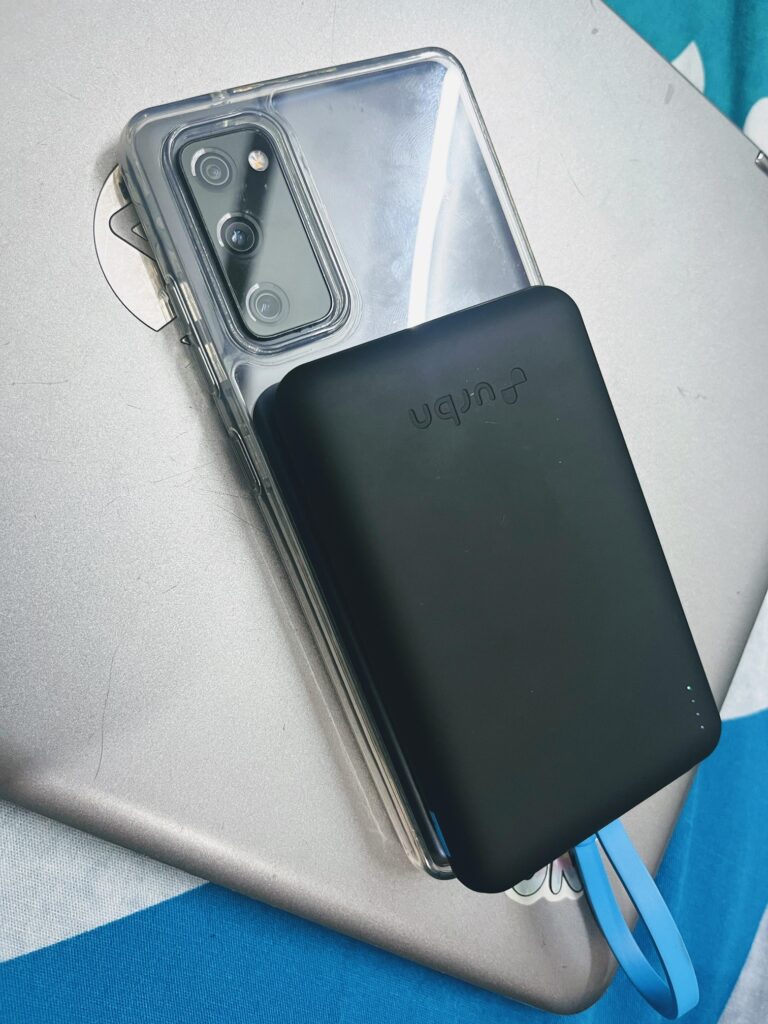
- Carry a portable power bank to recharge on the go.
- Turn off Bluetooth and GPS if not needed to save extra power.
Have you noticed how small setting changes can improve your connection and battery life on the road? What other tweaks have worked for you when pairing a travel router with your Android phone?
Credit: www.mobile-hacker.com
Frequently Asked Questions
Can A Travel Router Connect To Any Android Phone?
Yes, most travel routers are compatible with Android phones. They connect via Wi-Fi, allowing your phone to access shared internet easily.
How Do I Set Up A Travel Router With Android?
Connect your Android phone to the travel router’s Wi-Fi network. Open a browser and follow the router’s setup instructions to configure.
Will A Travel Router Improve Android Phone’s Internet Speed?
A travel router can stabilize your connection but won’t increase your phone’s maximum internet speed. It helps share and manage the network better.
Can A Travel Router Secure My Android Phone’s Internet Connection?
Yes, travel routers often provide enhanced security, including encryption and firewalls, protecting your Android phone from unsecured public Wi-Fi threats.
Conclusion
A travel router can work well with an Android phone. It helps share internet safely and easily. You just need to connect your phone to the router’s Wi-Fi. This can improve your internet speed and security. Travel routers also help when many devices need internet.
They are small and easy to carry. So, using one makes traveling with your Android phone simpler. It keeps you connected without hassle. Try it on your next trip and see the difference yourself.