Struggling with weak WiFi signals in some corners of your home? You’re not alone.
Adding a mesh WiFi system to your existing network can be the game-changer you need for seamless internet everywhere. But how exactly do you connect mesh WiFi to your current setup without losing speed or security? This guide will walk you through simple, clear steps to boost your coverage and keep your devices running smoothly.
Keep reading, and you’ll have a stronger, faster network in no time.
Benefits Of Mesh Wifi
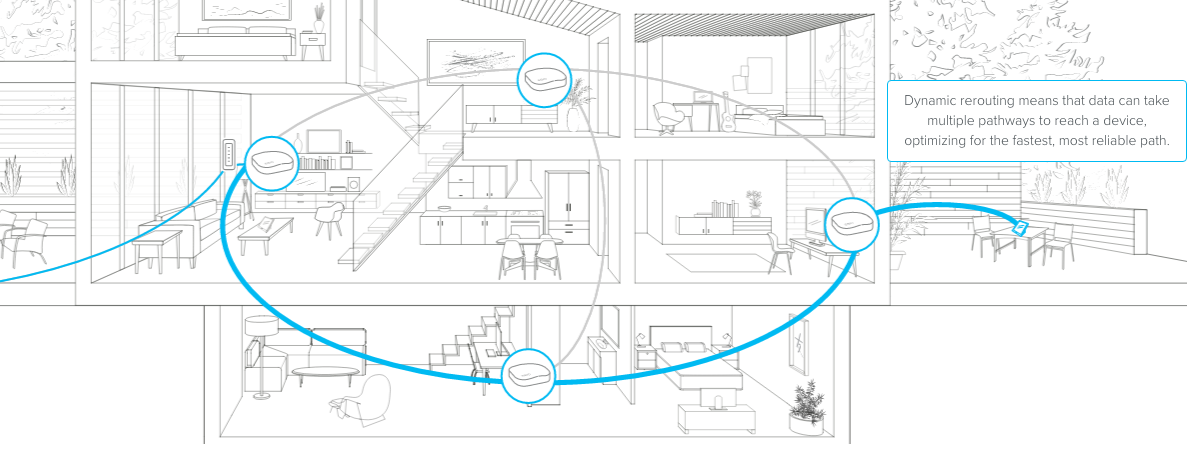
Mesh WiFi offers several advantages over traditional routers. It creates a strong and seamless internet connection across large spaces. This system uses multiple devices, called nodes, to spread WiFi signals evenly. This means fewer dead zones and better coverage.
Mesh WiFi systems are easy to expand. You can add more nodes to cover new areas without complex setup. They also handle many devices connected at once without slowing down. This feature is perfect for homes with many smartphones, laptops, or smart devices.
Improved Wifi Coverage
Mesh WiFi covers every corner of your home or office. It eliminates weak signals and dead zones. Nodes work together to send strong signals everywhere. This ensures fast internet in rooms far from the main router.
Simple Network Management
Mesh systems come with user-friendly apps. These apps help you control your network easily. You can set up parental controls, prioritize devices, and monitor usage. No need for technical skills to manage your WiFi.
Seamless Roaming
Mesh WiFi allows devices to switch nodes automatically. Your connection stays strong while you move around. There is no need to reconnect or enter passwords again. This makes streaming and video calls smooth without interruptions.
Easy Expansion
Adding more nodes is simple and fast. You just plug in a new node and connect it to the network. The system adjusts itself to include the new device. This flexibility helps cover larger homes or offices easily.
Better Device Handling
Mesh networks manage many devices efficiently. They balance the load to avoid slowdowns. This helps maintain strong speeds even during heavy internet use. Ideal for households with multiple users and smart gadgets.
Check Your Current Network
Before adding a mesh WiFi system, it’s crucial to understand your current network setup. This helps avoid compatibility issues and ensures a smooth connection. Taking a moment to check your existing network can save you time and frustration later on.
Identify Router Type
Start by figuring out what kind of router you have. Is it a standalone router, a modem-router combo, or part of a gateway device provided by your ISP?
Knowing this matters because some mesh systems work better with certain routers. For example, if your router has outdated firmware or limited features, you might need to update or replace it before adding mesh nodes.
Look at the label on your device or check your ISP’s account page for details. This quick step can prevent compatibility headaches down the road.
Assess Network Speed
Check your current internet speed to see if your setup meets your needs. Use a speed test app or website while connected to your router.
Compare the results to your internet plan’s advertised speeds. If your speed is much lower, the issue might not be your WiFi but your ISP or hardware limitations.
Understanding your speed helps you decide where to place mesh nodes and if your existing network can handle extra devices without slowing down.
Locate Ethernet Ports
Look for Ethernet ports on your router and where you plan to put mesh nodes. A wired connection between your router and mesh units usually provides the best performance.
Count how many ports you have and consider if you need an Ethernet switch for more connections. Not all mesh systems require Ethernet backhaul, but having this option can improve network stability.
Knowing your port availability also guides you on where to position nodes for optimal coverage without running extra cables later.
Choose The Right Mesh System
Choosing the right mesh WiFi system is key to a smooth network setup. It affects your internet speed, coverage, and device compatibility. Picking a system that fits your home and needs saves time and frustration. Consider your current network and future plans before buying.
Compatibility Considerations
Check if the mesh system works with your existing router. Some systems need specific settings or firmware. Confirm the mesh supports your internet speed and device types. Look for systems that allow easy integration with your current hardware. This avoids conflicts and keeps your network stable.
Coverage Needs
Measure your home size and layout. Large homes or multiple floors need more mesh units. Think about walls and obstacles that block signals. Choose a system with enough nodes to cover all areas. Some kits offer extra units for future expansion.
Budget Options
Mesh systems come in many price ranges. Basic models suit small spaces and light internet use. Higher-end models provide faster speeds and better coverage. Balance your budget with your coverage needs. Look for reliable brands with good reviews within your price range.
Prepare For Installation
Ensure your existing network is active and stable before connecting mesh WiFi. Gather all devices and check compatibility to avoid setup issues.
Preparing for installation is a crucial step when connecting mesh WiFi to an existing network. This phase ensures a seamless setup and optimal performance. Proper preparation saves time and prevents potential issues during the installation process.Update Firmware
Check the latest firmware for your mesh WiFi system. Manufacturers often release updates for improved performance and security. Visit the official website for the most recent version. Download and install any available updates before proceeding. This ensures compatibility and enhances functionality.Gather Required Equipment
Collect all necessary equipment for installation. This typically includes the mesh router, nodes, power adapters, and Ethernet cables. Having everything ready helps avoid interruptions during setup. Keep your current network details handy, such as SSID and password. This information is essential for connecting the new system.Plan Node Placement
Strategize where to place each node for the best coverage. Consider areas with weak WiFi signals or dead zones. Position nodes in central locations for even distribution. Avoid placing nodes near large metal objects or electronic devices. These can interfere with signal strength. Experiment with different placements to find the best setup.Connect Mesh To Existing Router
Connecting your mesh WiFi system to your existing router is key to expanding your network coverage without losing your current setup. This connection lets you maintain your original network’s settings and devices while enjoying stronger WiFi signals throughout your space. Whether you prefer a wired or wireless link, each approach has unique steps to ensure a smooth integration.
Wired Connection Setup
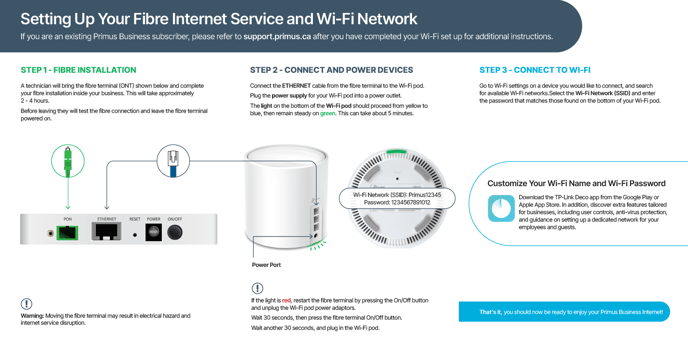
A wired connection between your mesh router and existing router often provides the most reliable and fast network performance. Start by using an Ethernet cable to connect a LAN port on your current router to the WAN or designated mesh port on your mesh unit.
Once connected, power on your mesh device and wait for the indicator lights to stabilize. This physical link reduces interference and often improves speeds, especially in busy or large homes.
Do you have Ethernet ports conveniently placed around your home? If not, consider whether running cables or using powerline adapters might be a practical solution.
Wireless Connection Setup
If running cables isn’t an option, you can connect your mesh system wirelessly. During the mesh setup process, choose the option to extend your existing WiFi network rather than creating a new one.
Your mesh device will scan for your current router’s WiFi signal and ask you to enter the password. Once connected, it acts as a repeater, boosting your network’s range.
Keep in mind that wireless backhaul can be less stable than wired, especially if there are many walls or interference sources between devices. Have you noticed slowdowns or drops in your WiFi before? Wireless mesh connection might require strategic placement to avoid these issues.
Configure Network Settings
After linking your mesh system to the router, adjusting network settings can optimize performance and prevent conflicts. Access the mesh system’s management app or web interface to check IP address ranges and DHCP settings.
Make sure the mesh network’s IP range does not overlap with your existing router’s range to avoid connection conflicts. You might also want to disable the DHCP server on the mesh if your original router handles IP assignments.
Don’t forget to name your WiFi network consistently across all mesh nodes for seamless device roaming. Have you explored your mesh system’s advanced settings? Tweaking features like QoS or guest networks can further improve your experience.
Credit: helpcentre.primus.ca
Optimize Mesh Network Performance
Optimizing your mesh network improves connection speed and coverage. It helps reduce interference and keeps devices connected smoothly. Small adjustments can make a big difference in network performance. Follow these tips to get the best from your mesh WiFi.
Adjust Channel Settings
WiFi signals can overlap and cause interference. Changing the channel reduces this problem. Most mesh systems use 2.4 GHz and 5 GHz bands. Choose channels with less traffic to avoid slow speeds.
- Access your router’s settings through the app or browser.
- Check which channels are crowded using a WiFi analyzer.
- Select a channel with fewer nearby networks.
- Save changes and restart the mesh nodes.
This helps your mesh network work cleaner and faster.
Enable Band Steering
Band steering moves devices to the best frequency band automatically. It balances traffic between 2.4 GHz and 5 GHz bands. This keeps connections stable and fast.
- Open your mesh system’s control panel.
- Look for the band steering option in wireless settings.
- Turn on band steering to let the system manage device connections.
This feature reduces overload on one band and improves overall speed.
Test Signal Strength
Check signal strength at different spots in your home. Strong signals mean better performance. Use your mesh app or a WiFi analyzer tool.
- Walk around with your device and watch signal bars.
- Identify weak areas with low signal strength.
- Move mesh nodes closer to those areas if needed.
- Try repositioning nodes to avoid walls or metal objects.
Strong signals ensure smooth streaming and fast downloads everywhere.
Troubleshooting Common Issues
Troubleshooting common issues helps keep your mesh WiFi working well with your current network. Small problems can cause big disruptions. Knowing how to fix these can save time and frustration.
Start by identifying the problem clearly. Most issues fall into a few categories. Check your setup and settings carefully. Adjustments often restore smooth performance quickly.
Connection Drops
Connection drops happen when devices lose WiFi signal suddenly. This can be due to interference or distance.
- Place mesh nodes closer to each other and to your main router.
- Reduce physical barriers like walls or large furniture.
- Change WiFi channels to avoid interference from other networks.
- Restart your mesh system and router to refresh connections.
Slow Speeds
Slow internet speeds may occur even with a mesh system. This can affect streaming or downloads.
- Check if your internet plan matches your speed needs.
- Limit the number of devices connected at the same time.
- Update your mesh system’s firmware for better performance.
- Run a speed test near each mesh node to find weak spots.
Device Compatibility Problems
Some devices may not connect easily to mesh WiFi. Older gadgets sometimes struggle with newer technology.
- Ensure your devices support the WiFi standards used by the mesh system.
- Restart devices to clear temporary connection issues.
- Forget the network on your device and reconnect manually.
- Check for updates on device software or drivers.

Credit: www.reddit.com
Credit: blog.eero.com
Frequently Asked Questions
How Do I Connect Mesh Wifi To My Existing Router?
To connect mesh WiFi, plug the main mesh unit into your router via Ethernet. Then, follow the mesh system’s app instructions to sync additional nodes. This setup extends your current network seamlessly without changing your existing settings.
Can I Use Mesh Wifi With Any Internet Provider?
Yes, mesh WiFi systems work with most internet providers. They connect to your existing modem or router, improving coverage. Always check compatibility in the product manual to ensure smooth integration with your current setup.
What Is The Best Placement For Mesh Wifi Nodes?
Place nodes centrally and within range of each other. Avoid thick walls or electronic interference. Proper placement ensures strong signals, covering dead zones, and delivering consistent internet speeds throughout your home.
Will Mesh Wifi Affect My Existing Network Settings?
No, mesh WiFi usually retains your existing network settings. It creates a unified network name and password, simplifying device connections. However, some advanced settings might need reconfiguration for optimal performance.
Conclusion
Connecting a mesh WiFi system to your existing network improves coverage easily. Start by placing nodes where signal is weak. Follow setup steps carefully for smooth integration. This approach helps avoid dead zones and slow speeds. Enjoy stronger WiFi throughout your home or office.
Stay connected with simple, reliable network expansion. Mesh WiFi works well with most routers, making setup quick. Keep your devices online without interruptions or complex changes. A better network is possible with clear steps and patience.