Setting up a guest network on your mesh WiFi can make a big difference in how you share your internet with friends, family, or visitors. You want to keep your main network safe while still giving others easy access.
But if you’re unsure where to start or worried it might be complicated, this guide is for you. By the end, you’ll know exactly how to create a secure, separate network that protects your privacy and keeps your connection smooth.
Ready to make your WiFi smarter and safer? Let’s dive in.
Credit: www.mercusys.com
Benefits Of A Guest Network
Setting up a guest network on your mesh WiFi offers several key benefits. It helps protect your main network while giving visitors easy internet access. This setup improves your overall network experience for everyone.
Enhanced Security
A guest network keeps visitors separate from your main devices. It prevents guests from accessing your personal files or smart home gadgets. This separation reduces the risk of hackers spreading malware. Your main network stays safer and more secure.
Improved Network Performance
Guest networks limit how much bandwidth visitors can use. This stops guests from slowing down your main internet connection. Your devices get priority, ensuring smooth streaming and gaming. The network runs faster and more efficiently.
Privacy For Guests
Guests can use the internet without sharing personal info. Their devices stay private, protected from other users on your network. This creates a worry-free browsing experience for visitors. Everyone enjoys privacy and peace of mind.
Preparing Your Mesh Wifi System
Setting up a guest network on your mesh WiFi system starts with some crucial preparation. Taking time to get your system ready can save you from headaches later on. It ensures that your guest network runs smoothly and securely, giving visitors easy internet access without exposing your main network.
Checking Compatibility
Not all mesh WiFi systems support guest networks. Before diving in, check if your device allows setting up a separate guest network. You can usually find this information in the product manual or on the manufacturer’s website.
Different brands have different interfaces and options. Knowing your system’s capabilities helps you avoid frustration. Have you ever tried to set up a feature only to find out it’s not supported? Avoid that by confirming compatibility first.
Updating Firmware
Firmware updates often include important security patches and new features. Your mesh WiFi might not show the guest network option if it’s running outdated firmware. Check for updates through your router’s app or web interface before proceeding.
Updating firmware can be quick but sometimes takes a few minutes. Make sure you have a stable power source to avoid interruptions. If you skip this step, you might miss out on improved performance and security.
Gathering Network Information
Before setting up the guest network, gather essential details about your current network. This includes your main WiFi name (SSID), password, and IP settings if you plan to customize the guest network further.
Having this information ready makes the setup process faster and less confusing. It also helps if you want to restrict guest access to specific devices or services. Are you clear on what network details you currently use? If not, now is a good time to note them down.
Setting Up The Guest Network
Setting up a guest network on your mesh WiFi system is a smart way to keep your main network secure while still offering internet access to visitors. It creates a separate space that limits guests’ access to your personal devices and sensitive data. Let’s walk through how you can easily establish this network and customize it to fit your needs.
Accessing The Router Interface
Start by opening your web browser and typing in the IP address of your mesh router. This is usually something like 192.168.1.1or 192.168.0.1. If you’re unsure, check your router’s manual or the label on the device itself.
Once there, log in using your admin username and password. If you haven’t changed these from the defaults, now is the perfect time for a quick update to boost security. Have you noticed how many people skip this step? It’s a simple change that makes a big difference.
Creating A Guest Network Name
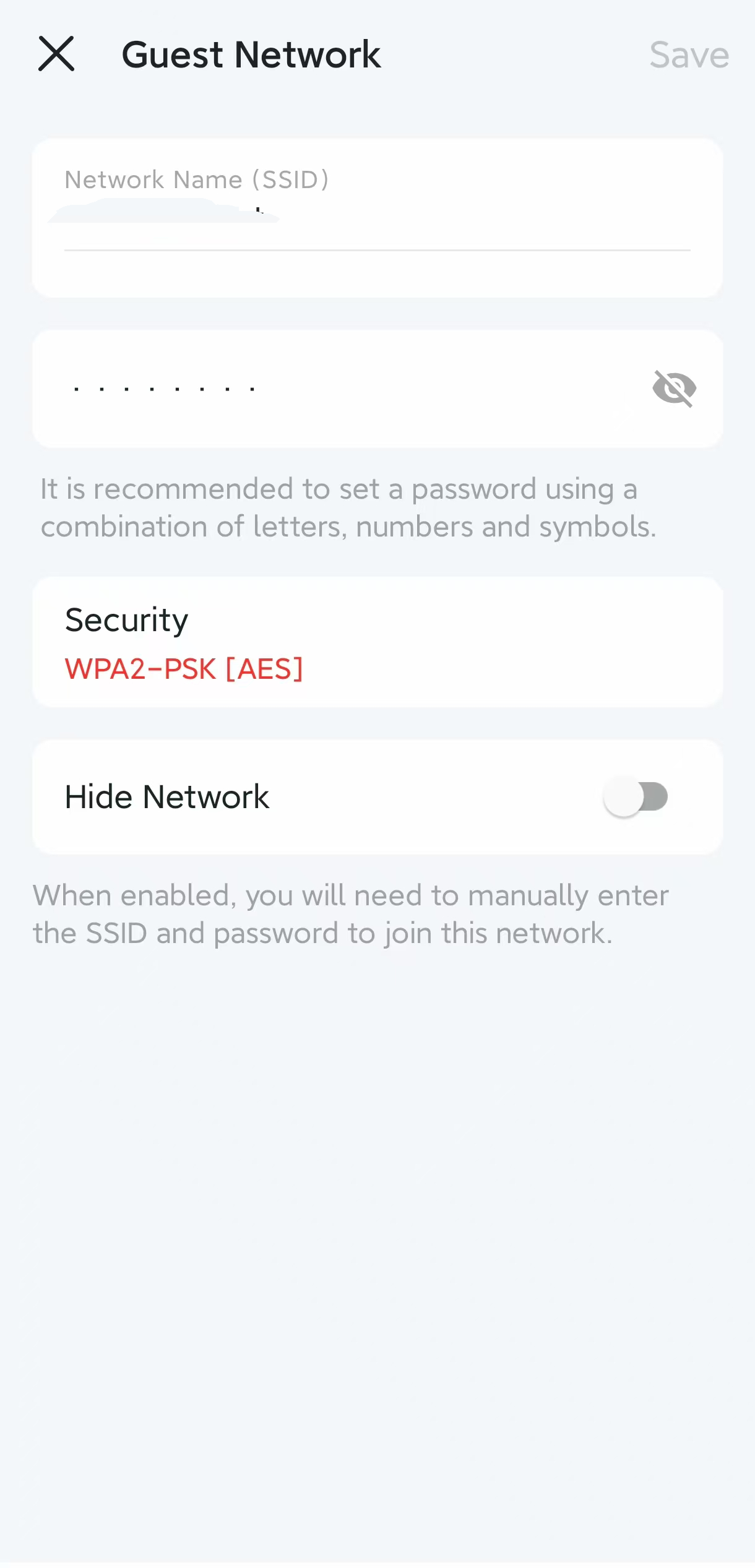
Within the router interface, look for a section labeled “Guest Network” or “Guest Access.” This is where you’ll add a new network name, also called an SSID. Choose a name that’s easy for your guests to find but doesn’t reveal personal info, like “CoffeeHouseGuest” or “SmithFamilyGuest.”
Think about what your visitors would recognize quickly. Avoid using your family name or address to keep things extra safe. You can even use a friendly message or theme to make it more inviting.
Configuring Password And Security Settings
Next, set a strong password that your guests can use to connect. This protects your network from unauthorized users and keeps your bandwidth safe. Aim for a password that’s easy enough to share but complex enough to deter hacking attempts.
Don’t forget to select the right security type—WPA3 is the most secure if your router supports it, otherwise WPA2 is acceptable. Also, consider enabling options like client isolation if your router offers it; this prevents guests from accessing each other’s devices on the network.
Have you ever wondered why some guest networks seem slow or unreliable? Proper security and settings directly impact performance. Taking the time to configure these options will make your guest network both safe and efficient.

Credit: www.reddit.com
Customizing Guest Network Settings
Customizing your guest network settings is essential for control and security. It allows you to manage how guests use your WiFi without compromising your main network. Let’s explore some important customization options.
Setting Bandwidth Limits
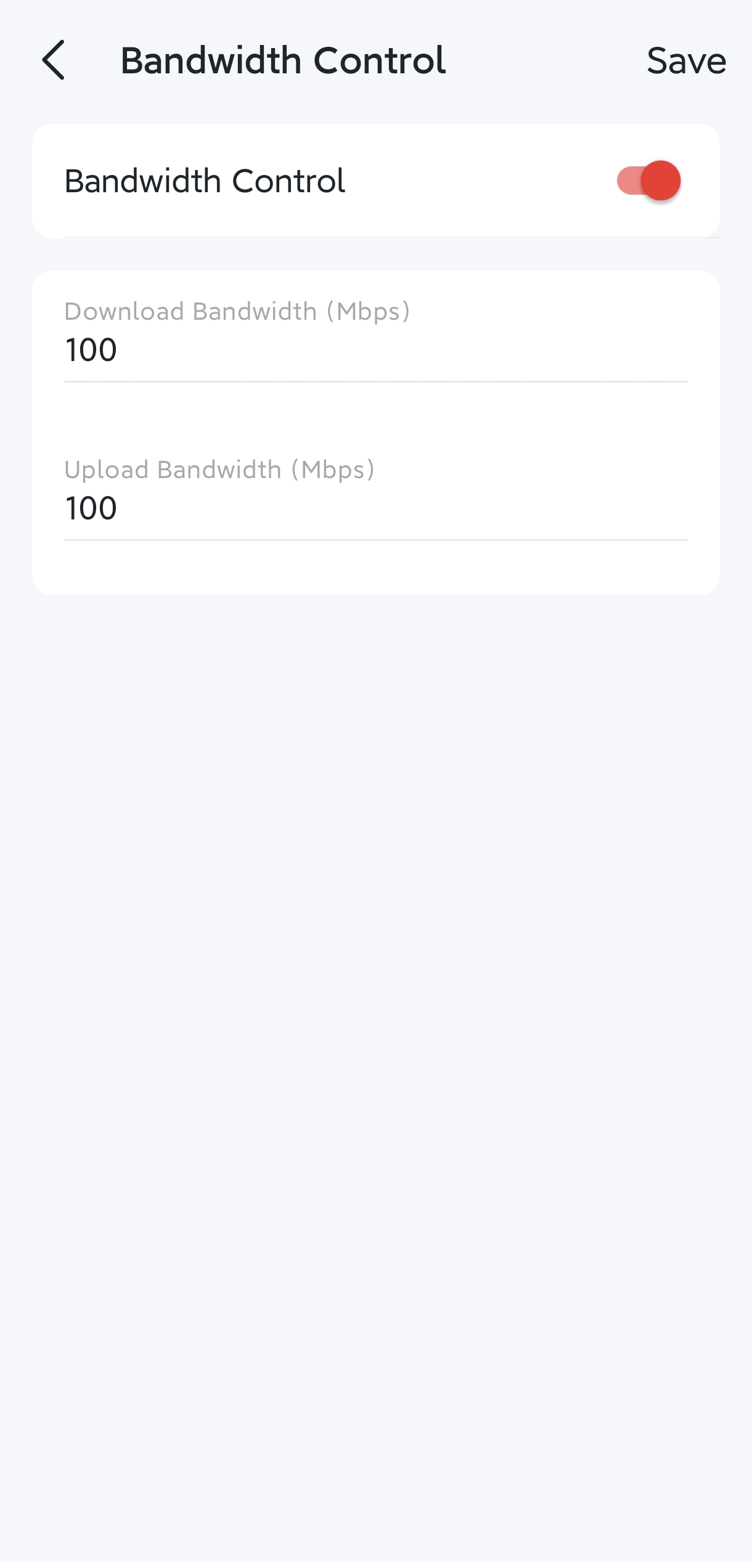
Limit the bandwidth for guest users. This ensures your main network remains fast. Set a maximum speed for downloads and uploads. This prevents any single user from hogging all the bandwidth. Many mesh systems offer easy settings for this.
Enabling Network Isolation
Network isolation protects your main network’s devices. Enable this to keep guest devices separate. This prevents unauthorized access to your main network. It’s a key feature for security. Most mesh systems have a toggle switch for this setting.
Scheduling Guest Access
Control when guests can access your network. Set specific times for guest WiFi availability. This helps conserve bandwidth during peak times. Use your mesh system’s interface to schedule these times. It’s an effective way to manage network usage.
Testing And Managing The Guest Network
Testing and managing your guest network is vital to keep it secure and efficient. After setup, verify that guests can connect easily without affecting your main network. Managing usage helps maintain speed and prevent misuse. Regular checks ensure smooth operation.
Connecting Devices To Guest Network
Find the guest network name (SSID) on your device’s Wi-Fi list. Enter the password you set during setup. Devices should connect quickly without errors. Test with different devices like phones and laptops. Confirm internet access works correctly on each device.
Monitoring Guest Usage
Use your mesh WiFi app or web interface to track guest activity. Check data usage to avoid slowdowns. Look for unusual traffic that might indicate misuse. Set time limits or bandwidth caps if available. This keeps your network fair and responsive.
Troubleshooting Common Issues
Guests can’t connect? Check the network name and password again. Restart your mesh WiFi nodes to refresh connections. Ensure guest network is enabled in settings. Slow speeds? Limit the number of connected devices. Reset the guest network if problems persist.
Credit: www.mercusys.com
Frequently Asked Questions
What Is A Guest Network On Mesh Wifi?
A guest network is a separate WiFi access point for visitors. It protects your main network and devices from unauthorized access. Setting it up on mesh WiFi helps keep your home network secure and improves privacy.
How Do I Enable Guest Network On Mesh Wifi?
Access your mesh WiFi app or admin panel. Locate the guest network option under settings. Enable it, set a unique name and password, then save changes. Your guests can now connect without accessing your main network.
Why Should I Use A Guest Network On Mesh Wifi?
Using a guest network isolates visitors from your personal devices. It enhances security by preventing unauthorized access to your files and devices. It also limits bandwidth usage for guests, maintaining your network’s performance.
Can Guest Networks Limit Internet Speed On Mesh Wifi?
Yes, some mesh systems allow bandwidth control for guest networks. You can set limits to prevent guests from slowing your main network. Check your device’s settings to manage internet speed for guest users efficiently.
Conclusion
Setting up a guest network on your mesh WiFi keeps your main network safe. It also gives visitors easy internet access without sharing your private data. The steps are simple and quick to follow. You control who connects and what they can see.
This small change improves your home or office WiFi experience. Enjoy better security and peace of mind today.