Are you tired of your game freezing at the worst moments? Lag can turn an exciting match into a frustrating experience.
But what if you could fix it? Imagine playing smoothly, reacting faster, and winning more often. You’ll discover simple and effective ways to reduce lag in your online games. These tips are easy to follow and can make a big difference in your gameplay.
Keep reading to unlock a smoother, faster gaming experience that keeps you ahead of the competition.
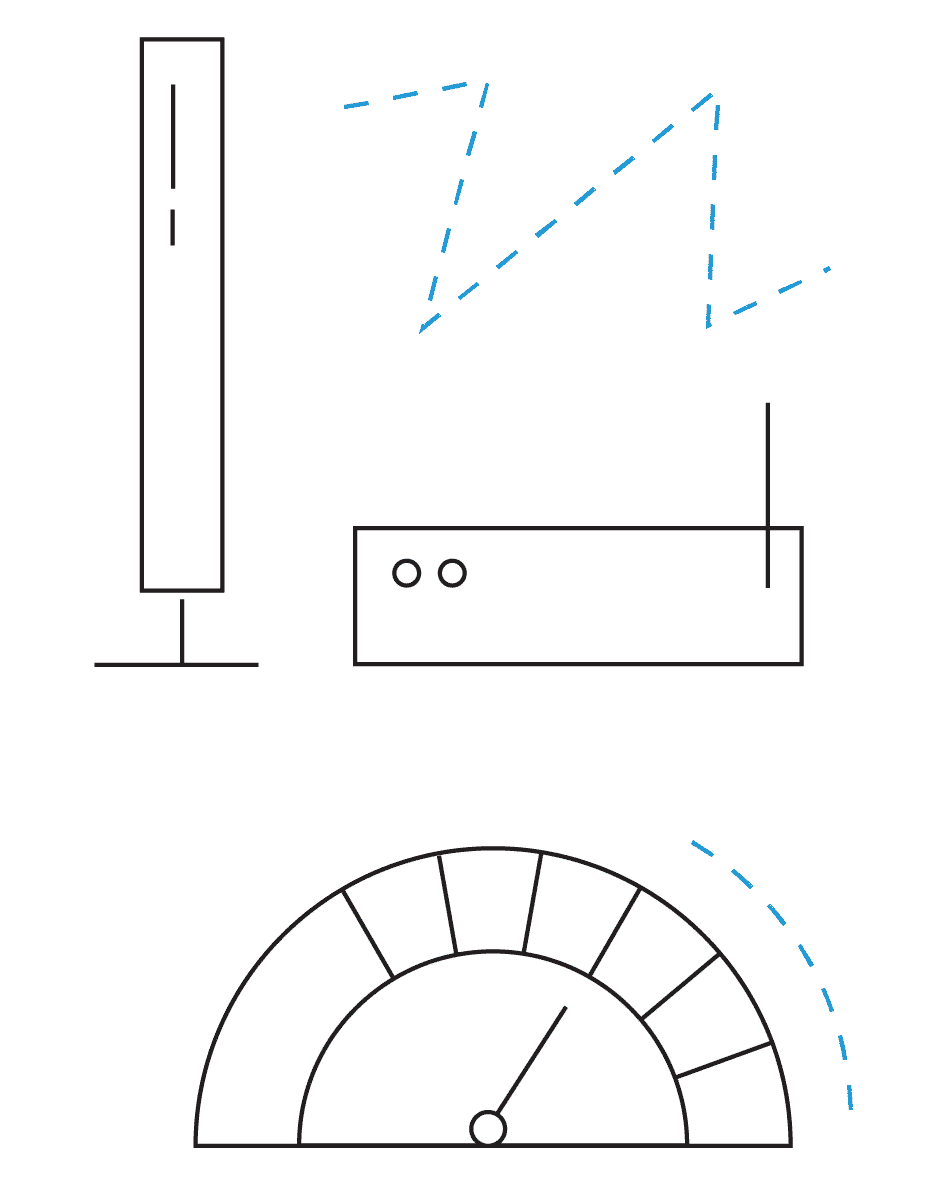
Credit: www.screenbeam.com
Causes Of Lag
Lag in online games happens when there is a delay between your actions and the game’s response. Understanding the causes of lag helps to reduce or fix it. Lag can ruin your gaming experience by making the game slow and unresponsive.
Network Issues
Network problems are a common cause of lag. Slow internet speed or unstable connections increase delay. High latency happens when data takes longer to travel between your device and the game server. Packet loss, where data is lost during transmission, also causes lag. Wi-Fi signals can weaken, especially with many devices connected.
Hardware Limitations
Your computer or console hardware affects game performance. Old or low-end processors and graphics cards may struggle to run games smoothly. Limited RAM can cause the game to freeze or stutter. Overheating hardware can slow down performance as well. Hardware that does not meet the game’s minimum requirements causes lag.
Software Conflicts
Background programs can interfere with your game. Antivirus software or updates may use resources and slow your device. Outdated drivers or game versions can cause compatibility issues. Running many apps at once reduces the power available for gaming. Software bugs and errors may also lead to lag.
Credit: www.gearupbooster.com
Optimize Your Internet Connection
Optimizing your internet connection is a crucial step to reduce lag in online games. Even the most powerful gaming setup can struggle if your connection isn’t stable or fast enough. Improving how your device connects to the internet can dramatically enhance your gaming experience.
Use Wired Connections
Wi-Fi is convenient, but it often introduces latency and interference. A wired Ethernet connection provides a direct link to your router, minimizing packet loss and delays.
I switched from Wi-Fi to Ethernet last year, and the difference was immediate. My ping dropped by nearly 20ms, and game freezes became rare. If you want consistent performance, plug in your device whenever possible.
Choose The Right Isp
Not all internet service providers offer the same speeds or reliability. Look for an ISP with low latency and high upload/download speeds in your area.
Check online reviews and ask fellow gamers about their experiences. Sometimes, a local provider can outperform a big name in your neighborhood. Don’t just chase the highest speed advertised—prioritize stable connections tailored for gaming.
Limit Background Usage
Other devices and apps using your internet can cause lag during gaming sessions. Streaming videos, large downloads, or cloud backups can eat up bandwidth and increase latency.
Pause or schedule these activities when you’re not playing. You can also check your router settings to prioritize gaming traffic, ensuring your game data gets through first. Have you noticed lag drop right after stopping a big download? That’s the impact of background usage.
Improve Your Hardware
Improving your hardware is one of the most effective ways to reduce lag in online games. Lag often happens when your computer struggles to keep up with the game’s demands. Upgrading key components can give your system the power it needs to run games smoothly and respond quickly to your commands.
Upgrade Your Gpu And Cpu
Your graphics processing unit (GPU) and central processing unit (CPU) are the heart of your gaming performance. A powerful GPU handles complex graphics and visuals, reducing stutter and frame drops. Meanwhile, a strong CPU processes game logic and background tasks, ensuring smooth gameplay.
If you notice your game slowing down during intense action or detailed scenes, your GPU might be the bottleneck. Similarly, if your game freezes or lags when many players or objects appear, your CPU could be struggling. Investing in a newer model can drastically improve your gaming experience.
Increase Ram
Random Access Memory (RAM) acts like your system’s short-term memory, holding data your computer needs quick access to. If your RAM is too low, games will struggle to load textures and assets fast enough, causing lag and long load times.
Adding more RAM allows your system to keep more game data ready, which helps maintain a steady frame rate. If you often multitask while gaming, more RAM can also prevent slowdowns. Have you checked how much RAM your game recommends versus what you have?
Use Ssd Storage
Switching from a traditional hard drive (HDD) to a solid-state drive (SSD) can cut down load times significantly. SSDs read and write data much faster than HDDs, which means games start quicker and assets load without delay.
This upgrade won’t directly affect frame rates, but it reduces frustrating pauses and lag spikes caused by slow data streaming. I once swapped to an SSD and noticed my game loaded in half the time, making my gaming sessions more enjoyable right from the start.
Adjust Game Settings
Adjust game settings to reduce lag in online games. Lower graphics quality and resolution for smoother gameplay. Disable background apps to free up resources.
Adjusting game settings can significantly reduce lag in online games. Small tweaks can lead to smoother gameplay. Let’s explore how changing certain settings can help.Lower Graphics Quality
Reducing graphics quality can improve game performance. High graphics require more system resources. Lowering them can free up those resources. Look for settings like “Low” or “Medium” in the graphics menu. This change can make a noticeable difference in lag reduction.Reduce Resolution
Reducing screen resolution can help. Lower resolutions use less processing power. This can lead to faster game response times. Go to the video settings in the game menu. Choose a resolution lower than your current setting. This can enhance game speed without compromising too much on visuals.Disable Unnecessary Features
Some features can be turned off to improve performance. Look for options like shadows or reflections. These can be resource-heavy and cause lag. Disabling them can free up system capabilities. Check the game’s settings for additional features you don’t need. Turning these off can help your game run more smoothly.Update Software And Drivers
Updating software and drivers is essential to reduce lag in online games. Outdated software can cause slow performance and connection issues. Keeping your system and game up to date ensures better speed and stability. It also fixes bugs that might affect gameplay.
Keep Your Os Updated
The operating system controls how your computer works with games. Updates improve security and fix errors that slow down your system. Regular OS updates help your device run games more smoothly. Set your OS to update automatically for best results.
Update Graphics Drivers
Graphics drivers connect your game to the hardware that shows images. Old drivers can cause low frame rates and lag spikes. Check your graphics card maker’s website for the latest drivers. Updating these drivers can improve game visuals and reduce delays.
Patch The Game Regularly
Game developers release patches to fix bugs and improve performance. Running the latest version of a game helps avoid lag caused by software issues. Enable automatic updates or manually check for patches before playing. This keeps your gaming experience smooth and uninterrupted.
Manage Background Processes
Managing background processes plays a key role in reducing lag during online gaming. Many programs run quietly in the background, using up valuable system resources. These hidden tasks can slow down your computer and increase game lag.
By controlling which applications run alongside your game, you free up memory and processing power. This creates a smoother gaming experience and lowers delays. Focus on stopping unnecessary programs to improve your computer’s performance.
Close Unneeded Applications
Many apps run without your notice. They consume CPU power and memory. Close apps like web browsers, chat tools, or music players before gaming. This frees resources for your game. Use the taskbar or system tray to find running apps. Right-click and select “Close” or “Exit” to stop them.
Optimize Startup Programs
Some programs start automatically when your computer boots. These slow down your system and use resources all the time. Disable unnecessary startup apps to speed up your PC. Open the startup settings on your computer. Uncheck or disable programs that are not essential. This makes your computer faster and improves game loading times.
Use Task Manager Effectively
Task Manager shows all running processes and their resource use. Open it by pressing Ctrl + Shift + Esc. Look for apps using high CPU, memory, or disk. Select those not needed during gaming and click “End Task.” Be careful not to close system processes. Use Task Manager to monitor your system’s performance and stop lag sources fast.
Use Network Optimization Tools
Lag can turn an exciting gaming session into a frustrating experience. Using network optimization tools gives you a real edge by improving your connection speed and stability. These tools focus on reducing delays and packet loss, helping you stay competitive and enjoy smoother gameplay.
Gaming Vpns
Gaming VPNs route your internet traffic through specialized servers designed to reduce lag and protect you from DDoS attacks. Unlike regular VPNs, gaming VPNs prioritize low latency and stable connections.
If you’ve ever had sudden spikes in ping, a gaming VPN might smooth out your route to the game server. By avoiding congested internet pathways, it can lower your ping and prevent connection drops.
However, not all VPNs are created equal. Choose one with servers close to your game’s server location and optimized for gaming traffic to see real improvements.
Ping Reducers
Ping reducers work by optimizing the path your data takes to reach the game server. They often use advanced algorithms to find the quickest route, which helps cut down lag.
I tried a ping reducer during a competitive match and noticed a more consistent ping, which made reacting to opponents easier. It’s a small tool, but it can make a big difference in fast-paced games.
Look for ping reducers that offer real-time monitoring so you can adjust settings on the fly and maintain a smooth connection throughout your gameplay.
Qos Settings On Routers
Quality of Service (QoS) settings on your router let you prioritize gaming traffic over other types of internet use. This means your game gets the bandwidth it needs, even if others are streaming or downloading.
Accessing QoS settings might sound technical, but many routers have user-friendly interfaces to help you allocate bandwidth easily. Set your gaming device or the game’s ports as high priority to reduce lag during peak internet use.
Have you checked your router’s QoS settings lately? Adjusting them could be the simple tweak your setup needs to keep lag at bay.
Advanced Troubleshooting
Advanced troubleshooting helps fix lag issues that basic tips cannot solve. This approach digs deeper into your system and network setup. It targets hidden problems affecting your online gaming experience. Follow these steps to improve your gameplay.
Check For Malware
Malware can slow down your device and internet connection. Run a full system scan using trusted antivirus software. Remove any detected threats immediately. Keep your antivirus software updated to catch new malware. This keeps your system clean and running smoothly.
Reset Network Settings
Network misconfigurations often cause lag and connection drops. Resetting network settings restores defaults and clears errors. On Windows, use the Command Prompt to run netsh winsock resetand ipconfig /flushdns. On mobile, reset network settings in system preferences. Restart your device after resetting to apply changes.
Consult Game Forums
Game forums have valuable tips from other players and experts. Search for your game’s official forum or popular community sites. Look for posts about lag and performance issues. Try suggested fixes that match your problem. Share your experience to get advice tailored to your setup.

Credit: www.youtube.com
Frequently Asked Questions
What Causes Lag In Online Games?
Lag is caused by slow internet, high ping, hardware issues, or server problems. It disrupts game performance and responsiveness, leading to delays and poor gameplay experience.
How Can I Improve My Internet Speed For Gaming?
Use a wired Ethernet connection, close background apps, and upgrade your router. Also, choose a faster internet plan to reduce lag and improve game responsiveness.
Does Lowering Game Graphics Reduce Lag?
Yes, lowering graphics settings reduces the strain on your hardware. It helps your system run smoother and decreases lag, especially on older or less powerful devices.
Can Updating Drivers Help Reduce Lag?
Updating your network and graphics drivers ensures optimal performance. It fixes bugs and improves compatibility, which can significantly reduce lag in online games.
Conclusion
Reducing lag makes online games more fun and fair. Check your internet speed often. Close apps that use too much data. Keep your device updated and clean from extra files. Choose game servers close to your location. Use wired connections instead of Wi-Fi when possible.
Small changes can make a big difference in gameplay. Play smoothly, win more, and enjoy every moment. Try these tips to lower lag today.