Is your mesh WiFi acting up just when you need it most? You rely on your network every day, so slow speeds or dropped connections can be frustrating.
But don’t worry—fixing your mesh WiFi is easier than you think. In this guide, you’ll discover simple, effective steps to identify and solve common problems. Keep reading, and you’ll get your WiFi running smoothly again in no time.
Common Mesh Wifi Issues
Mesh WiFi systems offer strong and wide coverage, but issues can still arise. Understanding common problems helps fix them fast. This keeps your network smooth and reliable.
Weak Signal Areas
Some parts of your home may have a weak WiFi signal. Walls, floors, and furniture block signals. Large distances between nodes also reduce strength. Check node placement to cover all rooms evenly.
Device Connectivity Problems
Devices might fail to connect or drop from the network. This happens if devices are too far from nodes. Outdated device software or WiFi settings can cause issues. Restart devices and update their software often.
Slow Internet Speeds
Slow speeds often result from too many devices using the network. Interference from other electronics like microwaves affects speed. Older mesh nodes may also limit performance. Keep nodes updated and reduce device overload.
Frequent Disconnections
Frequent drops interrupt your online activities. Loose cables or power issues may cause this. Firmware bugs in mesh devices can create instability. Reset nodes and check all connections for a steady link.
Basic Troubleshooting Steps
Troubleshooting your mesh WiFi can feel overwhelming at first, but starting with basic steps often resolves most issues quickly. These simple checks help you identify where the problem lies without diving into complicated settings. Let’s look at practical actions you can take right now to get your network running smoothly again.
Restarting Your Mesh System
Restarting your mesh WiFi system is often the quickest fix. Power off all mesh units, wait about 30 seconds, then turn them back on one by one. This refreshes the connection and clears minor glitches that might slow down your network.
Have you noticed faster speeds after a quick reboot? This simple step can save you hours of frustration before you dig deeper.
Checking Device Placement
Where you place your mesh nodes matters more than you might think. Walls, furniture, and even appliances can block signals and reduce coverage.
- Keep nodes in open areas, away from thick walls.
- Place nodes at a similar height for better signal distribution.
- Avoid placing nodes near microwaves or cordless phones that cause interference.
Try moving nodes closer to your high-usage devices and see if the connection improves. Small adjustments often make a big difference.
Verifying Internet Service
Sometimes the issue isn’t your mesh system but your internet service provider (ISP). Check if your modem has a stable connection and if your ISP is experiencing outages in your area.
You can test this by connecting a device directly to the modem with an Ethernet cable. If speeds are still slow or there’s no connection, the problem is likely outside your mesh network.
Have you ever spent hours troubleshooting only to find out the ISP was down? Checking this early saves you time and helps you focus on the right solution.
Optimizing Mesh Node Placement
Optimizing mesh node placement improves your WiFi network’s strength and reach. Proper placement reduces dead zones and boosts signal quality. Small changes in node location can make a big difference.
Focus on where to place nodes, what to avoid, and how to balance coverage with speed. This helps create a smooth and fast connection throughout your home or office.
Ideal Locations For Nodes
Place nodes in open spaces, away from thick walls and metal objects. Higher locations, like shelves, often work best. Keep nodes visible and not hidden inside cabinets or behind furniture.
Position nodes so they cover different areas without overlapping too much. Spread them evenly to reach every corner of your space.
Avoiding Signal Interference
Keep nodes away from devices that cause interference, such as microwaves and cordless phones. Avoid placing nodes near large metal surfaces or mirrors. These objects can weaken or block WiFi signals.
Try to reduce electronic noise by placing nodes in quieter areas. This leads to a cleaner, stronger connection for all devices.
Balancing Coverage And Performance
Nodes should be close enough to communicate but far enough to extend coverage. Avoid placing nodes too close; this wastes signal strength. Too far apart causes weak connections and slow speeds.
Test different spots to find the right balance. Use your mesh system’s app or signal strength tools to check performance. Adjust node positions until you get steady coverage and fast speeds everywhere.

Credit: medium.com
Updating Firmware And Software
Updating firmware and software keeps your mesh WiFi system running smoothly. It fixes bugs and improves connection stability. Regular updates help avoid common network problems and boost overall performance.
Updating the firmware and software of your mesh WiFi system is akin to giving your network a much-needed tune-up. It ensures your devices run smoothly and securely, offering the best performance possible. Just like you wouldn’t ignore a flashing check engine light in your car, keeping your network’s software up-to-date is crucial for optimal functionality.Checking For Firmware Updates
Keeping an eye on firmware updates is simpler than you might think. Most manufacturers provide an option to check for updates directly in the router’s user interface. Log in to your router’s admin panel—usually accessible through a web browser using your router’s IP address—and look for a section labeled “Firmware Update” or “System.” Once there, you can quickly determine if a new version is available. If one is, following the on-screen instructions ensures your router gets the latest features and security patches. Have you ever noticed how your phone seems snappier after an update? Your router can feel the same way after a firmware refresh.Updating Router And App Software
Your mesh system likely comes with a companion app, making updates a breeze. Open the app on your smartphone and navigate to settings. Look for an update option—this could be under “System” or “Device Management.” Once you initiate the update, the process is mostly hands-off. The app will guide you through any necessary steps. Imagine it as your tech-savvy friend walking you through the process over coffee. Regular updates enhance security and performance, so make it a habit to check monthly. Do you set reminders for other maintenance tasks, like oil changes? Consider doing the same for your network. Keeping both your router and app software updated ensures your mesh WiFi operates at its peak, providing you with a seamless browsing experience. Why settle for a sluggish connection when a quick update can supercharge your network?Adjusting Network Settings
Adjusting your mesh WiFi network settings can make a big difference in solving connectivity issues. Sometimes, small tweaks can boost speed and reduce interference without needing extra hardware. Understanding how to change these settings puts control back in your hands and can turn a frustrating experience into a smooth one.
Changing Wifi Channels
WiFi channels are like lanes on a highway; too many devices on the same channel cause traffic jams. Most mesh systems let you manually switch channels to avoid interference from neighbors or other electronics.
Try scanning your environment using apps like WiFi Analyzer to spot the least crowded channels. Switching to a less busy channel can improve your network’s stability and speed. Have you noticed slower WiFi during certain times? It might be time to change the channel.
Enabling Quality Of Service (qos)
Quality of Service prioritizes important internet traffic, so video calls and gaming get the bandwidth they need. This setting is often buried in your router’s dashboard but can be a game-changer for busy households.
Turn on QoS and assign higher priority to apps or devices that matter most to you. For instance, giving priority to your work laptop during the day ensures your Zoom calls won’t drop unexpectedly.
Managing Device Prioritization
Not all devices need equal internet speed. Managing device prioritization helps you decide which gadgets get faster access and which can wait.
Look for the device prioritization option in your mesh WiFi app. Add your streaming TV, gaming console, or work computer to the priority list. This way, your network adapts to your lifestyle and keeps essential devices running smoothly even when many are connected.

Credit: meshwifisetup.com
Advanced Fixes
Advanced fixes help solve tough mesh WiFi issues. These steps improve network stability and coverage. They go beyond basic troubleshooting to boost performance.
Resetting The Mesh Network
Resetting the mesh network clears old settings and errors. It restores the system to default and fixes hidden bugs. Use the reset button on each node or follow the app’s instructions. After reset, set up the network again from scratch.
Expanding With Additional Nodes
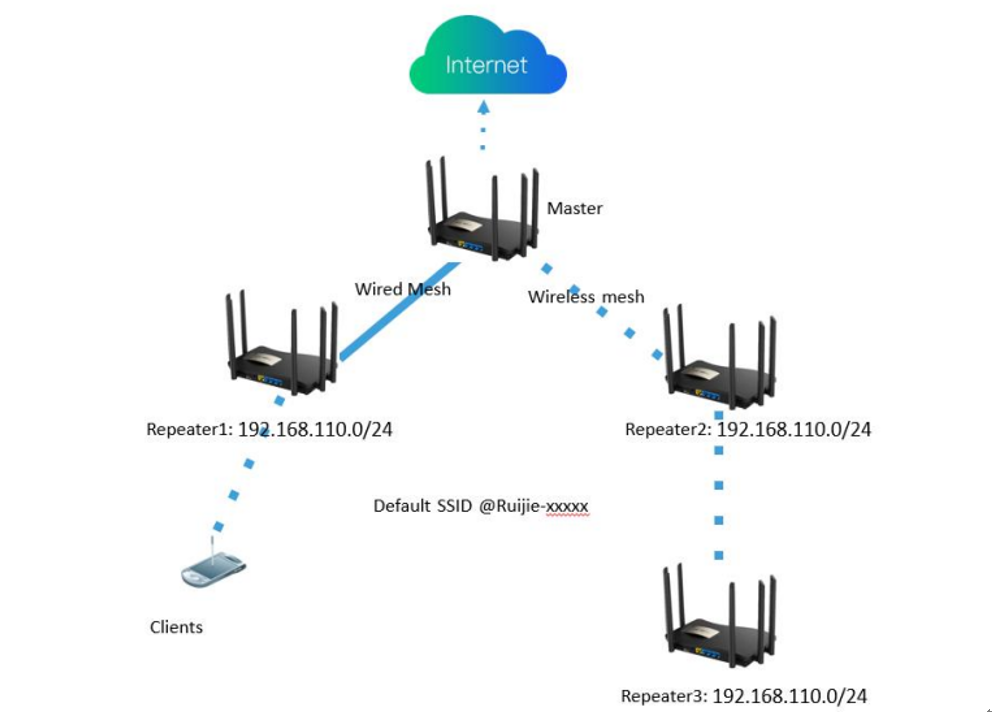
Add more nodes to cover dead zones and large spaces. Place new nodes halfway between the main router and weak signal areas. This ensures strong and consistent WiFi throughout your home. Avoid placing nodes too far apart to keep good connections.
Using Wired Backhaul Connections
Wired backhaul uses Ethernet cables to link mesh nodes. This reduces wireless interference and boosts speed. Connect nodes with cables to improve stability and lower latency. It is ideal for busy networks and large homes with thick walls.
When To Seek Professional Help
Knowing when to seek professional help can save you time and frustration while troubleshooting your mesh WiFi system. If you’ve tried basic fixes but still face issues, it might be time to get expert assistance. Recognizing the signs that point beyond simple troubleshooting is key to restoring your network efficiently.
Identifying Hardware Failures
Hardware problems often cause persistent WiFi issues. If you notice certain nodes in your mesh system won’t power on or frequently disconnect despite resets, these could be signs of hardware failure.
Look for physical damage, unusual heat, or blinking lights that don’t match the user manual’s descriptions. Have you checked cables and power adapters thoroughly? Sometimes, what seems like a network issue is a simple hardware fault.
Consulting Your Internet Provider
Your internet provider can help diagnose problems beyond your mesh system. If your modem’s connection is unstable or speeds are consistently below what you pay for, contacting them is essential.
They can test your line remotely, schedule technician visits, or inform you about outages in your area. Have you ruled out external factors before diving deep into your mesh setup?
Considering Mesh System Replacement
When your mesh network consistently underperforms despite troubleshooting, replacement might be the best option. Technology ages, and older systems may not handle current internet demands or firmware updates effectively.
Think about how long you’ve used your current system and whether newer models offer better coverage and features. Could investing in a new mesh system actually save you headaches in the long run?
Credit: community.ruijie.com
Frequently Asked Questions
How Do I Reset My Mesh Wifi System?
To reset, find the reset button on your mesh device. Press and hold it for 10 seconds. This restores factory settings. After resetting, reconfigure your network using the app or web interface. Resetting often solves connectivity and performance issues quickly.
Why Is My Mesh Wifi Connection Slow?
Slow speeds can result from interference, distance, or outdated firmware. Place nodes closer and avoid obstacles. Update firmware regularly to improve performance. Also, check your internet plan speed and connected devices. Optimizing these factors boosts your mesh WiFi speed.
How To Fix Mesh Wifi Nodes Not Connecting?
Ensure nodes are powered and within range. Restart both main router and nodes. Check for firmware updates. Avoid electronic interference and overcrowded WiFi channels. Re-pair nodes using the app if needed. These steps help restore proper node connections.
Can Mesh Wifi Improve Coverage In Large Homes?
Yes, mesh WiFi extends coverage by using multiple nodes. Place nodes strategically in dead zones. This creates a seamless network with strong signals everywhere. Mesh systems outperform single routers in large or multi-story homes.
Conclusion
Troubleshooting mesh WiFi can solve many common network issues. Start by checking device placement and connection strength. Restart your router and nodes to refresh the network. Make sure your firmware is up to date for best performance. Test your internet speed after each change.
Small steps often fix big problems. Keep your network simple and organized. Reliable WiFi is possible with patience and careful checks. Stay calm and follow these tips to enjoy smooth internet.