Is your mesh WiFi system acting up? Slow connections, dropped signals, or devices not linking properly can be frustrating.
But don’t worry—you can fix many of these problems by simply resetting your mesh WiFi system. In this guide, you’ll learn easy, step-by-step methods to reset your setup and get your network running smoothly again. Keep reading, and you’ll be back online with a stronger, faster connection in no time.
Reasons To Reset Mesh Wifi
Resetting your mesh WiFi system might seem like a simple step, but it can solve a variety of issues you might not expect. Understanding why you should reset your network helps you decide the right moment to act and avoid prolonged frustration. Let’s look at some clear reasons that could make a reset necessary and beneficial for your setup.
Common Connectivity Issues
Have you noticed your devices dropping off the network or struggling to connect? These issues often signal that your mesh WiFi nodes are confused or overloaded. Resetting helps clear any temporary glitches causing slow or intermittent connections.
Sometimes, the mesh system can lose sync between nodes, leading to dead spots or weak signals. A reset forces the system to reconnect all nodes from scratch, restoring smooth and reliable coverage.
Performance Improvement
Even if your connection seems fine, your mesh WiFi might slow down over time due to cached data or outdated settings. Resetting wipes these out and lets your system start fresh, which often improves speed and responsiveness.
Think about how your computer runs faster after a reboot—mesh systems behave similarly. This can be especially noticeable after firmware updates or changes in your network layout.
Security Concerns
Have you recently changed passwords or suspect unauthorized access? Resetting your mesh WiFi can be a quick way to enforce new security settings and kick off any unwelcome devices.
Resetting also removes any unknown custom configurations that could leave your network vulnerable. It’s a good habit to reset after major security changes to ensure your home network stays safe.
Types Of Mesh Wifi Resets
Resetting your mesh WiFi system can solve many common issues like slow connections or lost nodes. However, not all resets are the same. Understanding the different types of resets helps you choose the right approach without losing important settings or data.
Soft Reset
A soft reset is the simplest way to refresh your mesh WiFi system. It usually involves restarting the router or nodes without changing any settings. This can fix minor glitches and improve performance quickly.
You can often perform a soft reset by using the app provided by your mesh system or by unplugging the device for a few seconds. This method keeps your network name, password, and custom settings intact. Have you tried restarting your router before calling tech support? You might be surprised how often this works.
Factory Reset
A factory reset wipes your mesh WiFi system completely clean. It restores the device to the original settings from when you first bought it. This is useful if you want to start fresh or if nothing else solves the problem.
Keep in mind, a factory reset deletes all custom configurations, including your WiFi name and password. You’ll need to set up your network again from scratch. It’s a good idea to back up your settings if your mesh system allows it. Have you ever lost hours of setup work because you didn’t back up?
Router-specific Reset Options
Different mesh WiFi brands offer unique reset options tailored to their hardware. Some routers provide a “partial reset” that clears specific settings like user data or network configurations without erasing everything.
For example, certain models let you reset just the node or the main router independently. Others include a physical reset button or a reset option in their mobile app with different levels of reset. Checking your router’s manual or app can save you time and avoid unnecessary resets.
Have you explored all reset options your router offers? Sometimes, the perfect reset method is just a button press away.
Preparation Before Reset
Before hitting the reset button on your mesh WiFi system, taking a few preparatory steps can save you from unexpected hassles. Resetting wipes out all custom settings, so being ready ensures a smoother recovery. Are you sure you want to lose your personalized configurations without a backup?
Backup Network Settings
Backing up your network settings is crucial. Most mesh WiFi systems offer an option to export your current configuration through their app or web interface. Save this file on your computer or cloud storage so you can quickly restore your network after the reset.
If you’ve set up custom SSIDs, passwords, or parental controls, these will disappear after a reset. Having a backup means you won’t need to reconfigure everything from scratch. It’s like saving a game before a risky move.
Gathering Device Information
Before resetting, note down important details about your mesh devices. This includes model numbers, serial numbers, and the current firmware version. You may need this information for troubleshooting or when contacting customer support.
Also, jot down your current network layout—how many nodes you have and their placement. This helps you set up the network the same way after the reset. Missing this info can leave you guessing during reconfiguration.
Ensuring Power Stability
Power interruptions during a reset can cause serious issues. Make sure all your mesh units are connected to a reliable power source before starting. Avoid resets during storms or when your area experiences frequent outages.
If possible, use a UPS (Uninterruptible Power Supply) to keep the power steady. Have you ever faced a failed reset because the device lost power mid-process? It’s frustrating and often requires professional help to fix.
Step-by-step Reset Process
Resetting your mesh WiFi system can solve many connectivity issues. Whether you’re experiencing slow speeds or frequent dropouts, a reset might help. Follow these simple steps to restore your network to optimal performance.
Soft Reset Procedure
A soft reset is the quickest way to refresh your system. This method clears minor glitches without losing your settings.
- Locate the reset button on your mesh device.
- Press and hold the button for 5 seconds.
- Release the button once the LED light blinks.
- Wait for the device to reboot and reconnect.
Factory Reset Procedure
A factory reset wipes all settings, restoring the device to its original state. Use this method if issues persist after a soft reset.
- Find the reset button on your device.
- Hold the button for 10 seconds.
- Watch for the LED to change color.
- Release the button and wait for the system to reboot.
- Reconfigure your network settings as needed.
Using Mobile App For Reset
Most mesh WiFi systems offer a mobile app for easy management. This app allows you to reset your device with a few taps.
- Open the app on your smartphone.
- Navigate to the settings menu.
- Select the reset option.
- Follow the on-screen instructions to complete the reset.
- Wait for the network to reconnect.
Reconfiguring Your Mesh Network
Reconfiguring your mesh network is a key step after resetting your system. It ensures that all devices communicate smoothly and your home or office enjoys strong, reliable Wi-Fi coverage. Taking time to set up each part correctly can prevent future connectivity issues and improve your overall internet experience.
Setting Up Primary Router
Your primary router acts as the brain of your mesh network. Place it in a central location away from thick walls and electronic interference for better signal distribution.
Power it on and connect it to your modem. Use the mesh system’s app or web interface to complete the initial setup, including naming your network and setting a strong password.
Remember, the primary router handles all internet traffic, so a stable connection here is crucial. Have you checked if your router firmware is up to date? This can fix bugs and improve performance.
Adding Satellite Nodes
Satellite nodes extend your network’s reach to cover dead zones. Place these nodes strategically in areas where the Wi-Fi signal starts to weaken but still receives a decent signal from the primary router.
Use the app or interface to add each node to the network. Follow the prompts to sync them properly, usually by pressing a button on the node or scanning a QR code.
One tip from experience: avoid placing satellites too close to each other. Think about your home’s layout—hallways, floors, and furniture can all affect placement.
Optimizing Network Settings
Once all devices are connected, it’s time to fine-tune settings for the best performance. Adjust channel settings to reduce interference from nearby networks, especially in crowded apartment buildings.
Enable features like band steering, which automatically connects your devices to the best frequency band available. This reduces congestion and speeds up your connection.
Don’t forget to set up parental controls, guest networks, or Quality of Service (QoS) rules if your mesh system supports them. These tools help you manage how bandwidth is used across devices.

Credit: www.youtube.com
Tips To Prevent Future Issues
Preventing future problems with your mesh WiFi system saves time and keeps your connection steady. Simple care steps help maintain strong signals and avoid resets. Focus on key practices that improve your network’s health and performance.
Regular Firmware Updates
Keep your mesh system’s software up to date. Firmware updates fix bugs and improve security. Check for updates in the app or device settings often. Updated software helps avoid glitches and keeps your network stable.
Proper Device Placement
Place mesh nodes in open areas, away from thick walls and metal objects. Avoid spots near microwaves or cordless phones. Good placement reduces interference and strengthens WiFi signals. Spread nodes evenly for better coverage across your home.
Monitoring Network Health
Use the mesh system’s app to check device status and speed. Watch for weak signals or dropped connections. Regular monitoring helps spot issues early. Acting fast prevents bigger problems and keeps your network running smoothly.
Troubleshooting Common Reset Problems
Resetting a mesh WiFi system can solve many network issues. Sometimes, the reset process faces common problems that stop it from working smoothly. Knowing how to fix these issues helps keep your internet stable and fast.
Reset Button Not Responding
The reset button may not work due to dirt or damage. Check if the button is stuck or blocked. Use a small pin to press it gently. Hold the button for the correct time, usually 10 seconds. If it still does not respond, try unplugging the device and plugging it back in. A firmware update might also fix this issue.
Network Not Restoring
After reset, the network may not come back online. Confirm all cables are properly connected. Restart your modem and mesh devices in the right order. Wait several minutes for the system to reboot. Check the device app for setup prompts. Reset again if the network remains down, ensuring the reset was complete.
Device Not Connecting
Devices may fail to connect to the mesh network after reset. Make sure your device is within range of the mesh units. Restart your device’s WiFi or turn airplane mode on and off. Forget the old network and reconnect with the new password. Check for firmware updates on both the device and mesh system.

Credit: www.youtube.com
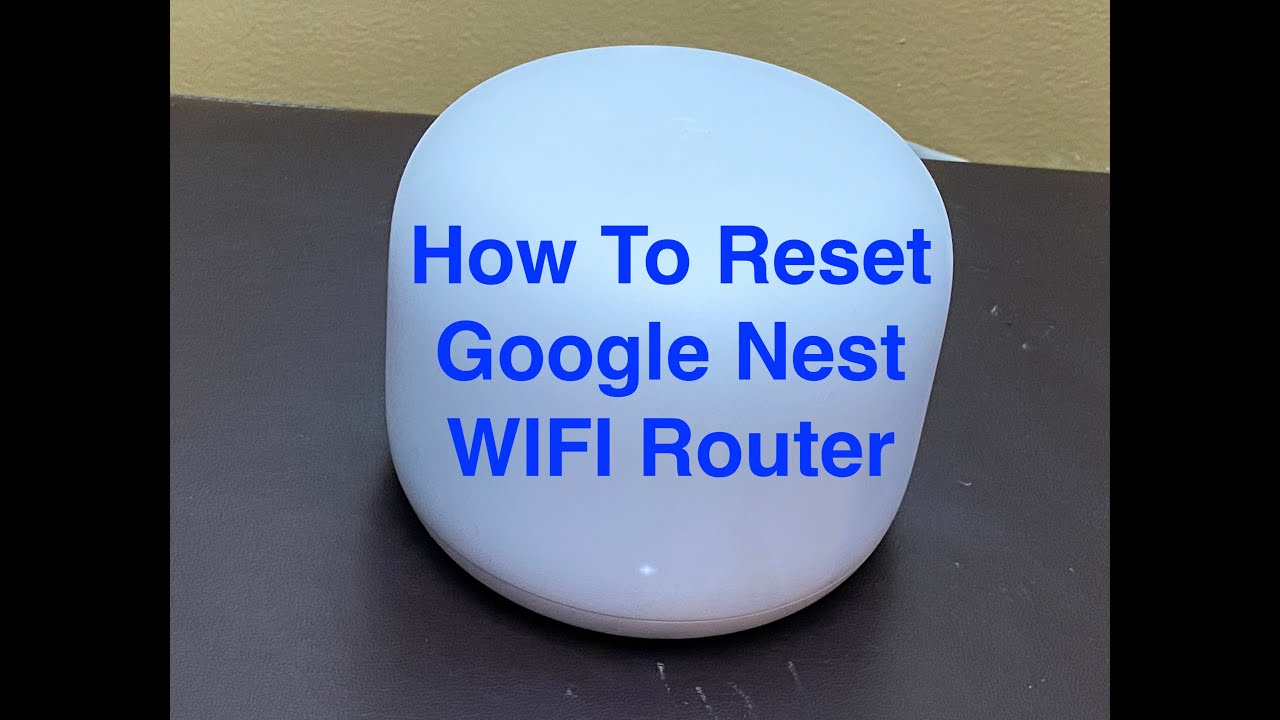
Credit: www.youtube.com
Frequently Asked Questions
How Do I Reset My Mesh Wifi System?
To reset your mesh WiFi, press and hold the reset button on the main unit. Hold it for 10 seconds until the LED blinks. This restores factory settings and clears all configurations.
When Should I Reset My Mesh Wifi System?
Reset your mesh WiFi if you experience connection issues or forget your password. It helps fix bugs and network conflicts. Only reset as a last resort to avoid losing custom settings.
Will Resetting Mesh Wifi Delete My Settings?
Yes, resetting deletes all network settings and passwords. Your mesh units return to default factory state. You must set up your WiFi again after a reset.
How To Reset Mesh Wifi Without Losing Data?
Most mesh systems don’t allow resetting without data loss. You can try restarting or rebooting instead. Resetting always wipes custom configurations and needs a fresh setup.
Conclusion
Resetting your mesh WiFi system can fix many connection problems. Follow the steps carefully for the best results. A quick reset often improves speed and reliability. Keep your system updated and check settings regularly. Remember, a fresh start helps your network work smoothly again.
Stay patient and try resetting if your WiFi acts slow or drops. This simple action can save time and frustration. Your home internet will feel more stable and strong after a reset.