Is your mesh WiFi acting slower than usual or dropping connections? The secret to a faster, more reliable network might be simpler than you think—upgrading your mesh WiFi firmware.
This small update can boost your internet speed, fix bugs, and add new features without any extra cost. But how do you do it safely and effectively? Keep reading, and you’ll learn step-by-step how to upgrade your mesh WiFi firmware, ensuring your home network stays strong and secure.
Don’t let outdated firmware hold your connection back!
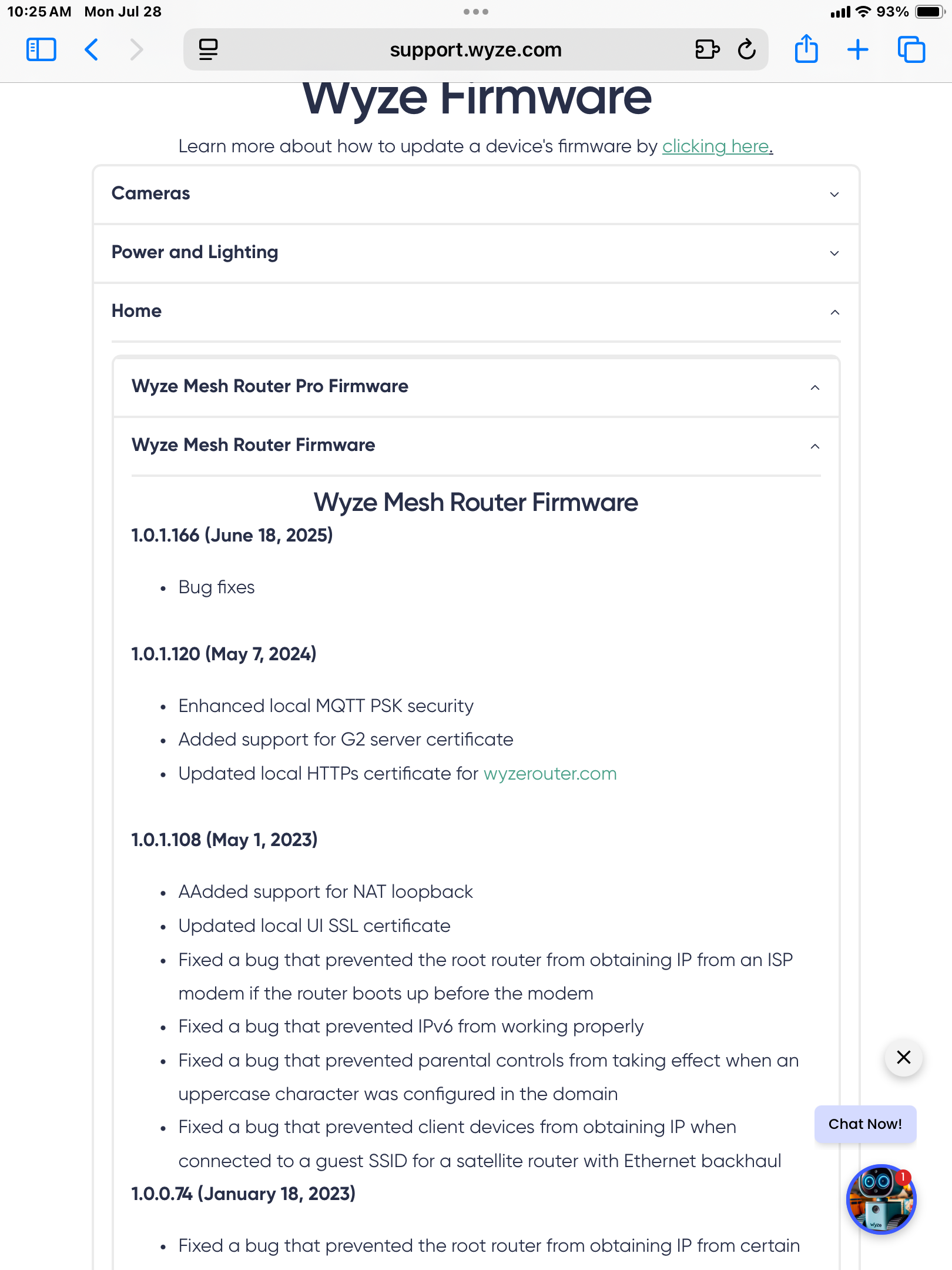
Credit: forums.wyze.com
Why Update Mesh Wifi Firmware
Updating your mesh WiFi firmware is key to keeping your network running smoothly. Firmware updates improve the way your devices communicate and boost overall network health. They also protect your system from new security threats that pop up often. Regular updates help avoid common problems and keep your connection stable at all times.
Improved Speed And Performance
Firmware updates often include tweaks to optimize network speed. Faster data flow means less waiting for pages to load or videos to stream. Updates can fix issues that slow down your WiFi, making your internet experience smoother. Your mesh system can handle more devices without lag after updates.
Enhanced Security Features
New security patches come with firmware updates to block hackers. These updates fix vulnerabilities that could let attackers access your network. Staying updated helps protect your personal data and keeps strangers out. Security improvements reduce risks from malware and other online threats.
Bug Fixes And Stability
Firmware updates address bugs causing crashes or connection drops. Fixing these bugs means your mesh network works more reliably. Updates improve system stability for longer, uninterrupted use. A stable network means fewer frustrations and better productivity.
Credit: www.tp-link.com
Preparing For The Firmware Update
Preparing for a firmware update on your mesh WiFi system is crucial. It helps avoid problems and ensures the update goes smoothly. Taking some simple steps first will protect your settings and keep your network stable.
Follow these key preparations before starting the firmware update process.
Check Current Firmware Version
Find out which firmware version your mesh WiFi is running. This helps you see if an update is needed. Usually, you can check this in the device’s app or web interface.
- Open the mesh WiFi app on your phone or computer.
- Go to the settings or system info section.
- Locate the current firmware version number.
Write down this version for reference. It helps track if the update was successful.
Backup Network Settings
Save your mesh WiFi settings before updating the firmware. This prevents loss of custom setups like passwords and device names. Backup options depend on your device model.
- Look for a backup or export settings option in the app.
- Download the settings file to your computer or cloud storage.
- Keep the backup file safe until the update finishes.
Restoring these settings is easier if the update resets the device.
Ensure Stable Power And Connection
Keep your mesh WiFi powered during the update to avoid interruptions. A power loss can cause serious issues. Connect your main router node to a reliable power source.
- Use an uninterruptible power supply (UPS) if possible.
- Make sure the device stays connected to the internet.
- Perform the update during low network usage times.
This reduces risks and helps the firmware install correctly.
Methods To Upgrade Firmware
Upgrading your mesh WiFi firmware is essential to keep your network secure and running smoothly. There are several ways to perform these updates, each with its own advantages. Understanding these methods helps you choose the best option for your setup and comfort level.
Using The Mobile App
Most mesh WiFi systems come with a dedicated mobile app designed for easy management. You can check for firmware updates directly through the app and install them with just a few taps.
This method is user-friendly and convenient, especially if you prefer managing your network from your phone. Plus, many apps send notifications when new updates are available, so you won’t miss important improvements.
Accessing The Router’s Web Interface
If you want more control, accessing the router’s web interface is a solid option. You simply enter the router’s IP address in your browser, log in, and navigate to the firmware update section.
This approach lets you manually check the current firmware version and upload updates if needed. It may seem technical at first, but it’s a reliable way to manage your network’s firmware if you’re comfortable with basic networking.
Automatic Vs Manual Updates
Do you prefer your firmware to update automatically, or do you like to control the timing yourself? Many mesh systems offer automatic updates, which install new firmware without user intervention.
Automatic updates are great for convenience and security but can occasionally interrupt your network. Manual updates give you control but require you to remember to check for new firmware regularly.
Consider your daily routine and network needs to decide which update style fits best. Have you experienced downtime from unexpected updates? That might influence your choice.
Step-by-step Firmware Update Guide
Updating your mesh WiFi firmware keeps your network secure and fast. Follow simple steps to download, install, and restart your devices smoothly. This guide helps you complete the upgrade without hassle.
Upgrading your mesh WiFi firmware can significantly enhance your network’s performance, stability, and security. This step-by-step guide will walk you through the process of updating your mesh WiFi firmware effortlessly. Whether you’re a tech enthusiast or a beginner, these instructions are tailored to help you navigate the update with confidence and ease.Download The Latest Firmware
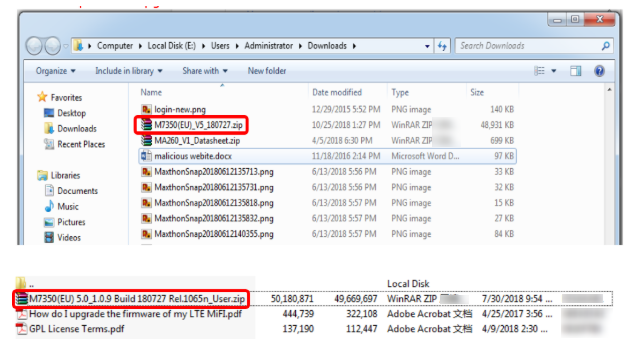
First, ensure you have access to the internet on a device connected to your network. Visit the official website of your mesh router manufacturer. Look for the support or downloads section to find the latest firmware version compatible with your router model. Check the version number to ensure it’s newer than your current firmware. Download the firmware file to your device, and take note of the file location for easy access later.Upload Firmware To The Mesh Router
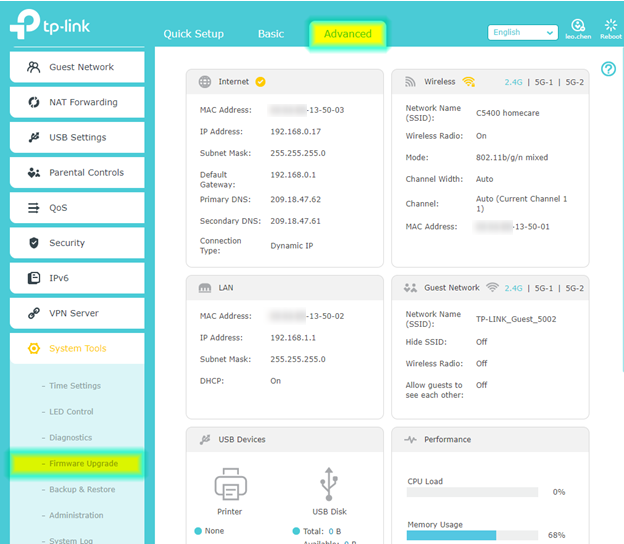
Access your mesh router’s admin panel. Typically, you can do this by entering an IP address like 192.168.1.1 into your web browser. Log in with your admin credentials. Navigate to the firmware update section, often found under “System” or “Maintenance.” Click the upload button and select the firmware file you downloaded earlier. Confirm the upload to initiate the update process.Monitor The Update Process
During the update, your router might restart multiple times. Avoid turning off the power or interrupting the process. Doing so could damage your router. Keep an eye on the progress bar or LED indicators on your router. A stable connection during this phase is crucial to ensure the update completes successfully. This is a great time to grab a coffee or check your emails.Restart And Verify The Update
Once the update completes, your router should restart automatically. If it doesn’t, reboot it manually. Log back into the admin panel to verify that the firmware version matches the one you downloaded. Test your network by connecting a few devices and observing the performance. Has the range improved? Are devices connecting faster? These are good signs that the update was successful. Remember, updating firmware not only optimizes performance but also secures your network against potential vulnerabilities. Have you updated your mesh WiFi firmware recently? If not, now’s the perfect time to do so.Troubleshooting Firmware Update Issues
Updating the firmware of your mesh WiFi system keeps it secure and efficient. Sometimes, updates do not go as planned. Troubleshooting helps fix these problems quickly. Understanding common issues saves time and frustration.
Update Failure Solutions
Firmware update failure happens for many reasons. Check your internet connection first. A weak connection can stop the update process.
- Restart your router and try the update again.
- Ensure the device has enough power or is plugged in.
- Disable any VPN or firewall temporarily during the update.
- Download the firmware file manually from the official site if needed.
- Use the mesh system’s app or web interface for the update.
If the update still fails, wait a few minutes and retry. Sometimes servers are busy or slow.
Dealing With Connectivity Drops
Connectivity may drop after a firmware update. This can be due to temporary bugs or settings changes.
- Restart all mesh units to refresh connections.
- Check for new firmware patches that fix issues.
- Move mesh nodes closer together to improve signal.
- Reduce interference by placing devices away from walls or electronics.
Test your connection after each step to find what works best.
Resetting The Mesh System
Resetting the mesh system can fix persistent problems. Use reset as a last resort after other steps.
- Perform a soft reset through the app or web interface first.
- If issues remain, do a factory reset by pressing the reset button.
- Note that factory reset deletes all settings and customizations.
- Reconfigure your network after the reset completes.
Resetting often restores normal function and clears update errors.
Credit: www.tp-link.com
Maximizing Speed After Update
Updating your mesh WiFi firmware is a crucial step, but it’s only the beginning. To truly experience faster and more reliable internet, you need to fine-tune your setup after the update. Small adjustments can make a big difference in how your network performs.
Optimizing Router Placement
The location of your mesh routers plays a huge role in speed. Place the main router near the center of your home to evenly distribute the signal. Avoid hiding routers behind furniture or inside cabinets, as walls and objects weaken the signal.
Try to keep routers away from electronic devices that cause interference, like microwaves or cordless phones. I once moved a router from a crowded shelf to an open table, and the speed boost was noticeable immediately. Have you checked your router spots lately?
Adjusting Network Settings
After updating firmware, check your router’s settings. Enable features like Quality of Service (QoS) to prioritize important devices or applications. This helps reduce lag during video calls or gaming.
Switching to less crowded WiFi channels can also improve speed. Use apps or built-in tools to scan for the best channel. Don’t forget to enable both 2.4 GHz and 5 GHz bands if your mesh supports them—5 GHz offers faster speeds but shorter range.
Regular Firmware Maintenance
Keeping your firmware updated is not a one-time task. Regular updates patch security flaws and improve performance. Set a reminder to check for new firmware every few months.
Some mesh systems allow automatic updates—turn this on if available. Ignoring updates means missing out on optimizations that could enhance your speed and stability. Are you keeping your network’s software fresh?
Frequently Asked Questions
How Do I Check My Mesh Wifi Firmware Version?
You can check the firmware version via the mesh router’s app or web interface. Look for “About” or “Firmware” sections. This helps ensure you download the correct update for your device model.
Why Is Updating Mesh Wifi Firmware Important?
Firmware updates improve security, fix bugs, and boost performance. They ensure your mesh network runs smoothly and safely. Regular updates also add new features and enhance device compatibility.
Can I Update Mesh Wifi Firmware Automatically?
Many mesh systems offer automatic updates. Enable this feature in your router’s app or settings. Automatic updates keep your network secure without manual intervention.
What Should I Do Before Upgrading Firmware?
Back up your network settings and ensure stable power and internet. Avoid interruptions during the update to prevent device issues or failures.
Conclusion
Upgrading your mesh WiFi firmware keeps your network safe and fast. It fixes bugs and adds new features. Regular updates improve your internet experience at home. Check your device settings often to find updates. Follow the simple steps to install them right away.
Don’t ignore notifications about firmware upgrades. Stay connected with a smooth and reliable WiFi signal. Taking a few minutes now saves future problems later. Enjoy better coverage and stronger connections all around.