Are you struggling to connect your smart devices to your mesh WiFi system? You’re not alone.
It can be confusing to get everything working smoothly, especially when your devices keep dropping off the network or won’t connect at all. But don’t worry—this guide will walk you through simple steps to link your smart gadgets to your mesh WiFi without frustration.
By the end, you’ll enjoy a faster, more reliable connection that keeps all your devices running perfectly. Ready to make your smart home truly smart? Let’s dive in.
Benefits Of Mesh Wifi
Mesh WiFi offers more than just internet access; it transforms the way your smart devices communicate with each other and the web. If you’ve struggled with dead zones or slow connections in your home, mesh WiFi could be the change you need. Let’s look at the key benefits that make mesh WiFi a smart choice for connecting your devices.
Improved Coverage
One of the biggest advantages of mesh WiFi is its ability to cover every corner of your home. Unlike traditional routers that rely on a single point of transmission, mesh systems use multiple nodes placed around your house.
This setup means you can walk from your living room to the backyard without losing signal. Have you ever noticed how your smart thermostat or security camera struggles to stay connected at the edge of your home? Mesh WiFi solves that by expanding coverage evenly.
Seamless Connectivity
Mesh WiFi creates a single network name for all nodes, so your devices switch smoothly between nodes without dropping the connection. This seamless handoff is crucial when you’re moving around with a smart speaker or streaming on a tablet.
Imagine watching a video on your phone while moving from the kitchen to the garage. Mesh systems keep your connection stable, avoiding frustrating pauses or buffering. This means your smart devices stay online and responsive, no matter where you are.
Enhanced Network Speed
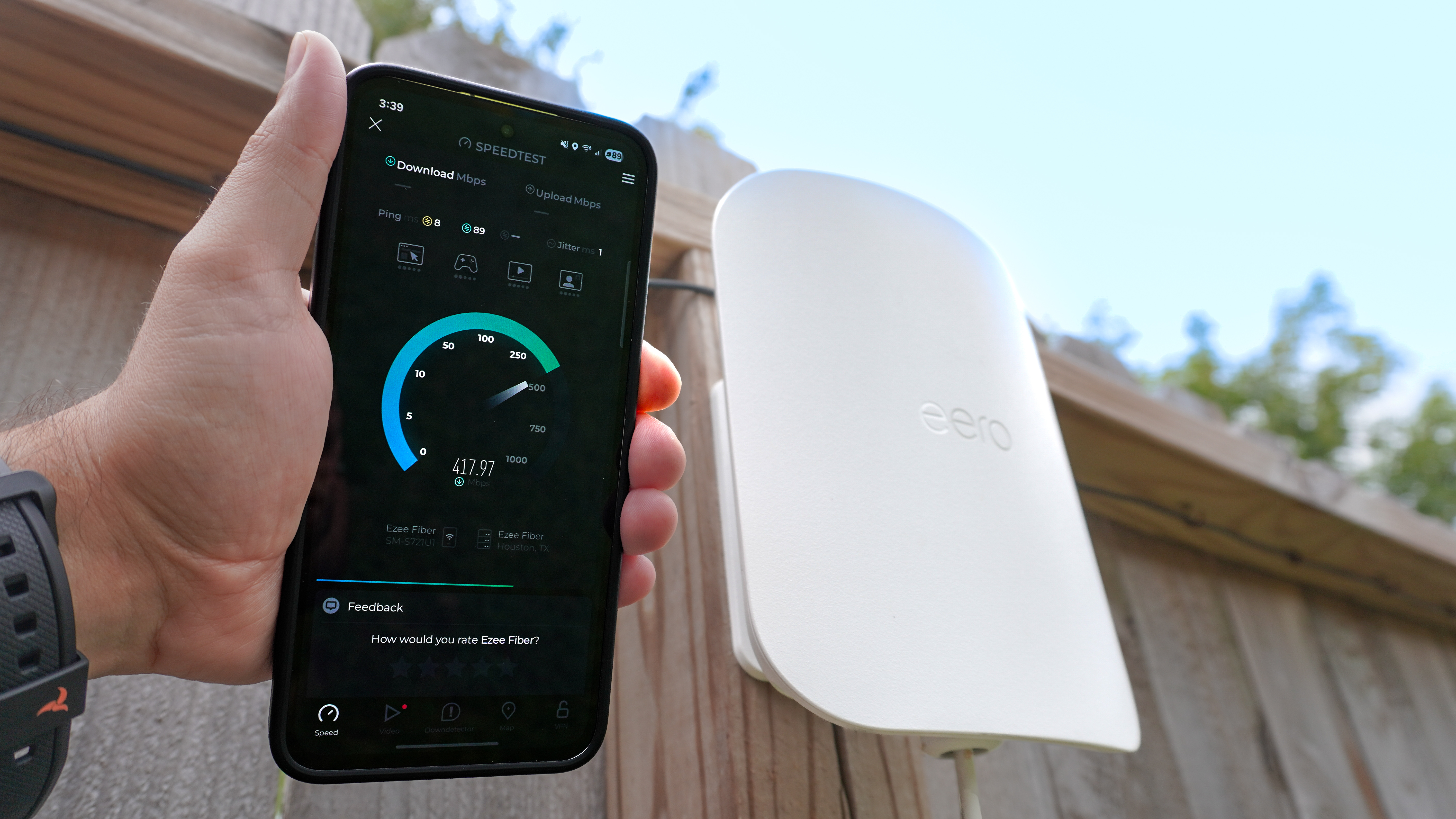
With multiple nodes sharing the network load, mesh WiFi can deliver faster speeds than a single router, especially in larger homes. This means your smart devices can communicate and download updates more quickly.
Think about how much smoother your video calls or smart home controls feel when the network isn’t congested. If you have many devices connected at once—like smart lights, cameras, and voice assistants—mesh WiFi helps maintain top performance without slowing down.
Credit: www.tomsguide.com
Preparing Your Mesh Network
Preparing your mesh network is essential before connecting your smart devices. A well-prepared network ensures strong signals and smooth communication between devices. Take time to plan and set up carefully. This helps avoid connection issues later.
Choosing The Right Mesh System
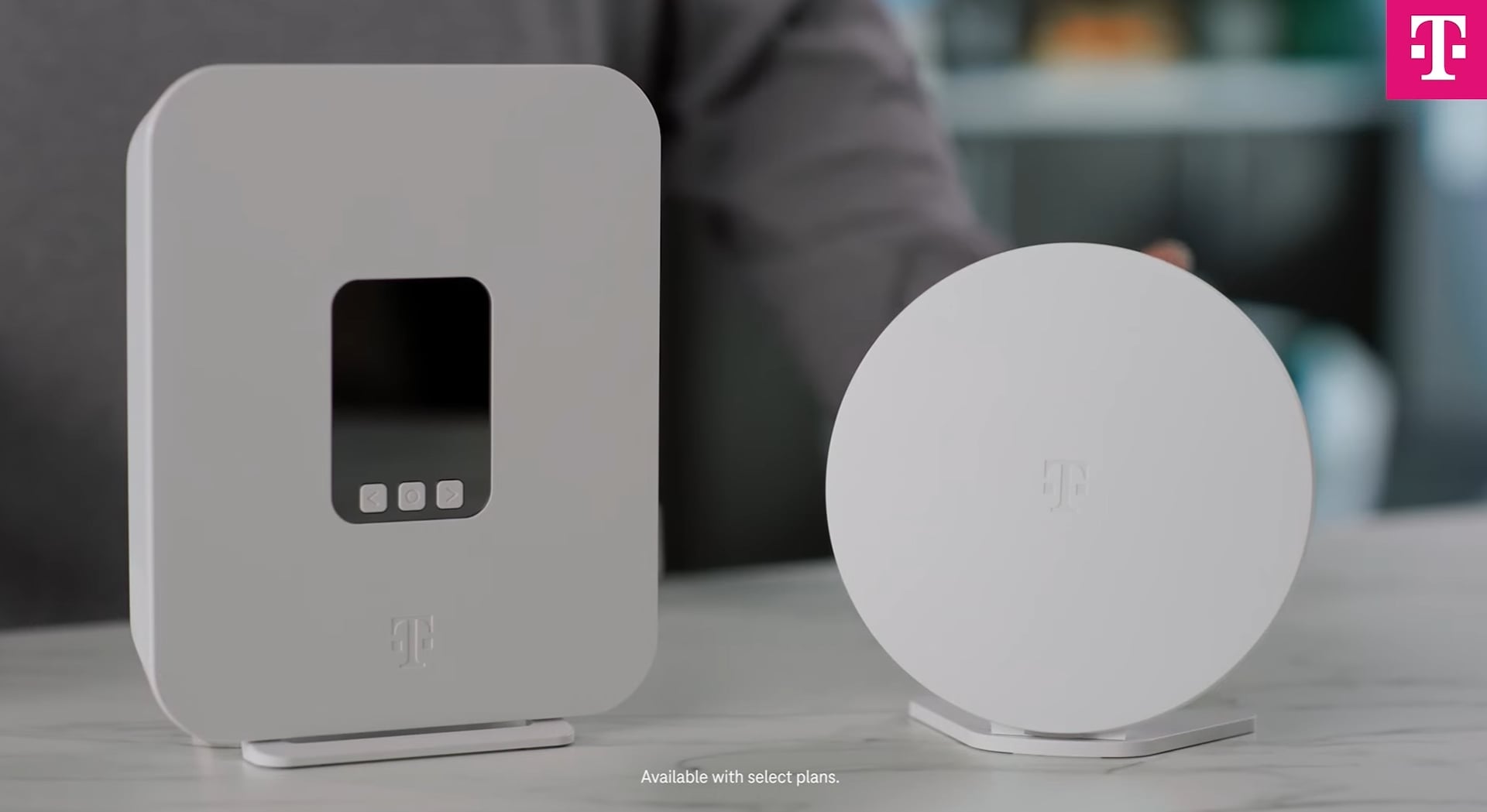
Select a mesh system that fits your home size and device needs. Check the coverage area each system offers. Match it with your home layout. Look for systems with easy setup and good app support. Consider the number of devices the system can handle. Pick one that supports fast internet speeds and latest Wi-Fi standards.
Setting Up The Main Router
Place the main router near your modem. Connect it directly with an Ethernet cable. Power on the router and follow the setup instructions. Use the app or web interface to create your network name and password. Update the router firmware to the latest version for security. Restart the router after setup to apply all changes.
Placing Satellite Nodes
Satellite nodes extend your mesh network’s coverage. Place them in open areas, away from thick walls. Keep them within range of the main router or other nodes. Avoid placing nodes near microwaves or cordless phones. Test signal strength using the mesh app. Adjust node positions for the best connection. Proper placement prevents dead zones and boosts overall network speed.
Connecting Smart Devices
Connecting your smart devices to a mesh WiFi network can dramatically improve your home’s connectivity and device performance. Each device needs to link correctly to the mesh system to enjoy seamless internet coverage. Let’s dive into how you can make this connection process smooth and hassle-free.
Locating Device Wifi Settings
Start by accessing your smart device’s WiFi settings. On most devices, this is found in the settings menu under “Network” or “WiFi.”
Look for the option that lists available WiFi networks. This is where you’ll find your mesh network name, often labeled with a recognizable SSID.
If your device uses an app for setup, open it and follow the prompts to reach the WiFi configuration screen. This step is crucial as some smart devices don’t show WiFi options directly and rely on their apps.
Joining The Mesh Network
Select your mesh WiFi network from the available list. Enter the password carefully—case sensitivity matters.
Once connected, your device will usually confirm the connection with a notification or a status change. Some devices might blink an LED or show a message on the screen.
It’s a good idea to test the connection immediately by using the device or checking its app to verify internet access. This quick check saves time troubleshooting later.
Troubleshooting Connection Issues
If your device doesn’t connect, first double-check the password. Incorrect passwords are the most common cause of connection failure.
Move closer to a mesh node to improve signal strength. Walls and distance can weaken the WiFi signal, especially during initial setup.
Restart both your smart device and the mesh router nodes. A simple reboot often resolves temporary glitches.
If problems persist, reset your smart device’s network settings and try again. Sometimes, clearing old network data helps establish a fresh connection.
Have you noticed certain devices consistently struggle to connect? This might be a clue to update firmware or check compatibility with your mesh system.
Optimizing Device Performance
Connecting smart devices to mesh WiFi improves signal strength and reduces dead zones. This helps devices work faster and stay connected longer. Simple setup steps ensure smooth performance across all your devices.
Optimizing device performance is crucial for a seamless smart home experience. Mesh WiFi networks provide the foundation, but fine-tuning enhances efficiency. Focus on key areas to ensure devices run smoothly.Updating Firmware
Ensure devices have the latest firmware updates. Manufacturers release updates to fix bugs and improve performance. Check device settings or companion apps for update notifications. Set automatic updates if available. This keeps your devices running at their best.Managing Device Priorities
Prioritize essential devices on your network. Most mesh systems allow you to allocate bandwidth. Assign more bandwidth to critical devices like smart speakers or security cameras. This ensures they perform well even during high traffic times. Use the mesh app to manage these settings.Using Network Security Features
Secure your network to protect device performance. Enable WPA3 encryption for enhanced security. Regularly change your WiFi password. Use guest networks for visitors. This prevents unauthorized access and keeps your main network efficient. Check your mesh system’s security features and activate them.Common Problems And Fixes
Connecting your smart devices to a mesh WiFi system often seems straightforward, but many users face common issues that can disrupt the experience. Understanding these problems and knowing how to fix them can save you time and frustration. Let’s dive into some typical challenges and practical solutions.
Connection Drops
Frequent disconnections can be a real headache, especially when streaming or working from home. One common cause is the distance between your device and the nearest mesh node. Try moving closer to a node or adding an extra node to cover dead zones.
Interference from other electronics like microwaves or cordless phones can also interrupt your connection. Changing your WiFi channel in the mesh router settings often helps. Have you checked if firmware updates are available? Outdated software can cause instability, so keeping your mesh system updated is key.
Slow Speeds
Is your smart device lagging despite being near a mesh node? This issue often arises from network congestion. Multiple devices streaming or downloading at the same time can slow down your speeds.
Prioritize devices or applications through your mesh system’s Quality of Service (QoS) settings. Another trick is to connect bandwidth-heavy devices via Ethernet if possible, freeing up wireless capacity. Also, test your internet speed directly on the mesh router to confirm if the problem is with your ISP or your home network.
Device Compatibility
Not all smart devices work seamlessly with every mesh WiFi system. Some older gadgets may only support 2.4 GHz networks, while many mesh systems default to 5 GHz for better performance.
Check your device’s specifications and ensure your mesh network broadcasts both frequencies. Sometimes, enabling a “legacy” or “mixed” mode in the mesh settings makes a big difference. If a device consistently fails to connect, look for firmware updates or contact the manufacturer for mesh compatibility advice.

Credit: www.youtube.com
Credit: www.t-mobile.com
Frequently Asked Questions
How Do I Connect Smart Devices To Mesh Wifi?
To connect smart devices, ensure your mesh WiFi is set up and working. Then, use the device’s app or settings to scan for WiFi networks. Select your mesh network and enter the password. The device will connect automatically once authenticated.
Can All Smart Devices Work With Mesh Wifi?
Most smart devices support mesh WiFi as they use standard WiFi protocols. However, some older devices may face compatibility issues. Always check the device specifications for WiFi standards like 802. 11ac or 802. 11ax to ensure seamless connection to mesh networks.
Why Does My Smart Device Lose Connection On Mesh Wifi?
Connection drops can happen due to weak signals, interference, or firmware issues. Place mesh nodes strategically for better coverage. Keep your smart devices and mesh system firmware updated. Also, avoid placing nodes near thick walls or electronic appliances that cause interference.
How Do I Improve Smart Device Connectivity On Mesh Wifi?
Improve connectivity by placing mesh nodes closer to your smart devices. Use the mesh system’s app to monitor signal strength and optimize node placement. Reduce interference by avoiding physical obstacles and electronic devices between nodes and smart gadgets.
Conclusion
Connecting smart devices to mesh WiFi makes your home smarter and faster. It helps devices work smoothly without losing signal. Start by checking your device compatibility with the mesh system. Follow simple steps to add each device to the network.
Keep your network secure with strong passwords. Enjoy better coverage and fewer connection drops. This way, all your smart gadgets stay online and ready to use. A reliable mesh WiFi system brings convenience to everyday life. Easy setup leads to a connected home that just works.