Sharing your mesh WiFi password might seem simple, but doing it the right way can save you time and keep your network secure. Whether you have guests over or want to connect a new device, knowing how to share your mesh WiFi password easily and safely is key.
You’ll discover quick steps and smart tips to share your password without any hassle. Stick with me, and you’ll never struggle with confusing setups or security worries again. Ready to make your WiFi sharing smooth and secure? Let’s dive in!
Credit: community.ruijie.com
Mesh Wifi Basics
Understanding Mesh Wifi basics helps you manage your home network better. Mesh Wifi improves internet coverage by using multiple devices. These devices work together to send a strong signal everywhere in your home. The system is easy to set up and manage, making it popular for many households.
What Is Mesh Wifi
Mesh Wifi is a type of wireless network. It uses several nodes or devices placed around your home. Each node sends and receives internet signals. This creates one large, seamless network. Your device connects to the closest node for the best signal. No need to switch networks manually as you move around.
Benefits Over Traditional Wifi
- Stronger signal in every room.
- No dead zones or weak spots.
- Easy to expand by adding more nodes.
- Simple to manage with a mobile app.
- Better for large homes or buildings.
Locate Your Mesh Wifi Password
Locating your mesh WiFi password is essential for sharing internet access. It helps you connect new devices or share access with friends and family. There are simple ways to find this password using your router or app. Follow these steps to locate the password easily.
Check Router Label
Most mesh routers have a label on the device itself. Look at the back or bottom of the router. The label usually shows the default network name (SSID) and password. This is the easiest way to find the password without logging into any system.
Note that this password is the default one. If you changed it before, this label might not work.
Use Mobile App
Many mesh WiFi systems come with a mobile app. Download the app from the App Store or Google Play. Open the app and connect to your mesh network.
Look for a section like “Network Settings” or “WiFi Password.” The app will display your current password. You can also change it here if needed.
Access Router Settings
Accessing router settings gives full control of your network. Open a web browser and type your router’s IP address. Common addresses are 192.168.1.1 or 192.168.0.1.
Log in using the admin username and password. These details might be on the router label or in your manual.
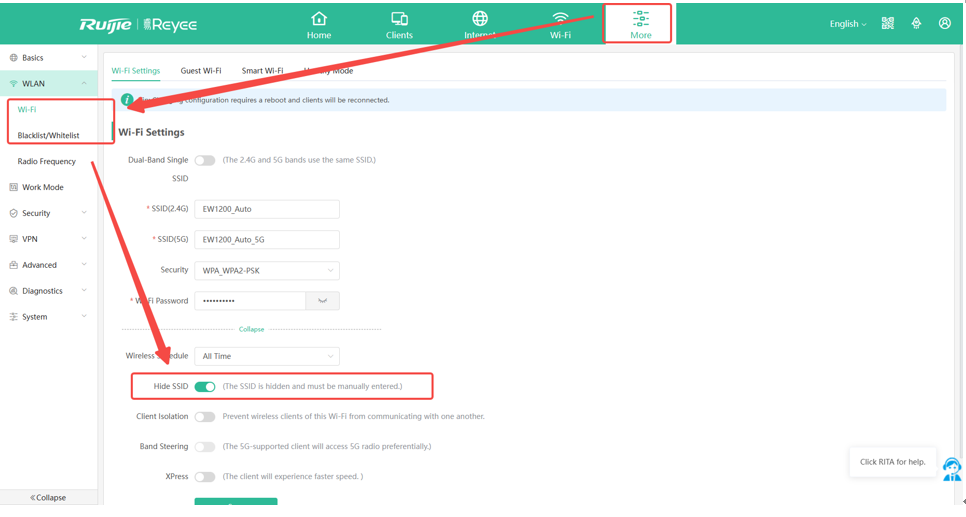
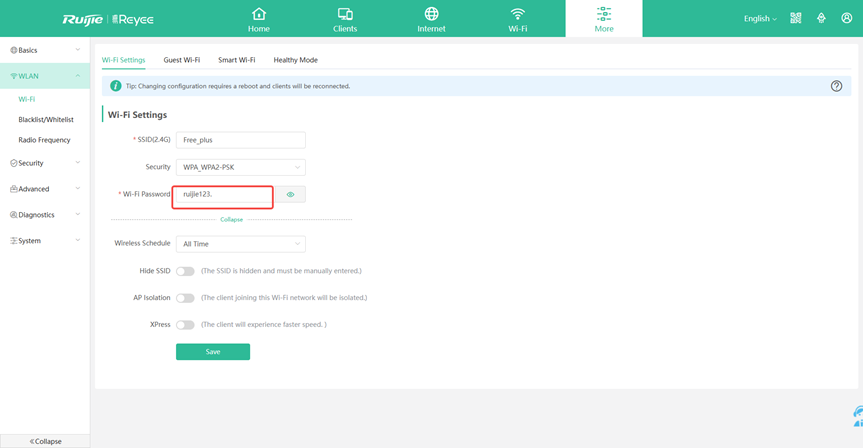
Navigate to the wireless settings section. Here, you will find your mesh WiFi password. You can copy or change it as needed.
Share Password Securely
Sharing your mesh WiFi password safely keeps your network secure. It stops strangers from using your internet. Sharing the password wrongly can lead to privacy risks. Use smart ways to share the password only with people you trust.
Use Qr Code
Create a QR code that holds your WiFi password. Others scan the code to join without typing. This method avoids showing the password in plain text. Many free websites and apps can make QR codes quickly. Print or display the QR code in a safe place.
Send Via Messaging Apps
Send the password through secure messaging apps with end-to-end encryption. Apps like Signal, WhatsApp, or Telegram protect your message from outsiders. Avoid sending passwords over email or SMS, as they are less secure. Always confirm the recipient before sending the password.
Verbal Sharing Tips
Speak the password quietly to trusted people only. Avoid sharing the password in public or crowded places. Repeat the password clearly and slowly to prevent mistakes. Use simple words or phrases to make it easy to remember. Change the password after sharing with guests to keep security strong.
Manage Guest Access
Managing guest access in your mesh WiFi system ensures network security. It helps control how visitors connect to your network. This section guides you on setting up guest access with ease.
Set Up Guest Network
Most mesh WiFi systems offer a guest network feature. Enable this feature in the network settings. A separate guest network keeps your main network secure. It allows visitors to connect without accessing your personal devices. Customize the network name for easy identification.
Control Access Duration
Decide how long guests can access your network. Set a time limit for their connection. It ensures they don’t stay connected longer than needed. Some systems allow scheduling access. This feature automatically disconnects guests after a set time.
Monitor Guest Usage
Keep an eye on how guests use your network. Check data usage and connected devices. Monitoring helps prevent network overuse. It also ensures fair bandwidth distribution. Some mesh systems send alerts if usage exceeds limits.
Troubleshoot Connection Issues
Connection issues can be frustrating, especially when you just want your mesh WiFi to work seamlessly. Troubleshooting these problems involves a few simple actions that can save you a lot of time and hassle. Let’s look at practical ways to get your devices back online quickly.
Reset Password
If your devices can’t connect, the first thing to check is whether the password has changed or been entered incorrectly. Resetting your mesh WiFi password can clear any confusion caused by typos or outdated credentials.
Access your router’s admin panel through its IP address, usually found on the device or in the manual. From there, update your WiFi password and make sure to save the changes. Don’t forget to share the new password with everyone who needs access.
Reconnect Devices
After changing your password or resetting your mesh system, your devices may still try to connect using old credentials. Manually disconnect and forget the network on each device before reconnecting with the new password.
This step is often overlooked but can solve many connection issues. Have you noticed your phone or laptop keeps trying to use the wrong password? This simple reset clears that problem.
Update Firmware
Outdated firmware can cause bugs and connection drops. Regularly check for updates from your mesh WiFi manufacturer to ensure your network runs smoothly.
Updating firmware often improves security and adds new features, which can enhance your overall experience. You might find that a quick update fixes persistent issues you thought were hardware-related.

Credit: www.youtube.com
Credit: community.ruijie.com
Frequently Asked Questions
How Do I Find My Mesh Wifi Password?
Check your mesh router’s app or web interface. Login with admin credentials. The password is usually under “WiFi Settings” or “Network Password. ”
Can I Share Mesh Wifi Password Securely?
Yes, use encrypted messaging apps or QR codes generated by mesh apps. Avoid sharing passwords over unsecure channels like email or SMS.
How To Share Mesh Wifi Password Using Qr Code?
Open your mesh system’s app. Locate “Share WiFi” or “QR Code” option. Generate and share the QR code for easy access.
What If I Forget My Mesh Wifi Password?
Reset your mesh router to factory settings. Then set a new password via the app or web portal. Remember to update all connected devices.
Conclusion
Sharing your mesh WiFi password can be quick and simple. Use the mesh app or router settings to find your password. Share it only with people you trust to keep your network safe. Change the password regularly to protect your internet.
Remember, clear steps help avoid confusion. Now, you can connect devices easily and enjoy strong WiFi everywhere in your home. Keep your network secure and share wisely.