Want to boost your online privacy and security for every device in your home? Adding a VPN to your dual band router is the smartest way to do it.
When you set up a VPN directly on your router, all your internet traffic gets protected without needing extra apps on each device. Imagine streaming, gaming, and browsing safely on both your 2. 4 GHz and 5 GHz bands, without any slowdowns or complicated steps.
In this guide, you’ll learn exactly how to add a VPN to your dual band router quickly and easily, even if you’re not a tech expert. Keep reading to unlock safer, faster internet for your entire network!
Benefits Of Vpn On Dual Band Routers
Adding a VPN to your dual band router brings a range of benefits that go beyond basic internet access. It protects your entire home network, ensuring both the 2.4 GHz and 5 GHz bands are secure. This means every device connected, whether on the faster band or the longer-range one, enjoys the same level of protection and privacy.
Enhanced Security For Both Bands
Running a VPN on your dual band router encrypts data on both wireless bands simultaneously. This stops hackers from intercepting your information, no matter which band your devices use. I’ve seen how this helped a friend protect their smart home devices, which often connect on the 2.4 GHz band, from potential cyber threats.
With VPN protection at the router level, you avoid the hassle of setting up VPNs on individual devices. This is especially useful when you have many gadgets connected across both bands. It’s a simple way to keep your entire household safe without constant manual configuration.
Improved Privacy And Anonymity
Using a VPN on your dual band router hides your IP address for every device connected. This means your browsing habits stay private across both frequency bands. Think about how much safer you feel when your online activities aren’t tracked or logged by your ISP or websites.
It’s easy to forget how often devices silently send data back to companies. By adding a VPN to your router, you block this tracking automatically for all devices on your network. This setup gives you peace of mind that your personal information is shielded, no matter which band your device uses.
Bypassing Regional Restrictions
A VPN allows you to access content and websites that might be blocked in your country on both bands of your router. This means your smart TV on the 5 GHz band and your smartphone on the 2.4 GHz band can both stream shows or access apps without restrictions. I once struggled to watch a favorite show on my smart TV due to geo-blocks, but setting a VPN on the router fixed that instantly.
Imagine the convenience of unlocking global content seamlessly for every device in your home. With a VPN on your dual band router, you avoid the frustration of switching VPNs on each device individually, saving time and effort.

Credit: m.youtube.com
Choosing The Right Vpn For Your Router
Choosing the right VPN for your dual band router is essential to ensure smooth internet access and robust security. Not all VPNs work well with every router, so you need to find one that fits your device and meets your online needs. Think about what matters most to you—speed, security, or ease of use—and let that guide your choice.
Compatibility With Dual Band Routers
Not every VPN supports dual band routers out of the box. Check if the VPN provider offers firmware or setup guides specifically for your router model. Some routers require manual configuration, while others support VPN apps directly.
If your router runs on popular firmware like DD-WRT, OpenWRT, or Tomato, verify that the VPN is compatible with these. This can save you a lot of headaches during installation.
Speed And Performance Considerations
VPNs can slow down your internet, especially if your router’s processor isn’t powerful enough. Look for VPNs known for fast servers and optimized protocols like WireGuard or OpenVPN with hardware acceleration. This way, you won’t sacrifice your streaming or gaming experience.
Consider servers that are geographically closer to you. The shorter the distance, the better your connection speed. Have you noticed how some VPNs lag more than others? That’s often the difference in how they handle speed.
Reputation And Security Features
Security is the main reason you add a VPN to your router, so don’t skimp on this part. Choose VPN providers with a strong track record, clear no-logs policies, and advanced features like kill switches and DNS leak protection.
Check user reviews and independent audits to see if the VPN lives up to its promises. Would you trust a service that doesn’t protect your data? Your online privacy deserves the best safeguards.
Preparing Your Dual Band Router
Preparing your dual band router before adding a VPN is a crucial step that can save you from headaches down the road. Without the right setup, the VPN might not work as expected or could even disrupt your network. Taking a few moments now to get your router ready ensures a smoother, more secure connection once the VPN is in place.
Accessing Router Settings
Start by logging into your router’s admin panel. Usually, you enter your router’s IP address (something like 192.168.1.1) into a browser. If you’re unsure, check the label on your router or the manual for the exact address.
Next, enter your username and password. If you haven’t changed these, they might still be the default credentials—often “admin” for both. Changing these defaults is a good idea to keep your network secure.
Firmware Updates
Your router’s firmware controls how it operates, including how it handles VPN connections. Outdated firmware can cause compatibility issues or security risks. Check for updates within the router settings—there’s usually a section labeled “Firmware Update” or “Router Upgrade.”
If an update is available, download and install it. This process can take a few minutes, and your router might restart. Make sure you don’t turn off the router during this time to avoid corrupting the firmware.
Backing Up Current Configuration
Before making any changes, save your current router settings. This backup will let you restore your network to its original state if something goes wrong. Look for an option like “Backup Settings” or “Export Configuration” in the admin panel.
Store the backup file somewhere safe on your computer. If your VPN setup causes issues, you can simply reload this file to undo any changes. Have you ever lost hours trying to fix a misconfigured router? A backup can prevent that frustration.
Installing Vpn On The Router
Installing a VPN on your dual-band router secures all connected devices. It shields your entire network from unwanted tracking and cyber threats. This setup also removes the need to install VPN apps on each device. Different routers support VPN installation in various ways. Choose the method that suits your router and technical skills best.
Using Built-in Vpn Client
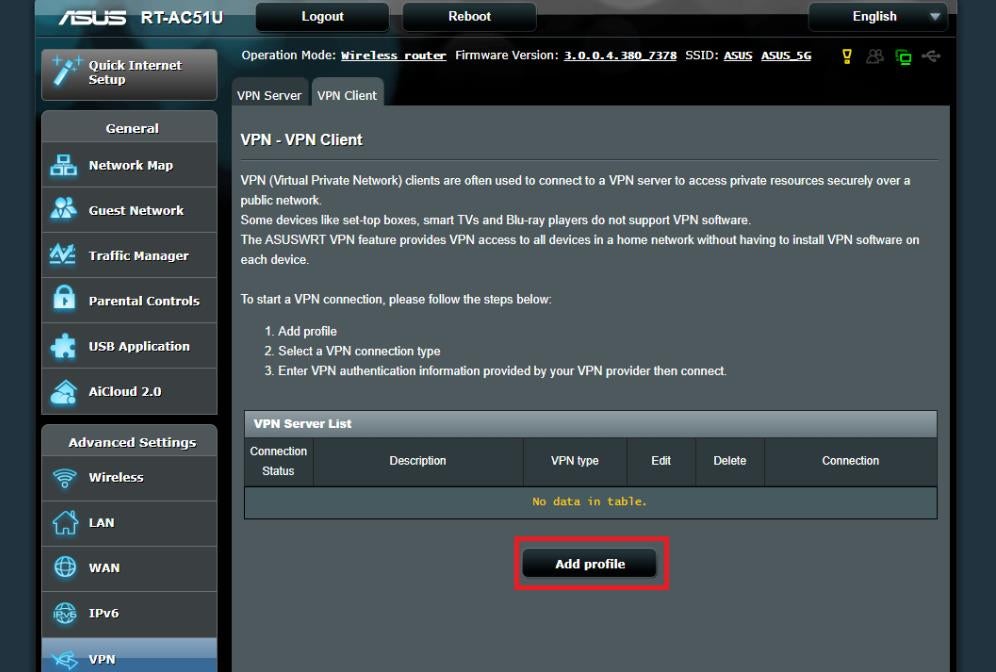
Some routers come with a built-in VPN client. This feature simplifies the VPN setup process. Access your router’s admin panel through its IP address. Locate the VPN section, often under advanced settings. Enter your VPN provider’s server address and login details. Save the settings and enable the VPN connection. The router now routes all traffic through the VPN.
Flashing Custom Firmware
Custom firmware adds VPN support to routers without built-in clients. Popular options include DD-WRT, OpenWrt, and Tomato. Download the correct firmware version for your router model. Follow the flashing instructions carefully to avoid damage. After flashing, access the new admin interface. Configure the VPN client with your service provider details. This method offers more control and features but requires caution.
Manual Configuration Steps
Manual VPN setup requires entering server and protocol details yourself. Start by logging into your router’s admin page. Navigate to the VPN or WAN settings section. Input the VPN server address, username, and password. Choose the VPN protocol (OpenVPN, PPTP, or L2TP). Upload any needed certificates or keys provided by your VPN. Save and activate the VPN connection. Test the connection by checking your IP address online.
Configuring Vpn For Dual Band Networks
Configuring a VPN on your dual band router lets you control which devices use the VPN on either the 2.4 GHz or 5 GHz bands. This setup can improve your network’s efficiency and security by directing traffic based on your needs. You get the flexibility to secure devices that handle sensitive data without slowing down others that need higher speeds.
Assigning Vpn To 2.4 Ghz Band
The 2.4 GHz band covers a larger area but usually offers slower speeds. Assigning your VPN to this band works well for devices that prioritize security over speed, like smart home gadgets or older laptops.
To assign VPN to the 2.4 GHz band, log into your router’s admin panel and navigate to the VPN settings. Look for an option to bind the VPN connection specifically to the 2.4 GHz network. Save the settings and restart your router to apply the changes.
Have you noticed your smart devices slowing down when connected to VPN? Assigning VPN only to the 2.4 GHz band can help balance security and performance effectively.
Assigning Vpn To 5 Ghz Band
The 5 GHz band offers faster speeds but shorter range, making it ideal for high-bandwidth activities like streaming or gaming. If you want VPN protection on devices that demand speed, assign the VPN to this band.
Access your router’s VPN settings, then bind the VPN client to the 5 GHz network. This setup ensures fast and secure connections without affecting devices connected to the 2.4 GHz band.
Think about which devices you use for work or entertainment. Securing your 5 GHz band with VPN can protect sensitive data without sacrificing performance.
Managing Split Tunneling
Split tunneling lets you decide which traffic goes through the VPN and which accesses the internet directly. This is crucial for optimizing speed and security across your dual band network.
In your router’s VPN configuration, enable split tunneling and specify the devices or IP addresses that should bypass the VPN. This way, you maintain fast local connections while keeping sensitive traffic encrypted.
Are all your devices equal in how they use the internet? Managing split tunneling helps you customize your network’s security to fit each device’s needs.
Testing And Troubleshooting
After adding a VPN to your dual-band router, it’s crucial to ensure everything runs smoothly. Testing and troubleshooting help you confirm the VPN connection is active and both bands deliver the performance you expect. This saves you from future headaches and guarantees your network stays secure and efficient.
Verifying Vpn Connection
Start by checking if your VPN is actually connected through the router. Open a web browser and visit a site like WhatIsMyIPAddress.com. If the IP address shown matches your VPN server location, your VPN is working.
You can also log into your router’s admin panel and look for the VPN status page. This page often shows connection details, uptime, and any errors. If you find the connection isn’t active, double-check your VPN settings and credentials.
Checking Band Performance
Dual-band routers have 2.4 GHz and 5 GHz bands, each with different strengths. Test both bands separately by connecting a device to each and running speed tests on websites like Speedtest.net. Compare the results to see if one band underperforms.
Keep in mind that VPNs can slow down your connection due to encryption overhead. If one band slows down significantly, try changing the VPN server or adjusting router settings. Are you noticing dropped connections or slow speeds only on one band?
Resolving Common Issues
If your VPN connection drops frequently, try rebooting your router and reconnecting the VPN. Sometimes firmware updates fix bugs related to VPN stability, so check if your router has an update available.
Slow speeds? Switch your VPN protocol in the router settings. For example, OpenVPN is secure but can be slower, while WireGuard often offers better speed with strong security.
- Ensure your router’s firewall isn’t blocking VPN traffic.
- Check for IP conflicts on your network that may disrupt the VPN.
- Verify your VPN account is active and hasn’t exceeded device limits.
Have you encountered an issue that wasn’t fixed by these steps? Sometimes, contacting your VPN provider’s support can reveal less obvious solutions tailored to your router model.
Maintaining Vpn On Your Router
Setting up a VPN on a dual-band router protects all devices on your network. This process involves logging into the router’s settings and entering VPN details. It helps keep your internet connection private and secure.
Maintaining a VPN on your router ensures a secure and private network. This setup provides protection for all connected devices. To keep your VPN running smoothly, regular checks and updates are essential. Here’s how you can maintain your VPN effectively.Regular Firmware And Vpn Updates
Update your router’s firmware regularly. This enhances security and performance. Check the manufacturer’s website for updates. Keep your VPN software up-to-date too. Updated software fixes bugs and vulnerabilities. Schedule routine checks for both.Monitoring Connection Stability
Regularly monitor your connection’s stability. Unstable connections can disrupt your VPN service. Use router logs to identify issues. Check if your VPN disconnects frequently. Address any problems immediately to ensure a stable connection.Optimizing For Speed And Security
Optimize your router settings for speed and security. Use a server location close to you for better speed. Secure your network with strong passwords and encryption. Balance between speed and security for optimal performance.
Credit: www.youtube.com
Credit: www.techrepublic.com
Frequently Asked Questions
What Is A Dual Band Router And Why Use Vpn With It?
A dual band router operates on 2. 4GHz and 5GHz bands. Adding a VPN secures all devices on both bands with encrypted internet traffic, enhancing privacy and bypassing geo-restrictions network-wide.
How Do I Configure Vpn On A Dual Band Router?
Access the router’s admin panel via its IP address. Enter VPN settings provided by your VPN service. Save and activate the VPN to route all dual band traffic securely through the VPN server.
Can All Dual Band Routers Support Vpn Connections?
Not all dual band routers support VPN natively. Check your router’s specifications for VPN client compatibility or firmware options like DD-WRT. Installing VPN-capable firmware can enable VPN use on unsupported routers.
Will Adding Vpn Slow Down My Dual Band Router’s Speed?
VPNs may slightly reduce internet speed due to encryption overhead. However, dual band routers can maintain strong performance by balancing load across both frequencies, minimizing speed drops during VPN use.
Conclusion
Adding a VPN to your dual band router keeps your internet safe and private. It helps protect all devices connected to your network at once. The process is simple with the right steps and router settings. You can enjoy secure browsing without extra hassle.
Just follow the setup instructions carefully, and your connection will stay protected. Stay safe online and control your internet privacy easily. This small change can make a big difference in your digital security.