Is your budget router acting up, slowing down your internet, or refusing to connect? You’re not alone.
Sometimes, the simplest fix is to reset your router. But how exactly do you do that without messing up your settings? This guide will walk you through easy, step-by-step instructions to reset your budget router quickly and safely. By the end, you’ll have your internet running smoothly again—no tech skills required.
Keep reading to get your connection back on track right now.
Reasons To Reset Your Budget Router
Resetting a budget router can fix many issues and improve your network. This simple step often solves connection problems. It can also boost the router’s speed and security. Understanding why to reset helps maintain a smooth internet experience.
Common Router Issues
Budget routers sometimes freeze or stop responding. They may drop Wi-Fi signals or fail to connect devices. Resetting clears temporary glitches causing these problems. It restores the router to normal working conditions quickly.
Improving Performance
Over time, routers slow down due to overloaded memory. Resetting frees up this memory and refreshes settings. It helps the router run faster and handle more devices. This simple action can improve your internet speed noticeably.
Security Concerns
Routers can become vulnerable to attacks or unauthorized access. Resetting erases custom settings and passwords. It removes any harmful changes made by malware or hackers. Resetting helps protect your home network and personal data.
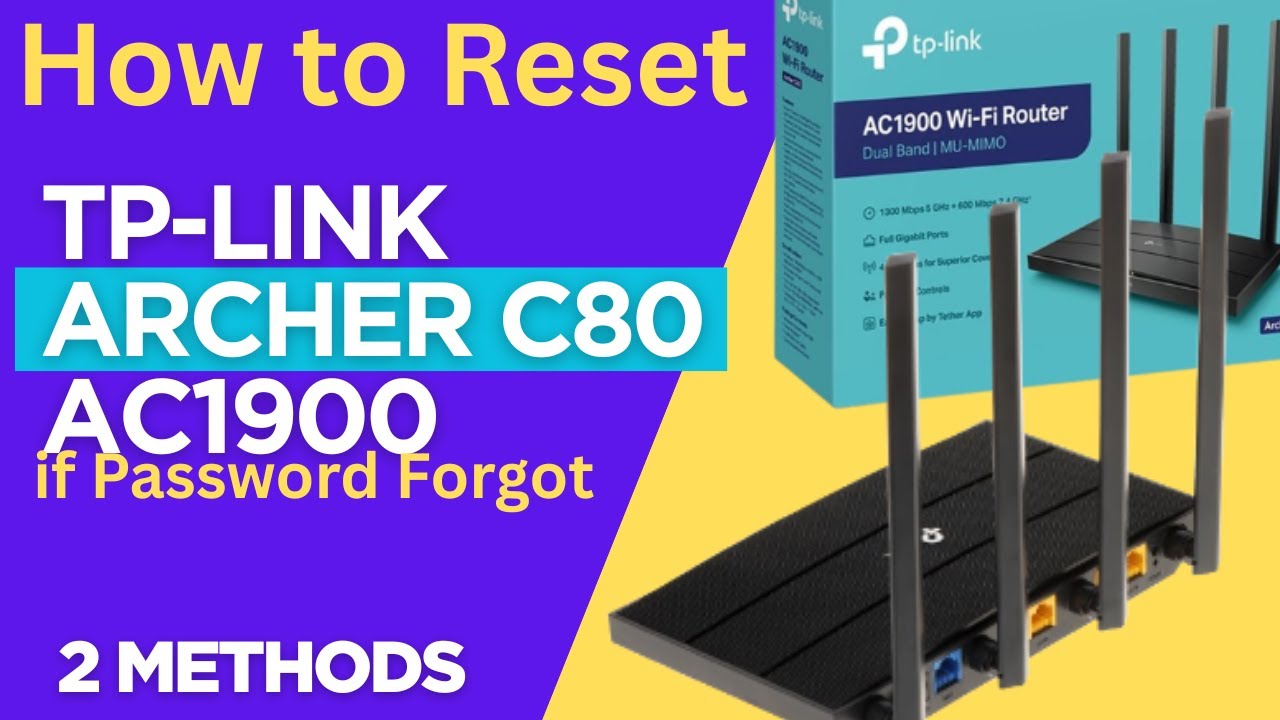
Credit: www.youtube.com
Types Of Router Resets
Understanding the different types of router resets can save you time and frustration. Not all resets are the same, and knowing which one to use affects how your router behaves afterward.
There are two main types of resets you’ll encounter: a soft reset and a factory reset. Each serves a unique purpose and impacts your settings differently.
Soft Reset
A soft reset simply restarts your router without changing any of your saved settings. Think of it like rebooting your computer to fix minor glitches.
You can usually perform a soft reset by turning your router off and on or using the reset button briefly (about 5 seconds). This helps clear temporary issues like slow connections or network drops.
If your router is acting slow but you don’t want to lose your customized settings, a soft reset is often enough. Have you tried this simple fix before calling your internet provider?
Factory Reset
A factory reset wipes all your settings and returns the router to its original state. This includes your Wi-Fi name, password, and any custom configurations.
You perform a factory reset by holding down the reset button for about 10-30 seconds until the lights blink. After this, you will need to set up your router again from scratch.
This type of reset is useful if you’ve forgotten your password or if the router has persistent problems that a soft reset can’t fix. Just remember, losing your settings means you’ll have to reconfigure everything, so make sure you have your setup details handy.
Preparing For The Reset
Preparing for a router reset ensures the process goes smoothly. It helps avoid losing important settings and saves time during setup. Taking a few minutes to prepare can prevent frustration later.
Backup Settings
Backup your router’s settings before resetting. Most budget routers allow you to save current configurations as a file. This file contains network names, passwords, and custom settings.
Use the router’s web interface to find the backup option. Save the file on your computer or a USB drive. This makes restoring settings quick and easy after the reset.
Gather Necessary Information
Collect details needed to set up your router again. This includes your Internet Service Provider (ISP) username and password. Also note any special settings like static IP or DNS addresses.
Write down your Wi-Fi network name (SSID) and password if customized. Keep this information handy for reconfiguring your network after the reset. Without these details, connecting to the internet could be difficult.
Step-by-step Reset Process
Locate the reset button on your budget router, usually a small hole at the back. Press and hold it for about 10 seconds until the lights blink. Release the button and wait for the router to reboot and restore factory settings.
Resetting a budget router can seem daunting, but it’s often the quickest fix for connectivity issues. Whether your Wi-Fi is acting up or you’ve forgotten your password, resetting the router gives you a fresh start. Let’s walk through the reset process step-by-step to ensure you get back online effortlessly.Using The Reset Button
Most routers have a physical reset button that simplifies the process. Here’s how you can use it: 1. Locate the Reset Button: The reset button is typically a small, recessed button found at the back of the router. You’ll need a pin or a paperclip to press it. 2. Press and Hold: Gently press and hold the button for about 10 seconds. Keep an eye on the router lights—they should flicker or change, indicating a reset. 3. Wait for Reboot: After releasing the button, give the router a few minutes to reboot. Once done, it will return to its default factory settings. You might be wondering, what happens to your settings? All custom settings, including Wi-Fi passwords and network names, revert to default. Be prepared to reconfigure them.Reset Via Router Interface
Sometimes, you might prefer resetting the router through its interface, especially if the reset button isn’t an option. 1. Access the Router’s Interface: Connect your device to the router using an Ethernet cable. Open a web browser and enter the router’s IP address in the address bar. Common IPs are 192.168.1.1 or 192.168.0.1. Check your router’s manual if unsure. 2. Log In: Use the default username and password to log in. If you’ve changed it and can’t remember, refer to the router’s manual or reset it using the physical button. 3. Find the Reset Option: Navigate to the settings menu, typically under ‘System’ or ‘Administration’. Look for an option labeled ‘Factory Reset’ or ‘Restore Default Settings’. Click to initiate the process. 4. Confirm the Reset: You may need to confirm your decision. Once confirmed, the router will reset and reboot automatically. Resetting via the interface offers the advantage of backing up settings beforehand. It’s a strategic move if you want to restore them later. Does this process feel straightforward? It’s designed to be! Engaging with your router settings might seem intimidating at first, but like any skill, it gets easier with practice. So, the next time your Wi-Fi misbehaves, you’ll know exactly what to do.Reconfiguring Your Router After Reset
After resetting your budget router, it’s important to reconfigure it to restore your internet connection and ensure security. Resetting wipes out all previous settings, so you need to set it up from scratch or restore saved configurations. Let’s walk through the key steps to get your router back online and secure.
Accessing The Router Settings
First, connect your computer or phone to the router using a wired or wireless connection. Open a web browser and type the router’s default IP address—usually something like 192.168.0.1or 192.168.1.1—into the address bar.
You’ll be prompted to enter a username and password. These credentials are often found on a sticker on the router or in the user manual. If you don’t have this information, try common defaults like adminfor both username and password.
Restoring Backup
If you previously saved a backup of your router settings, now is the time to restore it. Look for an option in the settings menu labeled Backup and Restoreor similar.
Uploading the backup file saves time by automatically reapplying all your custom settings, such as port forwarding rules or parental controls. Without a backup, you’ll need to manually enter these settings, which can be tedious but also a chance to clean up old configurations.
Setting Up Wi-fi And Security
Setting up your Wi-Fi network is the most crucial step after a reset. Choose a network name (SSID) that you’ll recognize easily but doesn’t reveal personal information.
Next, set a strong password using WPA2 or WPA3 encryption to protect your network from unauthorized access. Avoid simple passwords like “password123” or “admin.”
Also, consider disabling WPS (Wi-Fi Protected Setup) if your router supports it, as it can be a security risk. Finally, save your settings and reboot the router if necessary.

Credit: www.youtube.com
Tips To Avoid Future Issues
Resetting a budget router can solve many connection problems. Yet, preventing future issues keeps your network stable and secure. Simple habits improve performance and reduce the need for resets.
Regular Firmware Updates
Firmware updates fix bugs and improve security. Check your router’s settings often for new updates. Installing updates keeps your device running smoothly. It also protects against hackers and malware threats.
Strong Password Practices
Create a unique password for your router’s admin panel. Use a mix of letters, numbers, and symbols. Avoid common or easy-to-guess words. Change passwords regularly to maintain security. This limits unauthorized access and keeps your network safe.
Optimizing Router Placement
Place your router in a central, open location. Avoid walls, metal objects, and electronic devices nearby. Higher positions often give better coverage. Good placement reduces signal interference and dead zones. This ensures faster, more reliable internet throughout your space.

Credit: www.youtube.com
Frequently Asked Questions
How Do I Reset A Budget Router Safely?
To reset a budget router safely, locate the reset button. Press and hold it for 10-15 seconds using a paperclip. Release the button and wait for the router to reboot. This restores factory settings without damaging the device.
What Happens When I Reset My Budget Router?
Resetting your budget router erases all custom settings. It restores the device to factory defaults, including Wi-Fi name and password. This helps fix connectivity issues but requires reconfiguration afterward.
Can I Reset A Budget Router Without Losing Settings?
No, a full reset always deletes custom settings. To keep settings, try restarting the router instead. Resetting is only necessary for troubleshooting or forgotten passwords.
How Often Should I Reset My Budget Router?
Reset your budget router only when facing issues like slow speeds or connectivity problems. Frequent resets are unnecessary and won’t improve performance.
Conclusion
Resetting a budget router can fix many common issues fast. Just follow the simple steps carefully and your router will work like new. Remember to save your settings before you reset. This process helps clear errors and improve your internet connection.
Keep your router updated for better performance. Regular resets can keep your network stable and secure. Try these tips anytime you face slow speeds or connection problems. It’s a quick way to refresh your home internet without extra cost.