Are you worried that your portable router password might be outdated or too easy to guess? Changing your router’s password is one of the simplest yet most effective ways to keep your internet connection safe and secure.
If you’re not sure how to update it, don’t worry—you’re in the right place. This guide will walk you through the steps quickly and clearly, so you can protect your data and enjoy peace of mind. Keep reading, and by the end, you’ll know exactly how to update your portable router password without any hassle.
Credit: www.youtube.com
Access Router Settings
Accessing your portable router’s settings is the first essential step to update its password. This lets you control your network’s security and customize settings to your needs. While it might sound technical, the process is straightforward once you know what to do.
Connect To The Router Network
You need to be connected to your router’s network before you can change any settings. This connection can be wireless (Wi-Fi) or wired (using an Ethernet cable). Ensure your device shows a strong connection to avoid interruptions during the update.
Sometimes, public Wi-Fi or other networks can confuse your device. Double-check that your device is connected to the correct router network to avoid logging into the wrong admin panel.
Find Router Ip Address
The router’s IP address is what you enter in your web browser to access its settings. Most portable routers use common addresses like 192.168.0.1or 192.168.1.1. If these don’t work, you can find the exact IP address on your device:
- Windows:Open Command Prompt and type
ipconfig. Look for the “Default Gateway” under your network connection. - Mac:Go to System Preferences > Network, select your network, and click Advanced > TCP/IP tab.
- Smartphones:Check Wi-Fi settings details or look for the router info in the network properties.
Login To Admin Panel
Open your web browser and enter the router’s IP address into the address bar. This opens the login page for the router’s admin panel. You’ll need the username and password, which is often “admin” for both fields unless you’ve changed it before.
If you can’t remember the login details, check the router’s manual or the sticker on the device. Resetting the router to factory settings is a last resort, but it will restore default credentials.
Have you tried accessing your router settings before and got stuck? Sometimes, a simple connection or IP address check solves the issue faster than expected.
Locate Password Settings
Finding the password settings on a portable router is essential for changing its security details. These settings control who can access your network. Locating them is the first step in securing your device. The process involves logging into the router’s interface and navigating through its menus. Each router might have a slightly different layout, but the main steps stay the same.
Navigate To Wireless Settings
Start by opening your web browser and entering the router’s IP address. This address is usually found in the user manual or on a sticker on the router. After entering the IP, log in using your admin username and password. Once logged in, look for a section named “Wireless,” “Wi-Fi,” or “Network.” This area holds all settings related to your wireless connection. Click on it to open the wireless options.
Identify Security Options
Inside the wireless settings, search for the security or password section. It might be labeled as “Security,” “Wireless Security,” or “Password.” This section shows the current security type and password for your network. Common security types include WPA2 and WPA3. Here, you can change the password to something new and stronger. Save your changes before exiting to apply the new password.
Change Router Password
Changing your portable router password is essential for protecting your network. It stops unauthorized users from accessing your internet. Updating the password regularly keeps your connection safe and private. Follow simple steps to change your router password quickly and securely.
Create A Strong Password
Pick a password that is hard to guess. Use a mix of letters, numbers, and symbols. Avoid common words or easy sequences like “1234” or “password.” Aim for at least 8 characters to improve security. Write it down somewhere safe if needed.
Enter New Password
Open your router’s settings page through a web browser. Find the password or security section. Type your new password in the designated field. Double-check the spelling to avoid mistakes. Make sure you enter the same password twice if asked.
Save Changes
Look for the save or apply button on the settings page. Click it to update your password in the system. Wait a few seconds for the router to process the change. Reconnect your devices using the new password. Your network is now more secure.
Verify New Password
Verify the new password carefully to ensure it matches your intended choice. This step helps avoid connection issues with your portable router. Confirming the password ensures secure and smooth access to your network.
Updating your portable router’s password is a crucial step to ensure the security of your network. Once you’ve set a new password, verifying it is vital to confirm that everything is in order. This ensures that your devices can reconnect seamlessly and that your network remains secure. But how do you ensure your new password is working correctly?Reconnect Devices
After updating your router password, the first thing you’ll want to do is reconnect your devices. Grab your smartphone, tablet, or laptop and navigate to your Wi-Fi settings. Select your network and enter the new password. If your device connects without a hitch, that’s a good sign. However, if you encounter issues, double-check that the password entered matches the one set on the router. It’s easy to mistype or confuse similar characters, so take a moment to carefully verify.Check Internet Access
Once your devices are reconnected, you need to ensure you have internet access. Open a web browser and try visiting a few different websites. If they load quickly and without error, your new password is functioning perfectly. If you face connectivity issues, consider restarting your router. This can often resolve minor glitches. Remember to be patient, as routers may take a moment to reboot and stabilize their connection. By taking these steps, you ensure that your network is secure and that you can enjoy a seamless browsing experience. Have you ever faced issues with updating your router password? How did you resolve them?Troubleshooting Tips
Troubleshooting is key when updating a portable router password. Sometimes, issues can block access or stop changes from saving. Knowing simple fixes saves time and avoids frustration. Start with easy checks and move to advanced steps if needed.
Reset Router If Locked Out
Being locked out of your router can happen. Resetting the router restores it to factory settings. This clears any forgotten passwords or wrong changes.
- Find the small reset button on the router’s back or bottom.
- Use a paperclip to press and hold the button for 10-15 seconds.
- Wait for the router to restart and lights to stabilize.
- Access the router with default username and password from the manual.
Resetting erases custom settings. You must reconfigure your network after this step.
Update Router Firmware
Outdated firmware can cause issues with password changes. Firmware controls the router’s software functions. Updating it improves security and performance.
- Connect your device to the router via Wi-Fi or cable.
- Open the router’s admin page using its IP address.
- Look for a firmware update section in settings.
- Download and install the latest firmware version available.
- Do not turn off the router during the update process.
After updating, try changing the password again. Updated firmware often fixes bugs and glitches.
Credit: support.tpg.com.au

Credit: www.youtube.com
Frequently Asked Questions
How Do I Access My Portable Router Settings?
To access your portable router settings, connect to its Wi-Fi network. Open a browser and enter the router’s IP address, usually 192. 168. 0. 1 or 192. 168. 1. 1. Log in using the default username and password found in the manual or on the device label.
Why Should I Update My Portable Router Password?
Updating your portable router password protects your network from unauthorized access. It enhances security by preventing hackers from exploiting default or weak passwords. Regular updates keep your data safe and ensure better control over connected devices.
Can I Update The Password Via A Mobile App?
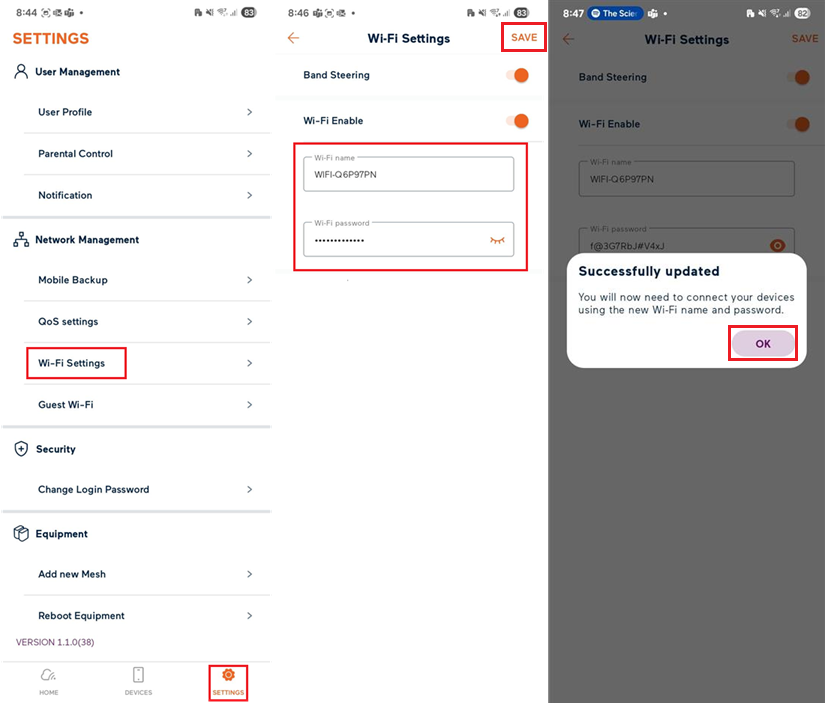
Yes, many portable routers offer mobile apps for management. Download the app from your router’s manufacturer. Log in, navigate to settings, and update your password easily from your smartphone or tablet for convenience and quick access.
What Is The Recommended Password For Portable Routers?
Use a strong password with at least 12 characters. Include uppercase, lowercase, numbers, and special symbols. Avoid common words or easily guessable information to maximize security and prevent unauthorized access to your portable router.
Conclusion
Changing your portable router password keeps your network safe. It stops others from using your internet without permission. Always pick a strong password that is easy for you to remember. Update it regularly to protect your data. Following simple steps makes the process quick and easy.
Secure your connection today and enjoy peace of mind. Simple actions can prevent many problems later. Stay safe and keep control of your Wi-Fi.