Have you ever wondered if your portable router can connect to Ethernet? If you rely on fast, stable internet wherever you go, this question is probably on your mind.
Knowing the answer could change how you set up your network and boost your connection speed instantly. You’ll discover exactly how a portable router works with Ethernet and what that means for your internet experience. Keep reading—you’re about to unlock smarter, more reliable internet wherever you need it.

Credit: www.wikihow.com
What Is A Portable Router
A portable router is a compact device designed to provide internet access on the go. It creates a Wi-Fi hotspot by connecting to a wired or wireless internet source. This makes it an essential gadget for travelers, remote workers, and anyone needing reliable internet away from home or office.
Key Features
- Compact Size:Small and lightweight, easy to carry in a bag or pocket.
- Multiple Connectivity Options:Supports Ethernet, cellular networks, and sometimes USB connections.
- Battery Powered:Many models come with built-in batteries, allowing use without external power.
- Secure Network:Offers WPA/WPA2 encryption to keep your connection safe.
- Multiple Device Support:Can connect several devices like laptops, smartphones, and tablets simultaneously.
Common Uses
Portable routers serve many purposes depending on your needs. If you work remotely, a portable router can keep your devices connected even in areas with no fixed Wi-Fi.
Travelers find them invaluable for turning hotel Ethernet connections into secure Wi-Fi networks. You might also use one during outdoor events or camping trips to share internet access with friends or colleagues.
Have you ever struggled with slow public Wi-Fi or insecure networks? A portable router can give you a private, faster, and safer internet connection wherever you go.
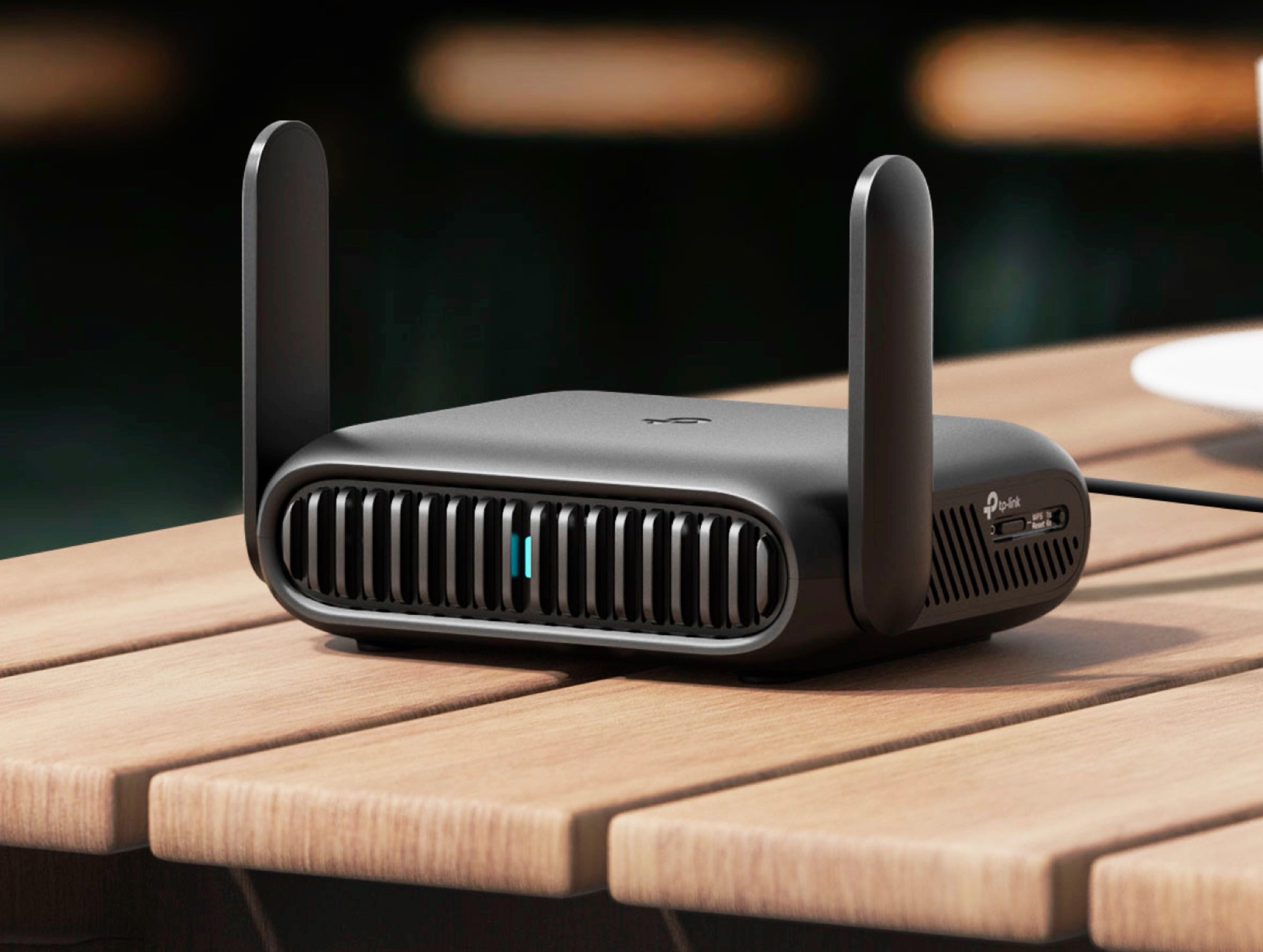
Credit: www.notebookcheck.net
Ethernet Basics
Understanding Ethernet is key to knowing how portable routers connect to wired networks. Ethernet is a common way to link devices using cables. It offers a direct and steady internet connection. This section explains basic Ethernet concepts and why it often beats Wi-Fi in certain situations.
How Ethernet Works
Ethernet uses cables to connect devices to a network. The cables carry data signals between devices. These signals travel through copper wires or fiber optics inside the cables. Devices like routers, computers, and switches use Ethernet ports for connection.
Each device on the network has a unique address called a MAC address. This helps devices send data to the right place. Data is sent in small parts called packets. Ethernet controls when and how devices send these packets to avoid conflicts.
Benefits Over Wi-fi
- Stable Connection:Ethernet provides a steady and reliable link without interruptions.
- Faster Speeds:Wired connections often deliver higher speeds than wireless ones.
- Lower Latency:Ethernet reduces delays, making it better for online games and video calls.
- Less Interference:Wired signals do not suffer from physical barriers or other wireless signals.
- Better Security:Wired connections are harder to hack compared to Wi-Fi networks.
Connecting Portable Routers To Ethernet
Connecting a portable router to Ethernet can boost your internet speed and provide a more stable connection, especially in places where Wi-Fi signals are weak. Many people assume portable routers are wireless-only devices, but several models support Ethernet connections. Understanding which routers work and how to set them up can help you get the most out of your device.
Compatible Models
Not all portable routers can connect to Ethernet. Models like the TP-Link TL-WR902AC, GL.iNet GL-MT300N-V2, and Netgear Nighthawk M1 support Ethernet ports. These routers often have a dedicated WAN or LAN port to plug in an Ethernet cable.
Look for routers with an Ethernet port labeled as “WAN” or “Internet.” Some devices have multi-functional ports that can switch between WAN and LAN modes. Checking the product specifications or user manual can save you from frustration.
Setup Steps
- First, plug one end of the Ethernet cable into your modem or router’s Ethernet port.
- Connect the other end to the portable router’s WAN or Ethernet port.
- Turn on your portable router and access its settings via a web browser or app.
- Navigate to the network or Internet settings and select Ethernet as the connection type.
- Save your changes and restart the router if necessary.
After setup, test your connection by browsing or streaming. If you run into issues, double-check the cables and settings. Have you tried connecting your portable router to Ethernet before? What was your experience like?
Advantages Of Ethernet Connection
Connecting a portable router to an Ethernet cable offers clear benefits. It enhances your internet experience by providing a more reliable and faster connection. Wired connections are less affected by common wireless issues. This makes Ethernet a preferred choice for many users needing stable internet access.
Improved Speed And Stability
Ethernet connections deliver faster data transfer than Wi-Fi. This speed boost helps with streaming, gaming, and large downloads. The connection stays steady without sudden drops or delays. This means smoother browsing and less buffering during video calls.
Reduced Interference
Wired Ethernet links avoid the usual wireless interference. Devices like microwaves or other Wi-Fi networks cannot disrupt the signal. This leads to a cleaner and more consistent connection. It is especially useful in crowded places with many wireless devices.
Troubleshooting Connection Issues
Encountering connection issues with a portable router connecting to Ethernet can be frustrating, especially when you’re counting on stable internet access. Troubleshooting these problems effectively means understanding what might be causing them and knowing how to address each issue promptly. Let’s look at some common problems and quick fixes that can help you restore your connection without delay.
Common Problems
- No Ethernet Signal:Sometimes the router doesn’t detect any connection through the Ethernet port, leading to no internet access.
- Slow or Intermittent Connection:You might notice the connection drops frequently or runs slower than expected.
- Incorrect IP Settings:If your router isn’t set to receive or assign the correct IP address, it can’t communicate properly with the network.
- Faulty Cables or Ports:Damaged Ethernet cables or malfunctioning ports can stop data from flowing smoothly.
- Firmware Issues:Outdated or buggy firmware can cause unpredictable connection problems.
Quick Fixes
- Check and Replace Cables:Always test your Ethernet cable by swapping it with a known working one. Cables are often the simplest fix.
- Restart Your Router:Power cycling your portable router refreshes the system and can resolve many connectivity glitches.
- Verify Router Settings:Make sure your router’s Ethernet port is enabled and that IP settings are set to automatic or correctly configured for your network.
- Update Firmware:Visit your router manufacturer’s website to download the latest firmware. Firmware updates often fix bugs affecting Ethernet connections.
- Try a Different Port:If your router has multiple Ethernet ports, switch to another one to rule out a faulty port.
Have you ever experienced a connection drop just when you needed the internet most? Fixing these issues quickly can save you from hours of frustration. Keep these troubleshooting tips handy and test them next time your portable router struggles to connect to Ethernet.
Alternatives To Ethernet For Portable Routers
Portable routers usually connect to the internet through Ethernet cables. Yet, some situations demand alternatives. These options help maintain internet access without relying on Ethernet. They offer flexibility for travel, remote work, or areas without wired connections.
Using Usb Tethering
USB tethering turns a smartphone into a modem for your portable router. Connect the phone to the router using a USB cable. The router uses the phone’s mobile data to create a Wi-Fi network.
This method works well when Ethernet is unavailable. It provides a stable connection and often faster speeds than Wi-Fi hotspots. USB tethering also saves battery life on the phone compared to wireless sharing.
Check if your portable router supports USB tethering. Most modern models include this feature. Enable tethering on your phone and connect it to the router. The router will detect the internet connection automatically.
Mobile Data Options
Many portable routers come with SIM card slots. Insert a SIM card with a mobile data plan for direct internet access. The router uses cellular signals to provide Wi-Fi anywhere there is coverage.
This option eliminates the need for Ethernet cables or phones. It is ideal for outdoor use, travel, or places without wired internet. Mobile data plans vary, so choose one that fits your budget and data needs.
Some routers support 4G or 5G networks for faster speeds. They often have built-in antennas to improve signal strength. Mobile data options give true portability and ease of use.
Tips For Choosing The Right Portable Router
Choosing the right portable router can enhance your internet experience. A good portable router should connect easily to Ethernet and offer reliable performance. Here are some tips to help you pick the best one for your needs.
Key Specifications
When selecting a portable router, consider its specifications. Look for routers that support dual-band Wi-Fi for better connectivity. Ensure the router is compatible with the latest Wi-Fi standards, like Wi-Fi 6. Check the Ethernet port speed; a gigabit port offers faster internet access. Also, consider the router’s battery life if you need it to work on the go. A long-lasting battery keeps you connected longer without needing a charge.
Budget Considerations
Budget is crucial when picking a portable router. Set a budget before shopping to narrow your options. Compare features within your price range to ensure value. Sometimes, spending a bit more can provide a significantly better experience. Look for discounts or deals to save money without compromising on quality. Always read reviews to ensure the router’s reliability and performance meets your needs.

Credit: www.theverge.com
Frequently Asked Questions
Can A Portable Router Connect To Ethernet Directly?
Yes, many portable routers have an Ethernet port. This allows them to connect directly to a wired Ethernet network for internet access.
How Does Ethernet Improve Portable Router Performance?
Ethernet provides a stable and faster connection than Wi-Fi. It reduces interference and latency, enhancing the portable router’s overall performance.
Can I Use Ethernet With A Portable Router For Travel?
Absolutely. Using Ethernet with a portable router during travel ensures reliable internet, especially in places with weak Wi-Fi signals.
Does A Portable Router Need Special Cables For Ethernet?
No, standard Ethernet cables work with portable routers. Just connect the cable from the router’s Ethernet port to the modem or network source.
Conclusion
A portable router can connect to Ethernet with ease. This lets you share a wired internet signal wirelessly. It helps when Wi-Fi is weak or unavailable. Just plug the Ethernet cable into the router. Then, the router creates a Wi-Fi network for your devices.
This setup works well for travel, home, or office use. Portable routers offer flexibility and convenience for internet access. They make wired connections simple and mobile. So, using Ethernet with a portable router is a smart choice.