Are you worried about strangers connecting to your Wi-Fi or snooping on your network? Hiding your SSID on a dual band router can add an extra layer of security and privacy to your home or office setup.
But how exactly do you do it without messing up your internet connection? This guide will walk you through simple steps to hide your SSID on both 2. 4 GHz and 5 GHz bands, so you can keep your network under your control.
Keep reading, and you’ll learn how to protect your Wi-Fi in just a few easy moves.
Why Hide Ssid Matters
Hiding the SSID on a dual band router plays a key role in protecting your wireless network. It stops your network name from being broadcast openly. This keeps your connection less visible to others. A hidden SSID adds an extra layer of security to your home or office Wi-Fi.
Many people do not realize how much exposure their Wi-Fi has without hiding the SSID. Even basic knowledge of the network name can give outsiders a starting point for accessing your connection. Hiding the SSID limits this risk and helps keep your network safer.
Benefits For Privacy
Hiding the SSID keeps your network name private from casual scanning. It stops neighbors or passersby from seeing your Wi-Fi on their device lists. This reduces the chance of unwanted attention to your network.
With the SSID hidden, your network appears invisible to most devices. Only users who know the exact name can connect. This helps protect your data and personal information from being easily discovered.
Reducing Unauthorized Access
Unauthorized users often look for visible networks to join. Hiding the SSID makes your router less attractive to them. It creates an extra step that discourages casual hackers and free loaders.
While hiding SSID does not fully block access, it adds a barrier. Combined with strong passwords and encryption, it makes unauthorized access much harder. This keeps your internet speed and bandwidth safe from strangers.

Credit: abhinavmallick831.medium.com
Dual Band Router Basics
Understanding the basics of a dual band router is essential before you try to hide your SSID. These routers operate on two different frequency bands, offering flexibility and improved performance. Knowing how these bands work and where to find the settings can make the process smoother and more effective.
2.4 Ghz Vs 5 Ghz Bands
The 2.4 GHz band has a longer range but slower speeds. It’s perfect for devices far from the router or through walls.
The 5 GHz band offers faster speeds but covers a smaller area. It works best for close-range devices like gaming consoles or smart TVs.
Choosing which band to hide your SSID on depends on your home setup. Do you want to protect the network that covers your entire house or the one with faster performance? This choice impacts how secure and accessible your Wi-Fi feels.
Common Router Interfaces
Most routers have a web-based interface you access through a browser. You’ll usually type an IP address like 192.168.1.1 or 192.168.0.1 to get there.
Inside the interface, the menus vary but often include sections like “Wireless,” “Wi-Fi Settings,” or “Advanced.” Look for options labeled “SSID Broadcast” or “Visibility” to hide your network name.
Have you noticed how some routers organize settings by frequency bands, while others combine them? This can affect how you hide your SSID on each band separately.
Preparing To Hide Ssid
Preparing to hide your SSID on a dual-band router is essential for better network security. This step ensures your wireless network becomes less visible to others. Taking time to prepare makes the process smoother and avoids connection problems later.
You need to access the router’s settings first. Then, gather important network information to avoid losing access after hiding the SSID.
Accessing Router Settings
Open a web browser on a device connected to your router. Type the router’s IP address in the address bar. Common addresses are 192.168.0.1or 192.168.1.1. Press Enter.
Next, log in using your router’s username and password. Check your router’s manual if you do not know these details. Default credentials are often printed on the router’s label.
After logging in, find the wireless settings or Wi-Fi section. This is where you will manage SSID options.
Gathering Network Information
Write down your current SSID names for both 2.4 GHz and 5 GHz bands. This helps you recognize your network after hiding it.
Note your Wi-Fi password too. You will need it to connect devices once the SSID is hidden.
Also, record your router’s IP address, username, and password. Losing this information can make it hard to change settings later.
Having all this information ready helps keep your network safe and accessible after hiding the SSID.
Step-by-step Ssid Hiding
Hiding your SSID can help keep your Wi-Fi network secure. This guide offers a simple method to hide SSIDs on a dual-band router. Follow these steps for both 2.4 GHz and 5 GHz bands to enhance privacy and control over your network.
Hiding Ssid On 2.4 Ghz Band
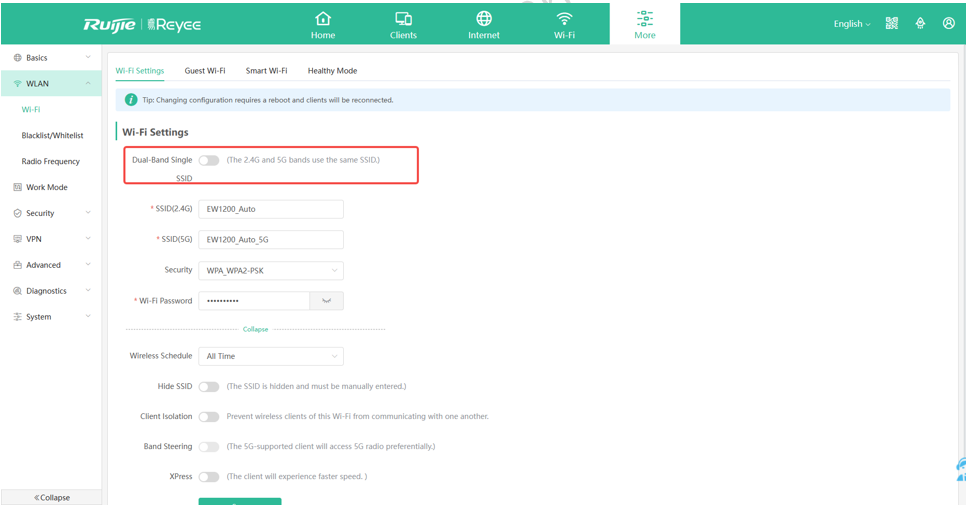
Access the router’s login page through your web browser. Use the IP address found in your router’s manual. Enter your username and password to log in. Navigate to the Wireless settings section. Locate the SSID broadcast option for the 2.4 GHz band. Disable this option to hide your SSID. Save your changes and restart the router if necessary.
Hiding Ssid On 5 Ghz Band
Log into your router’s settings using a web browser. Go to the Wireless settings area. Find the SSID broadcast settings for the 5 GHz band. Turn off the SSID broadcast feature. Save your settings. Reboot the router to apply the changes. Your 5 GHz SSID is now hidden.
Connecting Devices To Hidden Ssid
Connecting your devices to a hidden SSID on a dual band router can feel tricky at first. Since the network name doesn’t broadcast publicly, your device won’t find it automatically. But with the right steps, you can still enjoy a secure and stable connection without exposing your Wi-Fi to everyone nearby.
Manual Network Setup
To connect to a hidden SSID, you need to add the network manually on your device. Start by opening your device’s Wi-Fi settings and choosing the option to add a new network.
- Enter the exact SSID name:Make sure it matches the hidden network name on your router. Even one wrong letter or space will prevent connection.
- Select the correct security type:Most routers use WPA2 or WPA3. Check your router settings if unsure.
- Input the password carefully:Double-check for typos. Passwords are case-sensitive.
- Choose the right frequency band:Your dual band router may have 2.4 GHz and 5 GHz networks. Select the band matching your hidden SSID.
After entering all details, save the network and try connecting. Your device should now join the hidden SSID just like any visible network.
Troubleshooting Connection Issues
If your device struggles to connect, first verify the SSID and password are correct. Errors here are the most common cause of failed connections.
Next, check if your device supports the frequency band you selected. Some older devices work only on 2.4 GHz and won’t connect to 5 GHz hidden networks.
- Restart your device and router to clear temporary glitches.
- Make sure your device’s Wi-Fi adapter drivers are up to date.
- Try forgetting the network and adding it again manually.
- Disable MAC address filtering on your router temporarily to rule out access restrictions.
Have you ever spent more time fixing a connection than enjoying it? Hiding your SSID can boost security, but it also adds complexity. If you encounter repeated problems, consider whether the extra step is worth it for your setup.
Credit: community.ruijie.com
Security Tips Beyond Ssid Hiding
Hiding your SSID is a simple way to keep your network less visible. Yet, it does not stop all threats. Strengthening your router’s security needs more steps. These extra actions help protect your data and keep intruders away.
Using Strong Passwords
Passwords are your first defense line. Choose a password that is long and hard to guess. Use a mix of letters, numbers, and symbols. Avoid common words or simple sequences like “1234” or “password”. Change your password regularly to keep it fresh. Never share your password with strangers.
Enabling Wpa3 Encryption
Encryption keeps your data safe as it travels over Wi-Fi. WPA3 is the latest and safest encryption standard. It makes it tough for hackers to break into your network. Check your router’s settings and enable WPA3 if available. This step adds strong protection to your wireless connection.
Regular Firmware Updates
Firmware is the software inside your router. Updates fix security holes and improve performance. Check for firmware updates often. Most routers allow automatic updates—turn this on if possible. Keeping firmware updated reduces the risk of attacks and bugs.
Credit: greenbankobservatory.org
Frequently Asked Questions
How Do I Hide Ssid On A Dual Band Router?
To hide SSID, log into your router’s admin panel. Go to wireless settings, select each band, and disable SSID broadcast. Save changes to make your network invisible to casual scans.
Can Hiding Ssid Improve My Wi-fi Security?
Hiding SSID adds minor security by obscuring your network name. However, it’s not foolproof. Use strong encryption like WPA3 for better security alongside hiding SSID.
Will Hiding Ssid Affect My Wi-fi Performance?
Hiding SSID does not impact Wi-Fi speed or performance. It only prevents your network name from showing in device scans. Connections work normally if devices know the SSID.
How Can I Connect Devices To A Hidden Ssid?
Manually enter your network’s SSID and password on your device. Devices won’t detect the hidden network automatically, so manual setup is required for connection.
Conclusion
Hiding your SSID on a dual-band router helps keep your network private. It stops others from easily finding your Wi-Fi. This step adds a layer of security to your home or office. Remember to note your settings for future use.
Changing these settings is simple and takes only a few minutes. Stay safe by controlling who sees your network name. Small actions like this improve your online privacy and safety. Try it today for a safer Wi-Fi experience.