Are you tired of your tri-band router slowing down just when you need it most? Lag can turn your smooth streaming, gaming, or work sessions into frustrating experiences.
But don’t worry—fixing tri-band router lag is easier than you think. You’ll discover simple, effective steps to boost your router’s performance and keep your connection fast and stable. Ready to say goodbye to lag and enjoy seamless internet? Keep reading to find out how.
Causes Of Tri Band Router Lag
Tri band routers offer multiple frequency bands to handle many devices. Lag can happen even with this advanced setup. Understanding the causes helps fix slow speeds and dropped connections. Several common issues affect tri band router performance.
Interference Issues
Other wireless devices can disrupt your router’s signals. Microwaves, cordless phones, and baby monitors often use similar frequencies. Walls and metal objects block or weaken signals. This interference causes slow internet and frequent disconnections. Tri band routers use different bands, but interference still affects them.
Firmware Problems
Router firmware controls how the device works. Outdated or corrupted firmware causes bugs and slowdowns. Firmware updates fix security holes and improve performance. Without updates, routers may lag or freeze during heavy use. Checking and updating firmware keeps the router running smoothly.
Overloaded Network
Too many devices on the network strain the router’s capacity. Streaming, gaming, and downloads use large bandwidth. Even tri band routers have limits on traffic they can handle. When overloaded, the router slows down all connections. Managing device use and bandwidth helps reduce lag.
Placement And Range
Router location affects signal strength and coverage. Placing it in a corner or behind furniture weakens signals. Distance from devices also impacts speed and reliability. Tri band routers cover more area but need good placement. Central, elevated spots with fewer obstacles improve performance.
Quick Router Restart
A quick router restart is the fastest way to fix tri-band router lag. It helps clear temporary glitches and refreshes the connection. Restarting the router resets its internal memory, which often improves performance. This simple action can solve many lag problems instantly.
Most people overlook this easy fix. A restart is less technical and requires no special tools. It can restore smooth internet without waiting or calling support. Try restarting your router before diving into complex troubleshooting.
How To Perform A Quick Router Restart
- Locate the power button on your router.
- Press and hold the button for a few seconds to turn off the router.
- Wait at least 30 seconds to let the device fully power down.
- Press the power button again to turn the router back on.
- Wait a minute or two for the router to reconnect to the internet.
Why Restarting Helps Reduce Lag
- Clears memory leaks and temporary errors.
- Refreshes network connections with your internet provider.
- Stops background processes that slow down performance.
- Helps the router balance traffic across tri-band frequencies.
How Often Should You Restart Your Router?
- Restart at least once a week for best performance.
- Restart immediately if you notice sudden lag or disconnections.
- Frequent restarts may indicate a deeper issue requiring support.
Update Router Firmware
Updating your tri-band router’s firmware can solve lag issues effectively. Firmware controls how your router works and fixes bugs. Old firmware might slow down your internet or cause drops. Keeping it updated ensures smoother performance and better security.
Firmware updates add new features and improve compatibility. This helps your router handle more devices at once. It can also fix problems that cause lag on certain bands. Regular updates keep your network stable and fast.
Check Your Router Model And Current Firmware Version
Start by finding your router’s model number. Usually, it is on a label at the back or bottom. Next, log in to the router’s admin page using its IP address. Commonly, this is 192.168.1.1 or 192.168.0.1.
Look for the firmware version in the settings or status section. Write it down to compare with the latest version on the manufacturer’s website.
Download The Latest Firmware From The Manufacturer’s Website
Visit the official website of your router’s brand. Go to the support or downloads section. Enter your model number to find the correct firmware file.
Download the newest firmware version carefully. Make sure the file matches your router model exactly to avoid issues.
Install The Firmware Update Via Router Admin Panel
Return to the router’s admin page and find the firmware update option. This is often under system tools or maintenance. Click the update button and select the file you downloaded.
Start the update and wait patiently. Do not turn off the router during this process. The router will reboot automatically once the update finishes.
Verify The Firmware Update Was Successful
After the reboot, log in to the router admin panel again. Check the firmware version to confirm it matches the latest one.
Test your internet speed and connection stability. The lag should reduce or disappear with the update.
Optimize Router Placement
Optimizing your router placement can significantly reduce lag. A good location enhances signal strength and minimizes disruptions. Begin by selecting a central spot in your home. This allows the signal to reach every corner effectively. Avoid placing your router in secluded areas. Consider the following tips to improve your router’s performance.
Avoid Physical Obstructions
Walls and furniture can block Wi-Fi signals. Keep your router away from thick walls or large metal objects. Clear the path between your router and connected devices. This helps in maintaining a strong and stable connection. Ensure there’s open space around the router for better signal distribution.
Reduce Interference
Electronic devices can interfere with your Wi-Fi. Keep the router away from microwaves, cordless phones, and Bluetooth devices. These devices operate on similar frequencies. Their signals can overlap and cause disruptions. Place your router in a spot free from electronic clutter.
Elevate Your Router
Position your router on a higher surface. Elevation can help the signal travel further. A shelf or a high table works well. Avoid placing it on the floor. A higher position helps in avoiding obstacles and interference. This improves the overall signal coverage in your home.
Adjust Band Settings
Adjusting the band settings on your tri-band router can reduce lag and improve overall performance. Each band operates on different frequencies and speeds. Setting them correctly helps devices connect to the best band for their needs. This reduces traffic and prevents one band from getting overloaded.
Separate Ssids
Give each band a unique name or SSID. This lets you choose which band to connect to manually. For example:
- 2.4 GHz band: HomeNetwork_2.4G
- 5 GHz band 1: HomeNetwork_5G1
- 5 GHz band 2: HomeNetwork_5G2
Separate SSIDs help you control device connections better. Older devices that only work on 2.4 GHz will not slow down faster bands. You can also assign devices that need high speed to the faster 5 GHz bands.
Balance Device Connections
Keep device numbers balanced across all bands. Too many devices on one band cause congestion and lag. Spread devices by:
- Connecting high-usage devices to different 5 GHz bands
- Assigning low-bandwidth devices to the 2.4 GHz band
- Regularly checking connected devices in router settings
This balance reduces interference and allows smoother data flow. Your network will handle traffic better. Lag and slow speeds will decrease significantly.
Credit: helpdeskgeek.com
Limit Connected Devices
Limiting the number of devices connected to a tri band router helps reduce lag. Each device uses bandwidth and processing power. Too many devices slow down the entire network. Fewer devices mean faster speeds for important tasks like streaming and gaming.
Focus on disconnecting devices not in use. Prioritize devices that need a strong connection. This keeps your network running smoothly and cuts down delays.
Check Connected Devices On Your Router
Access the router’s admin page using its IP address. Find the list of connected devices. This shows all active connections at a glance.
Look for devices that you do not recognize or no longer need. These can be removed to free up bandwidth.
Remove Unnecessary Devices
Disconnect devices that are rarely used. This includes old phones, tablets, or smart gadgets. Turning off Wi-Fi on these devices helps reduce network load.
Ask family or coworkers to disconnect devices if not needed. This simple step improves overall network speed.
Set Device Limits In Router Settings
Many tri band routers let you limit how many devices can connect. Use this feature to prevent overload. Set a maximum number of devices per band or overall.
This stops too many devices from joining at once. It keeps your network stable and responsive.
Use Guest Network For Visitors
Create a separate guest network for visitors. This keeps your main network less crowded. Devices on the guest network have limited access and bandwidth.
It protects your main devices from slowing down due to extra connections.
Use Quality Of Service (qos)
Quality of Service (QoS) is a useful feature on tri band routers. It helps control and manage network traffic. QoS ensures important devices and apps get priority. This reduces lag and improves overall internet speed.
Prioritize Important Traffic
QoS lets you choose which traffic is most important. You can give priority to video calls, gaming, or work apps. This stops lag during critical tasks. Devices like laptops or smart TVs can be set as high priority. The router then handles their data first. This keeps your connection smooth and steady.
Manage Bandwidth Allocation
With QoS, you can divide bandwidth fairly among devices. This prevents one device from using all the internet. Set limits for less important devices like phones or tablets. Your router will share bandwidth smartly. This balance helps avoid slowdowns and lag spikes. It keeps all users happy and connected.
Change Wi-fi Channels
Changing the Wi-Fi channels on your tri-band router can reduce lag and improve connection quality. Interference from other devices often causes slow speeds and interruptions. Each Wi-Fi band has several channels. Some channels get crowded with many nearby networks. Switching to a less crowded channel helps your router communicate better with your devices.
Scan For Less Crowded Channels
Use a Wi-Fi scanner app or tool to find channel traffic near you. These tools show which channels have many networks and which are free. Choose the band you want to improve—2.4 GHz or 5 GHz. The 2.4 GHz band usually has fewer channels but more interference. The 5 GHz band offers more channels and less interference. Scan each band separately for the best results.
Select Optimal Channels
Pick channels with the least traffic and interference. For 2.4 GHz, channels 1, 6, and 11 are often best. They do not overlap with each other. For 5 GHz, select channels with low usage near you. Avoid channels with many networks or devices. After choosing channels, log in to your router’s settings. Find the wireless section and change the channels for each band. Save changes and restart your router to apply them.
Upgrade Hardware If Needed
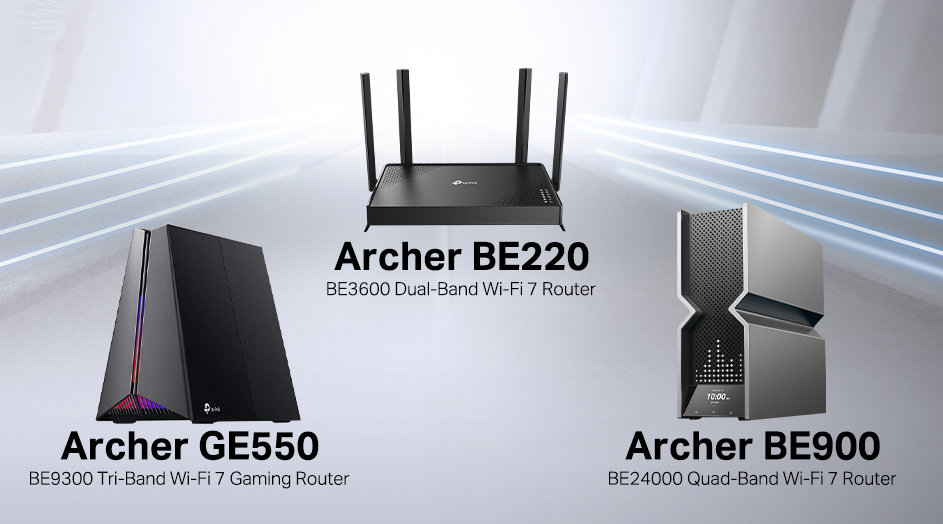
Upgrading your router’s hardware can improve performance and reduce lag. Older devices may struggle with newer internet speeds. Choosing a model with better specs helps maintain a smooth connection.
Upgrading your hardware can often resolve tri-band router lag. Older routers might not handle the demands of modern devices. Investing in newer hardware ensures faster connections and better performance. Let’s explore two key ways to upgrade effectively.Check Router Specifications
First, examine your router’s specifications. Does it support the latest Wi-Fi standards? Newer standards like Wi-Fi 6 offer faster speeds and improved connectivity. Also, check the router’s processing power and RAM. Routers with more processing power can handle multiple devices better. If your router lacks these features, it might be time for an upgrade.Consider Mesh Systems
Mesh systems provide excellent coverage in large homes. They use multiple nodes to deliver consistent signal strength. This reduces lag significantly. Unlike traditional routers, mesh systems cover dead zones effectively. They’re perfect for homes with thick walls or multi-level designs. If your current router struggles with coverage, a mesh system could be the answer.Credit: medium.com
Credit: www.tp-link.com
Frequently Asked Questions
What Causes Lag On A Tri Band Router?
Lag on tri band routers often results from signal interference, outdated firmware, or network congestion. Overloaded devices and improper placement also impact performance. Identifying these helps fix lag effectively.
How Can I Improve Tri Band Router Speed?
To improve speed, update your router’s firmware and place it centrally. Reduce connected devices and minimize interference from other electronics. Using Quality of Service (QoS) settings prioritizes bandwidth for important devices.
Is Restarting My Tri Band Router Helpful For Lag?
Yes, restarting your tri band router clears cache and refreshes connections. This simple step often resolves temporary lag issues and improves network stability quickly.
Should I Update Firmware To Fix Router Lag?
Absolutely. Firmware updates fix bugs and enhance performance. Regular updates keep your tri band router running smoothly and reduce lag significantly.
Conclusion
Fixing tri band router lag improves your internet experience. Check your device settings and update firmware regularly. Place your router in an open, central spot for better signal. Avoid too many devices on the same band at once. Restart your router often to clear temporary issues.
Use wired connections for devices needing stable internet. Small changes can make a big difference in speed and reliability. Keep your network clean and organized. Enjoy smoother streaming, gaming, and browsing without constant delays. Your router works best when you keep it simple and updated.