Are you tired of slow internet when you need it the most? You’re not alone.
If your dual band router isn’t managing your bandwidth well, your favorite shows can buffer, and your video calls can drop. But there’s a simple fix: enabling Quality of Service (QoS) on your router. By setting up QoS, you take control, making sure your important devices and apps get the speed they deserve.
Keep reading, and you’ll learn exactly how to enable QoS on your dual band router—step by step—so your internet works the way you want, every time.
What Is Qos
Quality of Service, or QoS, is a feature on your dual band router that helps manage internet traffic more efficiently. It ensures that important applications get the bandwidth they need, so your video calls don’t freeze and your games don’t lag. Think of it as a traffic controller for your home network, prioritizing what matters most to you.
What Does Qos Do?
QoS controls how your router allocates bandwidth to different devices and activities. Without it, all devices get equal access, which can slow down important tasks when many devices are online. With QoS enabled, your router can prioritize streaming, gaming, or work calls over less urgent traffic like downloads or background updates.
Why Should You Care About Qos?
Have you ever noticed your video freezing during a call or a game lagging when someone else starts streaming? That’s where QoS makes a difference. It lets you set priorities so your most important devices or apps get the smoothest experience, even if the internet connection isn’t perfect.
How Qos Works On A Dual Band Router
Dual band routers operate on two frequencies: 2.4 GHz and 5 GHz. QoS can manage traffic on both bands separately, offering more control. This means you can prioritize devices on the faster 5 GHz band for gaming while letting others use the 2.4 GHz band for less demanding tasks.
Common Terms You’ll Encounter With Qos
- Bandwidth:The maximum rate of data transfer your internet connection can handle.
- Latency:The delay before data starts moving—critical for real-time apps like gaming.
- Priority Levels:Categories like high, medium, and low to rank device or app importance.
Understanding these terms helps you set up QoS so it works exactly how you want. Have you checked your router’s QoS settings lately? You might find it’s the key to a smoother online experience.
Credit: www.xda-developers.com
Benefits Of Qos On Dual Band Routers
Quality of Service (QoS) on dual band routers helps manage your internet traffic. It prioritizes important tasks like video calls and gaming. This makes your connection smoother and more reliable. Using QoS means faster speeds for key activities. It also reduces lag and buffering.
QoS is useful in busy homes or offices with many devices. It ensures every device gets the needed bandwidth. This balance improves the overall internet experience for everyone.
Improved Streaming And Gaming Experience
QoS gives priority to streaming and gaming apps. It reduces interruptions and buffering. Games run smoothly without delays. Videos play without stopping or lowering quality. This makes online entertainment more enjoyable.
Better Video Call Quality
QoS helps keep video calls clear and steady. It reduces lag and dropped calls. Clearer voice and video make communication easier. It supports work meetings and family calls well.
Efficient Bandwidth Management
QoS divides bandwidth based on device needs. It stops one device from using all the internet. This keeps all devices connected and fast. The internet works better for everyone in the home.
Reduced Network Congestion
QoS controls heavy internet usage during busy times. It limits less important activities to avoid slowdowns. This keeps the network stable and responsive. Users get a consistent internet speed.
Optimized Use Of Dual Bands
QoS manages both 2.4 GHz and 5 GHz bands smartly. It sends high priority traffic to the faster band. Low priority tasks use the slower band. This smart use improves overall network speed and stability.
Check Router Compatibility
Before you dive into enabling QoS on your dual-band router, it’s crucial to confirm whether your router supports this feature. Not all routers come with built-in Quality of Service options, especially older models or basic budget devices. Checking compatibility first saves you time and frustration.
Some routers might list QoS under different names like “Traffic Control” or “Bandwidth Management.” It’s a good idea to consult your router’s manual or visit the manufacturer’s website to see if QoS is officially supported. Have you ever tried setting up QoS only to find the option missing? That’s a clear sign your router might not have this feature.
If you find your router supports QoS, verify if it works on both the 2.4 GHz and 5 GHz bands. Some routers only enable QoS on one band, which could limit your network performance improvements. Knowing this will help you decide if your current device meets your needs or if an upgrade is necessary.
Locate Your Router Model Number
Find the model number printed on a label at the back or bottom of your router. This number is essential for searching the official documentation or support pages. Without it, you might struggle to confirm your router’s capabilities.
Check The Router’s User Manual Or Online Support
Once you have the model number, search for the manual on the manufacturer’s website. Look specifically for sections mentioning QoS, Quality of Service, or traffic prioritization. Manuals often include screenshots or step-by-step instructions that clarify what your router can do.
Access Router Settings To Confirm Qos Availability
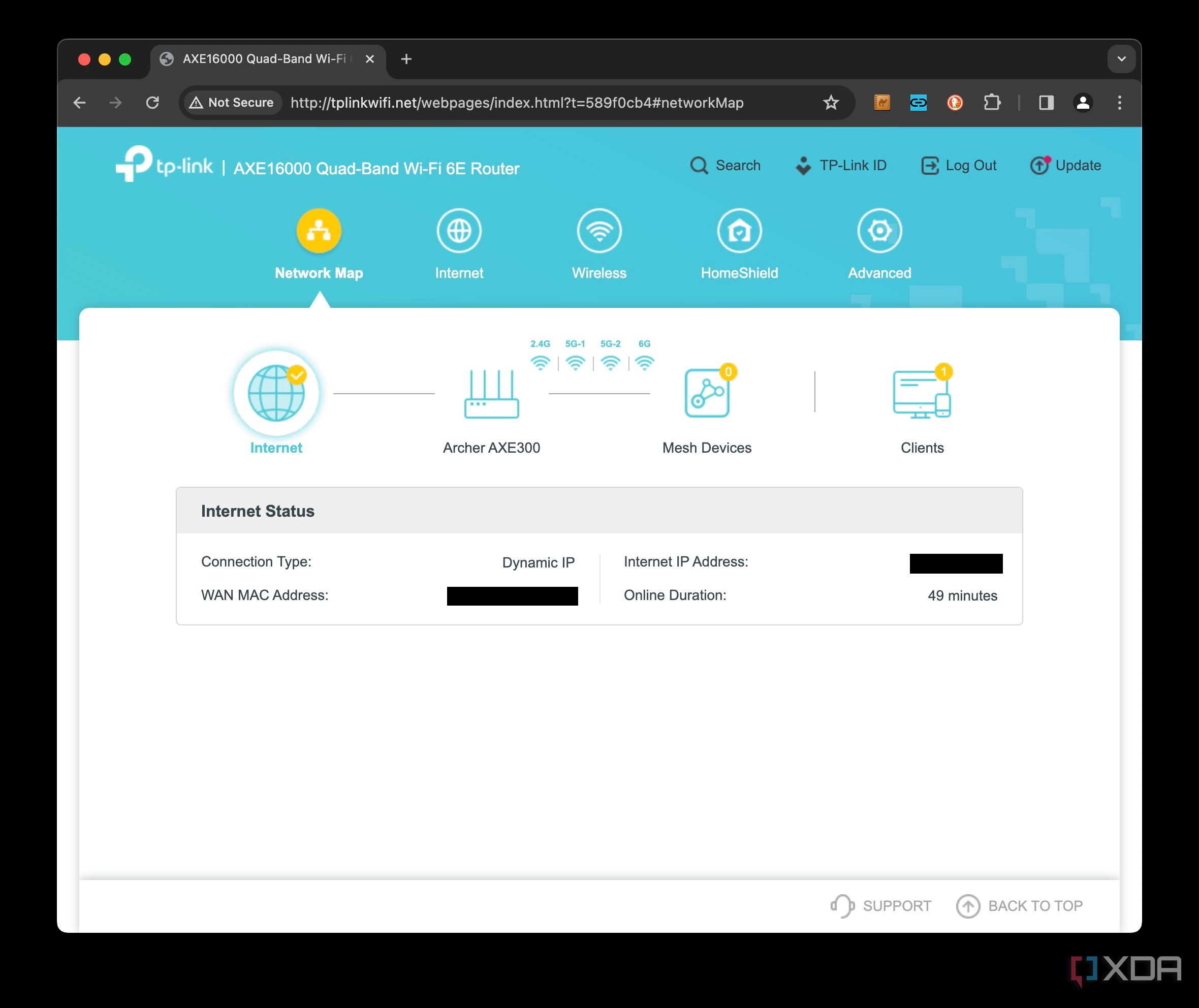
Log in to your router’s admin panel through your web browser using its IP address (usually 192.168.1.1 or 192.168.0.1). Browse through the settings menu for any QoS options. Sometimes, the feature is hidden under advanced or traffic settings, so take your time exploring.
Identify Firmware Requirements
Some routers require updated firmware to enable QoS. Check if your current firmware version supports QoS or if an update is available. Updating firmware can unlock new features and improve security, but remember to follow instructions carefully to avoid issues.
Consider Router Alternatives If Qos Is Unavailable
If your router lacks QoS support, think about upgrading to a model that includes this feature. Dual-band routers from popular brands often provide robust QoS settings. What’s more frustrating than slow internet when multiple devices compete for bandwidth? Investing in a compatible router can make a significant difference.
Credit: www.tp-link.com
Accessing Router Settings
Access the router’s web interface by typing its IP address into a browser. Log in using your username and password to reach the settings page. From there, find the QoS option to prioritize your internet traffic effectively.
Accessing the settings of your dual-band router is the first step towards enabling Quality of Service (QoS) to enhance your network’s performance. It’s like finding the control room of your internet connection, where you can tweak settings for optimized streaming, gaming, and more. But how do you get there? It’s easier than you might think, and this guide will walk you through it.Find Router Ip Address
To access your router settings, you need to know its IP address. Think of this as the unique home address for your router on your network. Most routers have a default IP address, like 192.168.1.1 or 192.168.0.1. You can find this information in your router’s manual or on a label on the router itself. If you can’t find it, you can also locate it through your computer. Open Command Prompt on Windows and type ipconfig. Look for the “Default Gateway” under your network connection, and you’ll see the IP address of your router.Login Credentials
Once you have the IP address, you’ll need to log in to your router’s admin interface. This is where many people get stuck, but don’t worry—there’s a simple way around it. Use a web browser to enter the IP address into the URL bar. This will bring up a login screen. Most routers have default login credentials like ‘admin’ for both username and password, but these can vary. If you’ve changed these details and can’t remember them, you might need to reset the router to factory settings. But be careful—this will erase all previous settings. Keep a record of your login credentials somewhere safe to avoid this hassle in the future. By accessing your router’s settings, you’re not just tweaking technical parameters; you’re taking control of your digital environment. What will you optimize next?Locating Qos Settings
Finding the QoS settings on your dual band router is the first step to managing your network traffic. These settings control how your router prioritizes devices and applications. Each router brand places QoS options in different menu areas. Knowing where to look saves time and simplifies setup.
Most routers use a web interface for configuration. Accessing this interface is essential to locate QoS settings. You need the router’s IP address, username, and password. This information is usually on the router label or in the manual.
Accessing The Router’s Web Interface
Open a web browser on a device connected to your router. Enter the router’s IP address in the address bar. Common IP addresses include 192.168.0.1 or 192.168.1.1. Press Enter to load the login page.
Input the username and password. Default credentials often are “admin” for both fields. Change these after your first login for security.
Exploring The Router Menu
Look for tabs or sections named “Advanced,” “Settings,” or “Network.” QoS options usually hide under one of these. Sometimes, the menu label is “Traffic Control” or “Bandwidth Control.”
Use the menu sidebar or top navigation bar to move through settings. Some routers have a search box to find “QoS” directly.
Checking The Qos Settings Location By Router Brand
| Router Brand | Common QoS Location |
|---|---|
| TP-Link | Advanced > QoS |
| Netgear | Advanced > Setup > QoS Setup |
| Asus | Adaptive QoS under Advanced Settings |
| Linksys | Applications & Gaming > QoS |
| D-Link | Advanced > Traffic Control |
Using The Router Manual Or Support Site
Check your router’s manual for exact QoS menu paths. Manuals often include screenshots and detailed steps. The manufacturer’s website provides online guides and FAQs. These resources help if you cannot find the QoS settings quickly.
Configuring Qos Rules
Configuring QoS rules helps manage your network traffic efficiently. It controls how your router handles different devices and applications. This ensures important tasks get enough bandwidth. Setting these rules improves overall internet performance and reduces delays.
Prioritize Devices
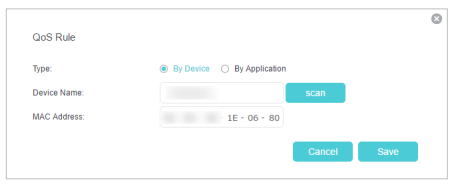
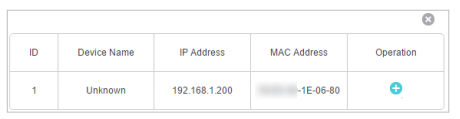
Choose which devices get priority on your network. Assign higher priority to work computers, gaming consoles, or smart TVs. This keeps their connection stable during heavy traffic. Use your router’s interface to add devices by their MAC or IP address. Set priority levels such as high, medium, or low for each device.
Prioritize Applications
Control bandwidth by prioritizing specific applications. Streaming, video calls, or online games often need more speed. Select these applications in the QoS settings and assign them higher priority. This reduces lag and buffering. Your router may list common apps or allow custom entries using ports or protocols.
Set Bandwidth Limits
Limit bandwidth for less important devices or applications. Prevent one user from using all your internet speed. Define maximum upload and download speeds for each device or app. This keeps the network fair and balanced. Use clear values in Mbps to avoid confusion. Bandwidth limits help maintain smooth performance for everyone.
Enabling Qos On Dual Bands
Enabling Quality of Service (QoS) on both the 2.4 GHz and 5 GHz bands of your dual-band router can significantly improve how your network handles different types of traffic. QoS prioritizes essential activities like video calls or gaming over less urgent tasks, ensuring smoother performance. Understanding how to configure these settings separately for each band helps you make the most out of your internet connection.
2.4 Ghz Band Settings
The 2.4 GHz band covers a wider area but usually offers slower speeds compared to 5 GHz. To set QoS here, start by logging into your router’s admin panel. Look for the QoS or Traffic Management section specifically labeled for the 2.4 GHz band.
- Enable QoS:Toggle the QoS option to on.
- Assign Priorities:You can prioritize devices or applications. For example, assign higher priority to your work laptop or streaming device.
- Set Bandwidth Limits:If you notice a device hogging bandwidth, set limits to prevent it from slowing down others.
Have you checked which devices mostly connect to your 2.4 GHz band? Prioritizing those devices ensures important tasks get enough bandwidth.
5 Ghz Band Settings
The 5 GHz band offers faster speeds but covers a smaller area, making it ideal for bandwidth-heavy tasks in close range. QoS configuration on this band follows a similar process but often supports more granular control.
- Access QoS Settings:Navigate to the 5 GHz QoS section in your router interface.
- Prioritize Applications:Streaming HD videos or online gaming can benefit from high priority here.
- Use Smart QoS Features:Some routers offer automatic traffic detection to prioritize gaming or video calls without manual setup.
Do you notice a difference in performance between your 2.4 GHz and 5 GHz bands? Adjusting QoS settings here can help balance speed and reliability, especially in busy households.
Testing Qos Performance
Testing QoS performance on your dual-band router is essential to see if your settings actually improve your network experience. It lets you confirm that important tasks like video calls or gaming get priority without slowing down other activities. Monitoring how your network behaves after enabling QoS helps you fine-tune settings for the best balance between speed and stability.
Speed Tests
Running speed tests before and after enabling QoS gives you clear insight into how bandwidth is being managed. Use tools like Ookla’s Speedtest or Fast.com to measure your download and upload speeds on both the 2.4 GHz and 5 GHz bands. Notice if the speeds remain stable for priority devices while other devices slow down; this indicates QoS is working as intended.
Try testing at different times of day to see how QoS handles network congestion. If you find speeds dropping too much on non-priority devices, consider adjusting the bandwidth allocation in your QoS settings. Have you ever noticed your video call freezing despite having a fast internet plan? Speed tests can reveal whether QoS is the missing piece to smooth out your connection.
Latency Checks
Latency or ping measures how quickly data travels between your device and the internet. Low latency is crucial for activities like online gaming and video conferencing. Use ping test websites or command prompt tools to check latency before and after enabling QoS.
Look for reduced ping times on your priority devices, which shows that the router is effectively prioritizing their traffic. Consistent latency without spikes means QoS is preventing network lag. If you still experience delays, try tweaking your QoS rules to give even higher priority to time-sensitive applications.
Have you tested latency during heavy network use? This test reveals if your QoS setup truly protects your most important tasks when everyone in your home is online. Monitoring latency regularly ensures your network stays responsive no matter the load.
Troubleshooting Common Issues
Enabling QoS on a dual-band router improves internet speed for important devices. Access the router settings, find the QoS section, and activate it. Adjust priorities to ensure smooth streaming and gaming.
Enabling QoS on a dual-band router can optimize your network. But sometimes, users face issues. These problems can hinder network performance. Let’s explore common problems and their solutions.No Improvement In Speed
After enabling QoS, speed might not improve. This can be due to incorrect configurations. Ensure QoS rules are set properly. Prioritize devices that need more bandwidth. Check if your router supports the latest firmware. Outdated firmware can affect performance. Reset your router to refresh settings. This can resolve speed issues.Conflicts With Other Settings
QoS might conflict with existing settings. Check if other features are interfering. Features like parental controls or firewall rules. Disable them temporarily. Observe if performance improves. Review your router’s manual. Ensure compatibility between settings. Adjust settings one at a time. This helps identify the conflicting feature. Always save changes after adjustments.Tips For Optimal Qos Use
Getting the most out of QoS on your dual band router takes more than just turning it on. You need to keep your setup current and watch how your network behaves to maintain smooth performance. These tips help you stay ahead of potential issues and make sure your important devices and apps always get the bandwidth they need.
Regular Firmware Updates
Router manufacturers frequently release firmware updates that improve QoS features and fix bugs. Ignoring these updates can leave your QoS settings less effective or even broken. Make it a habit to check your router’s admin panel for firmware updates at least once a month.
Updating firmware isn’t just about new features—it often enhances security and stability too. I once skipped an update for weeks, only to find my QoS rules weren’t working properly, causing my video calls to lag. After updating, everything ran smoothly again.
Monitor Network Traffic
QoS settings work best when you understand how your network is used. Use your router’s traffic monitoring tools or third-party apps to see which devices and apps consume the most bandwidth. This insight helps you adjust priority rules to match your current needs.
Ask yourself: Are your kids streaming games while you work from home? Is one device hogging the bandwidth? Regularly reviewing traffic patterns lets you tweak QoS to avoid slowdowns and keep critical tasks fast.
- Check traffic during peak hours to catch real usage patterns.
- Identify devices that unexpectedly use a lot of data.
- Adjust priorities based on changing household activities.
Credit: www.tp-link.com
Frequently Asked Questions
What Is Qos On A Dual Band Router?
QoS (Quality of Service) manages bandwidth prioritization on dual band routers. It ensures important apps get faster speeds, reducing lag and buffering.
How Do I Enable Qos On My Dual Band Router?
Access your router’s admin panel via browser. Find the QoS settings under Advanced or Traffic Management. Enable QoS and set device or app priorities.
Can Qos Improve Gaming On Dual Band Routers?
Yes, QoS prioritizes gaming traffic to reduce lag and latency. This improves your gaming experience by stabilizing connection speed and responsiveness.
Does Qos Affect Both 2.4 Ghz And 5 Ghz Bands?
QoS works on both bands by managing bandwidth across devices. It optimizes performance depending on which band your device is connected to.
Conclusion
Enabling QoS on your dual band router helps improve internet speed. It lets you prioritize important devices and apps easily. This reduces lag and keeps your connection steady. You gain better control over your network traffic. Following simple steps makes the process smooth.
Enjoy smoother video calls, streaming, and gaming at home. A stable connection makes work and fun more enjoyable. Try setting up QoS today for a better Wi-Fi experience.